Questions
How to use a Logitech G29 on a Mac
Yes. Set the small switch on the wheel to PS3, plug in the power supply and the USB cable, and the Mac reads a Logitech G29 with no driver, on Apple silicon and Intel. Whether a game uses it is a separate question: Apple named the G29 when it added racing wheel support in macOS 13, so a Mac game written for that support can drive with it.
Many games are not written that way, and for those InputConfig, the free app I make, reads the wheel, pedals and shifter itself and turns them into the keys and mouse movement a keyboard racer expects. Version 1.6 reads the G29 in full.
On this page: 11 sections
Steps
- Plug the pedals and shifter into the wheel base.
- Set the switch on the wheel to PS3.
- Connect the power supply, then the USB cable.
- Check the wheel in the Live Visualizer.
- Turn on One-Stick Driving with Steer axis 0 and Throttle axis 5.
Connect the wheel
Order matters a little here, so go in this sequence:
- Pedals and shifter first. The pedal unit and the optional Driving Force Shifter plug into the back of the wheel base, not into the Mac. Connect them before you power the wheel.
- The switch on PS3. The G29 has a PS3 and PS4 switch on the wheel. On a Mac, PS3 is the position InputConfig reads. In the PS4 position the wheel reports itself differently and InputConfig does not read it.
- Power, then USB. Plug in the power supply, then the USB cable. On a MacBook with only USB-C ports, a plain USB-C to USB-A adapter works; plug straight into it rather than through a hub. The wheel turns lock to lock once when it powers up. That is the wheel finding its center, not the Mac doing anything.
Check that the Mac sees it
- You: Hold Option, open the Apple menu, choose System Information, and look under USB.
- macOS: Lists the wheel if the cable and the wheel are fine.
- Check: The G29 is listed. It will not appear under Game Controllers in System Settings, and that is normal: that list is for gamepads.
PS3 on the switch, power before USB, no hub: that is the whole setup.
Try the game's own wheel support first
A Mac game written for Apple's racing wheel support can use the G29's wheel, pedals and shifter, because Apple named the G29 when it added that support. Apple's developer documentation says only one app receives a wheel's input at a time.
Games that read wheels the older, direct way are hit and miss on current macOS. The racing wheel page has the report of a G29 that showed up in Euro Truck Simulator 2 and did not turn. Start in the game's own controls screen: if it lists the wheel and the car steers, you are done and need nothing from me.
Logitech's settings app, G HUB, has a Mac version, and searches for G HUB not finding a G29 on a Mac are common. Nothing on this page needs G HUB.
 InputConfig is free on the Mac App Store. macOS 14 or later, no account, no tracking, open source.
Know what InputConfig 1.6 reads
Out of the box, a G29 on the PS3 switch position starts in a compatibility mode that copies Logitech's old Driving Force EX, with fewer buttons and a coarser steering axis, until Logitech's software tells it to switch. When the wheel connects, InputConfig 1.6 sends it the same short command that Linux and SDL send, and the wheel reconnects a moment later as a G29. From then on it reads:
- Steering. At the wheel's full 16-bit resolution, 900 degrees lock to lock.
- Gas, brake and clutch. On separate axes, each reading 0 with your foot off and 1 with the pedal on the floor, the way a trigger does.
- Every button. Named the way the wheel prints them: Cross, Square, Circle, Triangle, L2, R2, L3, R3, Share, Options, PS, Plus, Minus, Enter, the left and right paddles, and the red dial, which sends one short press per click, Dial clockwise or Dial counterclockwise.
- The Driving Force Shifter. When it is plugged into the wheel base: Gear 1 to Gear 6 and Reverse, which you get by pushing the lever down and selecting sixth.
You do not need Logitech's software for the switch out of compatibility mode; InputConfig sends it.
Check it in the Live Visualizer
Open any preset and the Live Visualizer draws the G29 as a kit: the wheel, the pedals below it and the shifter beside them.
- You: Turn the wheel to each lock, press each pedal to the floor, and run through the gears.
- InputConfig: Turns a mark on the rim with the wheel and says how far, in degrees, such as 135° right. Each pedal fills as you press it, and each button lights.
- Check: Every control moves on the drawing. Click any control to see what it does and jump to its row.
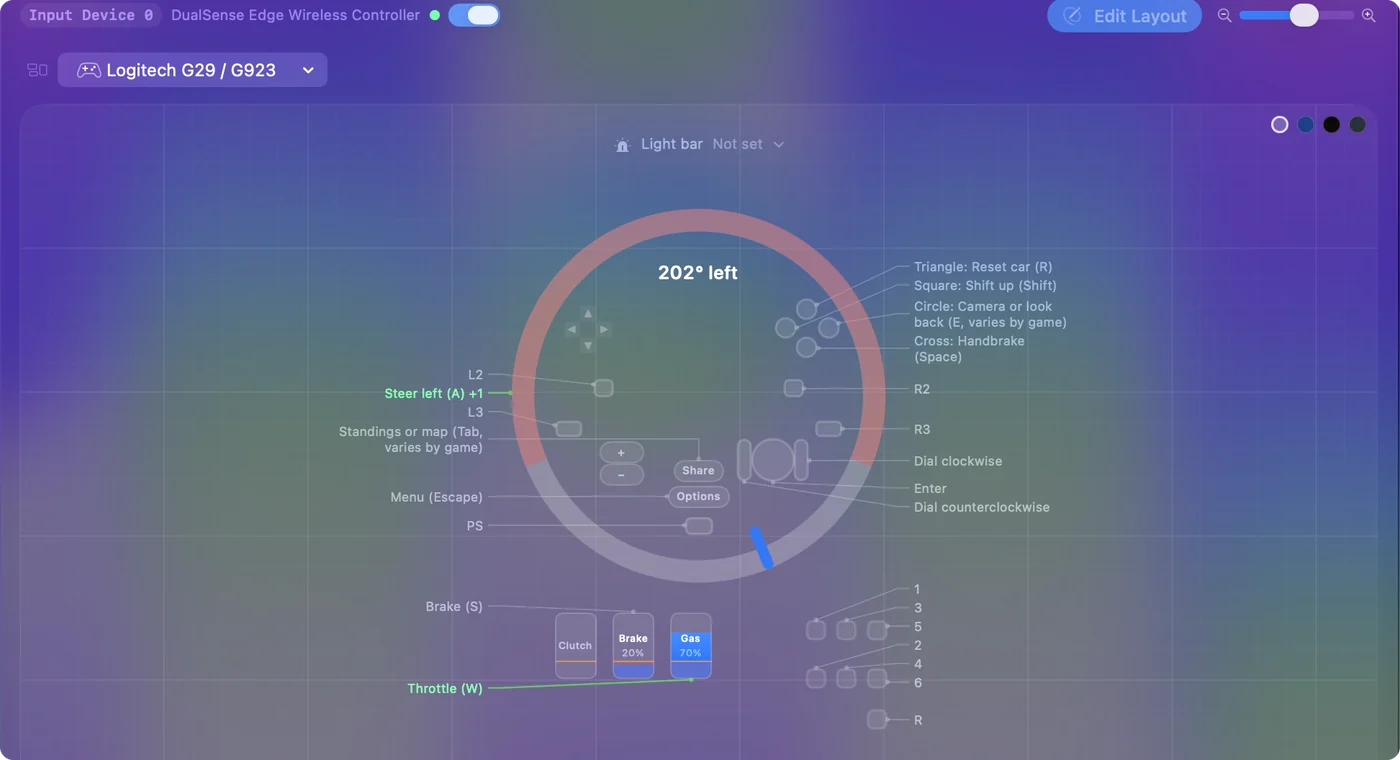
This is the quickest check that everything works before you build anything.
Drive a keyboard game with it
For a game that steers from the keyboard or the mouse, One-Stick Driving gives you a real throttle from the gas pedal: it pulses the accelerate key, holding it longer in each pulse the further you press, which most games read as speed.
Step 1: Point One-Stick Driving at the wheel
- You: Open a preset and, under Accessibility Tools Suite, switch on One-Stick Driving. Set Which stick drives to Custom and the controller slot to the wheel's. Set Steer axis to 0 and Throttle axis to 5, and turn on Throttle axis is a trigger (rests at one end).
- InputConfig: Shows a live bar for steering and one for throttle.
- Check: Turn the wheel and press the gas pedal, and both bars follow.
Step 2: Lower the deadzone and pick the steering output
- You: Bring the Deadzone down to a few percent. Then choose the Steering output: Mouse (analog) for games that steer from the mouse, which is the smoother of the two, or Keys (A / D).
- InputConfig: Pulses A and D so a small turn gives a gentle steer, or moves the mouse in proportion.
- Check: The car steers within the first few degrees. The deadzone is 12 percent by default and is measured on the whole half turn, so on a 900 degree wheel that is about 54 degrees each way before the car steers.
Step 3: Add the brake and the buttons
- You: Press Scan, push the brake pedal, and send the game's brake key, usually S. Do the same for the paddles, the shifter gears and any button you want.
- InputConfig: Fills each row from the control you pressed.
- Check: Each pedal and button sends its key in a text field before you open the game.
The built-in Racing Game preset is a quicker start if you prefer plain rows. In 1.6 every Logitech wheel puts its steering on the axis that preset steers from, and its gas and brake where the preset expects the right and left triggers. Two changes make it fit: lower the deadzone on the two steering rows with Adjust live, for the same 900 degree reason, and Scan the wheel's buttons onto the rows you want, since a wheel numbers its buttons differently from a gamepad. Rows on plain keys are on or off, so the gas pedal there is all or nothing past its deadzone.
To have the layout start by itself, add the game to the preset's apps under Automation & Gaming Utilities and turn on automatic switching in Settings, Advanced. See Auto-Switch. One-Stick Driving is the way to a gradual throttle; plain rows give you on or off.
Rescan rows from presets made in 1.5
Version 1.5 read the G29 in its compatibility mode, so rows recorded on it then point at the old button numbers and a shared pedal axis.
- You: Connect the wheel for the first time in 1.6.
- InputConfig: Shows a message, Rescan wheel rows in older presets, that names each preset with rows on the wheel.
- Check: Open each named preset and Scan those rows again.
If you dismissed the message, Check Older Presets Again in Settings brings it back.
If the wheel does not respond
Climb this ladder, smallest step first:
- Check the switch. PS3, not PS4. Change it with the wheel unplugged.
- Check the order and the port. Power first, then USB, straight into the Mac or a plain adapter, not a hub.
- Check System Information. If the wheel is not under USB, the cable or the power is the problem, not the app.
- Lower the deadzone. If it responds but steers late, the default deadzone is about 54 degrees each way on this wheel.
- Follow the full checklist. Racing wheel not working on a Mac goes through every remaining cause.
A wheel listed in System Information is a wheel the Mac can read.
What it cannot do
- Force feedback. InputConfig does not drive it. With the wheel mapped to keys, the motor stays quiet and the rim turns freely apart from its own spring.
- Shift lights. Not used.
- The PS4 switch position. InputConfig does not read the wheel in it.
If you want force feedback, it has to come from a game that drives the wheel itself.
The short version
- Connect. Pedals into the base, switch on PS3, power, then USB.
- Check. Turn and press everything in the Live Visualizer.
- Drive. One-Stick Driving with Steer axis 0, Throttle axis 5, the trigger option on and a low deadzone.
Lower that deadzone first; on a 900 degree wheel it is the one setting everyone trips on.
Questions
Does the Logitech G29 work on a Mac?
Yes. The Mac reads it over USB with no driver. Mac games written for Apple's racing wheel support can use it, and for games that ignore it, InputConfig reads the wheel, pedals and shifter and sends keys or mouse movement.
Should the G29 switch be on PS3 or PS4 for a Mac?
PS3. InputConfig reads the G29 in the PS3 position and switches it out of compatibility mode when it connects. In the PS4 position InputConfig does not read it.
Does the G29's force feedback work on a Mac?
Only in a game that drives the wheel itself. InputConfig sends keys and mouse movement and does not drive force feedback or the shift lights.
Do I need Logitech G HUB for a G29 on a Mac?
Not for the Mac to see the wheel, and not for InputConfig, which switches the wheel to its own mode by itself. G HUB is for Logitech's own settings.
Does the Driving Force Shifter work on a Mac?
It plugs into the wheel base, so it reaches the Mac through the wheel. InputConfig reads gears 1 to 6 and Reverse as buttons, which can each send a key.
Why does my G29 steer so late in InputConfig?
The deadzone is measured on the whole half turn, and a G29 turns 900 degrees. Lower it to a few percent in One-Stick Driving, or on each steering row with Adjust live.
Related
Free. macOS 14 or later. No account, nothing leaves your Mac. Open source on GitHub.