How do I use a Corsair Dark Core or M75 on a Mac?
 InputConfig is completely free on the Mac App Store. You don't have to make an account, there are no subscriptions, and nothing is locked. Optimized for Apple silicon.
Yes, they work as mice on a Mac, and Corsair makes iCUE for macOS, a free download, to program the buttons. Corsair's announcement says iCUE on Mac can remap keys and mouse buttons, record macros, adjust DPI and save profiles. If you want each button to do a Mac job like Mission Control or Start Dictation, InputConfig is the free Mac app I make, and it works with any button the Mac can see.
I read Corsair's iCUE for macOS announcement, the M75 Wireless product page and reviews of the Dark Core on October 21, 2026. The announcement is from 2019 and lists the launch devices, so it does not tell me whether your exact mouse is supported today. The M75 page lists macOS 10.15 or later, but its driver download listed Windows only when I read it, so check which iCUE your mouse needs. For the wider Corsair picture, see Corsair mice on a Mac.
On this page: 12 sections
Steps
- Connect the mouse by cable, the Slipstream receiver or Bluetooth, and check the pointer works.
- Install iCUE for macOS from Corsair and let it see the mouse, allowing the permissions it asks for.
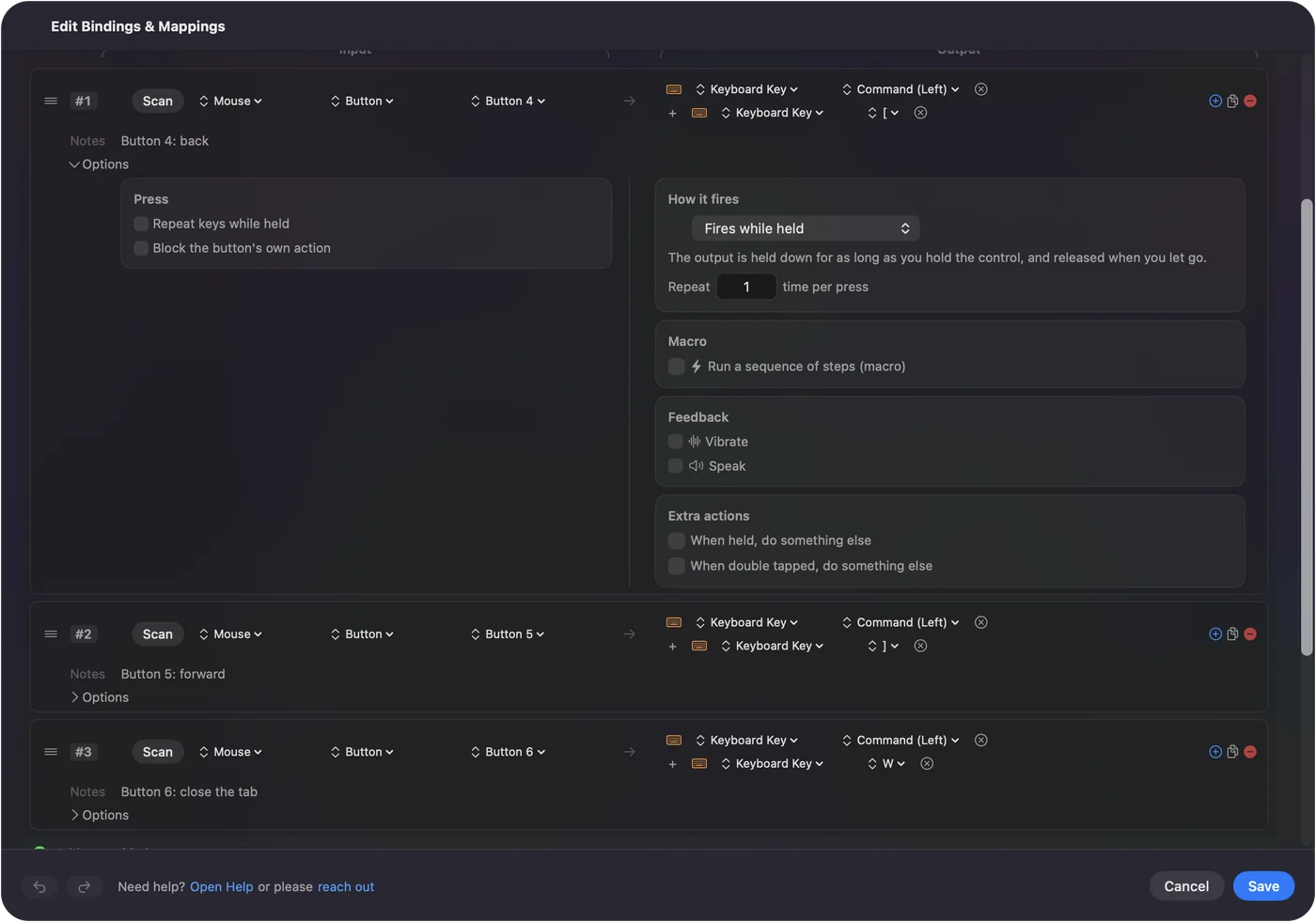
- Open InputConfig, add a row, press Scan and press a side button.
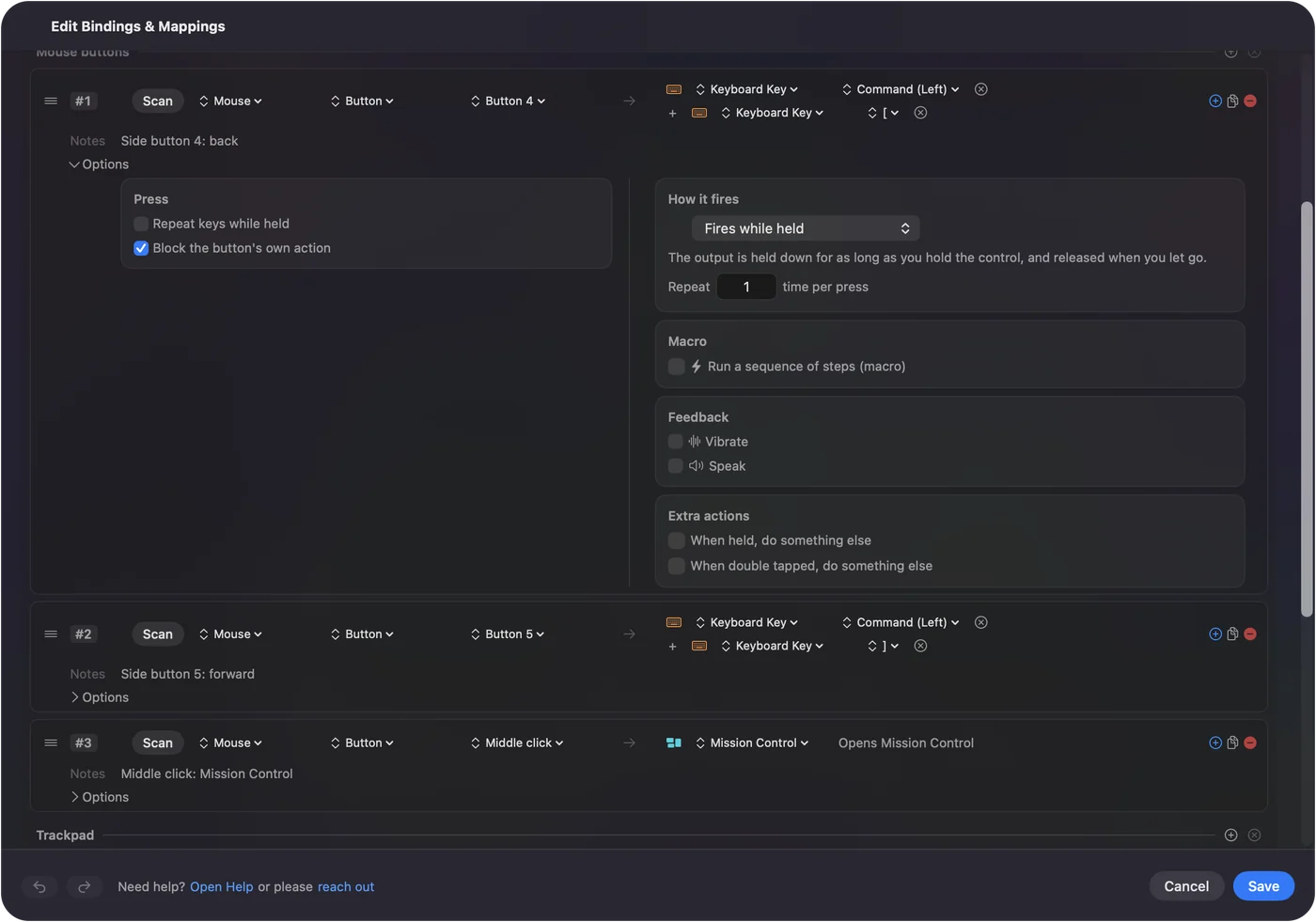
- Pick an output, then use Block the button's own action if the button also goes back.
- Save and Activate, then add per-app presets if you want.
Know what each Corsair mouse has
- Dark Core RGB Pro and Pro SE. Reviews agree on eight programmable buttons. Corsair's iCUE lets any of them run macros, launch apps, type a text string or start a timer. One review says the mouse stores three profiles onboard, with a profile button near the wheel and a three-step indicator light.
- M75 Wireless. Corsair's page lists a DPI button, a power and connectivity button, and magnetic side buttons you can swap for smooth, non-clickable ones. It connects over Slipstream 2.4 GHz or Bluetooth and holds one onboard profile. Corsair also released Mac colorways of the M75 in November 2024.
- Harpoon RGB Wireless. A 2019 Corsair forum post I read lists it among devices that work with iCUE on macOS without a firmware update. I found no button count, so Scan.
With nothing installed a Mac shows the pointer, both clicks, the wheel and whatever the mouse reports as back and forward. The Dark Core's two side buttons and the M75's swappable pair are the ones most Mac users want. If your mouse looks different from the list, trust Scan over any page, mine included.
What iCUE does on a Mac
Corsair's announcement says iCUE for macOS handles key and button remapping, macros, DPI steps, profiles that switch with the program in front, and lighting. A 2019 forum post I read said Bluetooth was available on Mac in addition to wired mode, and a 2020 article called Slipstream wireless beta on macOS. Both are old, so look at what iCUE shows for your mouse today.
iCUE is where you keep hardware settings: lighting, DPI and what is saved to the mouse. A button iCUE keeps for itself, such as a DPI button, will never reach a Mac app. Buttons it leaves as ordinary mouse buttons are the ones to bind in InputConfig.
Find out what each button sends
Press Scan in InputConfig and press each button, with iCUE quit if you can, because it may hold a button.
| Button | How it reports | What to do |
|---|---|---|
| Left, right and wheel click | Standard clicks | Leave left and right alone |
| Side buttons | Most likely Button 4 and Button 5 | Bind them |
| Dark Core extra buttons | Probably mouse buttons unless iCUE has set them to keys | Scan each |
| DPI and profile buttons | Handled inside the mouse | Nothing scans, so only iCUE changes them |
| M75 power and connection button | Handled inside the mouse | Not an input for Mac apps |
I have not tested a Corsair mouse myself. The table is my expectation, and Scan is what tells you the truth for your model.
Bind the buttons
- You: Add a row, set the device to This Mac's mouse or trackpad, press Scan and press the lower side button.
- InputConfig: Names it, probably Button 4, and lets you pick an output.
- Check: Choose Mission Control, Save, Activate and press the button. Mission Control opens.
For a mouse with eight buttons, I would use two for back and forward, one for Mission Control, one for Start Dictation and keep the rest for a macro or an app launcher. Mouse side buttons on a Mac has the full steps.
Macros and multi-step jobs
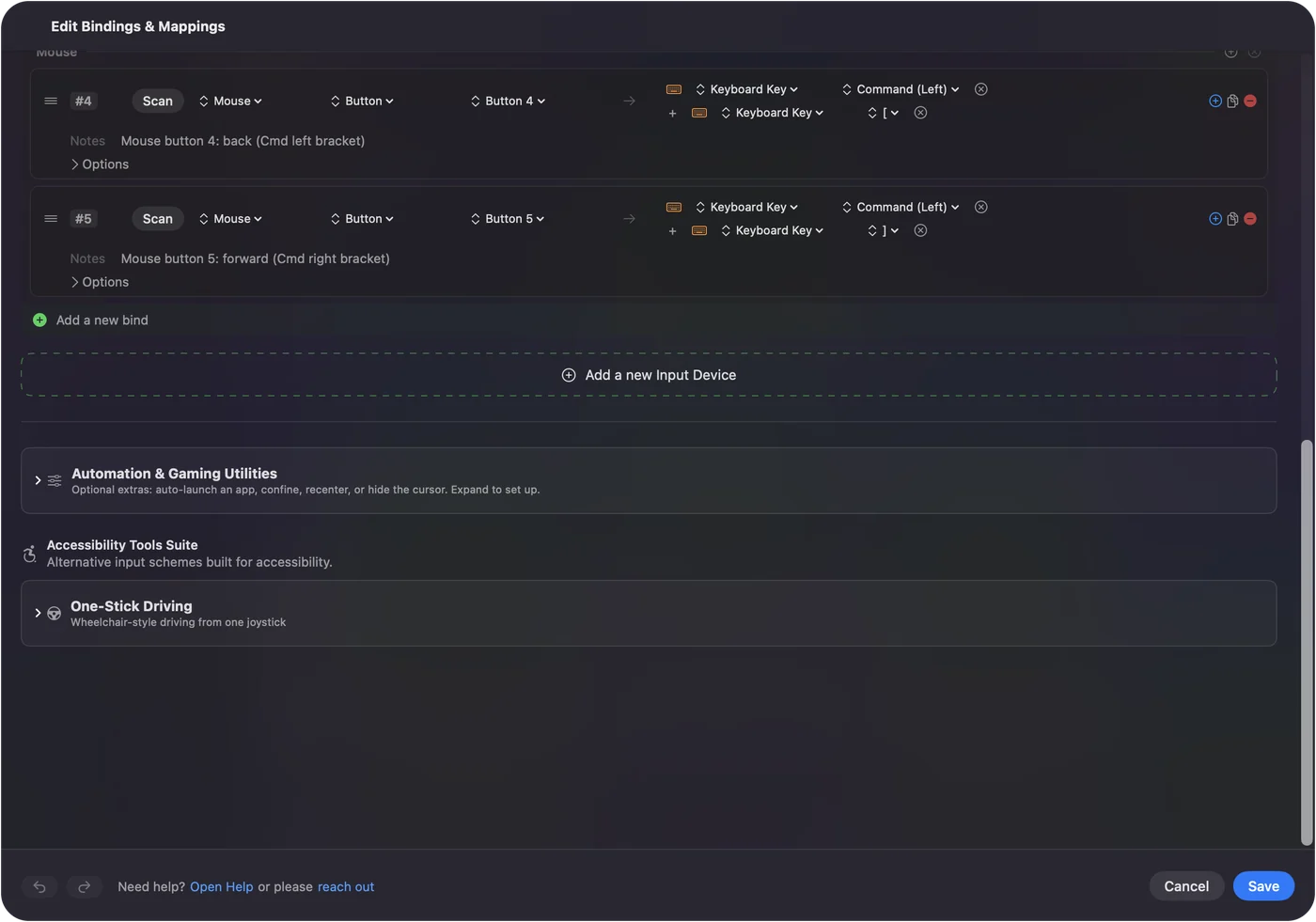
iCUE has its own macros, which are stored in the mouse or in iCUE. InputConfig macros run on the Mac, and they can use Mac-only outputs. In the row's Options, tick Run a sequence of steps (macro) and add key, shortcut and click steps, each with a wait and a hold time. Copy, wait, open a note app and paste is a good start. A row can also run a Siri Shortcut. How to make a macro on a Mac shows the steps.
If you want a macro that lives in the mouse and works when the Mac app is closed, that is iCUE's job. If you want it to work only on your Mac and use Mac functions, that is InputConfig's.
Make the buttons do more
Each row can have a hold action and a double tap action. A swappable M75 side button can go back on a tap, close the tab on a double tap and show Mission Control on a hold. Block the button's own action stops apps seeing the original press. Per-app layouts work through Automation & Gaming Utilities and the Switch presets when the front app changes setting in Settings, Advanced. Only one preset runs at a time, and Control Option Command period is the emergency stop.
If you set a button to send a key in iCUE and want it to do something else on the Mac, use F13 to F20. F21 to F24 are not passed to apps by macOS. InputConfig listens to the keyboard and does not block the original key. F13 to F19 on a Mac explains.
Ideas for Corsair users
- Dark Core on a desk. Eight buttons is enough for a small editing layout: undo, redo, zoom and two app jumps.
- M75 for travel. The Mac colorways and Bluetooth fit a laptop bag. Keep the bindings light, three or four buttons.
- Games. Bind to the keys a game lists, and test in the game because a running preset can double a press.
If something is off
Climb this ladder, smallest step first:
- Check the connection. Switch the M75 to Bluetooth or the receiver with its connection button, and try a direct USB port.
- Let iCUE see the mouse. On first start, iCUE may ask for permission to detect devices again, per Corsair's install guide.
- Quit iCUE and scan again. It may hold a button.
- Check the iCUE version. The drivers list for the M75 showed Windows only, so make sure you downloaded the Mac build.
- Activate the preset. Rows only fire while it runs.
- Check Accessibility. InputConfig needs it.
What it cannot do
- Change DPI, lighting or polling. iCUE does that.
- Read buttons that stay in the mouse. DPI and profile buttons send nothing to macOS.
- Tell two mice apart. Every mouse counts as one.
- Promise iCUE support for every Corsair mouse. I could not confirm your exact model, so check Corsair.
The short version
- Basics. Cable, receiver or Bluetooth, no software.
- iCUE. For lighting, DPI and what is saved to the mouse.
- Buttons. Scan, bind what the Mac sees, and use F13 to F20 for key-sending buttons.
Check which iCUE your exact mouse needs before you buy for a Mac.
Questions
Does the Corsair Dark Core work on a Mac?
Yes, as a mouse. Corsair makes iCUE for macOS, and a 2019 forum post listed the Dark Core RGB among early supported devices.
Does the Corsair M75 Wireless work on Mac?
Yes. Corsair's page lists macOS 10.15 or later and Bluetooth or Slipstream wireless.
Does iCUE work on a Mac?
Yes. Corsair announced iCUE for macOS as a free download that handles remapping, macros, DPI and lighting.
Does the Corsair Harpoon RGB Wireless work on Mac?
A 2019 forum post lists it as working with iCUE on macOS. Press Scan to check your buttons.
How many buttons does the Dark Core RGB Pro have?
Reviews say eight programmable buttons.
Related
This page in other languages: العربية, Čeština, Dansk, Deutsch, Español, Suomi, Français, עברית, Magyar, Bahasa Indonesia, Italiano, 日本語, 한국어, Norsk, Nederlands, Polski, Português, ไทย, 繁體中文, 简体中文
Completely free. You don't have to make an account, there are no subscriptions, and nothing is locked. Optimized for Apple silicon. Open source on GitHub.
Updated