Does the Razer Pro Click work on a Mac?
 InputConfig is completely free on the Mac App Store. You don't have to make an account, there are no subscriptions, and nothing is locked. Optimized for Apple silicon.
Yes, as a mouse: the Pro Click pairs with a Mac and the pointer, clicks and wheel work with nothing installed, and Razer says on its Pro Click V2 page that you do not need Synapse to use it. The extra buttons are where it needs a plan, because the productivity shortcuts Razer sets up in Synapse are built around Microsoft and Adobe apps, not the Mac.
I make InputConfig, a free Mac app that gives any mouse button a job in every Mac app, and I have checked it with a Razer mouse. The Pro Click V2 and the Vertical Edition are on the Razer Synapse for Mac list quoted on Razer mouse on a Mac, and this page is about using the buttons the way a Mac user would.
On this page: 11 sections
Steps
- Pair the Pro Click over Bluetooth in System Settings, Bluetooth, or plug in its dongle, and check the pointer works.
- Open InputConfig, add a Mouse row, press Scan and press each side button and the thumb button.
- Give each button that scans a Mac job, such as back, forward, Mission Control or Start Dictation.
- Save and Activate the preset, then try each button in the app you use most.
- Use the multi-device button on the mouse to switch between the Mac and another computer.
What the Pro Click does on a Mac
The Pro Click is a comfort mouse for office work, and Razer's Pro Click V2 and V2 Vertical Edition pages, which I read on October 21, 2026, give most of what follows.
| Model | Programmable controls | Shape | Synapse for Mac list I read |
|---|---|---|---|
| Pro Click V2 | Up to nine | Ergonomic, tactile or free-spin wheel | Yes |
| Pro Click V2 Vertical Edition | Up to eight, Razer's FAQ says | A vertical grip, 71.7 degrees on Razer's page | Yes |
| Pro Click Mini | I could not confirm it | Smaller, I could not read a Razer page | No |
Razer describes five-way multi-device connectivity and a button that switches between devices, and I did not find the page naming the connection methods, so I would check the box for Bluetooth and the dongle. The last column is the Synapse for Mac list quoted on the Razer mouse page linked above. Razer's Pro Click V2 page shows app profiles for Microsoft and Adobe apps only and does not mention the Mac. On a Mac the Pro Click works fine as a mouse, and the shortcuts are something you build.
Pair it over Bluetooth or the dongle
- You: For Bluetooth, put the mouse in pairing mode and choose it in System Settings, Bluetooth. For the dongle, plug it in and choose that connection on the mouse.
- InputConfig: Nothing yet. InputConfig reads the mouse once the Mac has it.
- Check: The pointer moves and the buttons click.
The multi-device button on the mouse switches which computer it talks to. When it points at another computer, the Mac receives nothing, so a button that seems dead may just be talking to the wrong device. The mouse tester in your browser shows whether anything arrives.
The Macworld review of the Pro Click V2 says it pairs with up to three devices over Bluetooth, adds a button on the base to switch between them, includes a wireless adapter, and has a Scroll Mode button and two thumb buttons on the left. It also found the Mac Synapse app not the most intuitive, and setting back and forward in Safari took a while, which is the job a free row does quickly. If Bluetooth refuses to pair, remove the mouse in System Settings, Bluetooth, put it in pairing mode and add it again.
- One connection at a time. Use either the dongle or Bluetooth to the Mac, not both.
- Battery. A flat mouse looks like a broken one, so charge it before blaming a setting.
Find out what each button sends
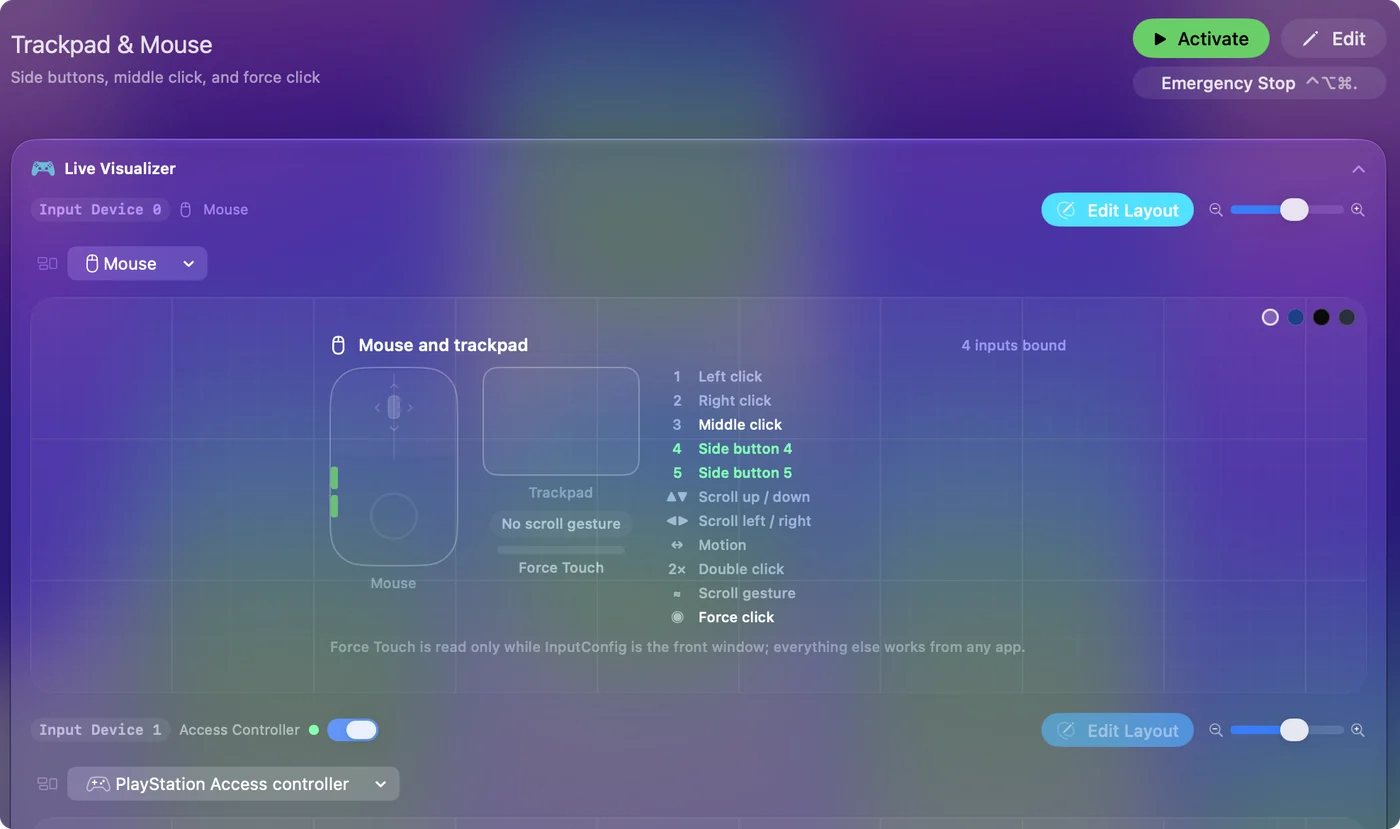
- You: In InputConfig, add a Mouse row, press Scan, and press each button in turn, the side buttons first and then the thumb button.
- InputConfig: Names each one, such as Button 4, Button 5, Button 6 and up.
- Check: A button name means you can bind it. If a button does not scan, it belongs to the mouse, for example the device switch.
| Control | How it should report | What to do |
|---|---|---|
| Side buttons and extra thumb buttons | Mouse buttons from Button 4 up | Bind each one |
| Wheel click | Middle click | Bind it, block its own action if you like |
| Wheel tilt, which a reviewer at Macworld describes on the V2 | Scroll X | See the tilt wheel page |
| Device switch | Talks to the mouse, nothing arrives | Use it on the mouse |
| Wheel mode switch, tactile or free-spin | Changes how the wheel feels, nothing arrives | Use it on the mouse |
Bind productivity jobs that suit a Mac
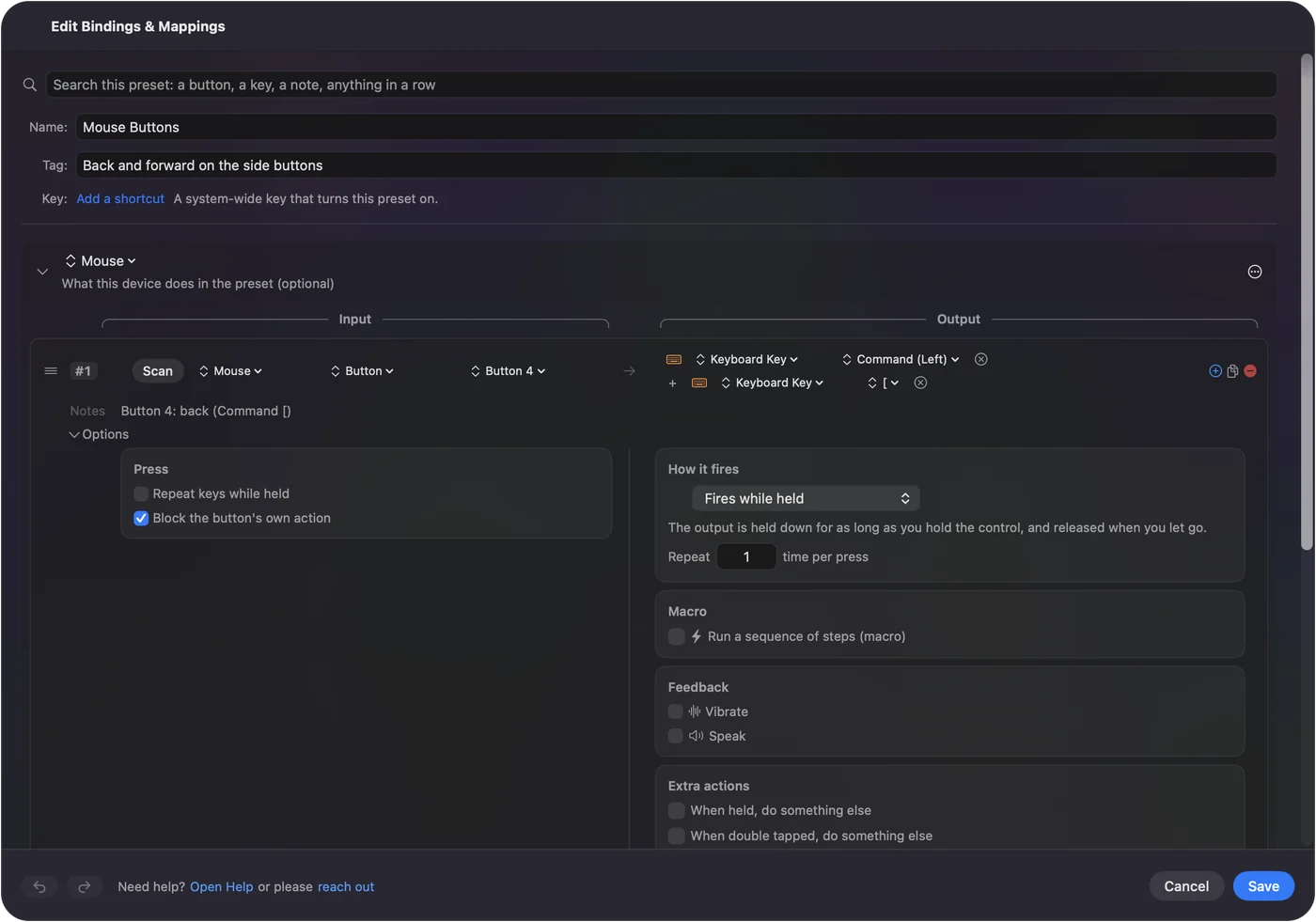
- You: Make a preset, add This Mac's mouse or trackpad as an input device, add a row for a button, press Scan and press it, then choose the output.
- InputConfig: Runs the row when the button is pressed, in every app.
- Check: Try it in the app you use. Save and Activate.
- Back and forward. Command [ and Command ] on the thumb buttons.
- Mission Control and Spaces. System functions, or Control Left Arrow and Control Right Arrow.
- Start Dictation. One press to start talking, and another to stop.
- Copy and paste. Command C and Command V on a pair of buttons.
- Open App. Mail, Calendar or Notes on a spare button.
A Mac has no Razer app that knows Excel from Numbers, so the per-app layout is yours to make.
Hold, double click and per-app layouts
- Hold and double tap. A row can have a hold action and a double tap action, each a full second output, so one thumb button can be undo, redo and Save.
- Macros. Tick Run a sequence of steps (macro) for a timed sequence, such as copy, switch app and paste. How to make a macro has the steps.
- Block the original. For the middle and side buttons, this stops an app that already reads the button.
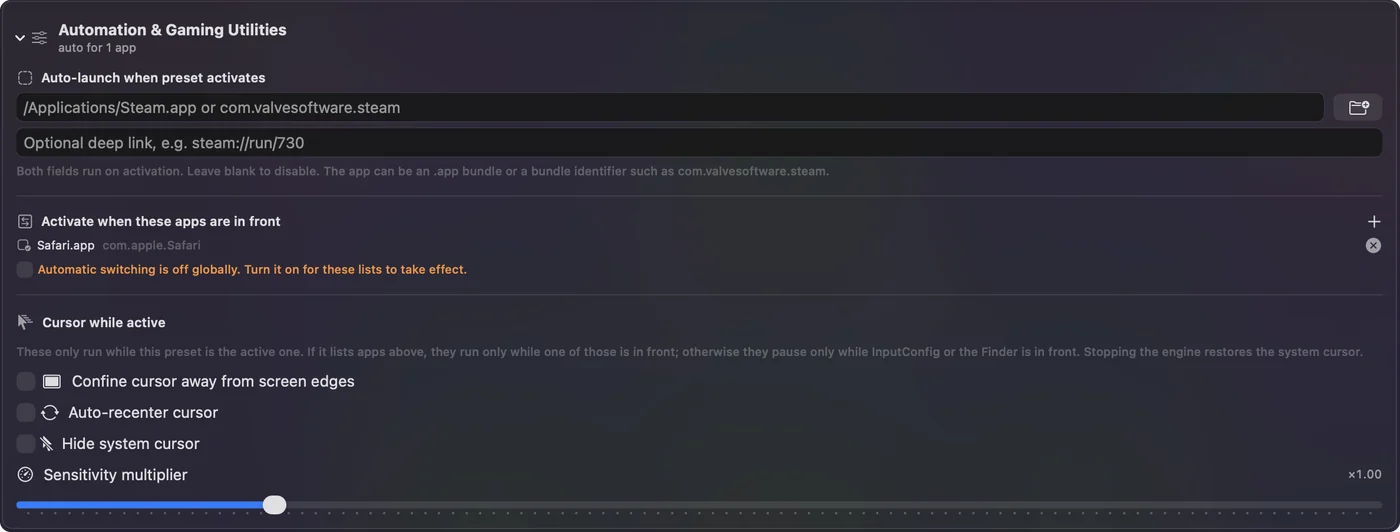
- Per app. List apps under Automation & Gaming Utilities and turn on Switch presets when the front app changes, so the layout follows the app in front.
Ideas for comfort users
- Wrist and forearm strain. The Vertical Edition sits at 71.7 degrees on Razer's page, a handshake grip, and a mouse button that does a whole shortcut saves a second hand on the keyboard.
- Carpal tunnel and tremor. Fewer movements matter, so give the thumb a job that replaces two or three keys held together. Mouse alternatives for carpal tunnel goes further.
- Hybrid workers. Use the multi-device button to move from a Mac to another computer, and keep the Mac jobs in a preset.
- Dictation. A thumb button for Start Dictation means you can talk to the Mac without reaching for a keyboard.
If a Pro Click button does nothing
Climb this ladder, smallest step first:
- Check the device button. The mouse may be talking to another computer.
- Scan it. Nothing scanning means the mouse keeps the button to itself.
- Re-pair it. Remove it in System Settings, Bluetooth and pair it fresh.
- Allow Accessibility and Activate. InputConfig needs the permission, and rows only fire while their preset runs.
- Check Synapse. If Razer's software gave a button another job, change it back.
If the Mouse map in the Live Visualizer lights, the button reaches the Mac and a row can use it.
What it cannot do
- Hardware settings. It does not change DPI, polling, lighting or the wheel mode. Razer Synapse does.
- Razer's productivity profiles. The Microsoft and Adobe profiles stay in Synapse, so a Mac preset has to be built by hand.
- Two mice apart. Every mouse counts as one.
- Private buttons. The device switch sends nothing the Mac can read.
The short version
- Works. Pair it and it is a mouse.
- Scan. Extra buttons usually bind.
- Layouts. Build them per app, since Razer's are not for the Mac.
I would start with Start Dictation and back and forward on the thumb buttons.
Questions
Does the Razer Pro Click work on a Mac?
Yes, as a mouse. Razer says Synapse is optional for the Pro Click V2, and its V2 and Vertical Edition are on the Synapse for Mac list I read.
Can the Razer Pro Click connect to a Mac over Bluetooth?
Razer describes multi-device connectivity, so check the box for Bluetooth and the dongle. If it pairs, it shows in System Settings, Bluetooth.
How do I remap Razer Pro Click buttons on a Mac?
Press Scan on a row in InputConfig, press the button, and choose what it sends. Buttons that scan can be given any job, in every app.
Is the Razer Pro Click V2 Vertical good for a Mac?
It works as a vertical mouse on a Mac, and Razer lists it for Synapse for Mac. The vertical grip is meant for comfort.
Does the Razer Pro Click Mini work on a Mac?
I could not confirm its details from Razer. An older forum thread says Synapse does not run on a Mac for it, but it should still work as a mouse, so press Scan on its buttons.
Why will my Razer Pro Click not pair with my Mac?
Remove it in System Settings, Bluetooth, put it back in pairing mode and add it again. Check the device switch button too, since the mouse may be pointed at another computer.
Related
This page in other languages: العربية, Čeština, Dansk, Deutsch, Español, Suomi, Français, Magyar, Bahasa Indonesia, Italiano, 日本語, 한국어, Norsk, Nederlands, Polski, Português, 繁體中文, 简体中文
Completely free. You don't have to make an account, there are no subscriptions, and nothing is locked. Optimized for Apple silicon. Open source on GitHub.
Updated