Questions
Generic USB gamepad not working on a Mac
Most of the time the pad is fine: it is in a mode macOS cannot read, or the Mac reads it and the game does not look for it. A generic USB gamepad, the unbranded kind sold in twos for very little, fails on a Mac in one of a handful of ways, and each has a different fix. Find your symptom below.
I make InputConfig, a free Mac app that reads these pads directly, and I say where it helps and where it cannot.
On this page: 10 sections
- Find out what the Mac sees
- If nothing sees it: cable, hub or Xbox mode
- If the Mac sees it but games ignore it
- If the buttons are in the wrong places
- If a stick drifts, or reads full in one direction
- If the Devices menu says it needs Input Monitoring
- If it stopped working after updating InputConfig
- What it cannot do
- The short version
- Questions
Find out what the Mac sees
Two places tell you which case you are in. Climb this ladder, smallest step first:
- Listed in System Settings, Game Controllers, buttons lighting. macOS treats it as a game controller and the problem is in the game. See controller connected but not working.
- Not there, but in System Information, USB. Hold Option, open the Apple menu, choose System Information, and click USB. A pad listed here but not under Game Controllers is a plain HID device. That is the common case for generic pads; go to if the Mac sees it but games ignore it.
- In neither place. The Mac is not getting anything from it. Go to if nothing sees it.
Where the pad is listed decides which fix you need.
If nothing sees it: cable, hub or Xbox mode
- The cable or adapter. Plug the pad into the Mac directly. A pad with a detachable cable may have come with one that only charges; try a cable you know carries data. On a MacBook, the USB-C adapter has to carry data too.
- The hub. Unpowered hubs and some docks drop game pads. Test without one.
- Xbox or X-input mode. Many cheap pads start in a mode that speaks the wired Xbox 360 protocol, which macOS does not support at all, and no app on the Mac can read it. Look for a mode switch, or a button held while plugging in, that picks D-input, PC, Android or Switch.
InputConfig 1.6 lists a pad stuck in that mode in its Devices menu, grayed out, with the words Xbox 360 style pad and a note to use another mode or Bluetooth if it has one.
A pad that lights up but sends nothing is usually in Xbox mode; switch it to D-input or PC.
If the Mac sees it but games ignore it
A pad in System Information but not in Game Controllers is read by macOS with no driver, but games built on Apple's controller support only look for PlayStation, Xbox, Switch and MFi pads. No driver changes that. What still works:
- Emulators and flight sims. They read HID devices themselves. Assign the buttons in their own input settings.
- Games with a keyboard mode. InputConfig reads the pad and sends the keys the game uses. It appears at the top of the sidebar; if not, click Refresh Controllers, or tick it under InputConfig, Devices in the menu bar. Then press Scan on a row and press a button on the pad.
- Games that only accept a controller. Nothing on the Mac fixes these for a HID pad. InputConfig sends keyboard and mouse, not a virtual controller. A pad with a Switch, iOS or MFi mode over Bluetooth is the way in.
If the game has keyboard controls, the pad can drive it through InputConfig.
 InputConfig is free on the Mac App Store. macOS 14 or later, no account, no tracking, open source.
If the buttons are in the wrong places
InputConfig 1.6 names generic pads from the community SDL GameControllerDB when one of its rows matches the pad: A, B, X, Y, the shoulders and the sticks land on the same numbers as on any other controller.
- A matching row. Many cheap pads share a chip and a USB ID, so a row is used only when it matches exactly, or when every row for that ID agrees.
- No matching row. The pad is read from its own description, with buttons numbered in the order it reports them and labeled Button 1, Button 2 and so on.
- A and B swapped. The pad may simply use Nintendo positions. See USB SNES pads on a Mac for why.
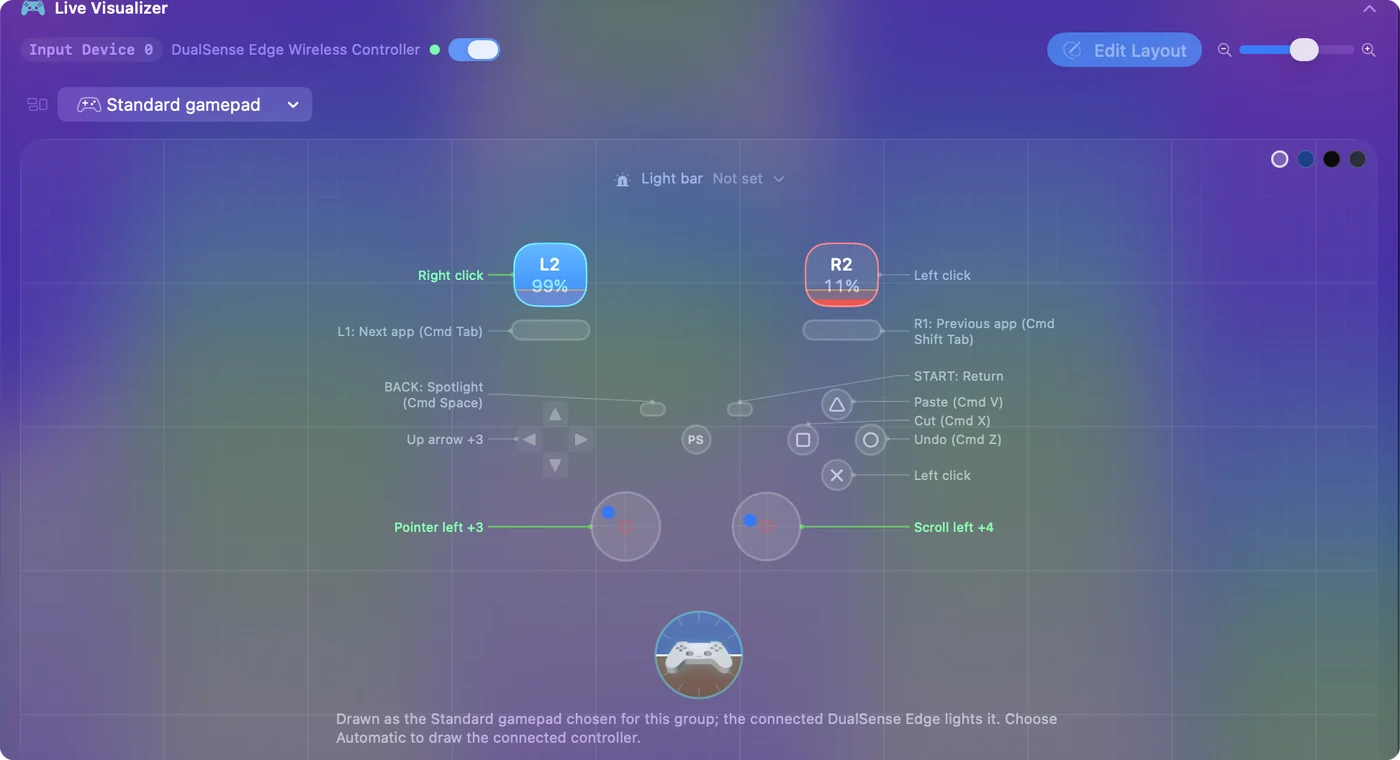
The Live Visualizer lights each control as you press it, which shows at a glance what the pad is sending. Scan binds the button you actually press, so the layout always ends up right.
If a stick drifts, or reads full in one direction
Cheap boards often describe their axes wrongly, so a stick can rest off center or report one direction pushed all the way. InputConfig 1.6 repairs the common descriptor mistakes, such as a range written backward or wider than the field, instead of reading nonsense. Climb this ladder, smallest step first:
- Press the Analog or Mode button. Some pads have one that turns the sticks off or swaps them with the D-pad. Press it once and look again.
- Replug without touching the sticks. If a stick is pinned at one edge, unplug the pad and plug it in again; some cheap pads set their center when they power up.
- Raise the inner deadzone. For a stick that rests slightly off center, open Options on the stick's row and use Adjust live while you watch the stick.
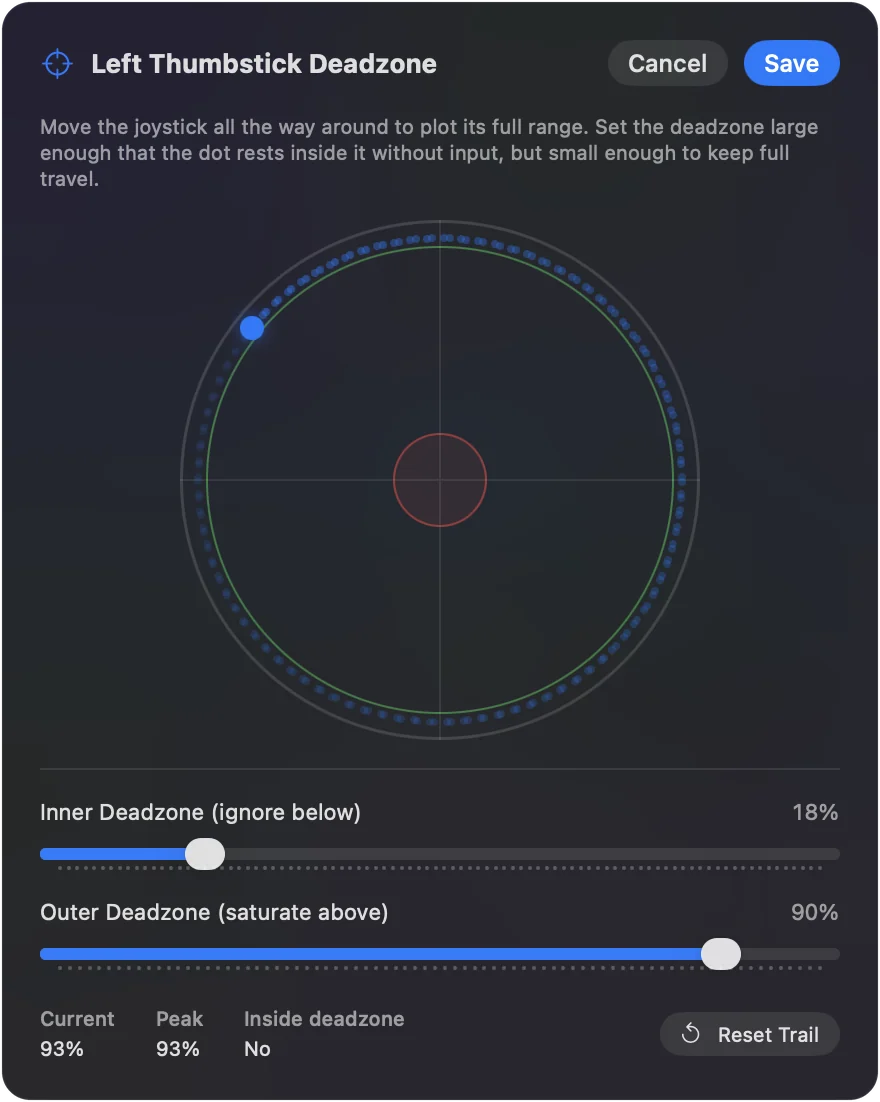
More on stick drift on a Mac. Replug with your hands off the sticks before you change any setting.
If the Devices menu says it needs Input Monitoring
Some pads, and many arcade sticks, also present themselves as a keyboard, and macOS puts any device with a keyboard part behind the Input Monitoring permission.
- You: Choose the entry marked needs Input Monitoring in InputConfig's Devices menu, and turn on InputConfig in the pane that opens.
- macOS: Lets InputConfig read the pad.
- Check: Come back to the app, and the pad is read.
The full explanation is on why a controller needs Input Monitoring.
If it stopped working after updating InputConfig
InputConfig 1.6 numbers generic USB pads, 8BitDo pads in D-input, arcade encoders and Logitech wheels differently from 1.5.
- You: Connect the pad for the first time after the update.
- InputConfig: Offers to move the rows of presets made before 1.6.
- Check: Tick the presets you made on that pad and click Update Ticked Presets. Rows you scanned again in 1.6 are left alone.
If you clicked Leave Them As They Are, open Settings, Advanced, and under Data & storage click Check Older Presets Again; the offer comes back the next time the pad connects.
What it cannot do
- Read Xbox 360 mode. No app on the Mac can.
- Make a pad look like an Xbox controller. InputConfig sends keyboard and mouse events. A game that only accepts a controller needs one macOS recognizes.
For games that take keys, a generic pad is enough; for games that only take a controller, it is not.
The short version
- Nothing anywhere. Data cable, no hub, D-input or PC mode.
- In System Information only. Emulators read it; InputConfig maps it to keys for the rest.
- Odd buttons or drift. Scan what you press; Adjust live for the deadzone.
- Broke after the update. Accept the offer, or Check Older Presets Again.
The pad is almost never broken; find where it is listed, and you know the fix.
Questions
Do I need a driver for a generic USB gamepad on a Mac?
No. macOS reads generic USB gamepads as HID devices with nothing installed. Installing a driver would not make games that use Apple's controller support see the pad.
Why does my USB controller light up but do nothing on my Mac?
Power comes over the cable even when no data does. Usually the pad is in an Xbox or X-input mode, which macOS cannot read, or the cable or adapter only charges. Switch it to D-input or PC mode and use a data cable.
Why does Steam see my generic controller but the game does not?
Steam reads controllers through its own layer and passes them only to games that use Steam Input. A game that reads controllers itself through Apple's support will not see a HID pad. See works in Steam but not in the game.
Can InputConfig make a generic pad look like an Xbox controller?
No. It sends keyboard and mouse events. A game that only accepts a controller needs one macOS recognizes.
Which generic pads does InputConfig 1.6 name automatically?
Any whose USB ID matches a macOS row in the community SDL GameControllerDB, which covers many PowerA, Hori, Logitech, Tomee, Retrolink and similar pads. Pads without a row are still read; their buttons are just numbered in report order.
Related
Free. macOS 14 or later. No account, nothing leaves your Mac. Open source on GitHub.