Connect a gamepad InputConfig did not pick up
 InputConfig is completely free on the Mac App Store. You don't have to make an account, there are no subscriptions, and nothing is locked. Optimized for Apple silicon.
If the Mac sees a gamepad, fight stick or clone but InputConfig and your apps do not pick it up, connect it by hand from InputConfig's Devices menu. Most controllers are picked up within a few seconds, but a few are not: a pad that presents itself in an unusual way, a clone whose vendor ID makes macOS claim it without doing anything, or a device that is not a gamepad at all. InputConfig lists everything the Mac can see and lets you connect it in one click. If the Mac itself does not list the controller in Bluetooth or in System Settings, Game Controllers, start with controller not recognized on a Mac instead.
On this page
Steps
- In the menu bar, choose InputConfig, Devices, Rescan Devices.
- If the controller still has no checkmark in the Devices menu, choose it to connect it by hand.
- Read the label next to it if it cannot be chosen.
- Press Scan on a row and press a control to check that it is read.
Rescan before anything else
A pad that was connected while the app was starting, or that woke up late from sleep, is often picked up by a rescan. Choose InputConfig, Devices, Rescan Devices in the menu bar, or click Refresh Controllers in the controller chip's popover.
A rescan costs one click, so try it before connecting anything by hand.
Connect it by hand from the Devices menu
The Devices menu sits under InputConfig in the menu bar, and in the menu bar item's popover too, for when the Dock icon is off. It lists every Bluetooth and USB device on the Mac, plus MIDI sources, with a checkmark on the ones the app is reading.
- You: Open InputConfig, Devices and choose the controller.
- InputConfig: Opens it directly, skips the rule that leaves it to macOS, and remembers it by make and model so it reconnects on its own next time.
- Check: The controller now has a checkmark, and pressing a control during Scan fills a row.
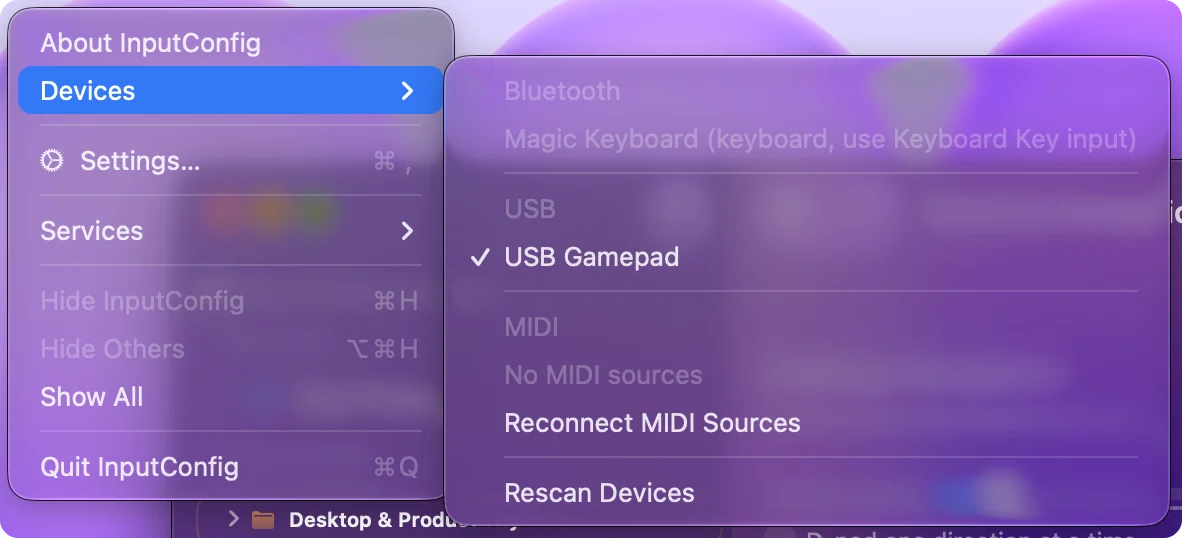
The same list is in the editor's device menu on each input device, so the controller can be connected and assigned to a slot in one click.
Read what the Devices menu tells you
Each entry says what InputConfig is doing with it:
- A checkmark. InputConfig is reading it. Choosing it again stops reading it and forgets it.
- Read by macOS GameController. macOS already reads it as a controller, so it cannot be connected a second time, which would double every input.
- Read automatically as a Steam Controller. Its own helper reads it.
- Needs Input Monitoring. A controller that also acts as a keyboard, such as some arcade sticks. Choosing it opens System Settings. Allow InputConfig under Input Monitoring, and the pad is read when you come back to the app.
- A reason in gray under USB. Pads macOS cannot read at all, such as wired Xbox 360 pads, are listed with the reason, so you are not left guessing.
- Keyboards, mice, macro pads, pedals and media remotes. Listed with their kind but not switchable, because they already reach presets through the keyboard and mouse input types. Bluetooth headsets appear as headset buttons for the same reason.
Map a device with an unknown layout
Generic USB pads and arcade sticks get named buttons from the community SDL GameControllerDB, numbered like other controllers. If a device has no profile there or in the app and its HID descriptor gives nothing usable, it is still connected and read raw: every bit of its report becomes a button.
Press Scan, then the control, and the row finds whichever bit it flips. That is enough to map a foot pedal, a presenter remote or an odd arcade stick.
Which controllers usually need this
Controllers macOS knows (PlayStation, Xbox with Bluetooth, Switch Pro and Joy-Cons, MFi pads) are picked up with no action. The ones that most often land here are pads the Mac does not class as game controllers:
- 8BitDo pads in X mode over a USB cable. InputConfig reads them there.
- Logitech F310, F510 and F710. With the switch on D.
- The DualShock 3. Over USB.
- Generic USB gamepads, arcade and fight sticks, wheels and flight sticks. Read as HID devices, every button, axis and hat.
If it is not in the Devices menu either
Then the Mac is not seeing a HID device at all. Climb this ladder, smallest step first:
- Use a data cable. A charge-only cable lights the pad and never reaches the Mac.
- Plug straight into the Mac. Skip hubs and loose adapters.
- Change the stick's mode. On a fight stick, Xbox or XInput mode speaks the wired Xbox 360 protocol, which macOS does not support. Unplug it, set PC, DirectInput or PS3 mode, and plug it in again.
- Start from the Mac's side. Controller not recognized on a Mac checks Bluetooth, the cable and System Information.
What it cannot do
InputConfig reads these pads' buttons and axes and maps them to keys, mouse and MIDI. Games that use Apple's controller support still will not see them, and only a mode switch on the controller can change that.
The short version
- Rescan first. Choose InputConfig, Devices, Rescan Devices.
- Then connect by hand. Choose the controller in the Devices menu. It is remembered for next time.
- Read the label. Gray entries say why they cannot be chosen.
If the Devices menu does not list it, the problem is the cable, the port or the controller's mode.
Questions
Will it fight the Mac's own controller support?
No. If macOS already reads the pad, the Devices menu says read by macOS GameController and does not let you connect it a second time, so inputs are never doubled. Use the Devices menu for pads macOS claimed but never delivered.
Does the connection survive a restart?
Yes. The vendor and product pair is remembered, and the device is reopened whenever it appears.
My arcade stick is not in the Devices menu either. What now?
Then the Mac is not seeing a HID device at all. On a fight stick the two usual causes are a charge-only cable and Xbox or XInput mode, which speaks the wired Xbox 360 protocol that macOS does not support. Unplug it, set PC, DirectInput or PS3 mode, and plug it straight into the Mac with a data cable.
Related
Updated