Questions
An auto clicker for accessibility on a Mac
Yes, a Mac can do your clicking for you when pressing again and again hurts or is not possible, and there are two different jobs inside that request. Dwell, built into macOS, clicks when the pointer rests, so no button is pressed at all, but it clicks once per rest and never on a timer. An auto clicker turns one press into many clicks. InputConfig, a free app on the Mac App Store, does that second job, plus a click that stays held down for dragging, started from whatever you can press most easily: a big switch, an adaptive controller, a foot pedal or a mouse's side button.
I am not a clinician, so this page is about what the Mac can do, not about what is right for your hand.
On this page: 10 sections
Steps
- Try Dwell first if pressing at all is the hard part: search for Dwell in System Settings.
- Install InputConfig from the Mac App Store and allow Accessibility access when it asks.
- Right-click the built-in Auto Clicker preset in the Desktop & Productivity folder, choose Duplicate, and open the copy with Edit.
- Scan the switch, pedal or button you can press most easily into a click row.
- In the row's Options, set How it fires to Repeats until pressed again for many clicks, or Toggles on and off for a held click.
- Set Stop after so a run always ends on its own, then close the editor and activate the preset.
Pick the job: no press, or fewer presses
Start with what the Mac already has, and add an app only when it does not cover the job. Climb this ladder, smallest step first:
- Dwell. Rest the pointer on something and macOS clicks it after a set time. Apple's guide turns it on in System Settings, Accessibility, Keyboard, with the Accessibility Keyboard, and searching for Dwell in System Settings finds it too. It is one click per rest, so it suits head pointer and eye or head tracking, not repeated clicking. Apple explains it in control the pointer using Dwell.
- Voice Control. Also in System Settings, Accessibility. You say the click instead of pressing it, which helps when the voice is more reliable than the hand.
- The built-in Auto Clicker preset. In InputConfig's Desktop & Productivity folder. One pull of a controller's right trigger starts clicking 10 times a second where the pointer is, and the next pull stops it. With no controller, fn F6 does the same from the keyboard.
- One row of your own. The same idea on the one control you can press best, at a pace you choose, with a count that stops it.
If pressing at all is the problem, start with Dwell; if pressing again and again is the problem, start with an auto clicker.
Turn one press into many clicks
This is the core of it: one press starts a run of clicks, and one more press ends it, so the hand does two presses instead of two hundred.
- You: On a row whose output is Mouse Button with 0: Main Click (the left button), open Options and set How it fires to Repeats until pressed again. Set Every to 500 ms to begin with.
- InputConfig: Clicks where the pointer is, twice a second, until you press the control again. The rate it works out to shows beside the field, such as (2.0 per second).
- Check: Point at something harmless, press once and watch the clicks, then press again and they stop.
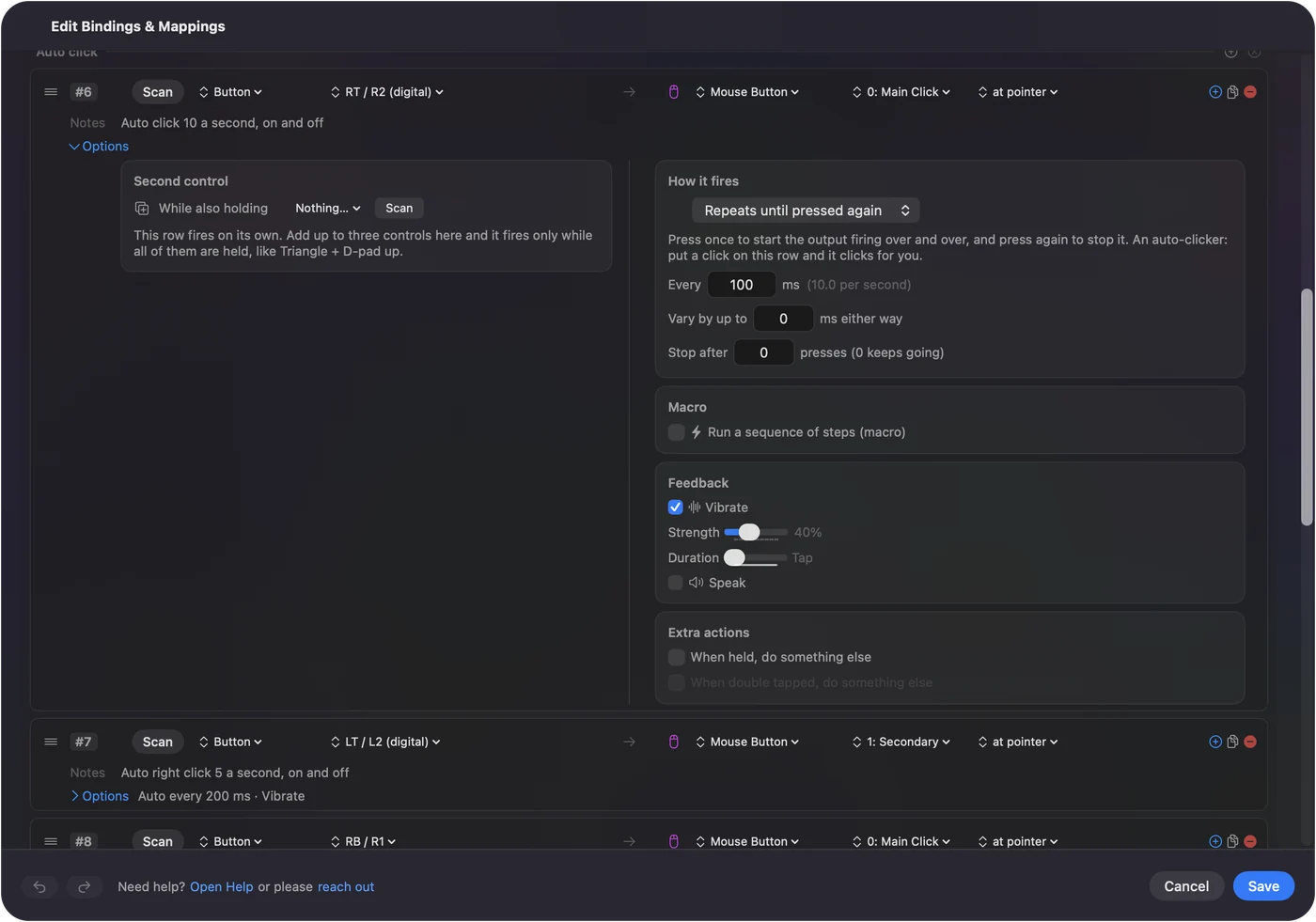
Two choices change how it feels:
- Repeats while held. Clicks only while the control is held down, for someone who can hold a press but not repeat one.
- A slow pace. Most everyday jobs, such as a Next button, a slideshow or a repeated tap in a game, need a steady pace, not speed. 1000 ms is one click a second.
Two presses replace a whole run of clicks, and that is where the relief comes from.
 InputConfig is free on the Mac App Store. macOS 14 or later, no account, no tracking, open source.
Hold a click down without holding the button
Dragging is often harder than clicking, because the button has to stay down while the pointer moves. A latched click does the holding for you: one press pushes the button down and leaves it down, and the next press lets it go. It is the job click lock does on Windows.
- You: Give a row the Mouse Button output, 0: Main Click, and set How it fires to Toggles on and off.
- InputConfig: Holds the left button down from the first press until the second.
- Check: Press once over the start of a paragraph, move the pointer with a stick, a mouse or head pointer, and press again. The text stays selected.
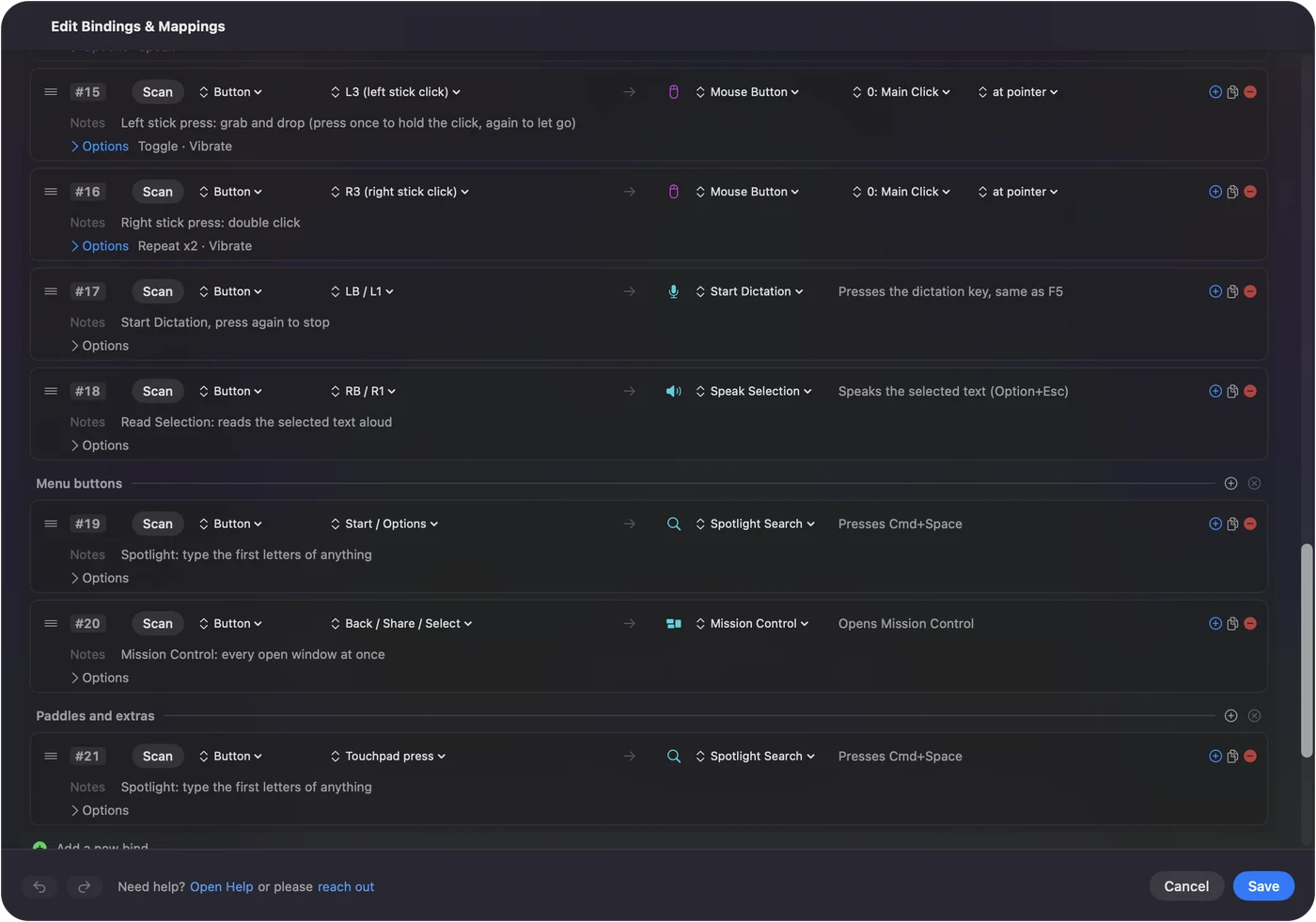
The built-in Toggle Mode preset shows the same pattern on keys, such as a Shift that stays held. If you use a trackpad, macOS has its own Drag Lock under System Settings, Accessibility, Pointer Control, Trackpad Options. Locking the Mac lets go of a held click. A latched click turns a drag from a held effort into two presses.
Start it from the control you can press
Any control InputConfig reads can start and stop a run, so choose the movement that costs you least:
- A big switch. Through an Xbox Adaptive Controller or a PlayStation Access controller, which both show up as game controllers. The one to four switches guide covers the interfaces.
- A foot pedal. Most USB pedals present as a keyboard or a gamepad, and InputConfig reads either. See foot pedal shortcuts on a Mac.
- A mouse side button. Tick Block the button's own action on its row, and it stops also going Back in a browser while the preset runs.
- A controller button. Any button on a supported pad, with a buzz when a run starts if you tick Vibrate in that row's Options.
- A keyboard key. It works, but the key still types, because InputConfig listens to the keyboard and does not block or remap the key itself. Every keyboard reports as one synthetic device id, so the same key on two keyboards is the same input. Pick a key that types nothing.
The trigger should be the movement that costs you least, not the one an app expects.
Make sure a run always ends
A run that keeps going after you are tired is the one risk worth planning for. These are the ways out, smallest step first:
- Stop after. In the same Options box. Set 20 or 100 presses and the run ends by itself, even if you never press again. The built-in preset's Y row clicks 100 times and stops.
- Press the control again. A Repeats until pressed again row stops on the next press.
- Use the emergency stop. It is the emergency stop: Control Option Command period from any app, Back and Start held together for three seconds on a controller (View and Menu on an Xbox pad, Create and Options on a DualSense), or Emergency Stop in the menu bar. In Settings, General you can pick a different controller button, a hold from one to five seconds, and whether Start must be held too.
- Give the stop its own control. Set a row's output to App Action, Emergency Stop, and put it on a switch or a button that is easy to reach. See the emergency stop.
- Lock the Mac. Every run stops, and nothing starts again by itself after you log back in.
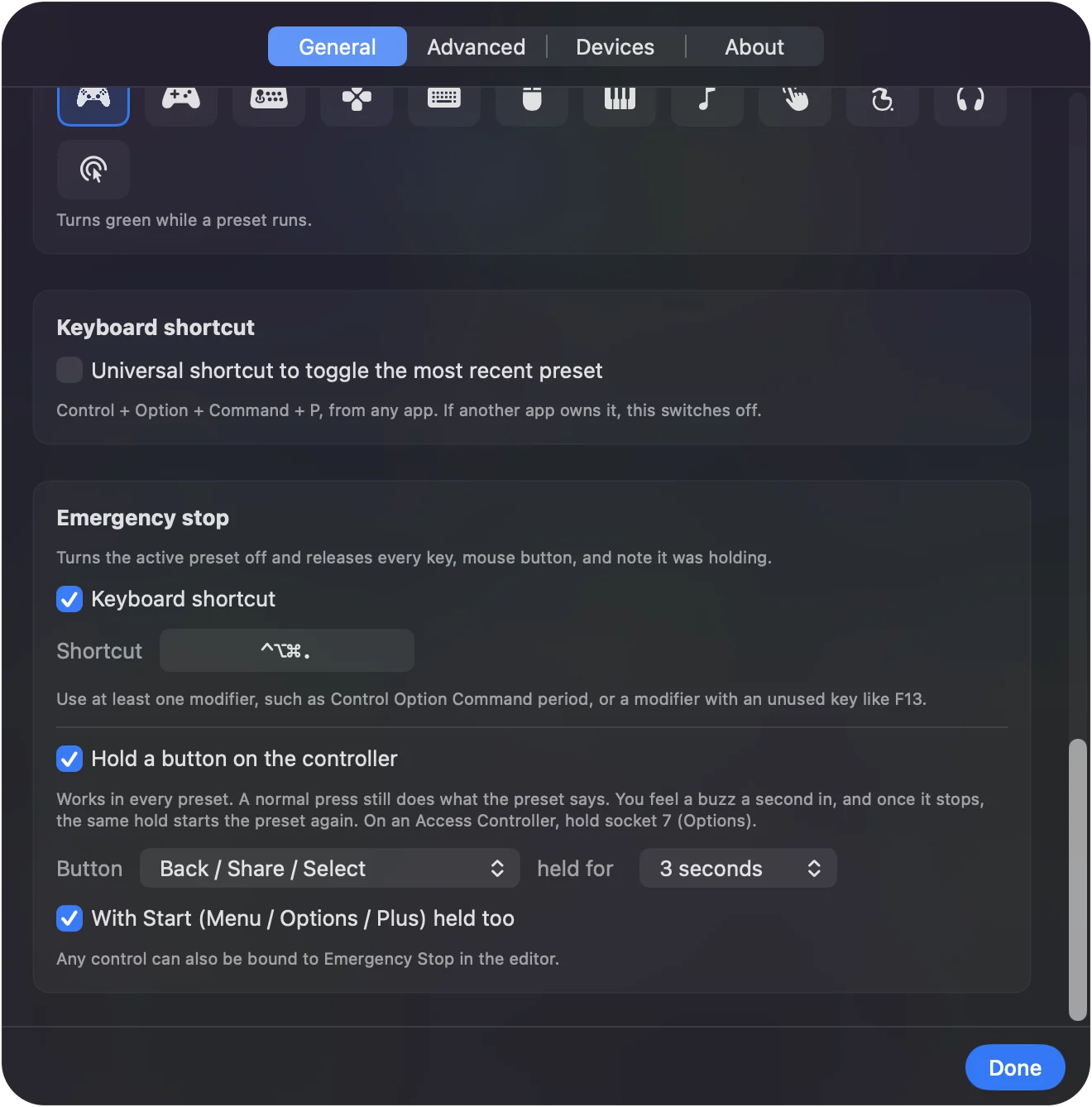
Set Stop after on every long run, so a run that gets away from you ends on its own.
If nothing clicks
Climb this ladder, smallest step first:
- Grant Accessibility. System Settings, Privacy & Security, Accessibility, with InputConfig switched on. Every app that clicks for you needs it.
- Activate the preset. The menu bar icon turns green while a preset runs.
- Close the editor. Opening the preset editor pauses the preset and ends a run that was going.
- Slow down. An app that ignores very fast clicks usually takes a slower pace.
The rest of the fixes are on auto clicker not working on a Mac.
What it cannot do
- Choose targets. It clicks at a pace, where the pointer is or at one fixed point per row. It does not look at the screen or decide what to click.
- Play back a recorded path. There is no recorded sequence of clicks at different spots. One row clicks one spot.
- Replace Switch Control. InputConfig works alongside macOS Switch Control, not instead of it.
- Cover every switch interface. I have not tested every switch box on the market. If a box shows up as a keyboard or a gamepad, InputConfig can read it.
The short version
- No press at all. Dwell, in the Mac's own settings.
- Fewer presses. The built-in Auto Clicker preset, or one row set to Repeats until pressed again.
- Dragging. A click row set to Toggles on and off.
- A safe end. Stop after on every long run, and the emergency stop on a control you can reach.
Put the start on the easiest movement you have, and let Stop after do the stopping.
Every setting on this page is explained in order in the auto clicker guide for Mac.
Questions
Does a Mac have a built-in auto clicker for accessibility?
Not one that clicks on a timer. Dwell, in the Mac's Accessibility settings, clicks when the pointer rests in one place, once per rest. For repeated clicks from one press, a free app such as InputConfig does the job.
Is there a click lock on a Mac?
macOS has Drag Lock for trackpads in Accessibility, Pointer Control, Trackpad Options. For any mouse, controller or switch, an InputConfig row with a click output set to Toggles on and off holds the button down until the next press.
Can I start an auto clicker with an accessibility switch?
Yes. A switch through an Xbox Adaptive Controller, a PlayStation Access controller, or a USB interface that shows up as a keyboard or gamepad can be the start and stop control of an InputConfig row.
How do I make sure an auto clicker stops by itself?
Set Stop after in the row's Options to a number of clicks. The run ends on its own when it reaches that number, and the emergency stop, Control Option Command period, ends everything at once.
Is InputConfig free?
Yes. It is free on the Mac App Store and open source under the MIT license. The optional tip jar adds no features.
Related
Free. macOS 14 or later. No account, nothing leaves your Mac. Open source on GitHub.