Questions
How to test a PS5 controller on a Mac
Use System Settings for the buttons and an app for the rest, because a DualSense has more to test than most controllers and a browser gamepad tester only sees the buttons, sticks and triggers. The touchpad, the motion sensors and the light bar need an app that reads the controller through macOS.
InputConfig, free on the Mac App Store, covers the rest, and in 1.6 it draws the DualSense, DualSense Edge or DualShock 4 you are holding with every control in its place. The same steps work for a PS4 controller.
On this page: 10 sections
Steps
- Connect the controller with a USB-C cable, or pair it with PS and Create held.
- Press each button in System Settings, Game Controllers.
- Click any preset in InputConfig and test the sticks, triggers, touchpad and motion in its Live Visualizer.
- Activate the Haptic Feedback preset and press the four face buttons to test rumble.
- Click the controller at the top of the sidebar for battery and details.
Connect it
A USB-C cable is the quickest start, and it rules out Bluetooth while you test. To pair instead, hold the PS button and Create until the light bar flashes, then pick the controller in System Settings, Bluetooth. The full steps are in how to connect a PS5 controller to a Mac. Test on a cable first, so a weak Bluetooth link cannot fool you.
Test the buttons in System Settings
- You: Open System Settings, click Game Controllers in the sidebar, select the DualSense and press each button.
- macOS: Lights each one on the picture.
- Check: Every button lights.
If every button lights, the controller and the Mac agree on the basics.
 InputConfig is free on the Mac App Store. macOS 14 or later, no account, no tracking, open source.
Test everything else in the Live Visualizer
Open InputConfig and click any preset in the sidebar; nothing has to be running. The preset's page draws your controller, and each part answers one question:
- Face buttons, D-pad, L1, R1, Create, Options, PS and Mute. Each lights green while pressed. While InputConfig is open it takes the PS button from macOS, so the button lights here instead of doing its macOS job.
- Sticks. A dot follows each stick and the circle lights when you press it in (L3, R3). At rest the dot should sit on the crosshair; one that rests off center is drifting.
- L2 and R2. Each fills with the pull and shows a percentage from 0 to 100. The orange line is where the preset's row for that trigger starts to count.
- Touchpad. A dot follows each finger, the first mint and the second cyan, so you can check two fingers and every corner. Pressing the pad down lights it. If the preset has touchpad zones they are drawn on the pad, and the one under your finger fills.
- Light bar. Drawn in the preset's color, or in the color the controller shows now. The strip above the drawing sets the preset's color.
- Motion. The motion widget under the drawing turns as you tilt the controller. If it wanders, lay the controller flat and still, click the widget and choose Reset gyroscope (re-zero now).
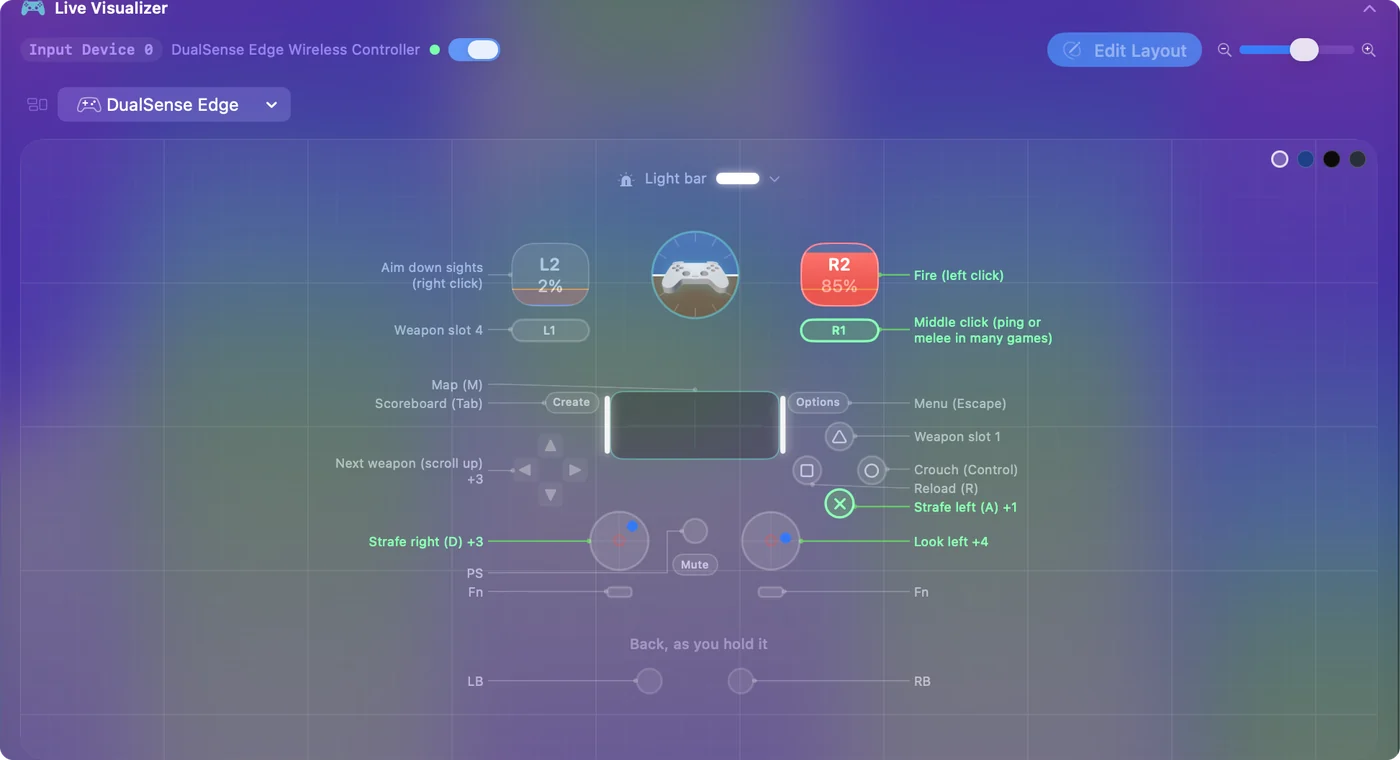
Each control's entry in the key beside the drawing says what it does in that preset, and its line turns green while you use it. Two finger dots and a turning motion widget prove the parts a browser tester cannot see.
Test the Edge's back buttons and Fn
On an Edge the two back buttons are drawn on a strip below the controller, labeled Back, as you hold it, and the two Fn buttons under the sticks. Each lights when pressed.
- A back button that lights Cross. In a custom profile the Edge sends the button a back button is assigned to instead of its own, so it is doing what the profile says.
- Fn with a face button. Switches the Edge's own profile.
- Fn with Options. Opens its profile settings.
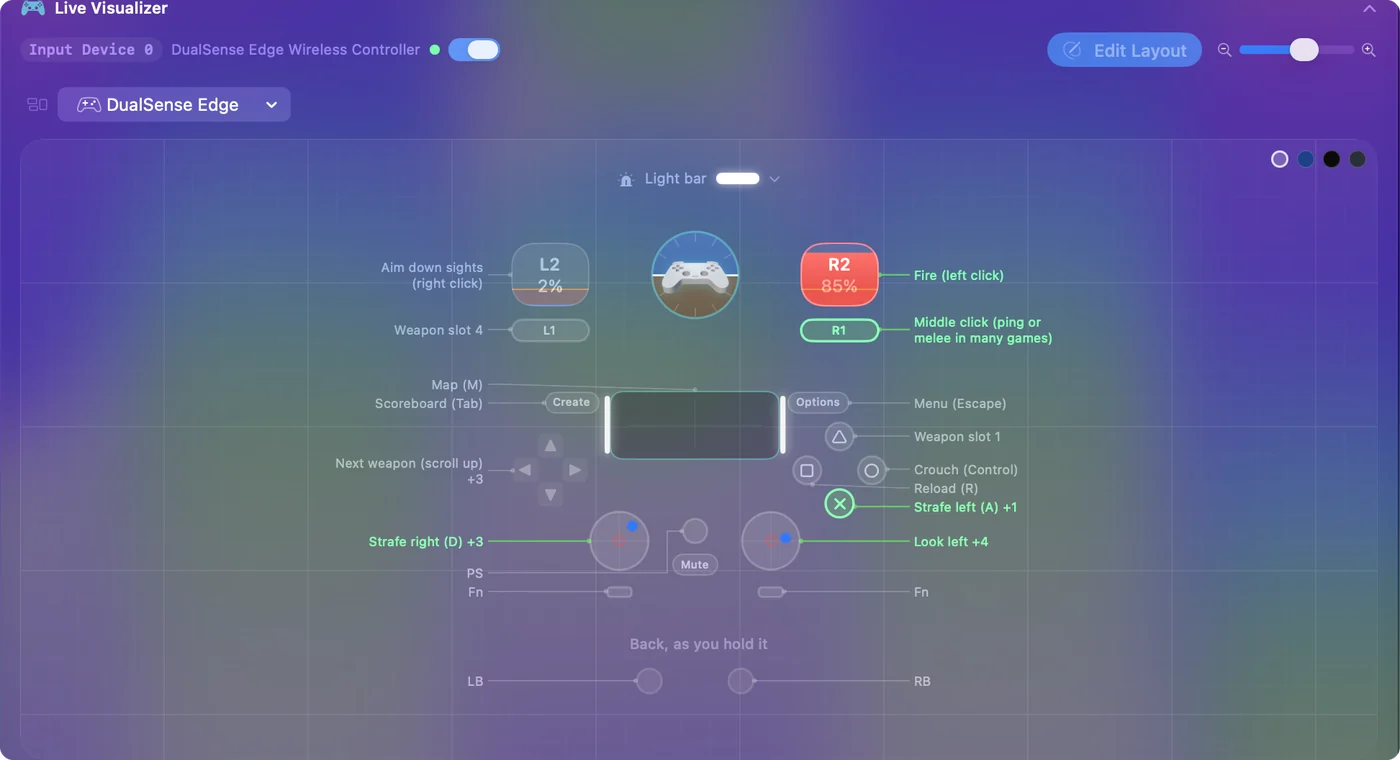
More in the DualSense Edge on a Mac. A back button lighting another button is the profile at work, not a fault.
Test rumble and the light bar
- You: Put the cursor somewhere a stray letter does no harm, such as an empty TextEdit window. Activate the built-in Haptic Feedback preset and press the four face buttons.
- InputConfig: Rumbles each at a different strength, from 30 percent on Cross to full on Triangle, types a letter, a to d, and turns the light bar orange while the preset runs.
- Check: You feel four strengths and the light bar is orange.
If none of the four buzz, see PS5 controller not vibrating on a Mac. Deactivate the preset afterward, and the light and the face buttons go back to normal.
Check the battery and details
Click the controller at the top of InputConfig's sidebar. It lists what the Mac reports:
- Brand and type. With how many buttons and axes.
- Motion. Motion: Gyro + Accelerometer.
- Battery. The level, with Charging or not.
- Light bar. Light Bar: Supported.
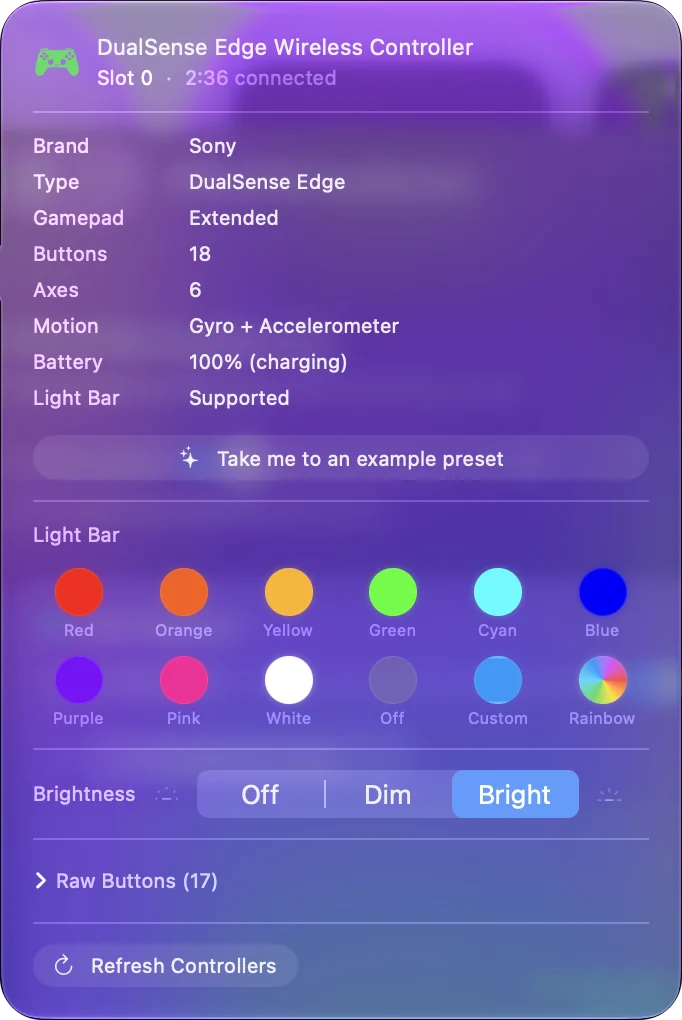
The same entry has Disconnect, to turn the controller's connection off from the Mac. Checking a controller's battery lists the other places to look. Reading the controller changes nothing on it.
Read the results
Each failed test points somewhere specific:
- Not in System Settings at all. Pairing, not a fault. See PS5 controller won't connect to a Mac.
- Every button lights, but no finger dots appear. The Mac is not getting touch data. Reconnect the controller and try again.
- The motion widget never moves over Bluetooth. Some Bluetooth pairings do not carry motion. A USB cable always does.
- A stick dot that rests off the crosshair. Drift, and a deadzone hides it. See stick drift on a Mac.
- One control dead in every test, by cable and Bluetooth. That part of the controller is worn or broken.
Only a control that fails on a cable and over Bluetooth is a hardware fault.
The short version
- Buttons. System Settings, Game Controllers.
- Sticks, triggers, touchpad, motion, light. Any preset's Live Visualizer in InputConfig.
- Rumble. The Haptic Feedback preset.
- Battery. The controller at the top of the sidebar.
Ten minutes covers every part of a DualSense, and nothing on the controller changes.
Questions
Is there a DualSense tester for Mac?
Yes. System Settings, Game Controllers tests the buttons with nothing installed. InputConfig, free on the Mac App Store, adds the sticks, trigger travel, the touchpad, motion, the light bar, rumble and battery, all live.
Can a browser tester check the PS5 touchpad or gyro?
Not on a Mac. Browser testers read the controller as a standard gamepad: buttons, sticks and triggers. The touchpad and the motion sensors need an app.
Does a PS4 controller test the same way?
Yes. The DualShock 4 is drawn as itself, with its touchpad, light bar and motion. Its Share button is where the DualSense has Create.
Does testing in InputConfig change anything on my controller?
No. Reading the controller changes nothing. Only a running preset with a light color or rumble rows sends anything to it, and deactivating the preset gives the light back.
Related
Free. macOS 14 or later. No account, nothing leaves your Mac. Open source on GitHub.