Questions
How to test controller vibration on a Mac
The quickest test is built into macOS: open System Settings, click Game Controllers in the sidebar, select the controller, and click Identify. On a pad that supports it, that plays a haptic pattern.
To feel the motors at different strengths, use the Haptic Feedback preset in InputConfig, the free mapper I make. If neither makes a pad buzz that should, connect it with a cable and try again before you blame the motors.
On this page: 9 sections
Steps
- Open System Settings, Game Controllers, select the controller and click Identify.
- Install InputConfig, select the Haptic Feedback preset and click Activate.
- Click into a text field, then press the four face buttons to feel four strengths.
- If nothing buzzes, connect a cable and test again.
- Deactivate the preset when you are done.
Step 1: Press Identify in System Settings
Game Controllers appears in the System Settings sidebar once a controller has been connected.
- You: Select the pad, then click Identify.
- macOS: Flashes the lights or plays a haptic pattern. It is meant for telling two identical controllers apart, so you cannot pick a strength.
- Check: A buzz here proves the motors, the connection and macOS all work.
If the controller is not in the list at all, the Mac is not seeing it, and the problem is pairing: start with controller not recognized on a Mac. A buzz on Identify clears the hardware in ten seconds.
Step 2: Feel four strengths with InputConfig
The Haptic Feedback preset puts a different strength on each face button.
- You: Install InputConfig, free on the Mac App Store. Select the Haptic Feedback preset in the sidebar, click Activate, and open TextEdit or click into any text field, so the letters have somewhere to go.
- InputConfig: Makes each face button type its letter and vibrate.
- Check: Press Cross, Circle, Square and Triangle on a PlayStation pad, or A, B, X and Y on an Xbox pad. You feel 30, 60, 85 and 100 percent.
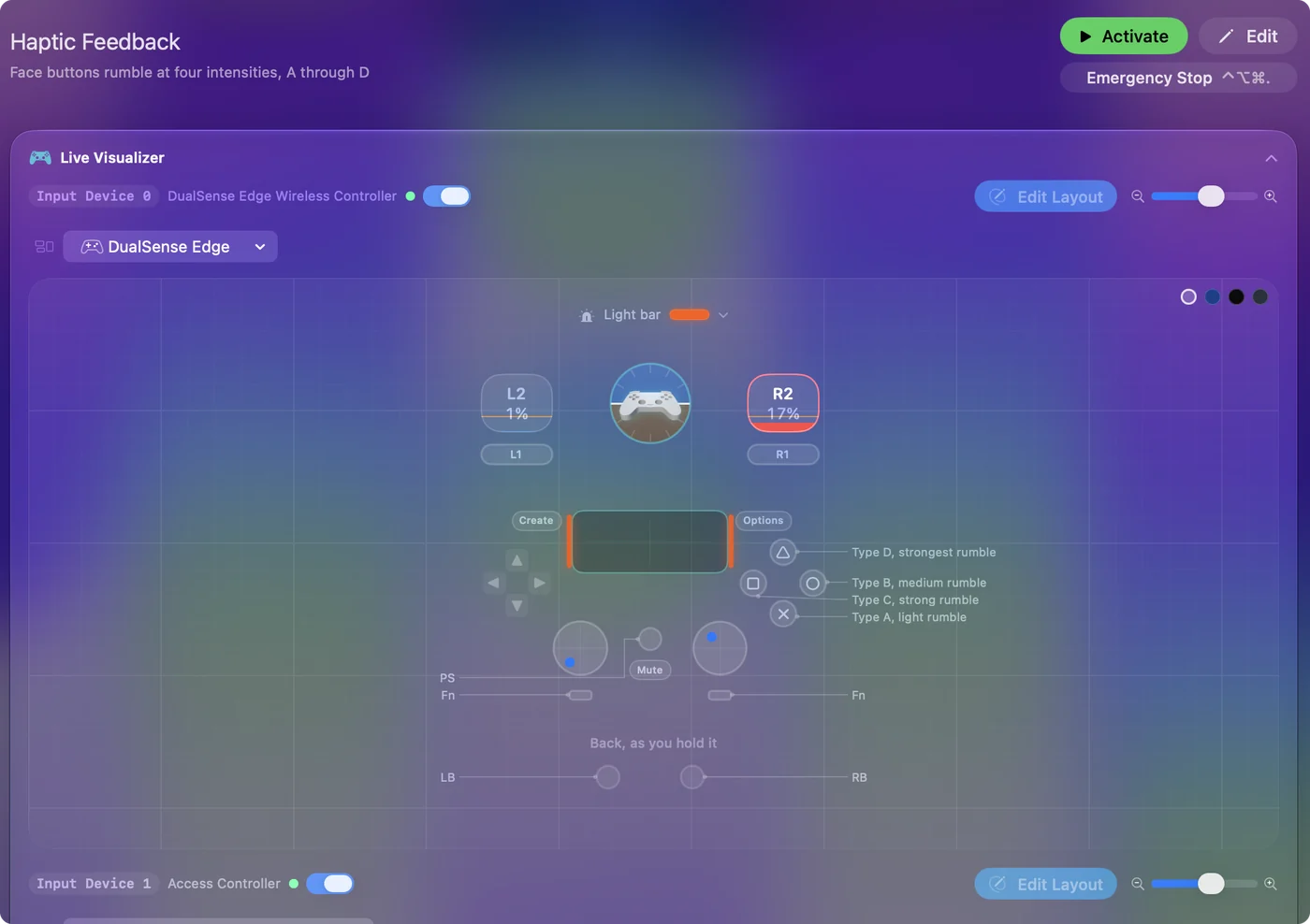
On a PlayStation pad the light bar also turns orange while the preset runs, which tests the light in the same minute. Deactivate the preset when you are done, so the face buttons stop typing.
 InputConfig is free on the Mac App Store. macOS 14 or later, no account, no tracking, open source.
Test a longer buzz
The preset's four rows are taps. To hold the motors on, open the preset with Edit, open Options on one row and drag Duration up to two seconds. A long buzz is easier to judge than a tap, especially on a DualSense, whose shortest buzzes feel soft.
InputConfig drives both motors at the same level, so it cannot test the left and right motors one at a time.
Treat browser testers with care
There are vibration testers that run in a web page. They use the browser's own controller support, and whether that includes rumble on a Mac depends on the browser and the controller. If a browser tester leaves the pad still but Identify or the preset makes it buzz, the controller is fine and the browser is the limit.
Read the result
Each result points at one part of the chain:
- It buzzes in the test but not in your game. The controller is fine. The game does not ask macOS for rumble, which is common. PS5 controller not vibrating on a Mac goes through why and what can be changed.
- It buzzes on a cable but not over Bluetooth. The wireless connection is the problem. Forget the controller in System Settings, Bluetooth, and pair it again. Keeps disconnecting covers the rest.
- Nothing, on a cable, in both tests, on a pad that should rumble. The motors or the board inside the controller. A second controller passing the same test settles it.
- A generic USB pad, an arcade stick or a wheel stays still. Expected. InputConfig reads those directly and sends them nothing back, so it has no way to run their motors, even if they have them.
Test on a cable before you decide the motors are dead.
Know each controller's quirks
- DualSense and DualSense Edge. These make rumble with haptic actuators that take about a fifth of a second to reach strength, so a very short buzz feels softer than a long one. InputConfig plays its shortest buzz at 220 ms on these pads for that reason.
- DualShock 4. The same test applies. It rumbles through the same kind of report as the DualSense.
- Xbox controllers. InputConfig uses macOS's haptics, the same path Identify uses.
- Valve's 2026 Steam Controller. It rumbles in InputConfig while Steam is closed. That support is new in 1.6 and experimental.
- Switch 2 Pro Controller on USB. InputConfig does not drive its rumble.
The adaptive triggers cannot be tested here, because InputConfig does not set their resistance.
The short version
- First. Identify in System Settings, Game Controllers.
- Then. The Haptic Feedback preset, four face buttons, four strengths.
- If it stays still. Try a cable, then a second controller, before you blame the motors.
If the test buzzes and the game does not, the game is the one that is quiet.
Questions
How do I test PS5 controller vibration on a Mac?
Select the DualSense in System Settings, Game Controllers and click Identify. For four strengths, activate InputConfig's Haptic Feedback preset and press Cross, Circle, Square and Triangle.
How do I test Xbox controller vibration on a Mac?
The same way: Identify in System Settings, Game Controllers, then the Haptic Feedback preset in InputConfig, pressing A, B, X and Y.
Can I test DualSense vibration without a PS5?
Yes. Everything on this page runs on the Mac alone, over Bluetooth or USB-C.
My controller vibrates in the test but not in a game. Is it broken?
No. The game does not send rumble on the Mac. Many Mac games and ports never added it.
Can I test the adaptive triggers on a Mac?
Not with InputConfig. It reads the triggers as analog inputs and does not set their resistance, so there is nothing to feel there.
Related
Free. macOS 14 or later. No account, nothing leaves your Mac. Open source on GitHub.