Questions
How to use the 2026 Steam Controller on a Mac
Valve's 2026 Steam Controller, the one with two thumbsticks and a square trackpad under each, works on a Mac with Steam: in Big Picture and in games Steam launches, through Steam Input. Outside Steam, macOS does not treat it as a game controller. It falls back to acting as a basic mouse and keyboard, so desktop apps and most games never see its buttons. I make a free app, InputConfig, that reads it directly from version 1.6 and turns every control into keys, clicks, scrolling or MIDI. Support for this model is marked experimental, because it was built from the published protocol in the open source SDL library rather than with the controller in hand.
On this page: 9 sections
Steps
- Quit Steam, or turn the controller off in Steam's settings. Steam takes the controller over while it runs.
- Connect it: a USB-C cable, Bluetooth in System Settings, Bluetooth, or the Steam Controller Puck plugged into the Mac.
- Open InputConfig. The controller appears at the top of the sidebar with its battery level.
- In the sidebar, open Feature Showcases, click Steam Controller (2026), and click Activate. The first time, allow the Accessibility permission macOS asks for.
- Slide a finger on the right trackpad to move the pointer, and tap or press it to click. Click Deactivate to stop.
Connect it one of three ways
- USB cable. Plug it in and InputConfig reads it right away.
- Bluetooth. Pair it in System Settings, Bluetooth, like any other controller. macOS can present it together with its built-in keyboard, which InputConfig reads only when Input Monitoring is allowed for it. If it does not appear over Bluetooth, use the cable or the Puck, or look in InputConfig, Devices in the menu bar, which lists it as needing Input Monitoring with a link to the setting.
- Steam Controller Puck. Valve's wireless dongle holds up to four controllers. Each one gets its own slot in InputConfig when it turns on and gives it up when it turns off, so each player can have rows of their own.
Whichever you use, quit Steam first: Steam takes the controller over while it runs, and the two fight over it.
 InputConfig is free on the Mac App Store. macOS 14 or later, no account, no tracking, open source.
Know what you can map
| Control | In InputConfig |
|---|---|
| A, B, X, Y, bumpers, stick presses, D-pad | Buttons and a D-pad, in the same places as an Xbox pad |
| View, Menu, Steam, Quick Access | Buttons |
| Four back buttons (L4, R4, L5, R5) | Buttons of their own |
| Triggers | Analog axes; the click at the end of the pull counts as fully pressed |
| Two trackpads | Real trackpads: a finger sliding, a tap, a double tap, or a press, on either pad. Also axes for position and for how hard you press |
| Stick and grip touch sensors | Buttons that fire on touch |
| Gyro | Motion rows for gyro aim or a tilt pointer |
| Rumble | Haptic feedback on any row, as a plain rumble at the strength you set |
| Battery | Shown next to the controller in the app |
The Live Visualizer draws this controller with every control where it really sits and what each one is bound to, and choosing it under Valve in the Live Visualizer's menu names a preset's buttons the way the Steam Controller prints them.
Start from the built-in preset
- You: In the sidebar, open Feature Showcases, click Steam Controller (2026), and click Activate. The first time, allow the Accessibility permission macOS asks for.
- InputConfig: Runs the desktop from the controller.
- Check: Slide a finger on the right trackpad to move the pointer, and tap or press it to click. Click Deactivate to stop.
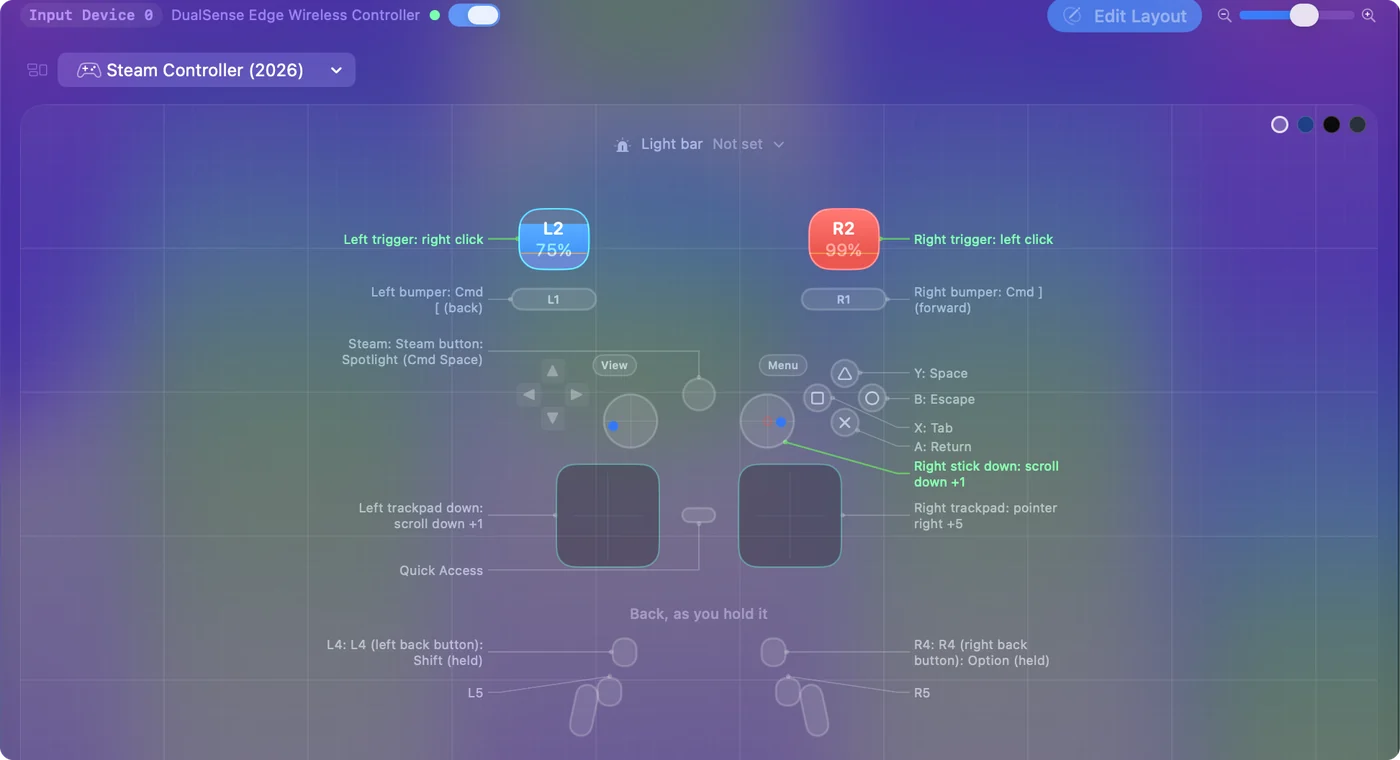
- Pointer and clicks. The right trackpad moves the pointer like a Mac trackpad, and a tap or a press on it clicks. The right trigger clicks and the left trigger right-clicks.
- Scrolling. The left trackpad and the right stick scroll.
- Keys. A is Return, B is Escape, X is Tab, Y is Space, the bumpers go back and forward, and the Steam button opens Spotlight.
- Back buttons. L4 and R4 hold Shift and Option.
The full table is on the Steam Controller (2026) preset page, and the trackpads as a mouse explains how to tune them. Motion Cursor, the tilt pointer preset, works on this controller too, with A, B and Y as its buttons.
Use it in games
- Games Steam launches. They get the controller through Steam Input, so leave Steam running for those and keep InputConfig's preset off.
- Games with no controller support, or outside Steam. Quit Steam and give the game keys and mouse. The Smart Preset Maker builds a layout for more than 450 games and apps, and for this controller it offers to make L4, R4, L5 and R5 repeat the four face buttons, so the back buttons do something from the start.
Know what lizard mode is
Without software talking to it, the controller acts as a simple mouse and keyboard, which Valve calls lizard mode. InputConfig switches lizard mode off while a preset runs, sending the command again every 2 seconds because the controller turns it back on when it hears nothing, and lets it come back when the preset stops, so you always have a working pointer. The Steam Controller help page covers both models side by side.
If it does not respond
Climb this ladder, smallest step first:
- Bindings flicker or come and go. Steam is still running. Quit it fully.
- A Puck slot does not appear. A slot shows up only while a controller in it is turned on.
- Nothing moves. InputConfig needs the Accessibility permission. The menu bar icon turns orange when a running preset needs it.
- The gyro pointer drifts a little over a long session. This controller's gyro follows a turn by its rate, so a small error can add up. InputConfig learns the rest bias while the controller lies still, and the app actions Center Pointer on Screen and Re-zero Motion put the neutral back.
- Something does not match what you press. The support is experimental. The Live Visualizer lights each control as it arrives, which is the quickest way to see what InputConfig hears.
The short version
- With Steam. It works in Big Picture and in games Steam launches.
- Without Steam. InputConfig 1.6 reads every control, as an experimental feature, on a cable, over Bluetooth or through the Puck.
- The rule. One of the two at a time: quit Steam before a preset runs.
Quit Steam first, and the rest of the controller is yours.
Questions
Does the 2026 Steam Controller work on a Mac without Steam?
As a game controller, not on its own: macOS sees a basic mouse and keyboard. With InputConfig, as an experimental feature, every button, the back buttons, both trackpads and the gyro can be mapped to keys and mouse in any app.
Is it the same as the original Steam Controller?
No. The 2015 model has one stick and two round trackpads; the 2026 model has two sticks, square trackpads under them, four back buttons and a gyro. InputConfig reads both, each with its own built-in preset; support for the 2026 model is experimental.
Can I use more than one?
Yes. Through the Steam Controller Puck, up to four controllers each get a slot, so each player can have a group of rows of their own.
Does the gyro work on a Mac?
In InputConfig, yes (experimental): Motion rows read it for gyro aim or a tilt pointer. Most Mac games do not read a gyro themselves.
Does it rumble?
Yes. Haptic feedback on a row rumbles it at the strength the row sets.
Related
Free. macOS 14 or later. No account, nothing leaves your Mac. Open source on GitHub.