Questions
Using a Steam Controller's trackpads as a mouse on a Mac
Yes, and with Steam closed both Steam Controllers already move the Mac's pointer on their own. Valve calls it lizard mode: the controller pretends to be a mouse and a keyboard, so the right trackpad moves the pointer and you can click. That is enough to get around, but you cannot change the speed, the clicks, or what anything else does.
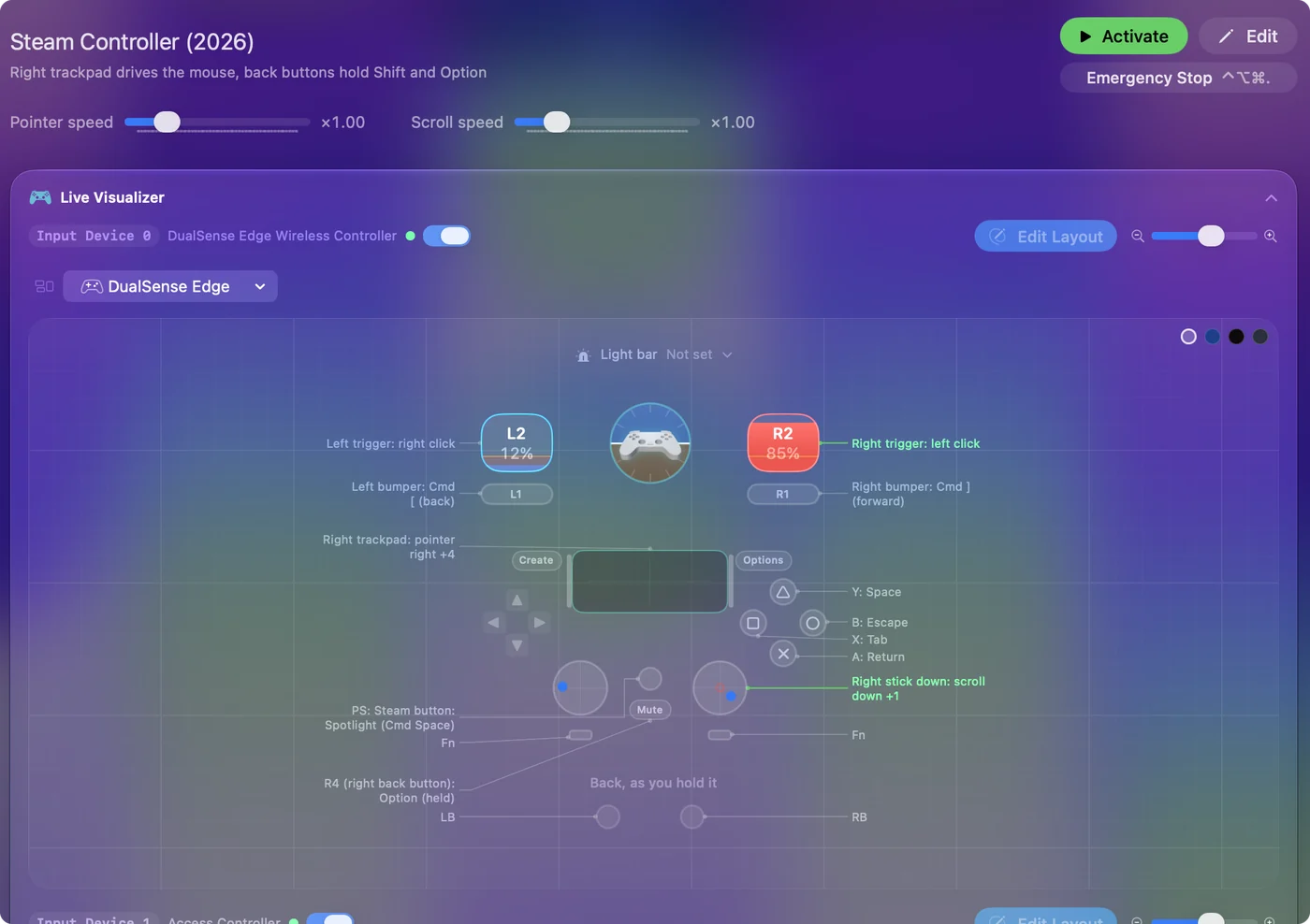
I make a free app, InputConfig, that turns lizard mode off while a preset runs and reads both trackpads itself: a finger sliding, a tap, a double tap, and a press, on the right pad and the left pad, each with its own job. This works on the original 2015 controller and on Valve's 2026 model, whose support is marked experimental.
On this page: 9 sections
Steps
- Quit Steam, because while it runs Steam takes the controller over and the two fight.
- Connect the controller: the original on a USB cable or its wireless dongle, the 2026 model on USB-C, Bluetooth or the Steam Controller Puck.
- In InputConfig's sidebar, open Feature Showcases and click Steam Controller for the 2015 model, or Steam Controller (2026).
- Click Activate, and switch InputConfig on in System Settings, Privacy & Security, Accessibility if macOS asks.
- Slide a finger on the right trackpad to move the pointer; on the 2026 preset a tap or press clicks and the left pad scrolls.
- Click Deactivate to give the controller back its own mouse.
Know what the controller does with no software
A Steam Controller that hears nothing from Steam falls back to lizard mode, its built-in mouse and keyboard emulation. macOS sees a mouse, not a game controller. The pointer moves and the clicks work, and that is the whole of it: no speed setting, nothing you can rebind, and games do not see a controller at all.
- Steam running. Steam replaces lizard mode.
- An InputConfig preset running. InputConfig replaces it while the preset runs.
- The preset stopped. InputConfig hands lizard mode back.
Steam also has a Desktop Layout meant to drive the desktop with a controller. On a Mac many people find it does nothing once Steam is not the front window; Steam Input outside Steam explains why. You are never left without a pointer: lizard mode comes back whenever the preset stops.
 InputConfig is free on the Mac App Store. macOS 14 or later, no account, no tracking, open source.
Start from a built-in preset
| Control | Steam Controller (2026) | Steam Controller (2015) |
|---|---|---|
| Right trackpad | Moves the pointer like a Mac trackpad; a tap or a press clicks | Moves the pointer; a press clicks |
| Left trackpad | Scrolls up and down | Not bound |
| Right trigger | Left click | Left click |
| Left trigger | Right click | Right click |
| Right stick | Scrolls | No right stick |
| A, B, X, Y | Return, Escape, Tab, Space | Return, Escape, Tab, Space |
| Bumpers | Command [ and Command ], back and forward | Command [ and Command ] |
| Steam button | Spotlight | Spotlight |
| Held for modifiers | L4 holds Shift, R4 holds Option | The grips hold Shift and Option |
Both are on the site with their full binding tables: Steam Controller (2026) and Steam Controller. Activate the preset for your model first, and change it only once you know what you miss.
Make a trackpad feel like a Mac trackpad
A row can read a trackpad in two ways, and they feel different:
- Touchpad rows. They follow your finger as it moves, the way a MacBook trackpad does. Lift and put the finger down again and the pointer carries on from where it was. The 2026 preset uses these. Set a row's input to Touchpad, then pick Right pad or Left pad on the row.
- Axis rows. They read where the finger sits on the pad, so the pad acts more like a stick. The original preset's pointer rows are axis rows: axes 2 and 3 are its right pad, 6 and 7 its left pad while a finger is on it. On the 2026 model, axes 6 and 7 are the left pad and 8 and 9 the right.
Taps, presses and pressure are inputs of their own:
- Taps. A Touchpad Gesture row can be a Touchpad tap (one finger) or a Touchpad double tap, on either pad; the row's menu also picks Right trackpad or Left trackpad. There is no two-finger tap, because each pad reads one finger.
- Presses. Pressing a pad down until it clicks is a plain button, so Scan finds it when you press.
- Pressure. On the 2026 model, how hard you press each pad is an axis too, 10 for the left and 11 for the right, if you want a firm press to do something a light one does not.
For a Mac trackpad feel, use Touchpad rows, not axis rows.
Set the speed
- One row. Each pointer row has its own Speed in its Options.
- Every row at once. The preset page has Pointer speed and Scroll speed sliders that scale every row together.
- Older rows. Touchpad rows made in 1.6 move the pointer as far up and down as they do side to side; rows made before 1.6 keep the speed they had.
The pointer stops the moment your finger stops.
Turn the left trackpad into a scroll wheel
The 2026 preset already does this. On the original, add two Touchpad rows on the Left pad, one for up and one for down, and give each a scroll output.
Both pads are read at the same time, so one thumb points while the other scrolls. A Steam Controller and a DualSense can both be used in the same preset, since each controller's pads are read on their own.
If the pointer does nothing or jumps
Climb this ladder, smallest step first:
- Quit Steam. If the pointer flickers, or bindings come and go, Steam is still running and the two are fighting over lizard mode. Quit Steam fully, or turn the controller off in Steam's settings.
- Allow Accessibility. If nothing moves at all, InputConfig needs the Accessibility permission to move the pointer. In 1.6 the menu bar icon turns orange when a running preset needs it, and the rows start working the moment it is granted.
- Use the cable or the Puck. If a 2026 controller over Bluetooth does not appear, macOS may be presenting it together with its lizard-mode keyboard, which InputConfig reads only when Input Monitoring is allowed for it. Open InputConfig, Devices in the menu bar, where the controller is listed as needing Input Monitoring with a link to the setting.
- Add an adapter. The original's dongle is USB-A, so a MacBook with only USB-C ports needs an adapter.
Lizard mode coming back when the preset stops is on purpose. While a preset runs, InputConfig sends the off command again every 800 milliseconds on the original and every 2 seconds on the 2026 model, because the controller turns lizard mode back on when it hears nothing. Steam left running is the first thing to rule out.
The short version
- No app. Lizard mode moves the pointer, with nothing to change.
- InputConfig. Quit Steam, activate the built-in preset for your model, and set Pointer speed on the preset page.
- Mac trackpad feel. Touchpad rows, tap to click, and the left pad for scrolling.
Close Steam, activate the preset, and the trackpads are yours to set up.
Questions
Can a Steam Controller be a mouse on a Mac without Steam?
Yes. With Steam closed it falls back to lizard mode and moves the pointer and clicks by itself. To change the speed, the clicks or the other buttons, run a preset in InputConfig, which turns lizard mode off while the preset runs.
Does the Steam Controller trackpad work like a MacBook trackpad?
In InputConfig, yes: Touchpad rows follow the finger the way a Mac trackpad does, a tap clicks on the 2026 preset, and a press clicks on both. Each pad reads one finger, so there are no two-finger gestures.
Can I use both trackpads at once?
Yes. Each pad has its own rows. The 2026 preset moves the pointer with the right pad and scrolls with the left.
Which Steam Controller is this for?
Both. The original 2015 controller has round pads and one stick; the 2026 model has square pads under two sticks. InputConfig 1.6 reads both trackpads on both models as trackpads. Support for the 2026 model is experimental.
Related
Free. macOS 14 or later. No account, nothing leaves your Mac. Open source on GitHub.