How do you use a Bluetooth page turner or shutter remote on a Mac?
 InputConfig is completely free on the Mac App Store. You don't have to make an account, there are no subscriptions, and nothing is locked. Optimized for Apple silicon.
Pair it in System Settings, Bluetooth, and press a button. These cheap clickers and ring remotes pose as a keyboard or a media remote, so each button sends a key such as an arrow, Enter or volume up, and many work with no app at all. If a button does the wrong thing or nothing, InputConfig, the free Mac app I make, can give it a job, as long as the Mac receives it as a key.
Sellers say little about what the buttons send. One listing I read calls a ring remote a page turner, a mouse clicker and a photo shutter, with scroll, left and right, volume and play or pause buttons, and an eBay listing warns that a connected remote becomes the default input device. I read both on October 21, 2026, and I have not tested a specific remote, so press Scan to see yours. The sheet music page turner page and presentation clicker page cover those uses.
On this page: 11 sections
Steps
- Turn the remote on in pairing mode and pair it in System Settings, Bluetooth.
- Close the Keyboard Setup Assistant if it opens.
- Press each button in a text field to see what it types.
- In InputConfig, press Scan on a row, press the button, and choose an output.
Pair it and see what it does with nothing installed
Open System Settings, Bluetooth, put the remote in pairing mode, and click Connect beside its name. macOS may open the Keyboard Setup Assistant, which asks you to press keys. You can close it. Then press each button in a text field, or in Preview or Keynote.
- A page turner or clicker. Most send Left and Right arrows or Page Up and Page Down, which turn pages in Preview, Books, Kindle and slide decks.
- A shutter remote. Many send Volume Up as the shutter, which a phone camera treats as a shutter button. On a Mac it changes the volume.
- A ring remote. The listing I read says scroll, left and right, volume and play or pause, so expect a mix of arrows and media keys.
I could not confirm the key codes for any one remote, so treat those lists as a place to start. Test the remote in a text field before you decide it is broken.
Find out what each button sends
- You: Open InputConfig, add a row, set the input to Keyboard Key, press Scan and press a button on the remote.
- InputConfig: Names the key that arrived.
- Check: If a name appears, the button can carry a job. If nothing appears, the remote sent a media key that InputConfig does not hear, or nothing at all.
| Button | What it often sends | Check |
|---|---|---|
| Next or forward | Right arrow or Page Down | Scan |
| Back | Left arrow or Page Up | Scan |
| Shutter or the big button | Volume Up, or Enter | Scan |
| Scroll up and down | Up and Down arrows | Scan |
| Play or pause, volume | Media keys | Scan, and test it in Music |
Know why a shutter button changes the volume
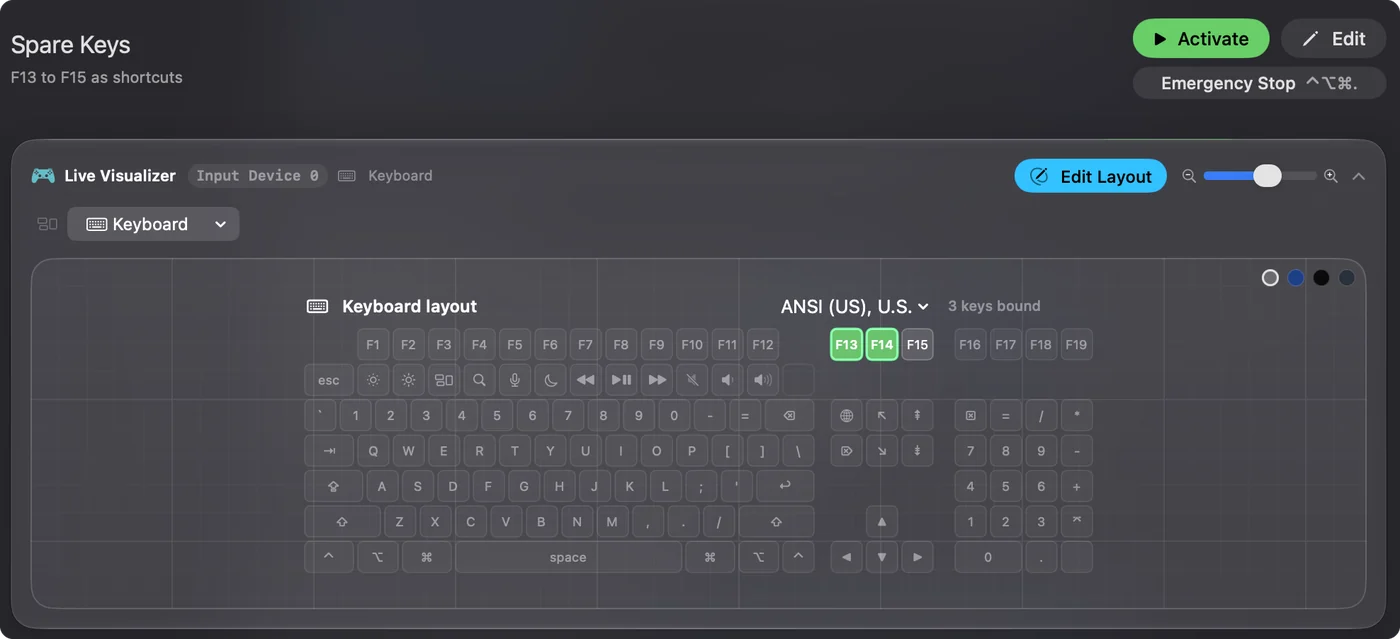
A phone camera accepts Volume Up as a shutter, so many shutter remotes send it. A Mac does the same thing it always does with Volume Up, and the volume changes. InputConfig listens to keys alongside macOS and does not block them, so it cannot stop that. What it can do is add a job on top, such as a screenshot or Start Dictation. If the volume jump is the problem, the remote's button is the cause, and a different remote that sends arrow keys is the cleaner choice. A button that sends Volume Up will always change the volume, whatever else you bind to it.
Bind each button
- You: Add a new bind, set the input to Keyboard Key, press Scan and press the remote button, then choose an output.
- InputConfig: Shows the row as the key it received, on Any keyboard.
- Check: Save, Activate, and press the button. The output runs.
Every keyboard counts as one device, so a remote button that sends the Right arrow is the same input as the Right arrow on your keyboard. That is why I would not rebind an arrow. A job added to an arrow runs on top of the page turn and does not replace it. For a clean layout, bind the buttons that send something you do not use, and leave the page turn buttons alone.
Do more than turn a page
| One press that | How |
|---|---|
| Takes a screenshot | System Function, screenshot |
| Starts or stops Dictation | System Function, Start Dictation |
| Opens an app or a website | Open App or Open URL |
| Runs a Shortcut | Run Siri Shortcut |
| Plays and pauses a video | Keyboard Key, Space |
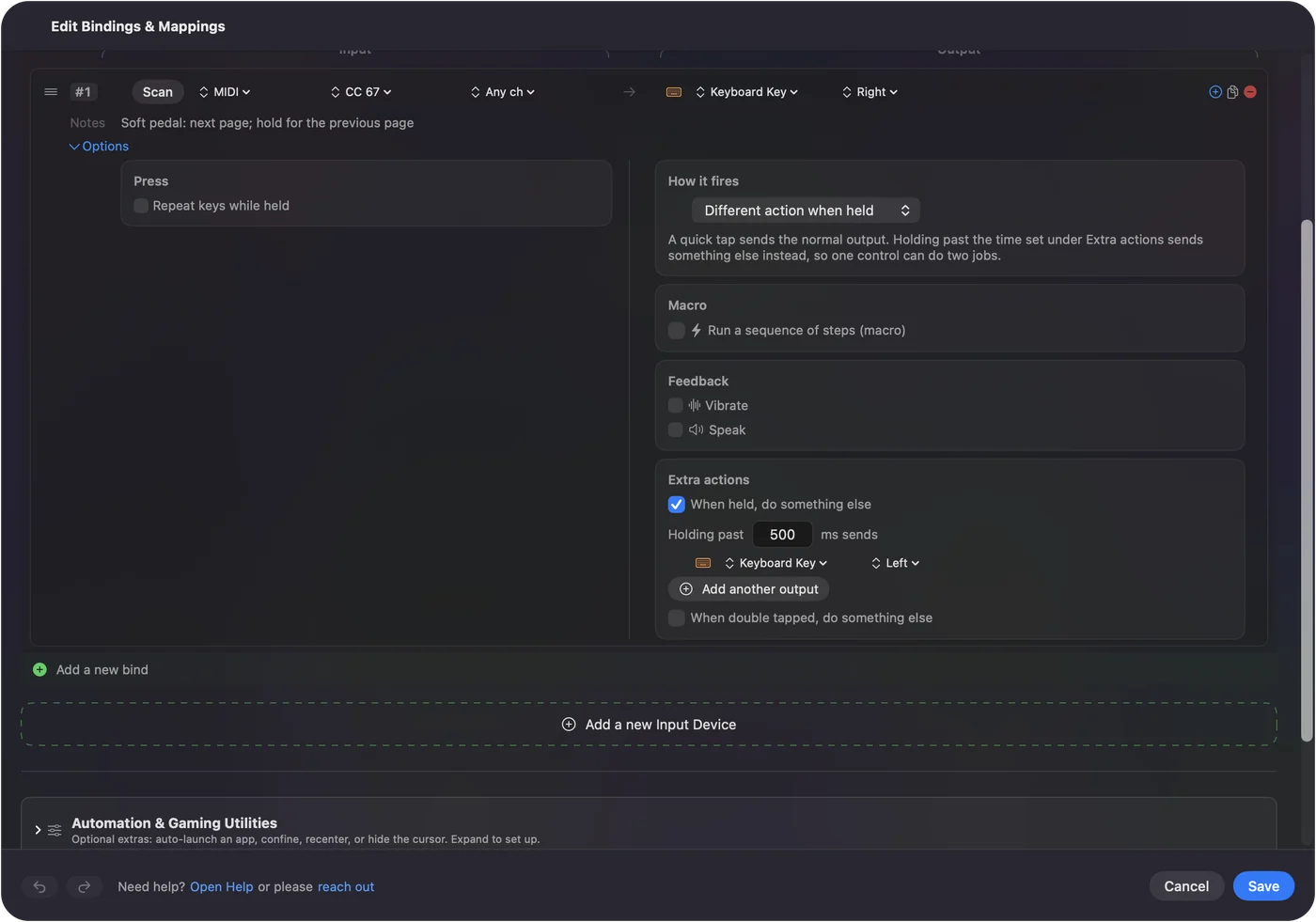
Each row can have a hold action and a double tap action, so a one-button remote does three things: a press for next, a hold for back, a double tap for a screenshot. A remote that costs a few dollars can be a hands-free control for a camera or a recording, if one button is enough.
Hold and double tap has the steps.
Use it for the jobs people buy these for
- Music and sheet music. Next and back for pages, with a hold for the previous page.
- Teaching and talks. Next slide, black screen, and a laser pointer if your clicker has one. The presentation clicker page covers this.
- Hands-free recording. A shutter style remote to start a recording in an app that answers to a key, or to take a screenshot.
- Reading in bed or at a stand. Page Down and Page Up for Books or a browser, and scroll for a long article.
- Accessibility. A ring remote on a finger is a switch for someone who cannot reach a key.
If the remote does nothing
Climb this ladder, smallest step first:
- Charge or change the battery. A weak battery looks like a broken remote.
- Pair it again. Remove it in System Settings, Bluetooth and pair it fresh.
- Disconnect it from the phone. Many remotes pair with one device at a time, and an eBay listing says the remote becomes that device's default input.
- Press Scan. If no name appears, the Mac is not hearing a key.
- Check InputConfig. Accessibility permission and an active preset. Control Option Command period is the emergency stop.
What it cannot do
- Make a remote that sends a media key quiet. InputConfig does not block keys.
- Read a button that talks to the phone app only. Some remotes use a companion app, and nothing reaches the Mac.
- Tell two keyboards apart. Every keyboard counts as one device.
- Work from far away. Bluetooth range depends on the remote.
The short version
- Pair and test. Press each button in a text field.
- Scan. See which keys arrive.
- Bind. Give each button a job, a hold and a double tap.
Most of these remotes work as they are, and a few minutes with Scan tells you which buttons are worth more.
Questions
Do Bluetooth page turners work on a Mac?
Usually yes. Most pair as a keyboard and send arrow or Page Up and Page Down keys.
Can I use a camera shutter remote with a Mac?
It pairs, but a button that sends Volume Up changes the volume. Press Scan to see what yours sends.
Why does my remote change the Mac volume?
Because it sends Volume Up or Down, which macOS acts on. InputConfig cannot block a key.
How do I make a Bluetooth clicker do something else on a Mac?
Press Scan in InputConfig, press the button, and choose a different output.
Why does the remote stop working when I pair it with my phone?
Many remotes keep one connection at a time, so disconnect the phone first.
Related
This page in other languages: العربية, Čeština, Dansk, Deutsch, Español, Suomi, Français, עברית, Magyar, Bahasa Indonesia, Italiano, 日本語, 한국어, Norsk, Nederlands, Polski, Português, ไทย, 繁體中文, 简体中文
Completely free. You don't have to make an account, there are no subscriptions, and nothing is locked. Optimized for Apple silicon. Open source on GitHub.
Updated