How do you use a Logitech Spotlight or R500 presenter on a Mac?
 InputConfig is completely free on the Mac App Store. You don't have to make an account, there are no subscriptions, and nothing is locked. Optimized for Apple silicon.
Pair it, or plug in its receiver, and the Next and Back buttons work in Keynote, PowerPoint and Google Slides with nothing installed. The extras, such as the Spotlight highlight, the magnifier, the timer and a long press on a button, belong to Logi Options+, which Logitech makes for recent versions of macOS. If a presenter button does the wrong thing in Keynote, or you want a button to do a second job, InputConfig, the free Mac app I make, can add one, as long as the button arrives on the Mac as a key.
The Spotlight facts are from Logitech's support page for the Spotlight remote and its product pages, which I read on October 21, 2026. The R500 facts are from Logitech's support article and retail listings that I found the same day. I have not tested a Spotlight or an R500 myself, so wherever I could not confirm what a button sends, this page tells you to press Scan and see.
On this page: 12 sections
- Steps
- Know what the presenter does with nothing installed
- Know what Logi Options+ adds on a Mac
- Find out what each button sends
- Bind a button to something Keynote does not do
- Use a macro for a talk that needs several steps
- Add holds, double taps and a layout for each slide app
- Ideas for people who present with one
- If the presenter does not work as you expect
- What it cannot do
- The short version
- Questions
Steps
- Pair the presenter in System Settings, Bluetooth, or plug in its USB receiver, and test Next and Back in your slides.
- Install Logi Options+ if you want the Spotlight highlight, magnifier, timer or a long press action.
- In InputConfig, add a keyboard row, press Scan, and press a button on the presenter to see what it sends.
- Choose the output for that key, such as a Keynote shortcut, then press Save and Activate.
- Add a preset for each slide app, so the same button does the right thing in Keynote and in PowerPoint.
Know what the presenter does with nothing installed
A presenter is a small remote that your Mac sees as a keyboard, a mouse, or both. That is why the basics work at once. Logitech's Spotlight support page says that the remote gives you slide navigation with Next and Back, and cursor control for clicking links and videos, without any extra software. Here is how the two families I cover differ:
- Logitech Spotlight. Three buttons: Pointer, Next and Back. It connects by the USB receiver or by Bluetooth, charges over USB-C and, according to Logitech, lasts up to three months on a charge. To pair it over Bluetooth you hold the top and bottom buttons together for three seconds.
- Logitech R500 and R500s. A smaller remote with three navigation buttons and a laser pointer. Logitech lists the R500s with a USB receiver or Bluetooth Low Energy, and the older R500 with a receiver, with Next, Previous and Laser as its plug and play functions.
- Older R400, R700 and R800 presenters. These have more buttons, including a start button and a black screen button. I mention them because many people on a Mac still own one, and Logitech's support article on their key codes is the clearest source for what a presenter sends.
The apps you will use are Keynote, PowerPoint, Google Slides in a browser and PDF viewers. All four take Page Down and Page Up or the arrow keys to move on and back. If Next and Back work, the presenter is ready, and everything else on this page is optional.
Know what Logi Options+ adds on a Mac
Logi Options+ is Logitech's own app, and Logitech says it is available for recent versions of Windows and macOS. For the Spotlight it is where the features that make the remote special are set:
- Pointer effects. Highlight, magnify and a digital pointer, with a size, contrast and color you choose. Logitech says double pressing the Pointer button switches between the effects.
- Timer and vibration. You set milestones, and the remote vibrates to warn you before the end of your talk. One retailer page says it buzzes five minutes before the end.
- Long press actions. Logitech's own examples are a long press on Next to start the presentation and a long press on Back to show a blank screen.
- Battery. The app shows the charge, and the remote vibrates when it runs low.
The R500s is also listed with Options+ for customizing buttons and watching the battery. The original R500 used Logitech Presentation software, which Logitech says it no longer supports. I could not find a page that says Options+ gives the R500s a different action per app on a Mac, so check Options+ itself before you rely on that. One buyer wrote that over the USB connection on a MacBook Air the Next and Back buttons did nothing while the pointer worked, so if one connection misbehaves, try the other.
Find out what each button sends
Presenters are small, and the sellers say little about the codes. The one table I trust is Logitech's for the R400, R700 and R800, where Previous is Page Up, Next is Page Down, the start button toggles F5 and Escape, and the black screen button is the period key. A test by another company that I found says the same. For the Spotlight and the R500 I could not confirm the codes, so press Scan.
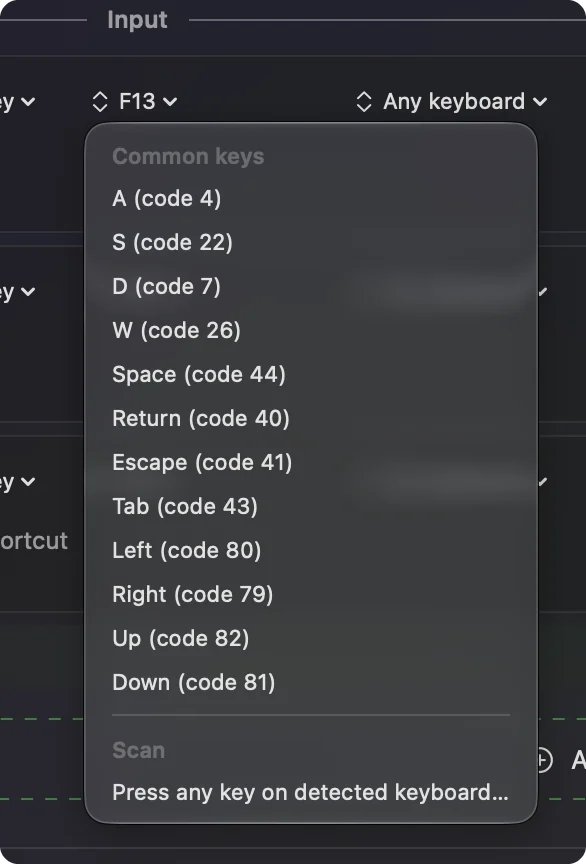
- You: Open InputConfig, add a row, set the input to Keyboard Key, press Scan, and press Next on the presenter. Then do the same on the This Mac's mouse or trackpad device for the Pointer button.
- InputConfig: Names the key or mouse button that arrived.
- Check: If Next shows as Page Down or Right, the presenter sends plain keys and InputConfig can read it. If nothing appears, the button is for Logi Options+ only.
| Button | What it often sends | How to check |
|---|---|---|
| Next | Page Down or an arrow key, according to the model | Scan the key |
| Back | Page Up or an arrow key | Scan the key |
| Pointer, Spotlight | Cursor movement and a click, which arrive as mouse input | Scan on the mouse device |
| Laser, R500 | Nothing, because the laser is hardware | Not readable |
| Start and black screen, older models | F5 or Escape, and the period key | Scan the key |
| A long press | Whatever Options+ was set to send, or nothing | Hold it while Scan listens |
Bind a button to something Keynote does not do
InputConfig listens to the keyboard alongside macOS. It does not block or remap a key itself, so a Next button that sends Page Down still moves the slide, and a job you add runs on top. That sounds like a problem, but it fits a few real jobs very well:
- A start button that does nothing in Keynote. On the older Logitech presenters the start button toggles F5 and Escape. Keynote does not start a show on F5, so I would bind F5 to Option Command P, Keynote's shortcut for playing a presentation, and leave Escape alone, because Keynote stops the show on it already.
- A black screen button. The period key does not blank the screen in Keynote, so bind it to the letter B, which Keynote does use for a blank screen. A post I found about an older Logitech presenter and Keynote describes both of these remaps.
- An end of talk job. Bind a button to Open App, so the last tap on Back opens your notes, or to a System Function such as Mission Control.
- You: Add a row with the input Keyboard Key, press Scan, press the start button, and choose Keyboard Key with Option and Command held and the letter P as the output.
- InputConfig: Presses Option Command P each time the button sends F5.
- Check: Open Keynote, press the start button, and the show begins.
If a button sends a key you use in other apps, such as Page Down, I would not bind it to a second job. Bind the buttons that your slide app ignores, and leave Next and Back alone.
Use a macro for a talk that needs several steps
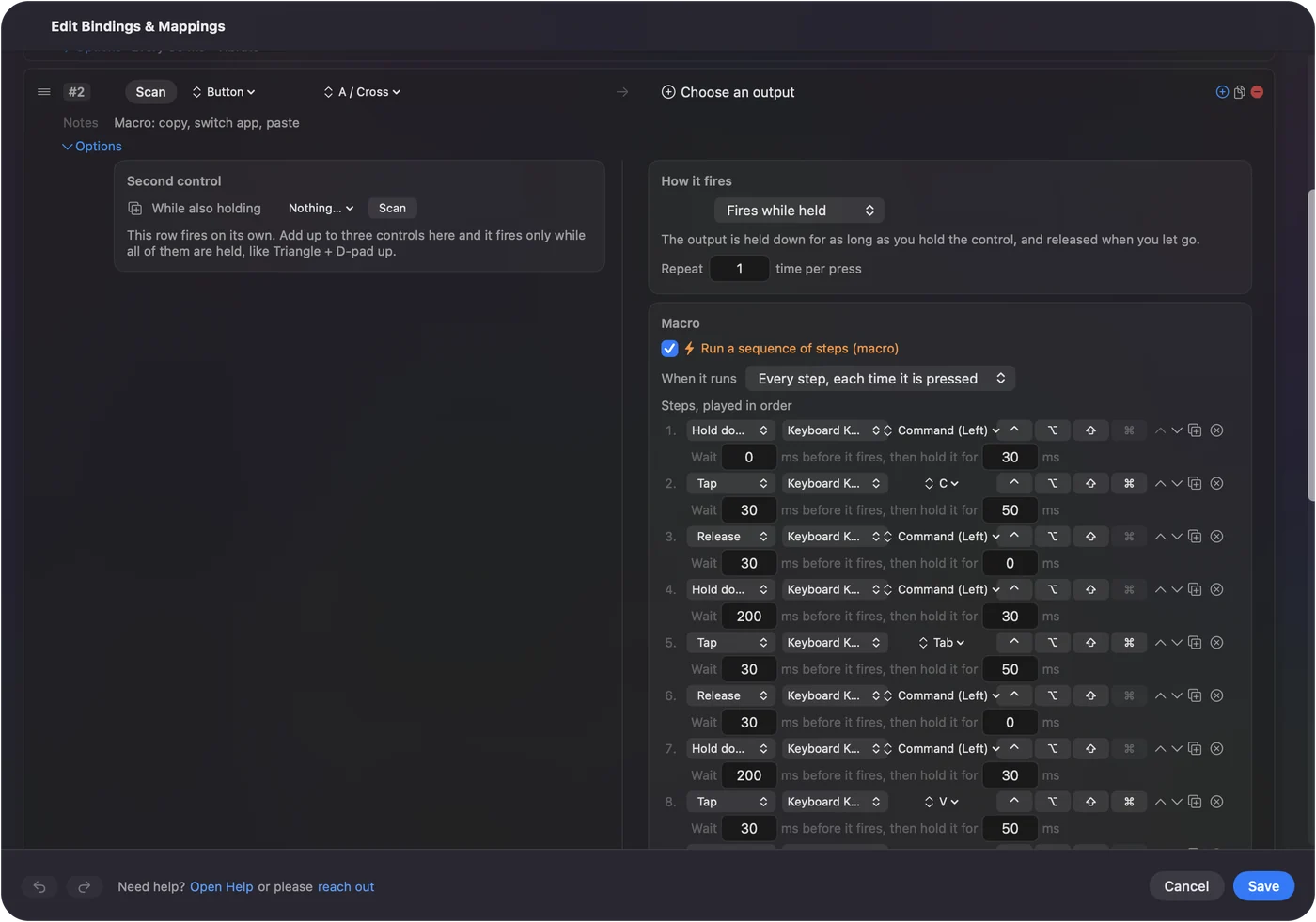
A row can run a macro, which you turn on in the row's Options with Run a sequence of steps (macro). Each step is a key, shortcut or click, with a wait before it and a hold time. That turns one spare presenter button into a start of talk routine: a step to open Keynote's presenter display, a wait of a second, then the play shortcut. How to make a macro on a Mac has the steps.
Add holds, double taps and a layout for each slide app
Each row has a hold action and a double tap action, each a full second output. On a presenter the useful one is on a spare button: a tap does the normal thing and a hold does something rarer. A preset can also list the apps it belongs to, under Automation & Gaming Utilities, and with Settings, Advanced, Switch presets when the front app changes, the layout follows the app in front. So the black screen button can send B for Keynote and the period for PowerPoint, which is what PowerPoint uses. Only one preset runs at a time, and Control Option Command period is the emergency stop. One preset per slide app means you stop thinking about which app is on screen.
Ideas for people who present with one
- Teachers. A presenter, a Keynote lesson and a timer. Put a Siri Shortcut on a button that starts a class timer.
- Speakers at a conference. Open App for the notes app on a hold of Back, and Mission Control on a double tap, so you can find a window you lost without walking to the laptop.
- Church and music. A presenter works as a page turner for a PDF score, and the sheet music page turner page covers the pedal version of the same idea.
- Video calls. Use the Spotlight highlight in a screen share, and a button for the mute shortcut your call app uses.
The presentation clicker page covers clickers in general, and this page is for the Logitech ones.
If the presenter does not work as you expect
Climb this ladder, smallest step first:
- Test it in a slide app. Open a deck in presentation mode and press Next. If nothing moves, click once inside the slides so the app is the front window.
- Try the other connection. Switch between the USB receiver and Bluetooth. Remove the pairing in System Settings, Bluetooth, and pair it again if you used Bluetooth.
- Check Logi Options+. Open it and confirm it sees the remote. Grant the permissions it asks for in System Settings, Privacy & Security.
- Press Scan. If a name appears, the button can carry a job. If nothing appears, Options+ keeps that button for itself.
- Check InputConfig. Accessibility permission, the preset active, and Control Option Command period as the emergency stop.
What it cannot do
- Draw the pointer effects. The Spotlight highlight, magnifier and timer belong to Logi Options+.
- Block a key. A button that sends Page Down still sends it, so keep jobs for the buttons the slide app ignores.
- Read a button that talks only to Options+. A long press that triggers an Options+ action sends nothing to the Mac.
- Block the Pointer click. Left click cannot be blocked, so I would not add a job to it.
- Change how the laser or the cursor feels. Pointer speed is a Mac setting, and the effects are Logitech's.
The short version
- Plain keys work alone. Next and Back need no app on a Mac.
- Options+ for the effects. Highlight, magnify, timer and long press.
- InputConfig for the spare buttons. A start button that plays Keynote, a black screen button, a macro and a layout per slide app.
Scan every button once before you plan anything, because the presenters differ and the Spotlight's codes are not in the sources I could reach.
Questions
Does the Logitech Spotlight work with a Mac?
Yes. Logitech lists it for macOS, and slide navigation and cursor control work without extra software. Logi Options+ adds the highlight, magnifier and timer.
Do I need Logi Options+ for the Spotlight on a Mac?
Not for Next and Back. You need it for the pointer effects, the timer and a long press on a button.
Why does my Logitech presenter exit Keynote when I press a button?
On older models the start button toggles F5 and Escape, and Keynote stops the show on Escape. Bind F5 to Option Command P in InputConfig and avoid the second press.
Does the Logitech R500 work with Keynote on a Mac?
Logitech lists the R500 for macOS 10.12 or later, with Next, Previous and Laser as its basic functions, and names Keynote among the compatible apps.
Can I remap Logitech Spotlight buttons on a Mac?
Options+ lets you set a long press on Next and Back. For a second job on a button that sends a key, press Scan in InputConfig and bind it.
Related
This page in other languages: العربية, Čeština, Dansk, Deutsch, Español, Suomi, Français, עברית, Magyar, Bahasa Indonesia, Italiano, 日本語, 한국어, Norsk, Nederlands, Polski, Português, Русский, Slovenčina, Svenska, ไทย, Türkçe, Українська, Tiếng Việt, 繁體中文, 简体中文
Completely free. You don't have to make an account, there are no subscriptions, and nothing is locked. Optimized for Apple silicon. Open source on GitHub.
Updated