A video editing transport from a game controller
 The Video Editor Transport layout is built into InputConfig, free on the Mac App Store. You don't have to make an account, there are no subscriptions, and nothing is locked. Optimized for Apple silicon.
On a Mac: Works in editors that use J, K, L and the I and O marks. The two trigger rows need each editor's own blade and selection keys, listed below.
Yes, a game controller can be a video editing controller in any Mac editor that uses J, K, L and the I and O marks. J, K and L sit on the face buttons, a frame step on the stick, a cut on a trigger, marks on the D-pad. The two trigger rows need each editor's own keys, and this page lists them.
The layout, control by control
How the layout thinks
- Play. Play and pause (Space) on the bottom face button, L, J and K on the right, left and top.
- Find the frame. The left stick steps one frame.
- Mark. Mark in and out (I and O) on the D-pad.
- Keep your work. Undo and Save on the bumpers, and the right stick scrolls.
Set the triggers for your editor
The right trigger sends B and the left trigger V. What they do depends on the editor:
- Final Cut Pro. B is the Blade tool. V toggles a selected clip on and off, so change the left trigger to A, Final Cut's Select tool.
- DaVinci Resolve. B is Blade Edit Mode and A is Selection Mode, so set the left trigger to A.
- Premiere Pro. The Razor is C and Selection is V, so change the right trigger to C.
- Split at the playhead. Command B in Final Cut and Resolve, Command K in Premiere. Put it on the touchpad press.
Tick Vibrate under Feedback in the cut row's Options to feel each cut land. Change the left trigger before you edit in Final Cut, or V will switch your clips off.
Get it in two clicks
- Get InputConfig free on the Mac App Store, open it, and click Smart Preset Maker on the welcome screen.
- Search for Video Editor Transport and pick it. The layout is created as a preset in your sidebar, named and ready.
- Press Activate. Every row can be changed afterwards: the editor's Scan button rebinds any control the moment you touch it.
Every binding, as a table
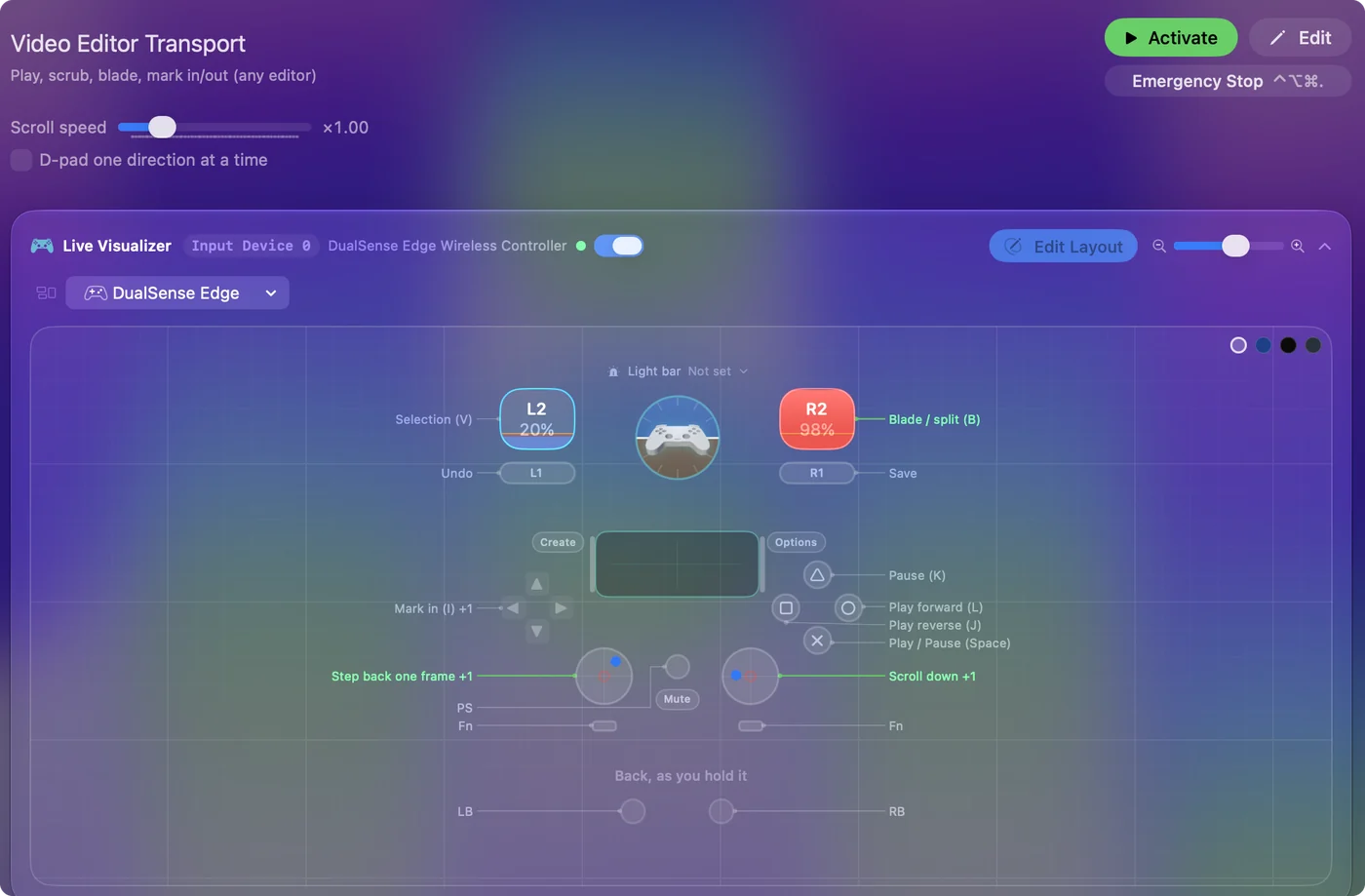
| Controller | Sends | What it does |
|---|---|---|
| A / Cross | Space | Play / Pause (Space) |
| B / Circle | L | Play forward (L) |
| X / Square | J | Play reverse (J) |
| Y / Triangle | K | Pause (K) |
| Left stick left | Left | Step back one frame |
| Left stick right | Right | Step forward one frame |
| Right trigger | B | Blade / split (B) |
| Left trigger | V | Selection (V) |
| D-pad left | I | Mark in (I) |
| D-pad right | O | Mark out (O) |
| LB / L1 | Command (Left), Z | Undo |
| RB / R1 | Command (Left), S | Save |
| Right stick down | Scroll down | Scroll down |
| Right stick up | Scroll up | Scroll up |
Button names follow the Xbox / PlayStation pair shown in the editor, so A / Cross is the bottom face button on either pad. On a Switch Pro Controller the bottom button is labeled B; the mapping still fires on position.
Questions
Does it work in iMovie?
Partly. Space, the frame steps and undo work, but iMovie does not use J, K and L or the B and V tools. Its split is Command B. The iMovie page lists its keys.
Related
Completely free. You don't have to make an account, there are no subscriptions, and nothing is locked. Optimized for Apple silicon. Open source on GitHub.
Updated