ScreenFlow from a game controller
 The ScreenFlow layout is built into InputConfig, free on the Mac App Store. You don't have to make an account, there are no subscriptions, and nothing is locked. Optimized for Apple silicon.
On a Mac: ScreenFlow reads keys from this layout like a keyboard. The rows came from the Final Cut layout, so the trigger rows need ScreenFlow's split and selection keys.
Yes, you can trim screencasts in ScreenFlow on a Mac with a game controller: play on the big button, a frame at a time on the stick, a split on a trigger. The rows came from the Final Cut layout, so the two triggers need ScreenFlow's own keys. Reviewing a forty-minute recording from a sofa and dropping splits where the long pauses are is what this is for.
The layout, control by control
How the layout thinks
- Listen. Play and pause (Space) on the bottom face button, L, J and K on the others.
- Find the frame. The left stick steps one frame.
- Mark. Mark in and out (I and O) on the D-pad.
- Keep your work. Undo and Save on the bumpers, and the right stick scrolls the timeline.
If L, J or K does nothing in your version, give those buttons ScreenFlow's own transport keys from its menus.
Give the triggers ScreenFlow's keys
Step 1: The split
- You: Look up the key shown next to Split in ScreenFlow's Edit menu and set it as the right trigger's output, in place of Final Cut's B.
- InputConfig: Sends ScreenFlow's split key from the next pull.
- Check: Park the playhead on a clip and pull the trigger. The clip splits.
Step 2: The left trigger
- You: Give it a job you use, such as ripple delete from the same menu.
- InputConfig: Sends A until you change it.
- Check: Pull it with a section selected and watch the gap close.
The split is the press that makes this a trimming layout.
Tune it
- Feel the split. Tick Vibrate under Feedback in the split row's Options.
- Callouts and annotations. Pointer work, easier with a lower Pointer speed on the preset's page.
Listen with your eyes closed and cut with your thumb.
Get it in two clicks
- Get InputConfig free on the Mac App Store, open it, and click Smart Preset Maker on the welcome screen.
- Search for ScreenFlow and pick it. The layout is created as a preset in your sidebar, named and ready.
- Press Activate. Every row can be changed afterwards: the editor's Scan button rebinds any control the moment you touch it.
Every binding, as a table
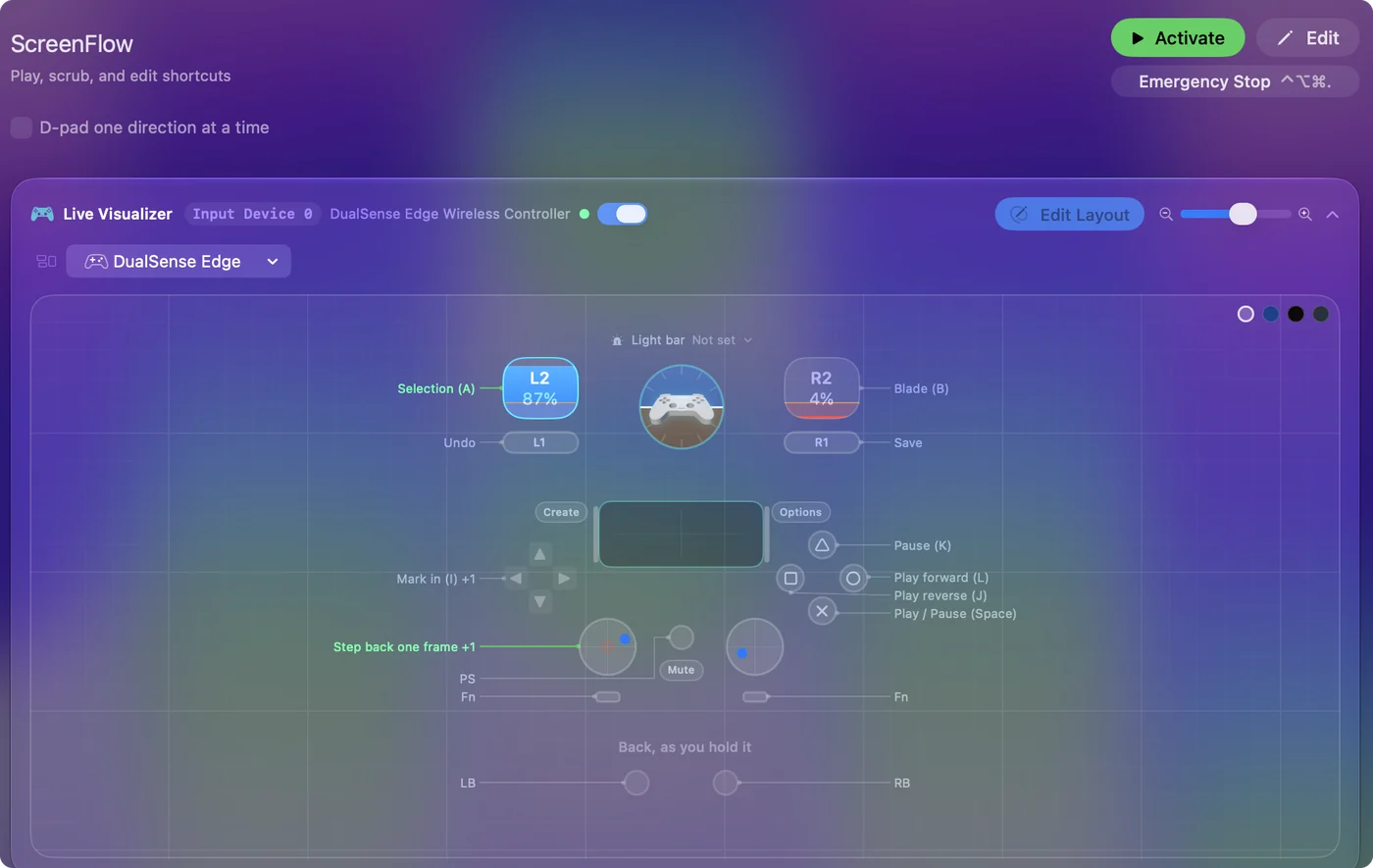
| Controller | Sends | What it does |
|---|---|---|
| A / Cross | Space | Play / Pause (Space) |
| B / Circle | L | Play forward (L) |
| X / Square | J | Play reverse (J) |
| Y / Triangle | K | Pause (K) |
| Left stick left | Left | Step back one frame |
| Left stick right | Right | Step forward one frame |
| Right trigger | B | Blade (B) |
| Left trigger | A | Selection (A) |
| D-pad left | I | Mark in (I) |
| D-pad right | O | Mark out (O) |
| LB / L1 | Command (Left), Z | Undo |
| RB / R1 | Command (Left), S | Save |
Button names follow the Xbox / PlayStation pair shown in the editor, so A / Cross is the bottom face button on either pad. On a Switch Pro Controller the bottom button is labeled B; the mapping still fires on position.
Questions
Does this match the Final Cut layout?
Yes, it has the same buttons as the Final Cut layout. The split key on the right trigger is the change.
Related
Completely free. You don't have to make an account, there are no subscriptions, and nothing is locked. Optimized for Apple silicon. Open source on GitHub.
Updated