Descript from a game controller
 The Descript layout is built into InputConfig, free on the Mac App Store. You don't have to make an account, there are no subscriptions, and nothing is locked. Optimized for Apple silicon.
On a Mac: Descript reads keys from this layout like a keyboard. The rows use common editor keys; Descript's own shortcut list shows which match in your version.
Yes, you can review a Descript project on a Mac from a game controller: play, scrub and undo stay under your thumbs while you listen. Descript edits audio by editing the transcript, so the controller is a listening tool more than a cutting one. The text edits stay with the keyboard or your voice.
The layout, control by control
How the layout thinks
- Listen. Play and pause (Space) on the bottom face button, L, J and K on the others.
- Step. The left stick steps with the arrow keys.
- Final Cut leftovers. The triggers send B and A and the D-pad I and O.
- Undo. Undo and Save on the bumpers, for the word you just deleted.
Check the rows and add a scroll
- You: Open Descript's keyboard shortcut list and press each row once. Give the right stick's up and down two rows with a Mouse Wheel output, since it has none.
- InputConfig: Sends the common editor keys, and scrolls the script once the new rows are in.
- Check: Push the right stick and the script moves. Change any row that does something else in Descript.
A listening pass needs a scrolling script under one thumb and play under the other.
Tune it for review
- Playback speed. Put Descript's faster and slower keys on the stick clicks. One and a half times is a good review speed.
- Mark a spot. Put a marker or comment key on a trigger, with Vibrate ticked under Feedback so you feel it land.
- Dictated fixes. Add a Start Dictation row for retyping a word in the transcript.
Mark every problem while you listen, then fix them all at the desk.
Get it in two clicks
- Get InputConfig free on the Mac App Store, open it, and click Smart Preset Maker on the welcome screen.
- Search for Descript and pick it. The layout is created as a preset in your sidebar, named and ready.
- Press Activate. Every row can be changed afterwards: the editor's Scan button rebinds any control the moment you touch it.
Every binding, as a table
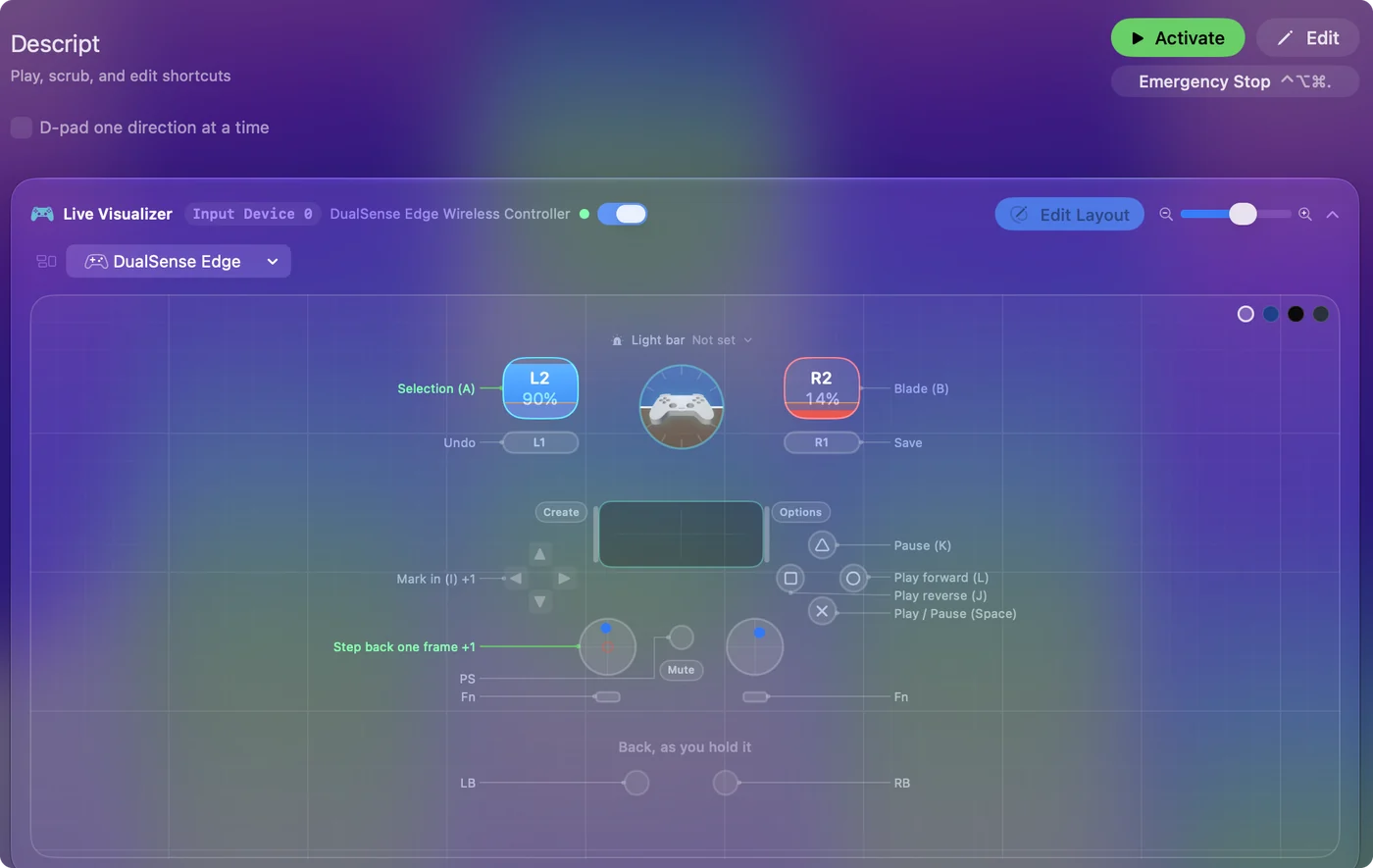
| Controller | Sends | What it does |
|---|---|---|
| A / Cross | Space | Play / Pause (Space) |
| B / Circle | L | Play forward (L) |
| X / Square | J | Play reverse (J) |
| Y / Triangle | K | Pause (K) |
| Left stick left | Left | Step back one frame |
| Left stick right | Right | Step forward one frame |
| Right trigger | B | Blade (B) |
| Left trigger | A | Selection (A) |
| D-pad left | I | Mark in (I) |
| D-pad right | O | Mark out (O) |
| LB / L1 | Command (Left), Z | Undo |
| RB / R1 | Command (Left), S | Save |
Button names follow the Xbox / PlayStation pair shown in the editor, so A / Cross is the bottom face button on either pad. On a Switch Pro Controller the bottom button is labeled B; the mapping still fires on position.
Questions
Can I edit in Descript with a controller?
The listening pass, yes. The transcript edits still want a keyboard, or dictation.
Related
Completely free. You don't have to make an account, there are no subscriptions, and nothing is locked. Optimized for Apple silicon. Open source on GitHub.
Updated