Can I use mouse side buttons in Roblox on a Mac?
 InputConfig is completely free on the Mac App Store. You don't have to make an account, there are no subscriptions, and nothing is locked. Optimized for Apple silicon.
Not directly, because Roblox does not let an experience read a side button. Its documentation lists only three mouse buttons for input, the left, the right and the middle, plus the wheel and movement. A side button has to send a key or a click that Roblox does understand. InputConfig is the free Mac app I make, and it does that on a Mac, per app, with no changes inside Roblox.
Roblox has a native Mac app. The developer forum thread asking for the extra buttons dates from 2018, and staff said then that they might add them after a rebinding feature, and the last comment I could find was in December 2024 and still asking. I read both on October 21, 2026.
On this page: 11 sections
Steps
- Join an experience and note the keys it uses, such as E, F, the number keys or Shift.
- In InputConfig, add a Mouse row, press Scan, and press the side button.
- Choose Keyboard Key and the key the experience uses, or a mouse click output for a held right click.
- Tick Block the button's own action, and add Roblox to the preset's app list.
- Press Activate and test the button in the experience.
What works with nothing installed
Roblox's standard desktop controls are the same on a Mac. WASD or the arrow keys move, Space jumps, and holding the right mouse button while you drag turns the camera. The Left and Right arrow keys also turn it, I and O zoom, and the scroll wheel zooms within the range the experience allows. Shift turns on shift lock if the switch is on in Settings. The number keys pick tools. I took these from Roblox's own documentation and the camera page on this site.
Experiences can change any of it, and the creator decides. A side button has no job in Roblox, and no setting in Roblox can give it one.
The practical answer is that a side button has to become something Roblox reads. A key works for most experiences. A right click held down works for the camera. For a trackpad, see Roblox camera and shift lock on a Mac.
Find out what each button sends
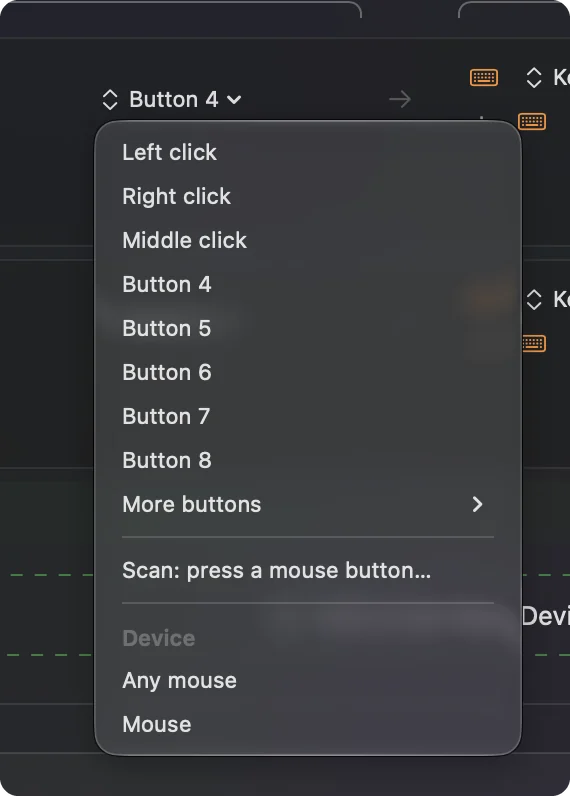
Press Scan first, because the mouse might not be sending what you think.
- You: Open InputConfig, add a Mouse row, choose This Mac's mouse or trackpad, press Scan, and press the button.
- InputConfig: Names it, for example Button 4, and More buttons holds Button 9 to Button 32.
- Check: A side button scans as Button 4 or 5. A DPI button usually scans as nothing, because it talks only to the maker's software.
| Button | What Roblox reads | Idea |
|---|---|---|
| Left click | MouseButton1 | Use, click and interact. |
| Right click | MouseButton2 | Hold and drag to turn the camera. |
| Wheel press | MouseButton3 | Whatever the experience uses it for. |
| Scroll | Mouse wheel | Zoom. |
| Side buttons | Nothing | Send a key or a click with InputConfig. |
Send a key from a side button
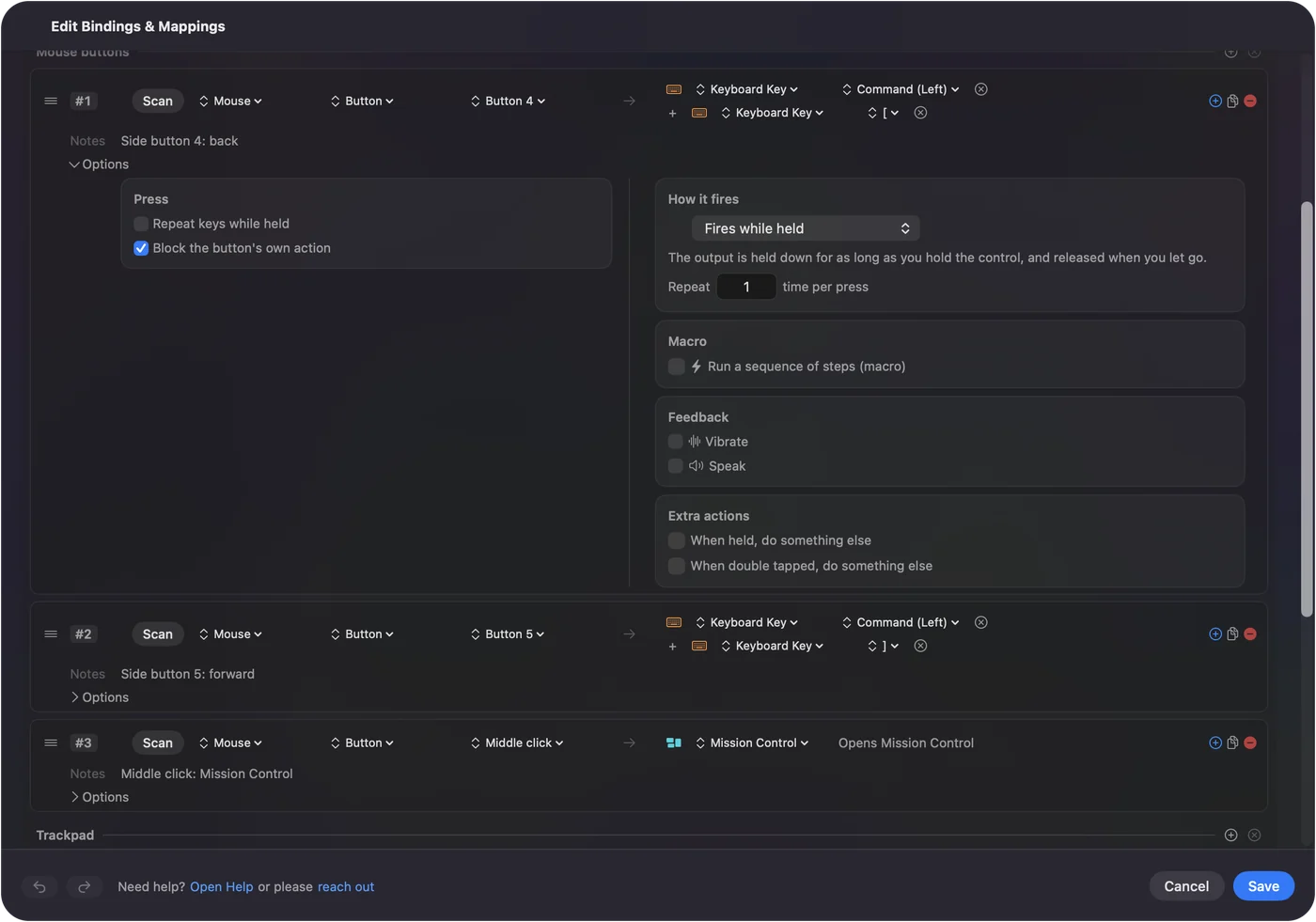
Choose what the button should be before you bind it. Common picks: Shift for shift lock, E or F for the interact key many experiences use, a number key for a tool, and the forward slash for chat.
- You: Add a Mouse row for Button 4, press Scan, press the button, choose Keyboard Key and Left Shift. Add Roblox to the app list and tick Block the button's own action.
- InputConfig: Presses Shift each time you press the button, which toggles shift lock when its switch is on.
- Check: In an experience that allows shift lock, press the button. The pointer locks and the camera follows the mouse.
InputConfig needs the Accessibility permission, in System Settings, Privacy & Security, Accessibility. The emergency stop is Control Option Command period.
Hold a right click for the camera
Roblox turns the camera while the right button is held and you drag. A row's Options has a How it fires menu, and Fires while held holds the output for as long as you hold the button. InputConfig's outputs include mouse clicks, so a side button can be a held right click. I have not tested this in Roblox itself, and I expect it to work because Roblox's documentation describes the camera as right button plus drag.
- You: Add a Mouse row for Button 5, choose the Right click output, and set How it fires to Fires while held.
- InputConfig: Holds the right button down while you hold the side button.
- Check: Hold the button and move the mouse. The camera turns, and it stops when you let go.
This is the most useful trick on a MacBook with a USB mouse, or when you keep the mouse in your right hand and the trackpad in your left.
Macros and the options that help
A row's Options can run a macro, with key, shortcut and click steps, and a hold action and a double tap action are available on each row. For Roblox I would keep it to small chores: a tap for a tool and a hold for the next one, or a double tap for the emote wheel.
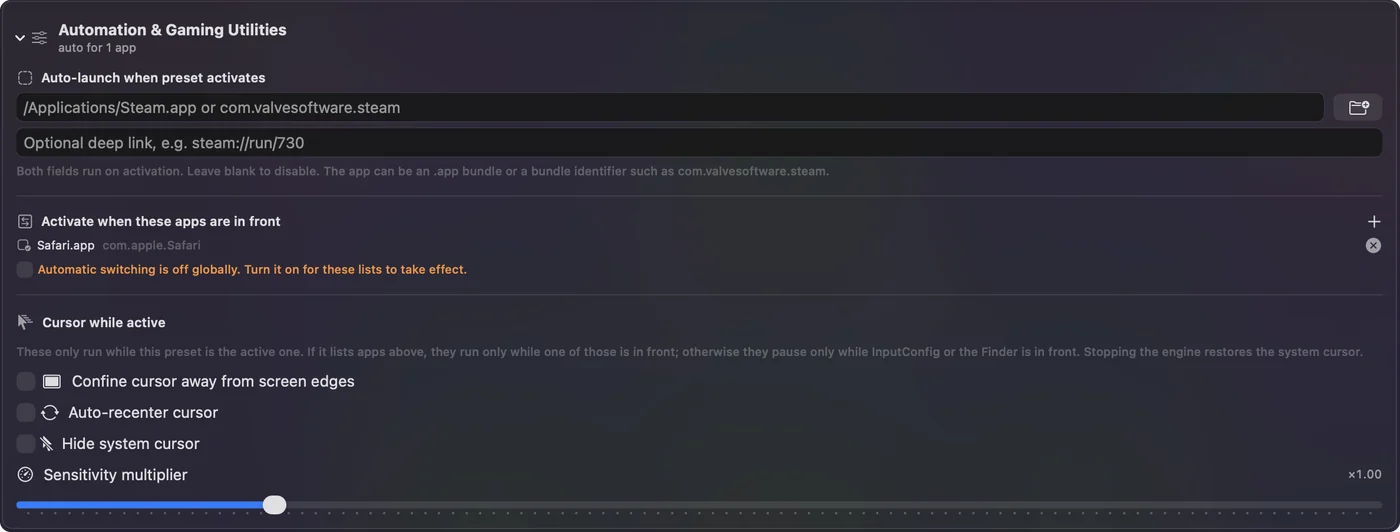
- Per app. List Roblox under Automation & Gaming Utilities, in Activate when these apps are in front. Then the side buttons are Back and Forward in your browser and keys in Roblox.
- Repeat while held. Some experiences ask for repeated clicking. Read the Roblox auto clicker rules first, because many experiences forbid it and some detect it.
- Block the original. For the side buttons, this stops other apps from seeing Back and Forward.
Ideas for real players
- Kids on a Mac. A preset limited to Roblox keeps the buttons from doing anything odd elsewhere. Roblox with a controller covers a pad.
- Obby players. Jump on a thumb button leaves the other fingers on movement.
- Players with tired hands. I made InputConfig because my hands are hard to use. A thumb button that holds a right click is exactly the kind of job I would hand over.
- Tycoon and simulator players. A tool key on a tap and the next on a hold, and nothing to reach for.
If the button does nothing
Climb this ladder, smallest step first:
- Press Scan. If nothing scans, the button talks only to the maker's software.
- Check the experience. Creators decide which keys exist. A key that does nothing in one experience may work in the next.
- Check shift lock. Shift Lock Switch must be on in Roblox's Settings, and Roblox only allows it while it believes you play with a keyboard and a mouse.
- Check Accessibility. InputConfig must be listed and on.
- Check the app list. If Roblox is not in the preset's list and Switch presets is on, the preset will not run.
- Stop the preset. Control Option Command period turns it off.
What it cannot do
- Make Roblox read side buttons. It only sends keys and clicks.
- Block a typed key. InputConfig listens to the keyboard and does not block it.
- Read profile buttons. DPI buttons send nothing to macOS.
- Change DPI. The maker's app or a tool such as LinearMouse or Mac Mouse Fix does that.
- Override a creator. If an experience turns a feature off, the button cannot turn it on.
The short version
- No side buttons. Roblox reads left, right, middle and the wheel.
- Send keys. InputConfig makes a side button any key.
- Hold a click. Fires while held gives you the camera on a thumb.
If Roblox cannot read the button, make the button something Roblox can read.
Questions
Does Roblox support mouse side buttons?
Not directly. Roblox's documentation lists left, right and middle buttons and the wheel, and a 2018 developer forum request for the extra buttons had no announcement in what I could read.
How do I use a side button for shift lock in Roblox on a Mac?
Send Left Shift from the button with InputConfig, and turn Shift Lock Switch on in Roblox's Settings. Shift lock only works while Roblox thinks you are using a keyboard and mouse.
How do I turn the camera in Roblox on a Mac without a right button?
Use the Left and Right arrow keys, turn on shift lock, or put a held right click on a side button with InputConfig. On a trackpad, a two finger click is a right click.
Is there a Roblox app for Mac?
Yes, there is a native Mac app, and a USB or Bluetooth mouse works with it.
Can I use a gaming mouse in Roblox on a Mac?
Yes as a mouse. Its left, right and middle buttons and the wheel work in Roblox, and the extra buttons need to send keys.
Related
This page in other languages: العربية, Čeština, Dansk, Deutsch, Español, Suomi, Français, עברית, Magyar, Bahasa Indonesia, Italiano, 日本語, 한국어, Norsk, Nederlands, Polski, Português, Русский, Slovenčina, Svenska, ไทย, Türkçe, Українська, Tiếng Việt, 繁體中文, 简体中文
Completely free. You don't have to make an account, there are no subscriptions, and nothing is locked. Optimized for Apple silicon. Open source on GitHub.
Updated