How to map a PS5 controller to keyboard keys on a Mac
 InputConfig is completely free on the Mac App Store. You don't have to make an account, there are no subscriptions, and nothing is locked. Optimized for Apple silicon.
You map a PS5 controller to keyboard keys on a Mac with a mapper, because macOS only passes the DualSense to games that read controllers. It pairs in seconds and native Mac games see it right away. Everything else needs the controller to look like a keyboard. InputConfig, a free Mac app I made, reads every control on the DualSense, including the touchpad, the gyroscope, the mute button and both analog triggers, and sends the keys and mouse events you choose, in any app.
On this page
Steps
- Pair the DualSense and open InputConfig.
- Create or open a preset and click Scan on a row.
- Press the control, then choose Keyboard Key and pick the key.
- Activate the preset.
Map a DualSense button to a key
- You: Pair the DualSense (hold PS and Create) or plug in USB-C, then open InputConfig. Create a preset or start from FPS (PS5 DualSense), Desktop Navigation or any of the 450+ ready layouts. Click Scan on a row, press the control, then choose Keyboard Key and the key.
- InputConfig: Binds the row. Cross, Circle, Square, Triangle, the D-pad, L1 to R3, Create, Options, the touchpad click and the mute button are all mappable.
- Check: Press Activate. The light bar shows the preset's color, so you know which one is live.
Start from the layout closest to your game and change only what it does differently.
Start from FPS (PS5 DualSense)
The built-in FPS (PS5 DualSense) preset is a first-person layout for games with no controller support:
- Move and look. The left stick moves, the right stick looks.
- Fight. R2 fires, L2 aims, Square reloads, Triangle is slot 1 and L1 is slot 4.
- Move around. Cross jumps, Circle crouches with Control, L3 sprints with Shift and R3 uses with E.
- Weapons. D-pad up and down scroll weapons, left is Q, right is F, and R1 middle-clicks.
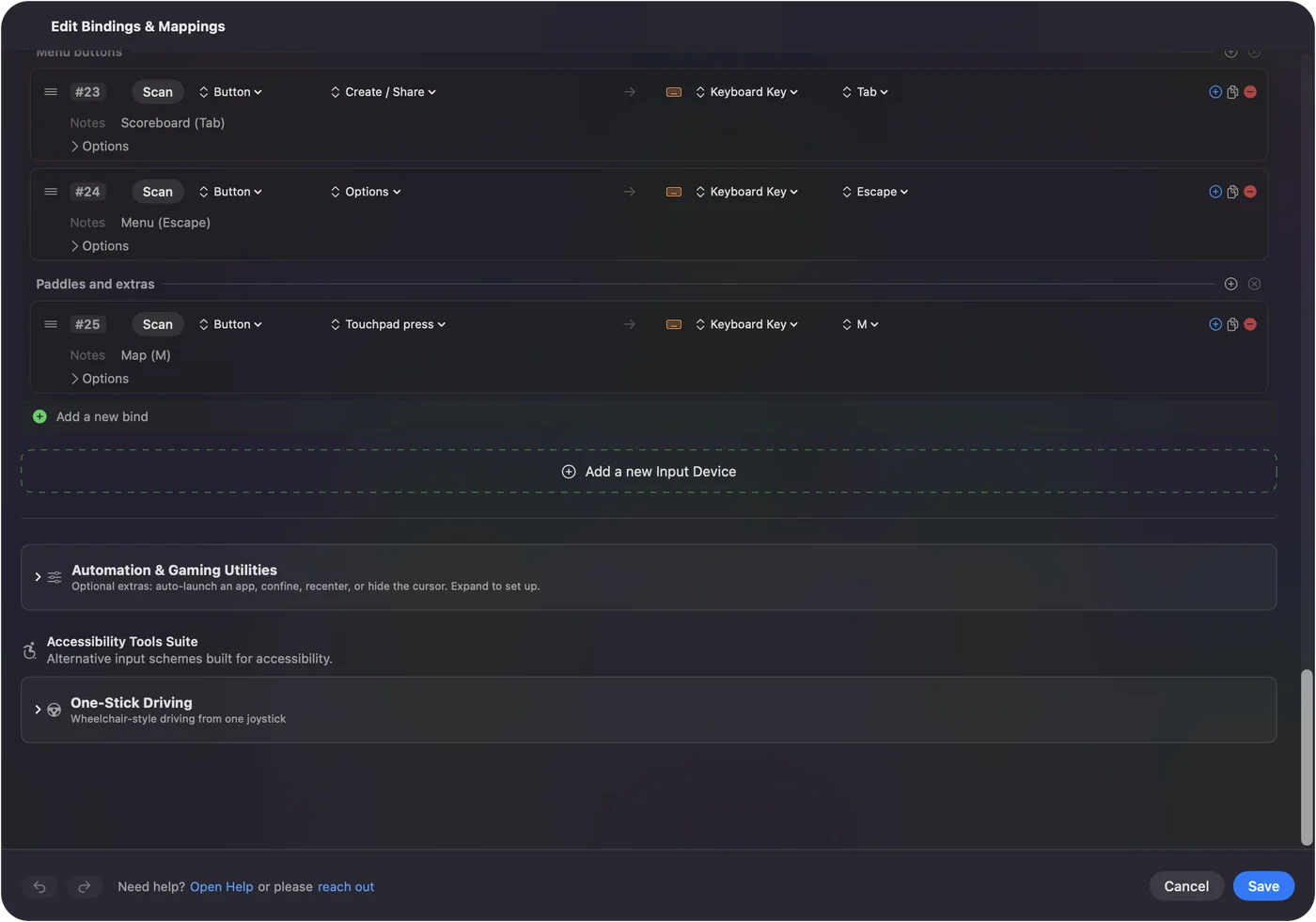
- Menus. The touchpad press opens the map with M, Share is Tab and Options is Escape.
Use the DualSense extras
- Touchpad. Swipe to move the pointer or scroll, press to click, or split it into regions that each send a key.
- Gyroscope. Tilt to aim or to move the pointer. R1 re-centers in the built-in motion presets.
- L2 and R2. Read as analog, so a trigger can press a key or click once it passes its deadzone, or drive a smooth output such as scrolling. Click one in the Live Visualizer to give it a trigger feel, Light, Medium or Firm, for that preset.
- DualSense Edge. The back paddles and Fn buttons appear as extra buttons over Bluetooth and USB, and its stored profiles are listed over USB-C.
- Create. It keeps its macOS screenshot and recording shortcut unless the running preset uses it.
If a button does nothing
Climb this ladder, smallest step first:
- Watch the Live Visualizer. Press the button. If it lights up, InputConfig is reading it and the row is the problem.
- Check the row. Press Scan on that row again and press the button, so the row listens to the control you mean.
- Check Accessibility. If the visualizer lights up but no key arrives in any app, switch InputConfig on in System Settings, Privacy & Security, Accessibility.
- Stop doubled presses. If a game reads the DualSense itself as well, every press arrives twice. Use its own support or the preset, not both.
What it cannot do
- Scripted trigger effects. InputConfig sets a steady resistance on L2 and R2, not the bow tension or click points a PS5 game programs.
- Two touchpads in one preset. A preset reads one PlayStation touchpad, from the first controller that has touchpad rows.
- A virtual controller. It sends keys and mouse events. It does not make the DualSense look like another pad to a game.
The short version
- Every control is a row. Scan it, choose Keyboard Key, pick the key.
- Use the extras. Touchpad regions, tilt and analog triggers are all inputs.
- Know which preset is live. The light bar takes the preset's color.
The DualSense has more inputs than any other pad a Mac reads, and every one of them can press a key.
Every free controller mapper for Mac is compared on one page.
Questions
Can you use a PS5 controller on a Mac?
Yes. It pairs over Bluetooth or works over USB-C with no driver. Native Mac games see it directly. For everything else, InputConfig maps it to keyboard and mouse.
Can the PS5 touchpad send keys?
Yes. InputConfig can split the touchpad into regions, each bound to its own key, or use it as a trackpad with a press as the click.
Does the DualSense gyroscope work on a Mac?
Yes. InputConfig reads it and can move the pointer or aim with tilt. The Gyro Aim and Motion Cursor presets show both.
Related
This page in other languages: 日本語, 繁體中文
Updated