Questions
How to turn the PS5 controller touchpad into extra buttons on a Mac
Draw zones on the touchpad in InputConfig, the free mapper I make, and each zone becomes a button: touch it and it sends a key, a shortcut, a click, or anything else a button can. The built-in Touchpad Zones preset is a working example, with the four corners as Undo, Redo, Copy and Paste.
macOS has nothing like this; it does not even turn the touchpad into a pointer. Zones work on the DualSense, the DualSense Edge and the DualShock 4, over Bluetooth or USB, and a preset can hold up to 16 of them.
On this page: 10 sections
Steps
- Open or activate a preset, then open Calibrate Touchpad from a touchpad row's Options or the Controller menu.
- On the Regions tab, click Add Region and drag a rectangle on the pad.
- Bind the zone to a key, or add a row with the input type Touchpad zone and pick it.
- Save the preset and touch the zone to try it.
Try the built-in preset first
- You: Activate Touchpad Zones and touch a corner of the pad.
- InputConfig: Sends Undo top left, Redo top right, Copy bottom left and Paste bottom right, each with a short pulse so you can feel that it landed.
- Check: Pressing the pad is still a left click, and a two-finger tap is a right click.
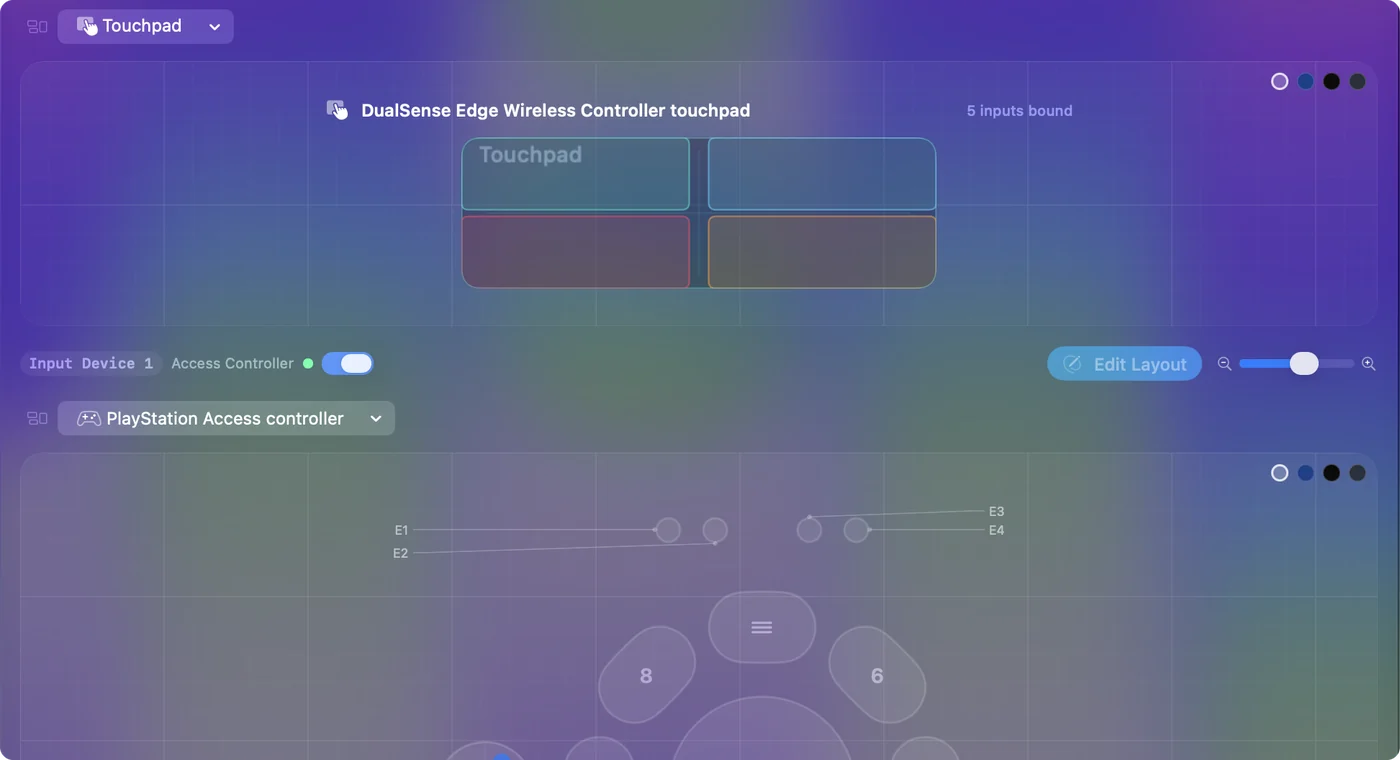
The four zones belong to that preset, so editing them there changes nothing anywhere else.
 InputConfig is free on the Mac App Store. macOS 14 or later, no account, no tracking, open source.
Draw your own zones
Step 1: Open Touchpad Setup
- You: Open the preset in the editor, or activate it. Then open Touchpad Setup: Calibrate Touchpad in a touchpad row's Options, the Calibrate Touchpad button in the editor's toolbar (shown while a controller with a touchpad is connected), or Controller, Calibrate Touchpad in the menu bar.
- InputConfig: Opens the sheet with a drawing of the pad.
- Check: Add Region is available. It stays off until a preset is open or running, because zones belong to a preset.
Step 2: Draw a zone
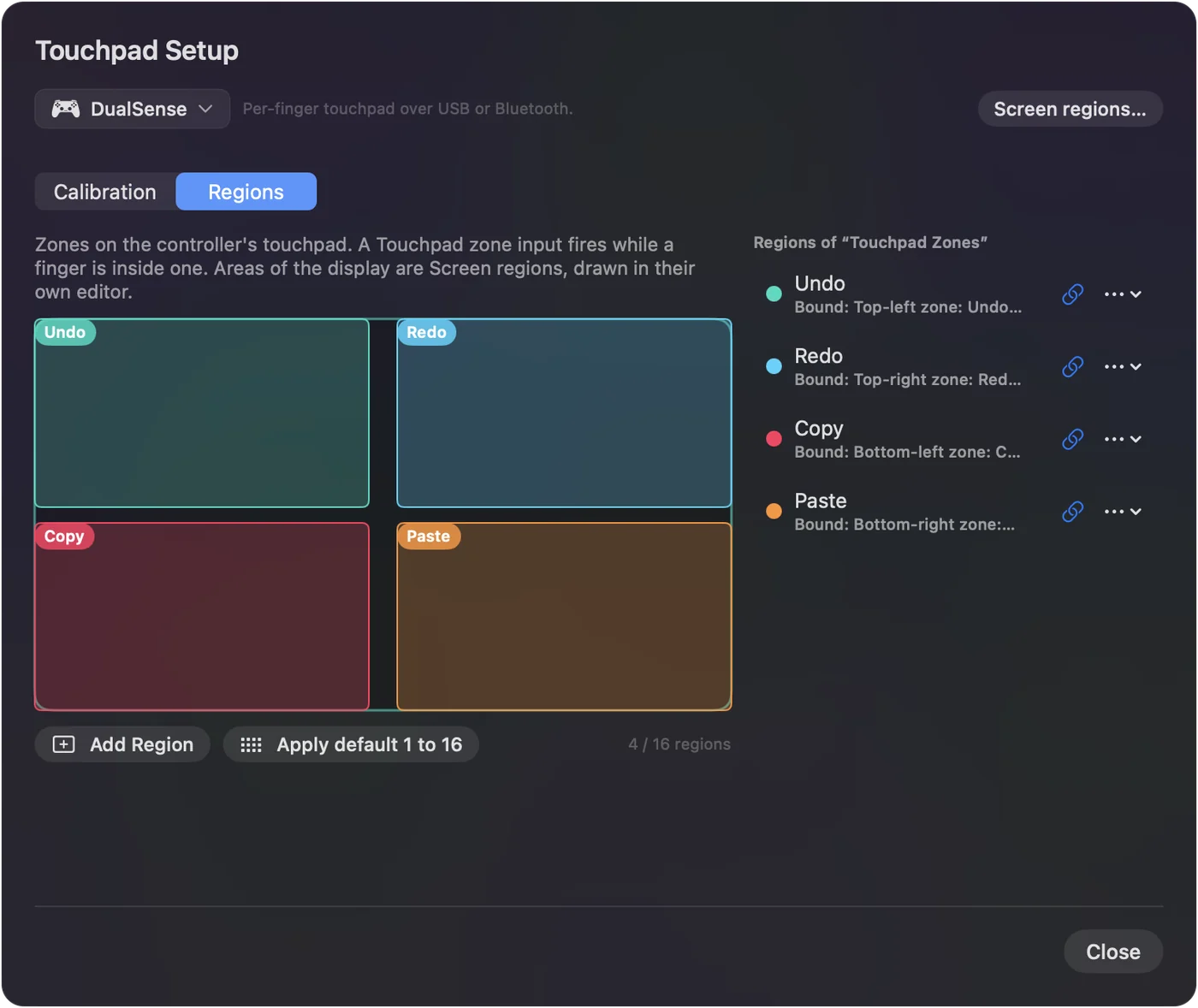
- You: Switch to the Regions tab, click Add Region, then drag a rectangle on the drawing of the pad. Place in Center adds one in the middle without drawing.
- InputConfig: Adds the zone to the list.
- Check: The zone shows on the pad where you drew it.
Step 3: Bind it
- You: Rename it from its menu in the list, then click the link button next to it and pick a key. Or add a row with the input type Touchpad zone and choose the zone, or press Scan on a row and touch the zone.
- InputConfig: Fires that row while a finger is in the zone.
- Check: Save the preset and touch the zone to try it.
Apply default 1 to 16 replaces the zones with a 4 by 4 grid and binds each square to a key, 1 to 9, 0, then F1 to F6, which is a quick start for a hotbar or a macro grid.
Know how a zone behaves
A zone is held while a finger is inside it and lets go when the finger leaves, like a key held down. Rest a finger in a zone bound to W and a game keeps walking. A quick touch is a quick press.
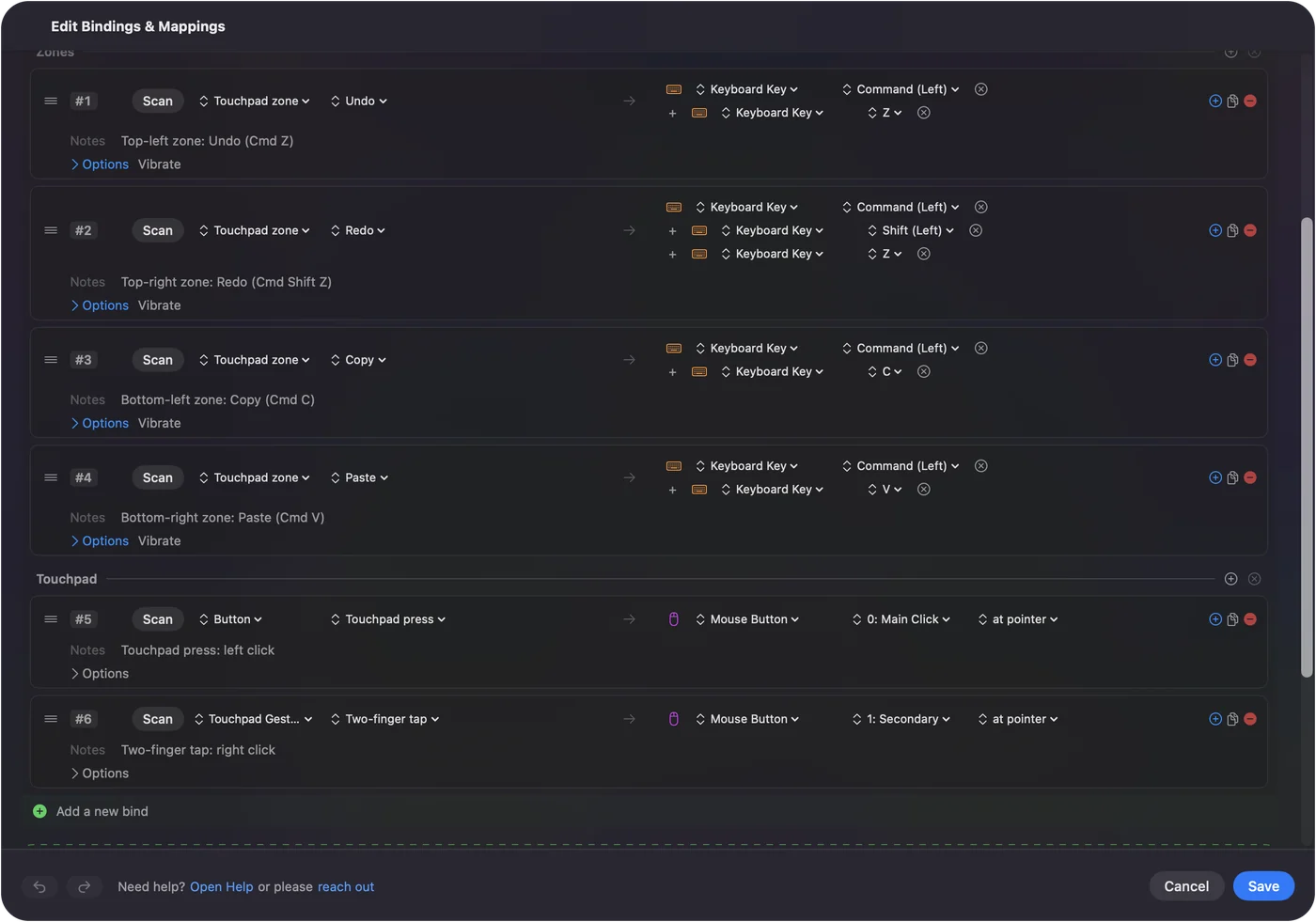
A tap inside a zone fires the zone rather than a tap row. Zones carry every option a button does: a hold action, a double tap, toggle, turbo, rumble or spoken feedback.
Share the pad between zones and the pointer
Zones and pointing can share the pad. A finger that lands in a zone fires it; a finger that moves drives the touchpad's pointer rows. The press stays its own button, so pressing the pad can click while the zones send keys. Keep zones near the edges and leave the middle for pointing, and the two rarely get in each other's way.
Pick a layout that works
- Reading. Left half and right half as Page Up and Page Down.
- Anki. Three columns as Again, Good and Easy: see Anki from a controller.
- A hotbar. A strip of five along the top as keys 1 to 5.
- Editing. Four corners as Undo, Redo, Copy and Paste, as the built-in preset does.
The pad is roughly 5 by 2.5 centimeters, so six to eight zones stay easy to hit without looking. A short pulse on each zone, set in its row's Options, tells you which one you touched.
If a zone does not fire
Climb this ladder, smallest step first:
- Watch the Touchpad view. The Live Visualizer's Touchpad view draws the preset's zones on the pad and lights each one as you touch it, with your finger shown live. Touchpad Setup shows your finger as well.
- Check the preset. Zones belong to the preset you drew them in. In 1.6 they also save to that preset; before, they could land in the wrong one.
- Check the binding. A zone with no row or link does nothing. Bind it with the link button, or Scan a row and touch the zone.
If the zone lights in the Touchpad view, the zone works and only its binding is missing.
What it cannot do
Zones are areas of the controller's touchpad. They cannot be drawn on the Mac's own trackpad, which moves the pointer and does not report finger positions to apps. Its equivalent is screen regions: areas of the display that fire while the pointer is inside them, whatever moves the pointer. Screen regions has that setup. Touchpad zones are for PlayStation controllers; screen regions are for everything else.
The short version
- Try it. Activate Touchpad Zones and touch a corner.
- Make your own. Touchpad Setup, Regions, Add Region, then bind each zone.
- Keep it usable. Six to eight zones near the edges, with a pulse on each.
On a Mac the touchpad does nothing by default; zones put the whole surface to work.
Questions
How many touchpad zones can I make?
Up to 16 per preset. Six to eight are comfortable to hit without looking at the pad.
Does the PS4 controller touchpad support zones?
Yes. The DualShock 4's touchpad takes zones the same way as the DualSense and DualSense Edge.
Can I make zones on the Mac's own trackpad?
No. The Mac trackpad moves the pointer and does not report finger positions, so its equivalent is screen regions: areas of the display that fire while the pointer is inside them.
Does every preset share the same zones?
No. Each preset has its own zones, so the pad can be Anki buttons in one preset and a hotbar in another.
Do I need to calibrate the touchpad first?
Not for zones. Calibration, on the Calibration tab of Touchpad Setup, evens out pointer movement across the pad. Zones are drawn on the pad's full surface.
Can pressing the pad do something different from touching a zone?
Yes. The press is its own button. A zone fires on touch, and the press can send a click or anything else on its own row.
Related
Free. macOS 14 or later. No account, nothing leaves your Mac. Open source on GitHub.