VALORANT on a Mac, from a controller
 The VALORANT layout is built into InputConfig, free on the Mac App Store. You don't have to make an account, there are no subscriptions, and nothing is locked. Optimized for Apple silicon.
On a Mac: There is no Mac version, and Riot Vanguard will not run on one. It plays on a Mac through a Windows PC you stream from (Moonlight, Parsec, Steam Link) or a cloud service that carries it. The controller stays on the Mac side, which is exactly where InputConfig is.
You can play VALORANT from a controller on a Mac, but only through a stream, and only as keyboard and mouse. The PC game has no controller support at all, and it does not run on a Mac, because Riot Vanguard is a Windows kernel driver that macOS will not load. So the setup that works is a Windows PC you stream from, or a cloud service that carries the game, with InputConfig on the Mac turning the controller into the keys and mouse the stream client forwards.
The game never knows a controller is involved, which also means there is no aim assist. This page is about playing well anyway.
On this page: 9 sections
The layout, control by control
Why a stick needs a different plan in VALORANT
VALORANT is a one-tap game: small heads, accurate first bullets, and a fight won by stopping, aiming and firing in the same tenth of a second. A mouse is a position device, so your hand goes somewhere and the crosshair is there. A stick is a rate device: it tells the game how fast to turn, not where to look. Controller shooters hide that gap with aim assist, and here there is none.
- What a stick does well. Tracking, holding an angle, small corrections, and being in the right place before the fight starts.
- What it does badly. The 90 degree flick.
The layout is tuned for the first list, and the tuning below makes the second one matter less. Hold angles and pre-aim, and let the stick do what it is good at.
How the layout thinks
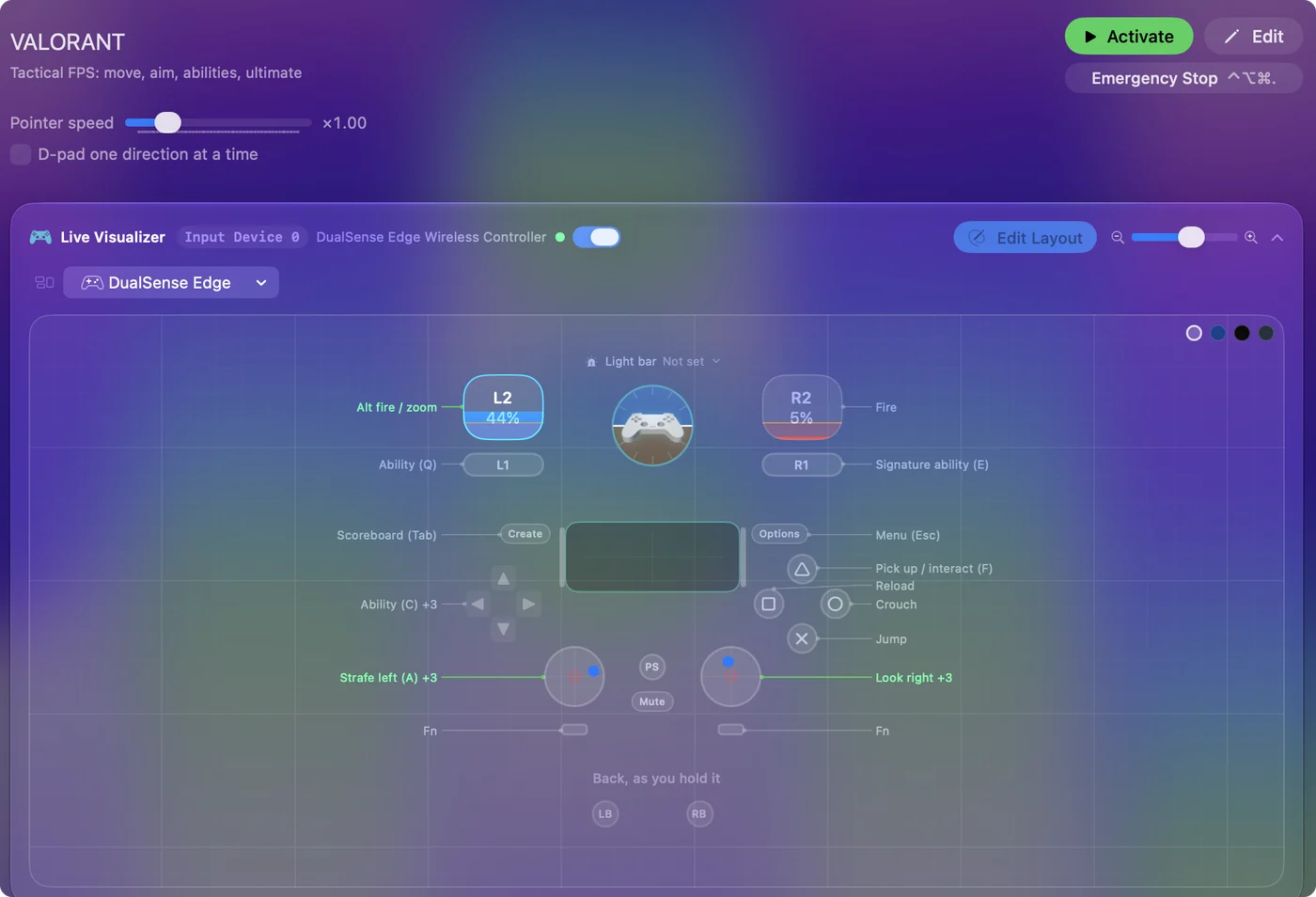
- Move. The left stick sends W, A, S and D. VALORANT has no analog walking speed to lose, so each direction is a full key the moment the stick clears the deadzone. Counter-strafing is tapping the opposite key, and a quick flick of the stick the other way does exactly that. Keep the deadzone small on those four rows so the key lands early.
- Look. The right stick is mouse motion, 20 across and 14 up and down. The lower vertical speed is deliberate: you spend the game holding head height and sweeping, not looking up and down.
- Shoot. The right trigger fires. The left trigger is right click, which zooms the Vandal and the Operator and does nothing on the rest, so it never costs you a button.
- Abilities. Q and E on the bumpers, C on D-pad up and the ultimate (X) on D-pad down.
- The panic buttons. Jump, crouch, reload and interact (F) sit on the face buttons. Crouch is on the right face button because your thumb is on the stick when you need it, and that is the button it reaches fastest.
- Weapons and menus. D-pad left and right are weapon 1 and 2. Tab is on the left system button and Escape on the right.
Abilities live on the bumpers and D-pad so the face buttons stay free for the four things you press in a panic.
Tune it to how you play
- Walk. The layout has no Shift because nothing was free. Give the left stick click Shift and set its press mode to Toggles on and off: one click and you walk silently, the next click and you run again, with no stick held down while you steer with it.
- Knife and spike. Add two chord rows: set While holding to L1, and D-pad left sends 3 (knife) and D-pad right sends 4 (spike). Plain presses stay weapon 1 and 2. The idea is explained in chords.
- Flicks. Try the Aggressive curve on the look rows. Small movements stay fine, the last third of the travel gets fast, and a 90 degree turn stops being a two-second pan. If your small corrections turn jumpy, go back to Smooth and raise the speed instead.
- Gyro for the last inch. On a DualSense or a Switch Pro Controller, bind Gyro Y to mouse X and Gyro X to mouse Y at a low speed, and put the App Action Pause Motion While Held on a back paddle or the touchpad press. The stick does the big turn, your wrist does the headshot, and the paddle lets you re-center. It is the closest a controller gets to a mouse. Using the gyroscope covers the setup.
- Buy menu and ping. The touchpad press is free, so give it B for the buy menu. The right stick click is free too: Z pings. Put voice on a paddle with the game's push-to-talk key if your pad has one.
- Deadzone. Open Adjust live on a right-stick row, hold the stick still, and set the Deadzone just above where it rests. Drift on the look stick is what makes a controller feel bad in this game, and it is a thirty-second fix.
What it cannot do
- It cannot remove stream latency. Your thumb, the stream and the server add a delay that keyboard players in the same lobby do not have. With Moonlight on a local network it is small enough to forget. Over the internet it is not. A keyboard on the same stream has the same delay.
- It cannot add aim assist. The game receives keyboard and mouse input and treats you as a keyboard player.
- It does not touch the game. InputConfig sends ordinary keyboard and mouse events on the Mac. It never touches the game, the stream or the Windows machine, and it does not know VALORANT exists.
On the rules: I am not Riot and this is not legal advice. Read Riot's terms yourself and decide. What I can tell you is what the software does, and that is all it does.
If your controller is not working in VALORANT
When VALORANT does not react to your controller on a Mac, climb this ladder, smallest step first:
- Check that the Mac sees the controller. Open the gamepad tester and press a button. If nothing lights up there, the problem is the connection, and a controller that is connected but not working covers that first.
- Press a button after the stream has started. A stream only picks up a controller that is paired with the Mac, and a browser shows a controller to a page only after a button press. Start VALORANT, then press any button. Streaming from your own PC has its own checks, in how to stream PC games to a Mac with a controller.
- Play it from keys. If VALORANT still ignores the pad, activate this layout. It sends the keyboard and mouse controls VALORANT already reads. The layout works whether or not VALORANT ever sees the controller.
Get it in two clicks
- Get InputConfig free on the Mac App Store, open it, and click Smart Preset Maker on the welcome screen.
- Search for VALORANT and pick it. The layout is created as a preset in your sidebar, named and ready.
- Press Activate. Every row can be changed afterwards: the editor's Scan button rebinds any control the moment you touch it.
To check the controller itself first, the gamepad tester shows every button and stick live in your browser.
VALORANT controls: every button and the key it sends
The Sends column is VALORANT's default keyboard and mouse controls, as this layout expects them. If you changed a key in the game's settings, change the same row in InputConfig.
| Controller | Sends | What it does |
|---|---|---|
| Left stick left | A | Strafe left (A) |
| Left stick right | D | Strafe right (D) |
| Left stick up | W | Move forward (W) |
| Left stick down | S | Move back (S) |
| Right stick right | Mouse motion right (speed 20) | Look right |
| Right stick left | Mouse motion left (speed 20) | Look left |
| Right stick down | Mouse motion down (speed 14) | Look down |
| Right stick up | Mouse motion up (speed 14) | Look up |
| Right trigger | Left click | Fire |
| Left trigger | Right click | Alt fire / zoom |
| A / Cross | Space | Jump |
| B / Circle | Ctrl (Left) | Crouch |
| X / Square | R | Reload |
| Y / Triangle | F | Pick up / interact (F) |
| LB / L1 | Q | Ability (Q) |
| RB / R1 | E | Signature ability (E) |
| D-pad up | C | Ability (C) |
| D-pad down | X | Ultimate (X) |
| D-pad left | 1 | Primary weapon (1) |
| D-pad right | 2 | Secondary weapon (2) |
| Back / Share / Select | Tab | Scoreboard (Tab) |
| Start / Options | Escape | Menu (Esc) |
Button names follow the Xbox / PlayStation pair shown in the editor, so A / Cross is the bottom face button on either pad. On a Switch Pro Controller the bottom button is labeled B; the mapping still fires on position.
Questions
Does VALORANT have controller support on PC?
No. The console version has a full controller scheme with aim assist. The PC version has neither. This layout sends keyboard and mouse input, so the game treats you as a keyboard player, with no aim assist.
Can I play VALORANT on a Mac with CrossOver, Whisky or Parallels?
No. Riot Vanguard is a Windows kernel driver: CrossOver and Whisky cannot load kernel drivers, and Vanguard refuses to run inside a virtual machine. The setups that work are a real Windows PC streamed to the Mac with Moonlight, Parsec or Steam Link, or a cloud service that carries the game. For games that do run in CrossOver, see using a controller with CrossOver games.
Which controller is best for VALORANT on a Mac?
One with a gyroscope and a spare button to hold for ratcheting, such as a DualSense or DualSense Edge over USB. The Edge back paddles suit Pause Motion While Held and push-to-talk. Any Xbox controller runs the layout fine without gyro aim, and a Switch Pro Controller's gyro works for it too. The game and Vanguard only ever see a keyboard and a mouse.
Why is my controller not working in VALORANT on a Mac?
First check the Mac itself sees the controller, with the gamepad tester. If it does and VALORANT still ignores it, activate the VALORANT layout in InputConfig, which sends the game's keyboard and mouse controls from the controller.
Can I play VALORANT on an M1 Mac or a MacBook Air?
Yes, through a stream. VALORANT runs on the other end, on a cloud service or your own PC, so the Mac only plays the video and sends your input. An M1 MacBook Air streams it like any other Mac.
Related
Completely free. You don't have to make an account, there are no subscriptions, and nothing is locked. Optimized for Apple silicon. Open source on GitHub.
Updated