Guild Wars 2 on a Mac with a controller
 The Guild Wars 2 layout is built into InputConfig, free on the Mac App Store. You don't have to make an account, there are no subscriptions, and nothing is locked. Optimized for Apple silicon.
On a Mac: The native Mac client has been retired, and the Steam version lists Windows only, so on a Mac it runs through CrossOver or a similar Wine wrapper, or streams from GeForce NOW, which lists it. Guild Wars 2 has no gamepad support of its own. This layout sends the keyboard and mouse it expects.
Yes, Guild Wars 2 plays on a Mac with a controller, through CrossOver or GeForce NOW, since the Mac client is retired. The game has no gamepad support of its own, so this layout is how a pad plays it. Five weapon skills and a heal are six buttons, which is four face buttons and two bumpers, and that is the layout.
On this page: 9 sections
The layout, control by control
How the layout thinks
- Move and camera. The left stick walks on W, A, S and D. The right stick drags the camera with the mouse at speed 16.
- Skills. Skills 1 to 4 on the face buttons: bottom 1, left 2, top 3, right 4. Skill 5 on the right bumper, 6 on the left, and slot 0 on D-pad up.
- Target. The right trigger targets (left click). The left trigger acts on the target (right click).
- Jump and run. Jump on the left stick click (Space). Auto-run on the right stick click (middle click) and on D-pad down (R).
- Windows. Inventory on D-pad left (I), the map on D-pad right (M), the hero panel on Back (C), and the menu on Start (Escape).
Your weapon skills sit under your right thumb in the order they sit on the bar.
Tune it
- Dodge. Dodge is the one thing to add. Put V on a chord row, or on D-pad up in place of slot 0.
- Utility skills. Put 7 to 0 on chord rows on the face buttons, held with a spare button such as a paddle. A held button keeps its own job, so pick one with nothing else on it.
- Mounts. Put the mount key on the touchpad press of a PlayStation controller.
Add dodge first, because Guild Wars 2 is played on the move.
Check that it works
Guild Wars 2 reads only the keyboard and mouse, so nothing doubles: this layout is the controller.
- You: Start Guild Wars 2 in CrossOver or GeForce NOW, then press Activate on this preset.
- InputConfig: Sends the keys and clicks in the table to the window in front.
- Check: Push the left stick and your character walks. Press the bottom face button and skill 1 fires.
The details for Wine wrappers are in controllers in CrossOver games. If the stick walks and the bottom button casts, everything else will follow.
Guild Wars 2 controller support: controller or keyboard
Steam's store page lists no controller support for Guild Wars 2, so it was made for a keyboard and mouse, and that is how it expects to be played. A controller still works: this layout sends the game's keys and mouse movement from the pad, so to the game you are simply typing and pointing. No controller support listed means the layout does the work, not the game.
From Steam's listing, checked in October 2026. Every game's listing is in Mac games with controller support.
If your controller is not working in Guild Wars 2
When Guild Wars 2 does not react to your controller on a Mac, climb this ladder, smallest step first:
- Check that the Mac sees the controller. Open the gamepad tester and press a button. If nothing lights up there, the problem is the connection, and a controller that is connected but not working covers that first.
- Press a button after the stream has started. A stream only picks up a controller that is paired with the Mac, and a browser shows a controller to a page only after a button press. Start Guild Wars 2, then press any button.
- Expect less inside a wrapper. In CrossOver or the Game Porting Toolkit, Wine passes a controller to Guild Wars 2 only some of the time, and the keyboard and mouse get through every time. Using a controller with CrossOver games has the checks.
- Stop looking for a setting. Guild Wars 2 reads the keyboard and mouse here, so no option makes it see a pad. Activate this layout, and the controller sends the keys and mouse movement Guild Wars 2 already reads. The layout works without Guild Wars 2 ever seeing the controller.
Get it in two clicks
- Get InputConfig free on the Mac App Store, open it, and click Smart Preset Maker on the welcome screen.
- Search for Guild Wars 2 and pick it. The layout is created as a preset in your sidebar, named and ready.
- Press Activate. Every row can be changed afterwards: the editor's Scan button rebinds any control the moment you touch it.
To check the controller itself first, the gamepad tester shows every button and stick live in your browser.
Guild Wars 2 controls: every button and the key it sends
The Sends column is Guild Wars 2's default keyboard and mouse controls, as this layout expects them. If you changed a key in the game's settings, change the same row in InputConfig.
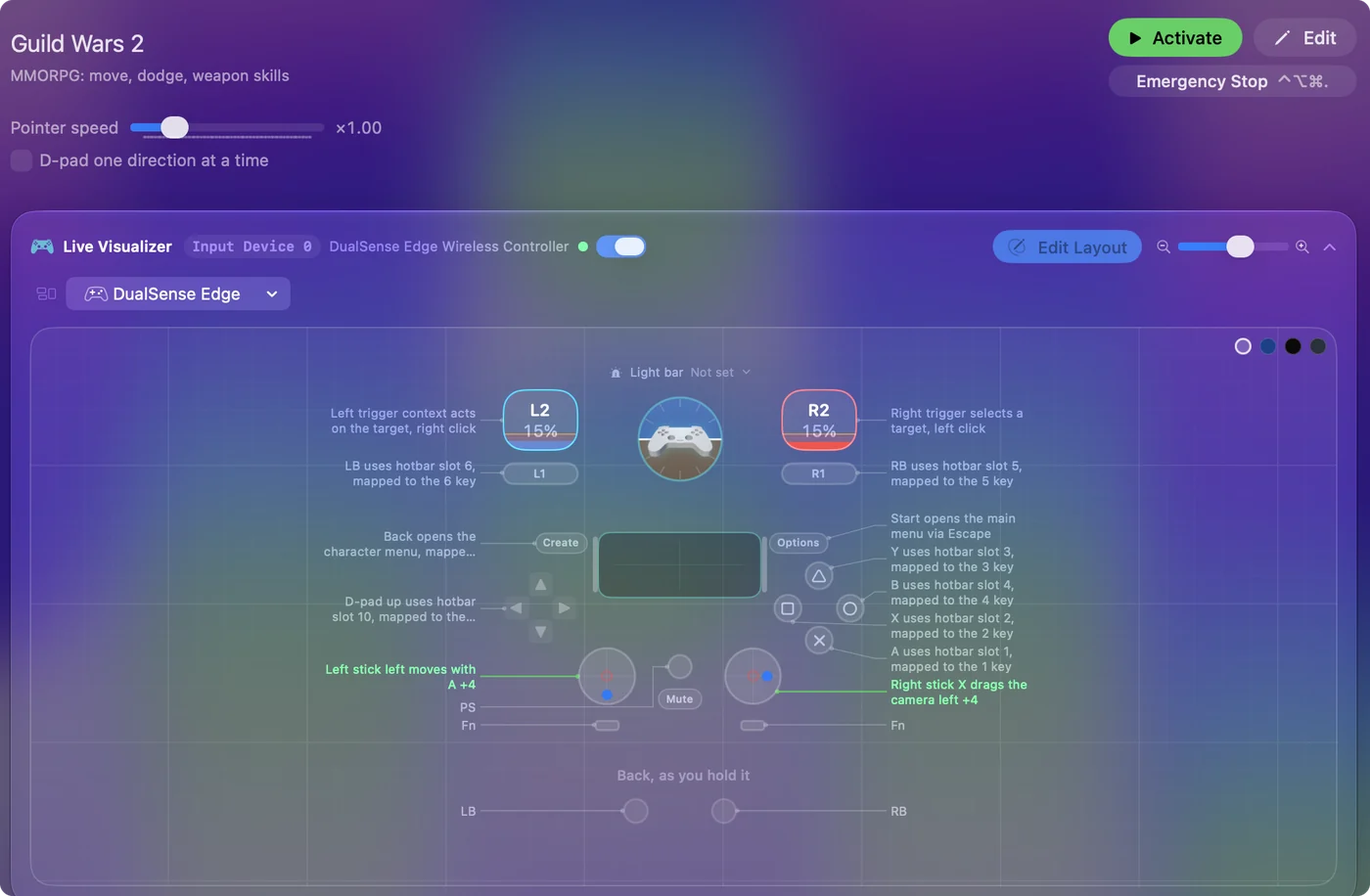
| Controller | Sends | What it does |
|---|---|---|
| Left stick left | A | Left stick left moves with A |
| Left stick right | D | Left stick right moves with D |
| Left stick up | W | Left stick up moves forward with W |
| Left stick down | S | Left stick down moves back with S |
| Right stick left | Mouse motion left (speed 16) | Right stick X drags the camera left |
| Right stick right | Mouse motion right (speed 16) | Right stick X drags the camera right |
| Right stick up | Mouse motion up (speed 16) | Right stick Y drags the camera up |
| Right stick down | Mouse motion down (speed 16) | Right stick Y drags the camera down |
| A / Cross | 1 | A uses hotbar slot 1, mapped to the 1 key |
| X / Square | 2 | X uses hotbar slot 2, mapped to the 2 key |
| Y / Triangle | 3 | Y uses hotbar slot 3, mapped to the 3 key |
| B / Circle | 4 | B uses hotbar slot 4, mapped to the 4 key |
| RB / R1 | 5 | RB uses hotbar slot 5, mapped to the 5 key |
| LB / L1 | 6 | LB uses hotbar slot 6, mapped to the 6 key |
| Right trigger | Left click | Right trigger selects a target, left click |
| Left trigger | Right click | Left trigger context acts on the target, right click |
| L3 (left stick click) | Space | L3 jumps, mapped to Space |
| R3 (right stick click) | Middle click | R3 sets auto-run, mapped to the mouse wheel click |
| D-pad up | 0 | D-pad up uses hotbar slot 10, mapped to the 0 key |
| D-pad down | R | D-pad down toggles auto-run, mapped to R |
| D-pad left | I | D-pad left opens inventory, mapped to I |
| D-pad right | M | D-pad right opens the map, mapped to M |
| Start / Options | Escape | Start opens the main menu via Escape |
| Back / Share / Select | C | Back opens the character menu, mapped to C |
Button names follow the Xbox / PlayStation pair shown in the editor, so A / Cross is the bottom face button on either pad. On a Switch Pro Controller the bottom button is labeled B; the mapping still fires on position.
Questions
Does Guild Wars 2 have controller support on the Mac?
Not built in. This layout sends keyboard and mouse, which the Windows version accepts through CrossOver without any setup.
Can you play Guild Wars 2 on a Mac?
Yes, without a Mac client: ArenaNet retired it. The Windows version runs through CrossOver, and GeForce NOW lists the game. Either way it reads keyboard and mouse, which this layout sends from the controller. Controllers in CrossOver games.
Does Guild Wars 2 have controller support?
Not by itself. Steam lists no controller support for Guild Wars 2. A controller still works through a layout like this one, which sends the game's keys.
Is Guild Wars 2 better with a controller or a keyboard?
It was made for a keyboard and mouse: Steam lists no controller support for Guild Wars 2. A controller still works through this layout, which sends the game's own keys and mouse movement.
Why is my controller not working in Guild Wars 2 on a Mac?
Guild Wars 2 reads the keyboard and mouse on this route, so no setting makes it see a controller. Check the Mac sees the pad with the gamepad tester, then activate the Guild Wars 2 layout in InputConfig, which sends the game's keys and mouse movement from the controller.
Can I play Guild Wars 2 on an M1 Mac or a MacBook Air?
Yes, through a stream. Guild Wars 2 runs on the other end, on a cloud service or your own PC, so the Mac only plays the video and sends your input. An M1 MacBook Air streams it like any other Mac.
Related
Completely free. You don't have to make an account, there are no subscriptions, and nothing is locked. Optimized for Apple silicon. Open source on GitHub.
Updated