Genshin Impact on a Mac with a controller
 The Genshin Impact layout is built into InputConfig, free on the Mac App Store. You don't have to make an account, there are no subscriptions, and nothing is locked. Optimized for Apple silicon.
On a Mac: No Mac version. Mac players run the iOS build through PlayCover on Apple silicon, the Windows build through a Wine launcher, or HoYoverse's own cloud version.
Yes, Mac players do play Genshin Impact with a controller, but every route is a workaround, and each one treats a controller differently. When a route passes your pad through, use Genshin's own controller scheme, which is good. When it does not, this layout plays the keyboard version from the pad. How to play Genshin Impact on a Mac with a controller goes through the routes one by one.
On this page: 8 sections
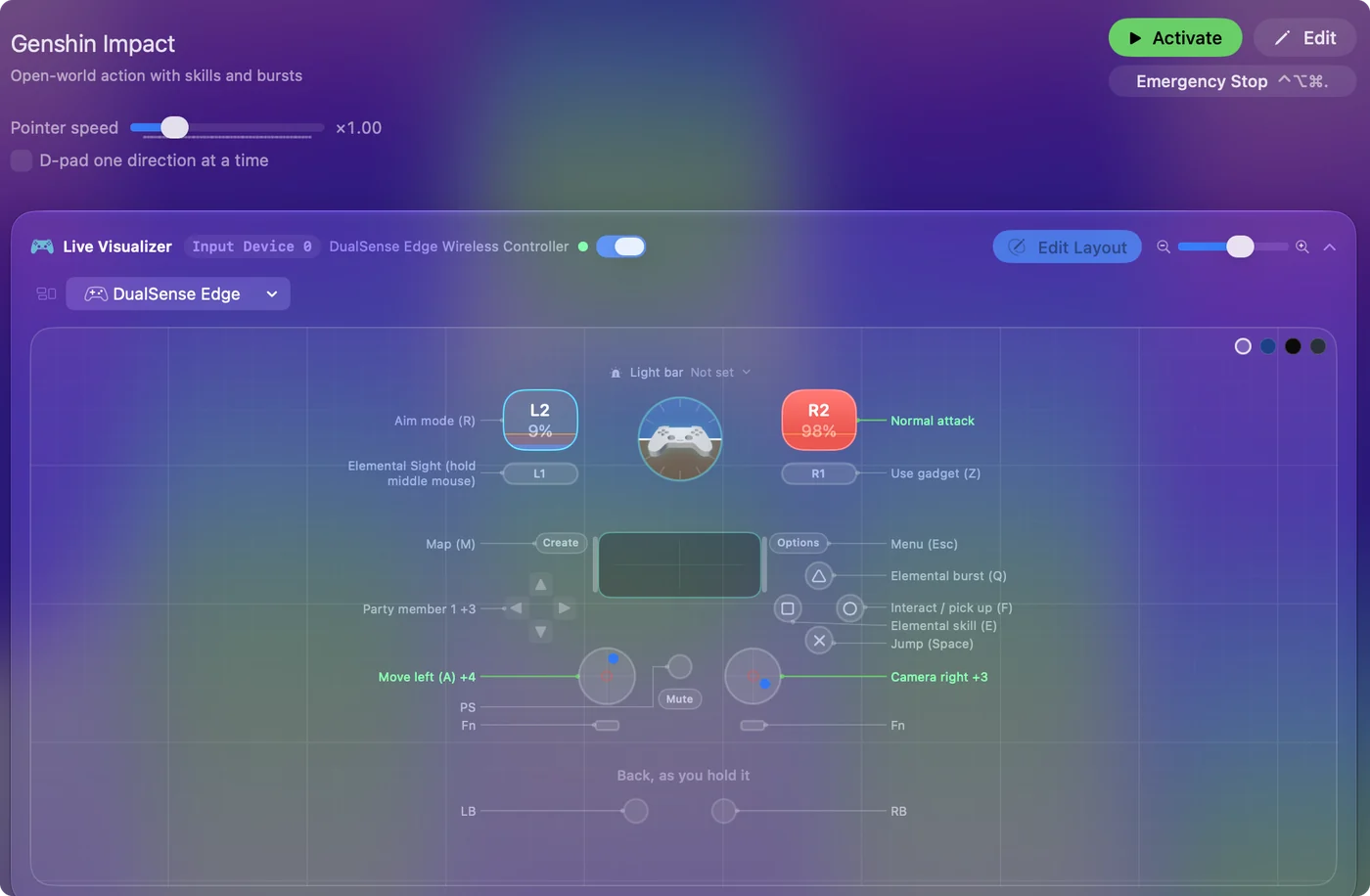
The layout, control by control
Find out which route sees a controller
- PlayCover. It runs the iPhone and iPad build on an Apple silicon Mac. That build was made for touch and controllers. Your pad may or may not come through, depending on the build and on PlayCover's own keymapping, which can also turn keys into taps. If the pad is ignored, this layout's keys can feed PlayCover's keymap.
- A Wine launcher. It runs the Windows build. The keyboard always arrives. The controller often does not, and that is the case this layout was made for.
- HoYoverse's cloud version. It streams the game. Streams pass keyboard and mouse reliably, controllers less so.
Whatever the route, the keyboard always arrives, which is why this layout works on all three.
How the layout thinks
- Move and look. The left stick moves and the right stick turns the camera, faster across (18) than up and down (14). The left stick click is sprint.
- Fight. The right trigger is the normal attack (left click), and holding it charges. The left trigger enters aim mode (R) for bows.
- Skills. The elemental skill (E) is the left face button and the burst (Q) the top.
- Explore. Jump (Space) is the bottom face button and interact and pick up (F) the right. Elemental Sight (middle click, held) is the left bumper and the gadget (Z) the right bumper.
- Party and menus. The D-pad swaps to party members 1 to 4. Back opens the map and Options the Paimon menu.
Skill and burst sit on the face buttons where Genshin's own pad scheme puts them.
Tune it
- Sprint that stays on. Set the sprint row to Toggles on and off for long climbs and swims.
- Bow aiming. Turn on Ramp-up on the camera rows: small pushes for the shot, full pushes to turn.
- Gyro on a DualSense. In the Smart Preset Maker's options, Gyro fine aim adds tilt on top of the stick, which is a good match for aim mode.
When a route does pass your pad, use the game's scheme and keep this preset off, or every press lands twice.
If your controller is not working in Genshin Impact
When Genshin Impact does not react to your controller on a Mac, climb this ladder, smallest step first:
- Check that the Mac sees the controller. Open the gamepad tester and press a button. If nothing lights up there, the problem is the connection, and a controller that is connected but not working covers that first.
- Play it from keys. If Genshin Impact still ignores the pad, activate this layout. It sends the keyboard and mouse controls Genshin Impact already reads. The layout works whether or not Genshin Impact ever sees the controller.
Get it in two clicks
- Get InputConfig free on the Mac App Store, open it, and click Smart Preset Maker on the welcome screen.
- Search for Genshin Impact and pick it. The layout is created as a preset in your sidebar, named and ready.
- Press Activate. Every row can be changed afterwards: the editor's Scan button rebinds any control the moment you touch it.
To check the controller itself first, the gamepad tester shows every button and stick live in your browser.
Genshin Impact controls: every button and the key it sends
The Sends column is Genshin Impact's default keyboard and mouse controls, as this layout expects them. If you changed a key in the game's settings, change the same row in InputConfig.
| Controller | Sends | What it does |
|---|---|---|
| Left stick left | A | Move left (A) |
| Left stick right | D | Move right (D) |
| Left stick up | W | Move forward (W) |
| Left stick down | S | Move back (S) |
| Right stick right | Mouse motion right (speed 18) | Camera right |
| Right stick left | Mouse motion left (speed 18) | Camera left |
| Right stick down | Mouse motion down (speed 14) | Camera down |
| Right stick up | Mouse motion up (speed 14) | Camera up |
| Right trigger | Left click | Normal attack |
| Left trigger | R | Aim mode (R) |
| A / Cross | Space | Jump (Space) |
| B / Circle | F | Interact / pick up (F) |
| X / Square | E | Elemental skill (E) |
| Y / Triangle | Q | Elemental burst (Q) |
| LB / L1 | Middle click | Elemental Sight (hold middle mouse) |
| RB / R1 | Z | Use gadget (Z) |
| L3 (left stick click) | Shift (Left) | Sprint (Left Shift) |
| Back / Share / Select | M | Map (M) |
| Start / Options | Escape | Menu (Esc) |
| D-pad up | 1 | Party member 1 |
| D-pad down | 3 | Party member 3 |
| D-pad left | 2 | Party member 2 |
| D-pad right | 4 | Party member 4 |
Button names follow the Xbox / PlayStation pair shown in the editor, so A / Cross is the bottom face button on either pad. On a Switch Pro Controller the bottom button is labeled B; the mapping still fires on position.
Questions
Does Genshin Impact run on a Mac?
Genshin Impact does not run natively on a Mac. PlayCover, a Wine launcher and HoYoverse's cloud version are the usual routes. The Genshin question page covers each one.
Can I use a PS5 controller for Genshin on a Mac?
On a route that passes the controller through, yes, with Genshin's own scheme. On a route that does not, this layout turns the DualSense into the keyboard and mouse that route always accepts.
Why is my controller not working in Genshin Impact on a Mac?
First check the Mac itself sees the controller, with the gamepad tester. If it does and Genshin Impact still ignores it, activate the Genshin Impact layout in InputConfig, which sends the game's keyboard and mouse controls from the controller.
Does Genshin Impact run in CrossOver on a Mac?
I have not tested Genshin Impact in CrossOver. CodeWeavers keeps a compatibility list where players report how each Windows game runs. If it runs and the controller is not seen, this layout plays it from the keys and mouse.
Related
Completely free. You don't have to make an account, there are no subscriptions, and nothing is locked. Optimized for Apple silicon. Open source on GitHub.
Updated