How to set up a controller in Ryujinx on a Mac
 InputConfig is completely free on the Mac App Store. You don't have to make an account, there are no subscriptions, and nothing is locked. Optimized for Apple silicon.
Open Options, Settings in Ryujinx, click Input, choose Player 1, and pick your controller in the Input Device menu. Set Controller Type to Pro Controller, check that each button field shows the button you want, and click Save. A PS5, PS4, Xbox, Switch Pro or 8BitDo controller that the Mac already lists under Game Controllers normally appears in that menu with nothing else installed, and most dead controllers are fixed in that one window.
I make InputConfig, a free Mac app that maps controllers to keys and the mouse. Ryujinx reads controllers itself, so it does not need a mapper for the pad. I bring InputConfig up only where it really helps: the hotkeys Ryujinx keeps on the keyboard, and a pad that Ryujinx cannot list.
On this page: 11 sections
- Steps
- Check which Ryujinx you are running
- Set up Player 1 in Ryujinx's Input settings
- Read the Controller Applet when a game shows it
- If the controller still does nothing
- Know which controllers it reads on a Mac
- Put Ryujinx's hotkeys on spare buttons
- Drive a keyboard profile from a pad Ryujinx cannot list
- What it cannot do
- The short version
- Questions
Steps
- Connect the controller to the Mac and check that it lights up in System Settings, Game Controllers.
- In Ryujinx, open Options, Settings, and click Input.
- Choose Player 1, then pick your controller in the Input Device menu.
- Set Controller Type to Pro Controller, check each button field, and click Save.
- If a game shows the Controller Applet, match the players and controller types it lists, then start the game again.
Check which Ryujinx you are running
The original Ryujinx project stopped in October 2024. The name lives on in a community fork, and that is the build to use in 2026. On October 22, 2026 I read its site, ryujinx.app, which calls it a Nintendo Switch 1 emulator, says it is open source under the MIT license on its own Forgejo server, and says it has been tested on about 4,300 titles. Its download page says only Apple Silicon Macs are properly supported. Its Forgejo server and blog did not load for me that day, so I cannot give a version number.
- An old build from 2024. Input fixes since then are only in the fork, so update before you chase a controller problem.
- An Intel Mac. The download page does not promise it works well, and that is worth knowing before you blame the pad.
- Look-alike download sites. Plenty of pages reuse the name. Get it from the project's own site.
Start from a current build of the fork, from its own site, before you change a single input setting. This page covers controllers only, not game files or keys.
Set up Player 1 in Ryujinx's Input settings
- You: Connect the pad, open Options, Settings, Input, choose Player 1 at the top, and pick the pad in Input Device. Set Controller Type to Pro Controller.
- Ryujinx: Fills the button, stick and trigger fields for that pad.
- Check: Click a field, such as A, and press the button you want on it. The field shows what it heard. Click Save.
The same window holds the settings people miss:
- Refresh input devices. This button lists a pad you connected after Ryujinx opened.
- Profile. Name a layout with Add, save it, and Load it later, so a second pad or a reinstall takes a moment. The Default profile cannot be overwritten.
- Docked Mode. On, Ryujinx behaves like a docked Switch. Off, it behaves like a handheld, and the game then expects the Handheld player.
- Global Input. In a game's own settings, it makes that game use the global layout instead of its own.
- Reset keybinds to default. Puts every field back for the selected device.
- Motion and Rumble. Motion has Use CemuHook Compatible Motion and gyro sensitivity. Rumble has strong and weak multipliers, and Enable HD Rumble, which Ryujinx marks experimental and for first-party Nintendo controllers only.
Input Device is the setting that fixes most dead controllers, because it is often still on Keyboard or Disabled.
Read the Controller Applet when a game shows it
Some games ask for controllers when they start, and Ryujinx answers with a window titled Controller Applet. It lists Players and Supported Controllers, and says your current configuration is invalid and that you should open settings and reconfigure your inputs, with an Open Settings Window button. It means the game wants a setup your settings do not give it.
- Match the controller type. If the list does not include Pro Controller, pick one of the types it does list, such as JoyCon Pair, in Controller Type for Player 1.
- Match the player count. A game that wants two players needs Player 2 set to a device too.
- Match docked and handheld. If the applet says docked mode is set and handheld control should be disabled, leave Handheld on Disabled and use Player 1.
System, Hacks has Ignore Controller Applet, which stops the window from appearing when a pad disconnects mid-game. Ryujinx's own tip says to leave it off if unsure, and I would. The applet tells you exactly what the game wants, so read its two lists before you change anything else.
If the controller still does nothing
Climb this ladder, smallest step first:
- Check the Mac. System Settings, Game Controllers should list the pad and light each button. If it does not, the problem is pairing, and controller not recognized on a Mac starts there.
- Refresh the device list. Press Refresh input devices, or quit and reopen Ryujinx with the pad already connected.
- Pick the pad, not the keyboard. Input Device for Player 1 must name your controller.
- Save, then start the game again. A game that showed the Controller Applet asks for controllers again when it starts.
- Check focus loss. On Emulator Focus Loss in the Interface settings can block input when another window is in front. Click the game window.
- Quit Steam. Steam Input can turn the pad into keys of its own, so presses arrive twice or go to the wrong place.
- Swapped or dead buttons. Click the field in Input and press the button you want. The field takes whatever the pad sends, whatever is printed on it.
A pad that works in Game Controllers and in the Input window but not in the game is nearly always a Controller Applet or player setting. Emulator controller not working on a Mac covers the same checks for other emulators.
Know which controllers it reads on a Mac
Ryujinx's source reads controllers through SDL3, so it sees the pads the Mac sees. I have not tested every pad below in Ryujinx myself. What matters is how each one reaches the Mac:
- PS5 and PS4 controllers. They pair over Bluetooth in System Settings. See connecting a PS5 controller.
- Xbox Wireless Controllers. They pair over Bluetooth. A wired Xbox 360 pad is not supported by macOS at all.
- The Switch Pro Controller. It pairs over Bluetooth, and it is the controller Switch games expect, so Pro Controller in Ryujinx matches it best.
- Joy-Cons. macOS pairs each one on its own. Ryujinx has JoyCon Pair, JoyCon Left and JoyCon Right types, but I have not checked how it joins two Mac-paired Joy-Cons into one pair.
- 8BitDo pads. Only in the mode 8BitDo lists for Apple devices, D on most models. 8BitDo controllers on a Mac has each model.
If the Mac lists a pad under Game Controllers, it is worth picking in Ryujinx's Input Device menu.
Put Ryujinx's hotkeys on spare buttons
Ryujinx keeps its hotkeys on the keyboard, under Settings, Hotkeys. By default F1 toggles VSync, F2 mutes, F4 shows or hides the UI, F5 pauses and F8 takes a screenshot. Turbo Mode, volume and resolution scale start unbound, so give them a key there first. InputConfig can press those keys from buttons Ryujinx leaves unbound, such as the Create or Share button, the DualSense touchpad click, or a DualSense Edge paddle.
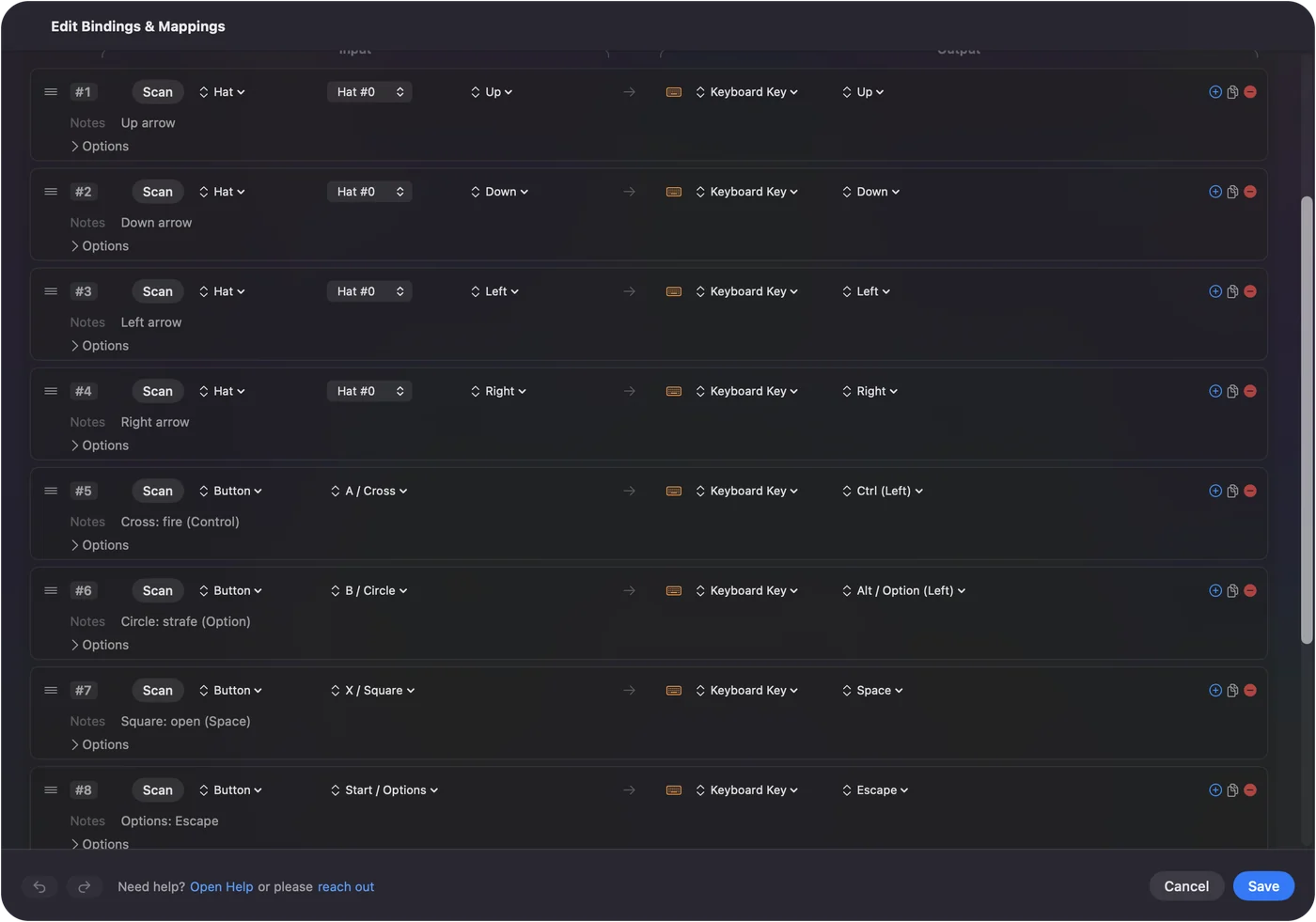
- You: Make a preset for Ryujinx, add a row, press Scan and press the spare button. Set the output to Keyboard Key and pick F5.
- InputConfig: Sends F5 each time you press that button, alongside the pad Ryujinx is reading.
- Check: In a game, press the button. The game pauses. I have not tested Ryujinx with keys sent by InputConfig myself, so check one key before you build more.
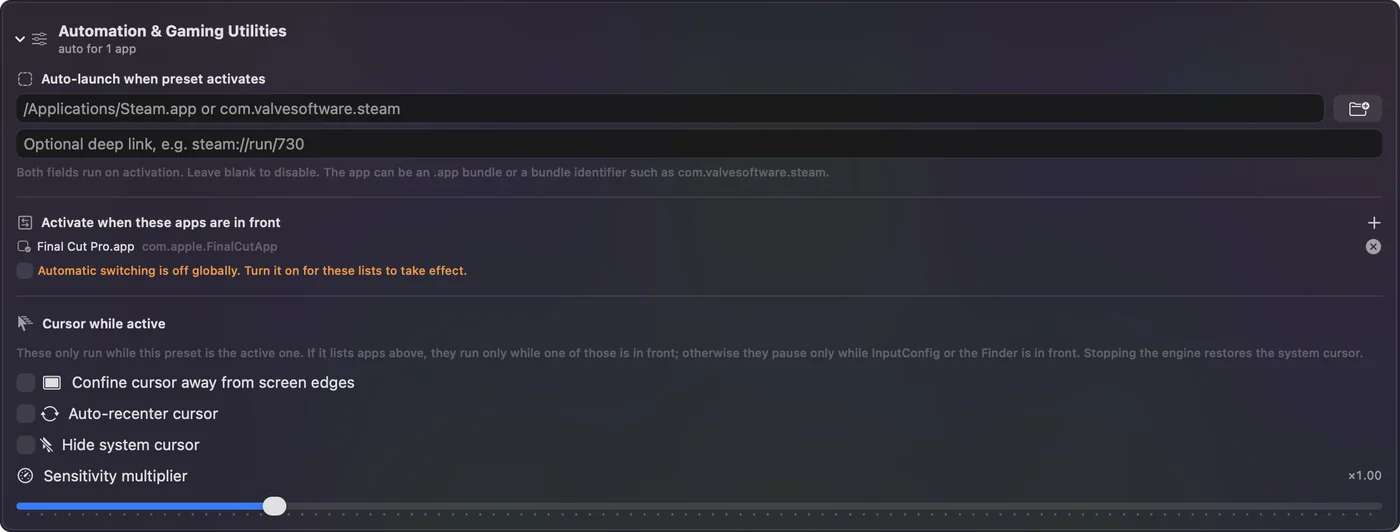
List Ryujinx under Activate when these apps are in front, and the preset turns on only while Ryujinx is in front. Map only buttons Ryujinx does not use, or each press does two things at once.
Drive a keyboard profile from a pad Ryujinx cannot list
A few pads never show in the Input Device menu, often plain USB pads that macOS does not treat as game controllers. If InputConfig's Live Visualizer lights the pad's buttons, InputConfig can turn it into the keyboard keys Ryujinx already uses for Player 1 with Keyboard selected:
| Switch control | Ryujinx's default key | Put it on |
|---|---|---|
| Left stick | W, A, S, D, and F to click it | The pad's left stick |
| D-pad | The arrow keys | The D-pad |
| A, B, X, Y | Z, X, C, V | The right, bottom, top and left face buttons, the Switch positions |
| L, R, ZL, ZR | E, U, Q, O | The bumpers and triggers |
| Right stick | I, J, K, L, and H to click it | The right stick |
Minus and Plus have defaults too: check which keys Ryujinx's Input window shows for them and bind those. Then test it the quick way: with Keyboard as the Input Device, click a field and press the pad button. If the field fills with the key, Ryujinx is getting InputConfig's keys. A stick sent as keys is either pushed all the way or not at all, so this is a fallback for pads Ryujinx cannot see, never a replacement for one it can.
What it cannot do
- No virtual controller. InputConfig sends keys and mouse events. It cannot make a pad look like a different gamepad to Ryujinx.
- No analog through keys. The keyboard route loses half-tilts on the sticks and triggers.
- No gyro or rumble through it. Motion and rumble only work through Ryujinx's own controller support.
I would let Ryujinx read the pad and keep InputConfig for the keys around it.
The short version
- Set it up. Go to Options, Settings, Input, choose Player 1, pick the pad in Input Device, choose Pro Controller, and click Save.
- Read the applet. Match the players and controller types the Controller Applet lists.
- Add the hotkeys. An InputConfig preset puts F4, F5 and F8 on buttons Ryujinx leaves free.
If the Mac lights the pad in Game Controllers, the fix is almost always inside Ryujinx's Input window.
Questions
Why is my controller not working in Ryujinx on a Mac?
Most often Input Device for Player 1 is still on Keyboard or Disabled, or the pad was connected after Ryujinx opened. Press Refresh input devices, pick the pad, set Controller Type to Pro Controller and click Save.
What is the Controller Applet in Ryujinx?
A window some games open to ask for controllers. It lists the players and controller types the game supports. Match those in Settings, Input, then start the game again.
Does a PS5 controller work with Ryujinx on a Mac?
Ryujinx reads controllers through SDL3, which reads a DualSense paired in System Settings, Bluetooth. Pick it in the Input Device menu for Player 1 and check the button fields.
What are Ryujinx's default keyboard controls?
W, A, S and D for the left stick, the arrow keys for the D-pad, Z, X, C and V for A, B, X and Y, and E, U, Q and O for L, R, ZL and ZR. The right stick is I, J, K and L.
Is Ryujinx still being developed in 2026?
The original project stopped in 2024. A community fork continues at ryujinx.app, which on October 22, 2026 described itself as open source under the MIT license and properly supported only on Apple Silicon Macs.
Related
Completely free. You don't have to make an account, there are no subscriptions, and nothing is locked. Optimized for Apple silicon. Open source on GitHub.
Updated