How to use a controller in Azahar and melonDS on a Mac
 InputConfig is completely free on the Mac App Store. You don't have to make an account, there are no subscriptions, and nothing is locked. Optimized for Apple silicon.
Both emulators read controllers themselves. In Azahar, open Settings, Controls, Input, click a slot and press the button you want on it, or press Auto Map. In melonDS, open Config, Input and hotkeys, pick your pad in the Joystick menu, and map each DS button under Joystick mappings. The one thing a controller cannot do on its own in either is the touchscreen, because both take the touchscreen from the mouse.
That is where InputConfig, the free Mac app I make, helps: it moves the pointer with a stick and clicks with a button, so you can tap the bottom screen without letting go of the pad. The menu names here are from each project's own source, read on October 22, 2026: Azahar 2126.2, released October 8, 2026, and melonDS 1.1, released November 18, 2025, both with macOS builds on their release pages.
On this page: 10 sections
Steps
- Connect the controller to the Mac and check it in System Settings, Game Controllers.
- In Azahar, open Settings, Controls, Input, then press Auto Map or click each slot and press a button.
- In melonDS, open Config, Input and hotkeys, pick the pad in the Joystick menu, and map each DS button.
- For the touchscreen, make an InputConfig preset with the pointer on a stick the game does not use and a left click on a spare button.
- Add each emulator to its preset's app list so the touch layout only runs while that emulator is in front.
Set up the controller in Azahar
Azahar continues the Citra project, and its settings window is the same idea. On a Mac its Configure item sits in the Azahar menu, as Settings or Preferences depending on the build, and Command comma opens it too. Choose Controls in the sidebar, then the Input tab.
- You: Press Auto Map and press a button on the pad, or click a slot such as A and press the button you want there. For the Circle Pad, click Set Analog Stick and move the stick.
- Azahar: Fills the slot with the pad's button or stick.
- Check: Every slot shows a pad button, not a key. Click OK.
- Profile. New, Rename and Delete keep a layout per pad.
- Apply Game Controller Maps To. All controllers, Controllers of the mapped type, or Only the mapped controller. Azahar notes that some mappings, such as back buttons, cannot be applied to all controllers.
- Circle Mod. A key or button that, while held, makes the Circle Pad move less, for games that need a gentle push.
- Clear All and Restore Defaults. Start over, or go back to the keyboard layout.
If a slot still shows a letter key, Azahar is reading the keyboard for that button, not the pad.
Set up the controller in melonDS
melonDS keeps everything in Config, Input and hotkeys. The window has DS keypad, Add-ons and General hotkeys tabs, and a Joystick menu that picks which pad it reads.
- You: Pick your controller in the Joystick menu. Click Switch to Joystick mappings, then click each DS button and press the pad button for it.
- melonDS: Stores a joystick mapping next to the keyboard one, so both work.
- Check: Press OK, load a game and press each button once.
The DS has no analog sticks, so both sticks and the triggers of a modern pad are free in melonDS unless you map them. With several melonDS windows open, the window says which instance you are configuring. The Joystick menu is the first thing to check when melonDS ignores a pad.
Reach the touchscreen from a controller
Both emulators read the bottom screen from the mouse: a click is a tap, and a held click drags the stylus. Climb this ladder, from nothing extra to a full layout:
- Fixed taps in Azahar. Controls, Input, Motion / Touch has Use button mapping, which ties pad buttons to fixed points on the touchscreen. It suits a game that always taps the same spots.
- A DualSense touchpad in Azahar. The same window has Use controller touchpad, which maps a touchpad on controllers like the DualSense directly to touch.
- A pointer on a stick, in either emulator. InputConfig moves the Mac pointer with a stick and clicks with a button, so you can tap anywhere. melonDS has no touch setting of its own, so this is the route there.
Pick a stick and a button the emulator does not read:
- melonDS. Right stick on the pointer, the right trigger on left click. Nothing on a DS uses them.
- Azahar. The right stick is the C-Stick there, so use it only in games that ignore the C-Stick, or keep the pointer on the right stick and click with the right stick press.
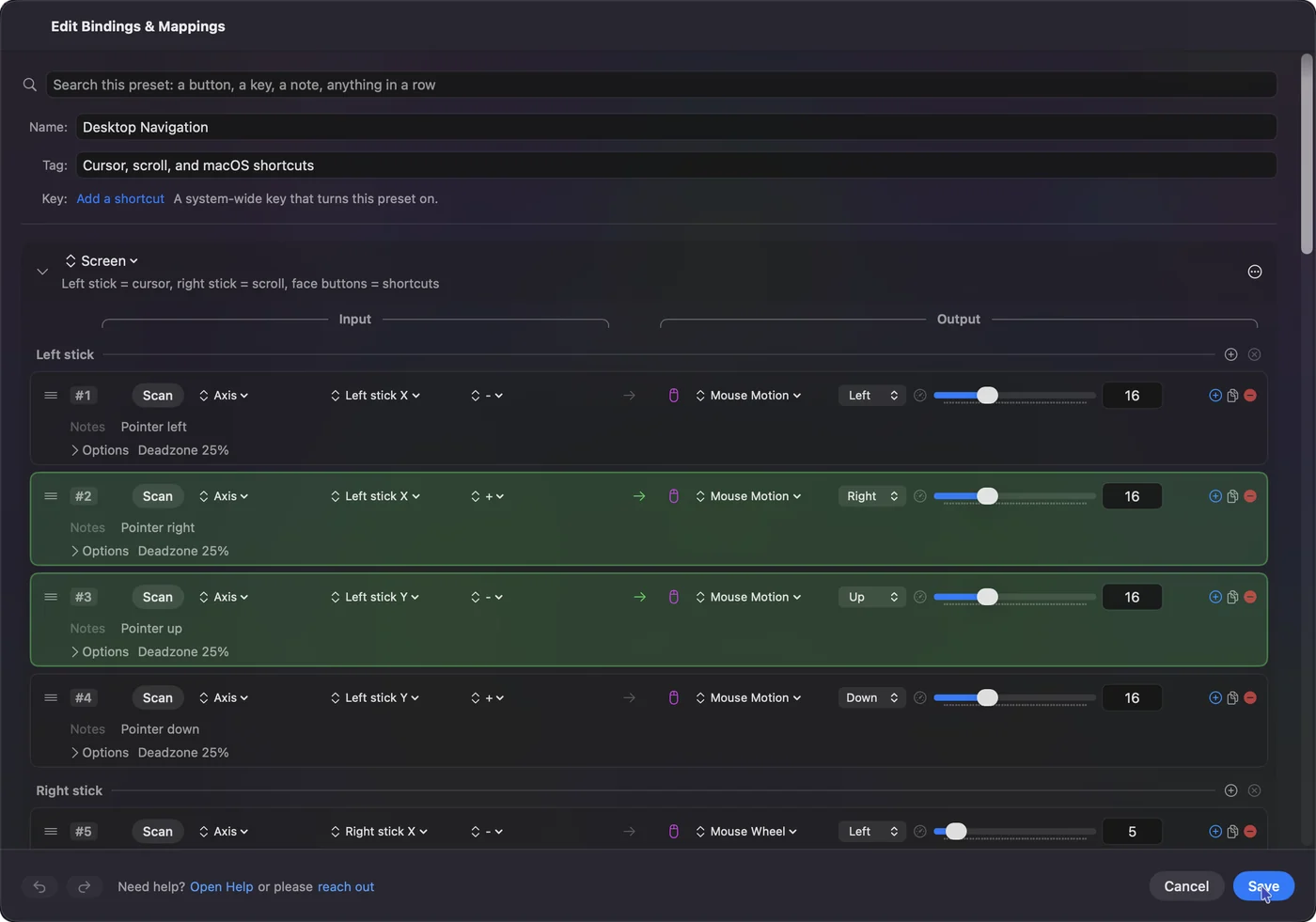
- You: In a new preset, add four rows for the right stick with the output Mouse Motion, one per direction, and a row for the spare button with a left click. Turn Pointer speed down so small pushes land on small buttons.
- InputConfig: Moves the pointer with the stick and clicks with the button, while the emulator keeps reading every other control.
- Check: Move the pointer over the bottom screen and press the button. The game reacts to the tap. I have not tested this in Azahar or melonDS myself, so check a menu tap first.
One trap in Azahar: Motion / Touch has a Motion Provider called Mouse (Right Click), which turns right-drags into motion. Keep right click off the touch layout in Azahar, or a tap can tilt the console instead.
Put the hotkeys where you can reach them
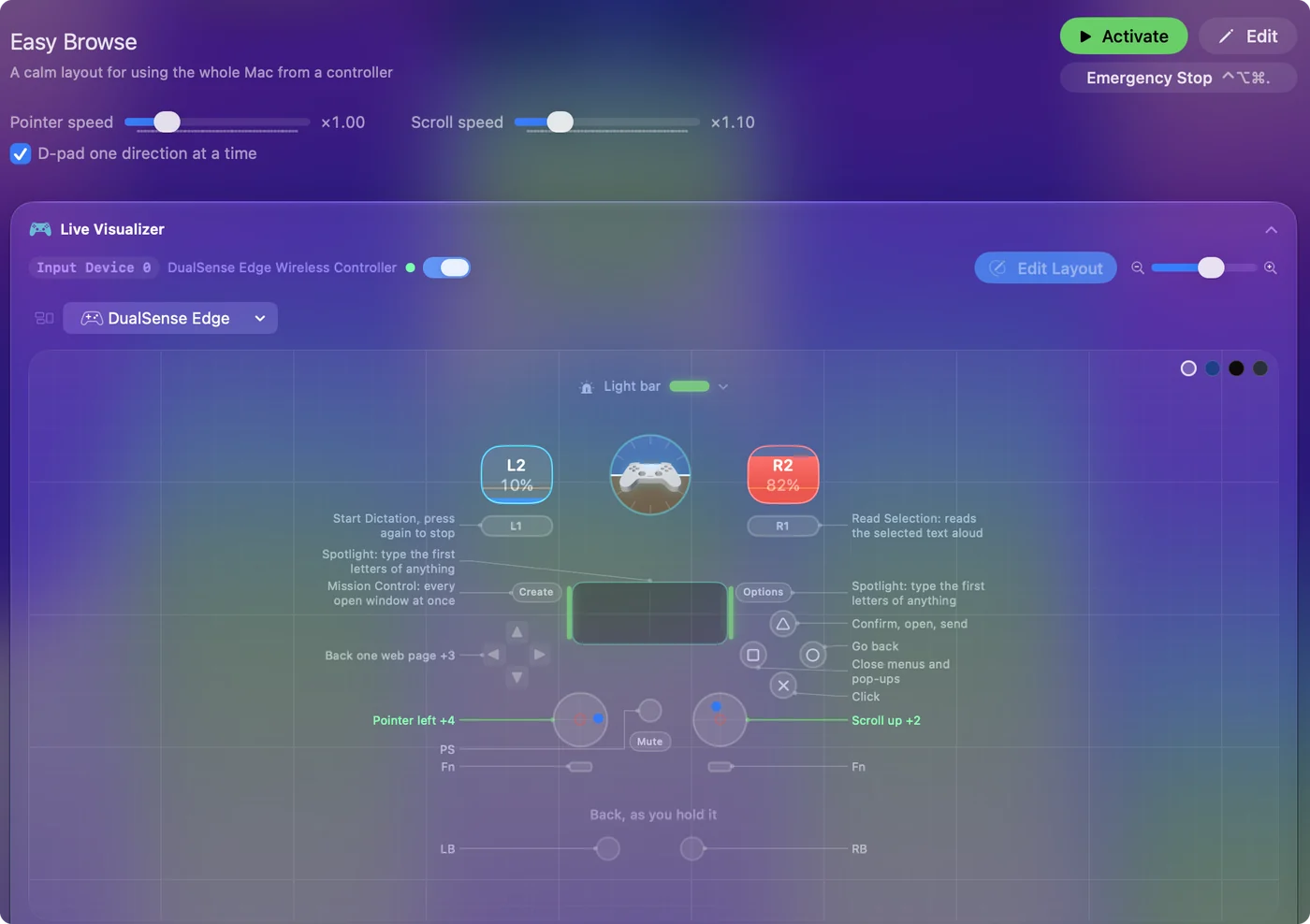
- Azahar, from the pad. Controls has a Controller Hotkeys tab, where you double-click a binding to change it and can use two-button chords.
- Azahar, from the keyboard. The Keyboard Hotkeys tab starts with F4 for Continue/Pause Emulation, F5 to stop, F6 to restart, F9 for Swap Screens, F10 for Toggle Screen Layout and F11 for Fullscreen.
- melonDS. General hotkeys lists Pause/resume, Reset, Fast forward, Toggle fast forward, Swap screens, Close/open lid, Microphone and more, and takes a pad button as well as a key.
Both can bind hotkeys to the pad already, so InputConfig is only worth it for keys they keep on the keyboard, or a layout you want across several emulators. Use the emulator's own pad hotkeys first, and add a mapper only for what they leave out.
If the controller does nothing
Climb this ladder, smallest step first:
- Check the Mac. System Settings, Game Controllers should light each button.
- Reconnect, then reopen. Connect the pad before you open the emulator's settings window.
- Check the slots. In Azahar every slot should name a pad button. In melonDS, the Joystick menu should name your pad.
- Check the profile. Azahar keeps a layout per profile, so the right one has to be selected.
- Quit Steam. Its controller layer can send keys of its own.
- Look for double presses. If a button fires twice, a mapper and the emulator are both reading it. Map that button in one place only.
Emulator controller not working on a Mac covers the Mac side for every emulator. A pad that lights up in Game Controllers is a setting inside the emulator, not a Mac problem.
Give each emulator its own preset
The two emulators want different spare controls, so I would keep two small presets: one for melonDS with the right stick and right trigger on the pointer, one for Azahar with whatever its games leave free. List each emulator under Activate when these apps are in front, and the right one turns on when you switch.
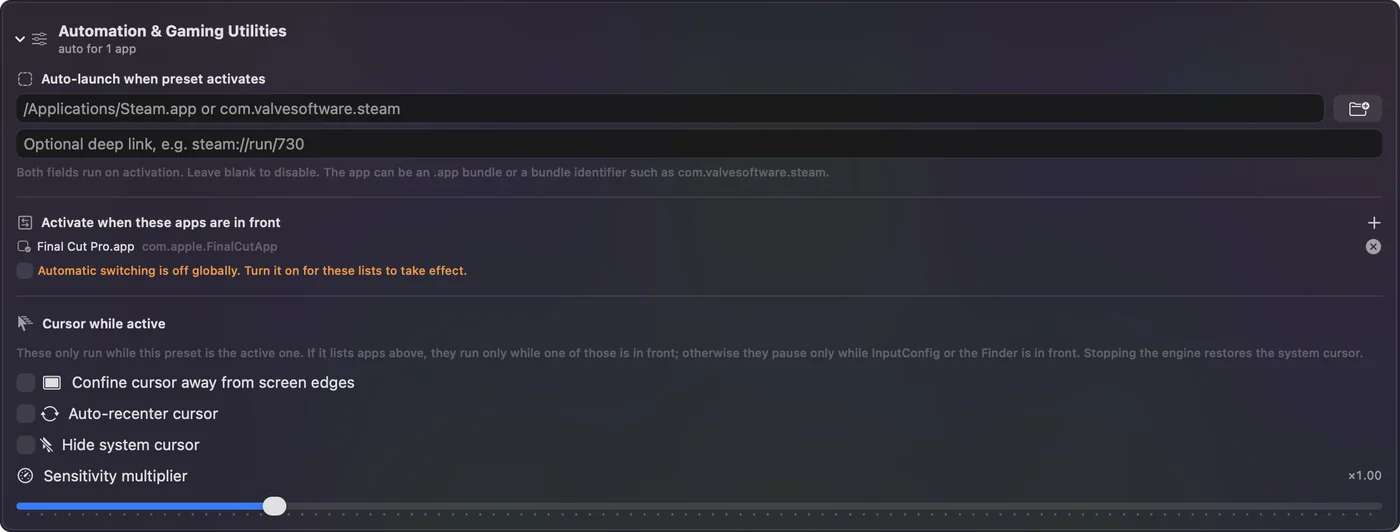
A touch layout should run only while its emulator is in front, so the pointer stays yours everywhere else.
What it cannot do
- No true touch from a stick. InputConfig moves the Mac pointer. The emulator turns the click into a tap, so the pointer has to be over the bottom screen.
- No virtual controller. It sends keys and mouse events, so it cannot make one pad look like another to the emulator.
- No game files. This page covers controllers only.
I would let each emulator read the pad, and use InputConfig only for the pointer.
The short version
- Azahar. Go to Settings, Controls, Input, then Auto Map or one slot at a time.
- melonDS. Go to Config, Input and hotkeys, pick the pad in Joystick, then map under Joystick mappings.
- Touchscreen. Use Azahar's button mapping or touchpad option, or put the pointer on a spare stick with InputConfig.
Map the pad in the emulator, then give the touchscreen a stick of its own.
Questions
How do I use the touchscreen in melonDS with a controller?
melonDS reads the touchscreen from the mouse. A mapper such as InputConfig can move the pointer with a spare stick and click with a spare button, which melonDS treats as a tap on the bottom screen.
Where are the controller settings in Azahar on a Mac?
In the Azahar menu, Settings or Preferences depending on the build, then Controls and the Input tab. Command comma opens the window too.
Why is my controller not working in Azahar?
Usually the slots still name keyboard keys, or a different profile is selected. Connect the pad first, then press Auto Map or click each slot and press the button.
Can I use a DualSense touchpad as the 3DS touchscreen in Azahar?
Azahar's Motion / Touch window has Use controller touchpad, which maps a touchpad on controllers like the DualSense directly to touch.
Does melonDS support controller hotkeys?
Yes. The General hotkeys tab in Input and hotkeys takes a pad button as well as a key, for Pause/resume, Fast forward, Swap screens and the rest.
Related
Completely free. You don't have to make an account, there are no subscriptions, and nothing is locked. Optimized for Apple silicon. Open source on GitHub.
Updated