Logic Pro from a game controller
 The Logic Pro layout is built into InputConfig, free on the Mac App Store. You don't have to make an account, there are no subscriptions, and nothing is locked. Optimized for Apple silicon.
On a Mac: Logic Pro reads key commands from this layout like a keyboard, and it takes every MIDI source on its own, InputConfig's virtual port included.
Yes, a game controller runs Logic Pro's transport on a Mac: play, record, return and cycle on the face buttons, the four things you press between every take. It can also play Logic, because InputConfig sends MIDI notes and control change from the pad into Logic's instruments and plugin knobs. Most of this page is the transport. The last part is the instrument, which the MIDI output page covers in full.
On this page: 8 sections
The layout, control by control
How the layout thinks
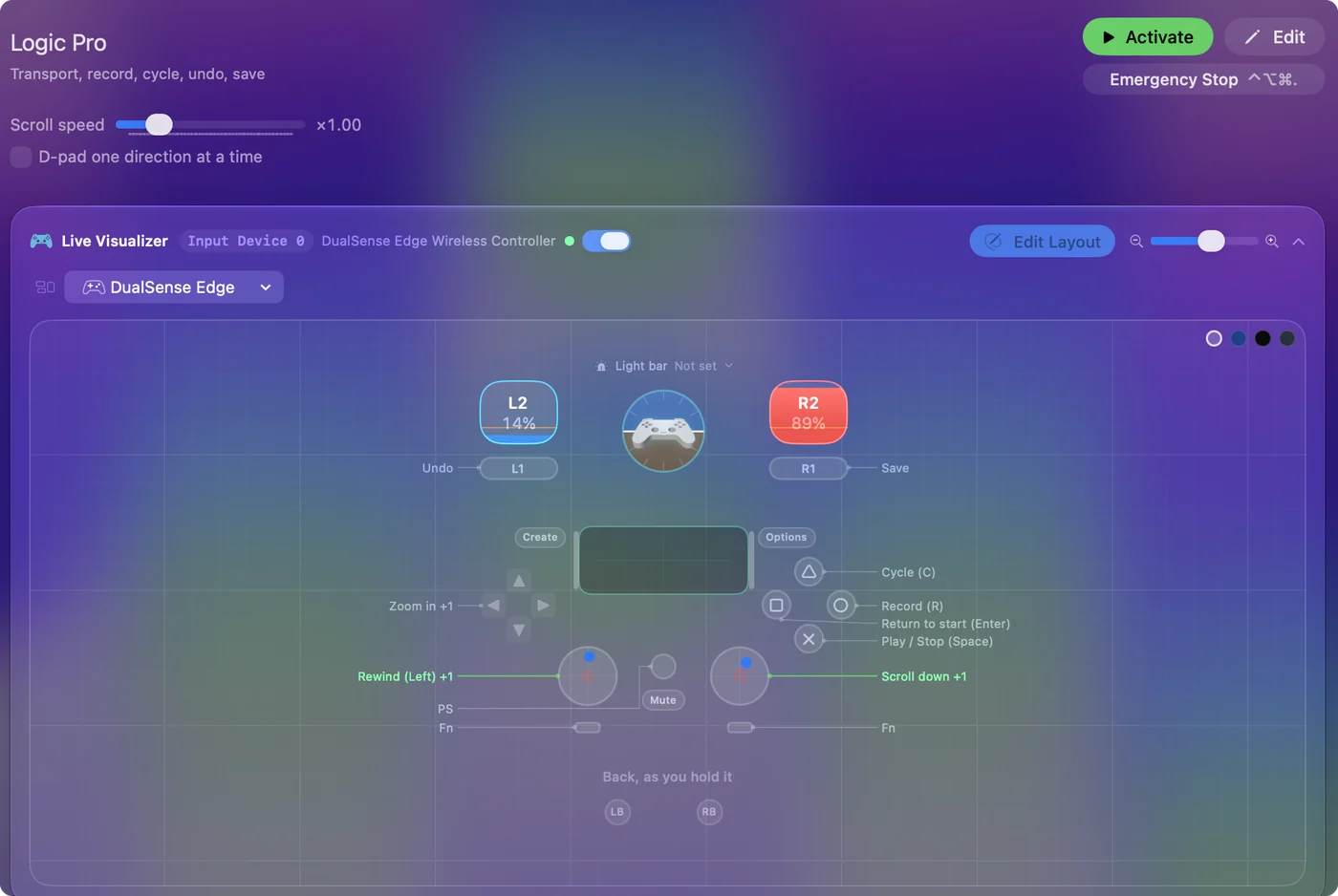
- The take loop. Play and stop (Space) on the bottom face button, Record (R) on the right, Return on the left, which in Logic goes to the beginning, and Cycle (C) on the top.
- Undo and save. On the bumpers.
- Zoom and scroll. Zoom in and out on D-pad up and down, and the right stick scrolls.
- The left stick. It sends the Left and Right Arrow keys, which do not rewind in Logic. If the stick does not rewind has the fix.
You press these between every take without turning to the keyboard. The four transport keys you press most are under one thumb.
If the stick does not rewind
In Logic's default key commands, Rewind and Forward are comma and period, and the arrow keys mostly step between regions. Climb this ladder, smallest step first:
- Check what the arrows do. Open Logic Pro, Key Commands, Edit Assignments (Option K) and look up Left Arrow and Right Arrow in your set.
- Keep them if you like them. Stepping between regions is useful in its own right.
- Change the two stick rows. For a true rewind on the stick, record comma and period as their outputs.
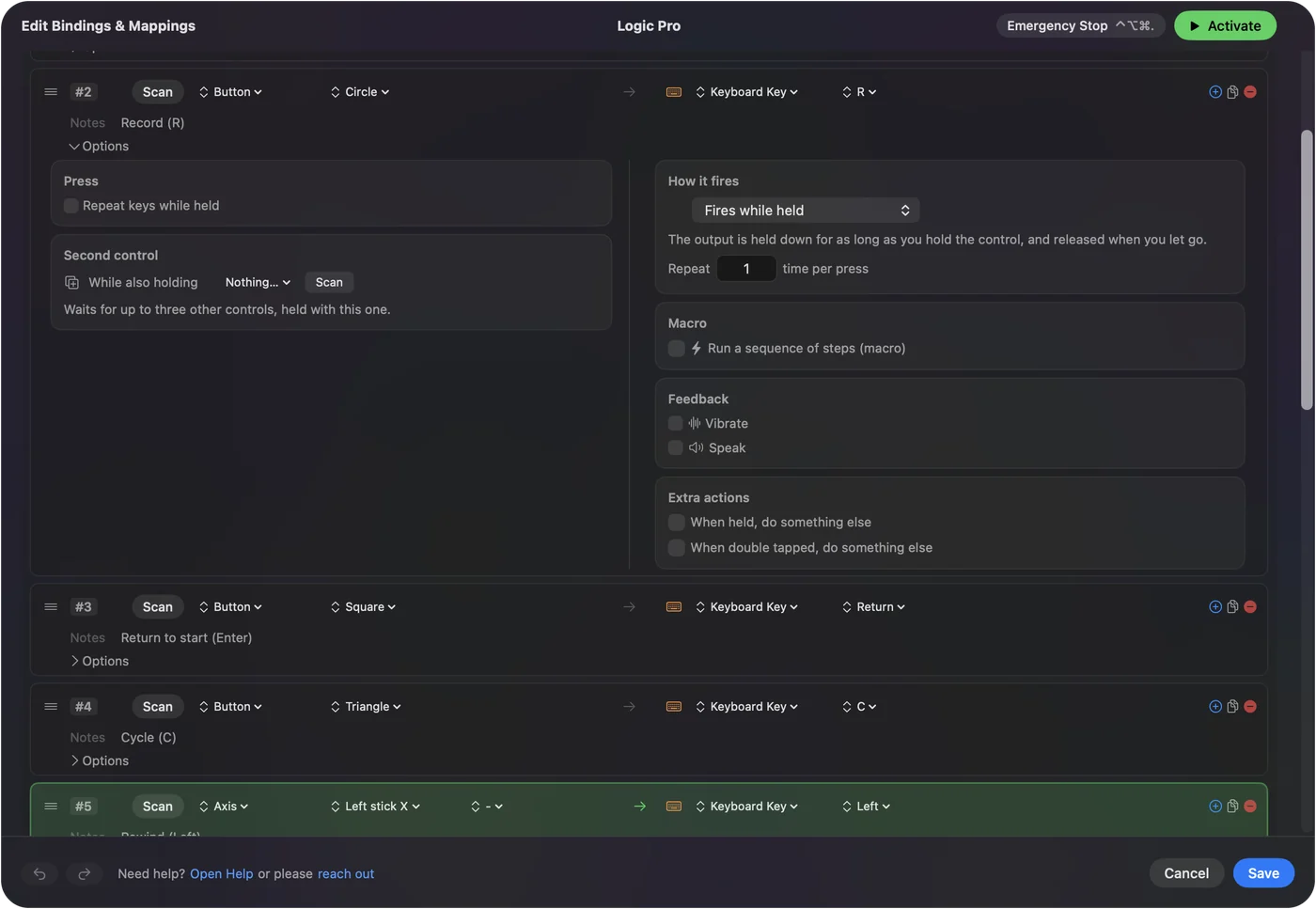
Logic's key command set can differ by version and by what you have changed, so test any new row once in Edit Assignments before relying on it mid-take. Comma and period are Logic's rewind and forward, not the arrows.
Tune it for recording
- Metronome. K toggles the click. A stick click.
- Know you are rolling. Turn on Vibrate under Feedback in the Record row's Options, for a short pulse when you hit it.
- Loop the selection. Command U sets the cycle to the selected region: a face button behind a chord.
- Tracks. Up and Down Arrow select tracks. Put them behind a chord on the D-pad, with M to mute and S to solo on the face buttons behind the same chord.
The pulse on Record is the row I would add first. A pulse on Record tells you the take started without a glance at the screen.
Play and automate Logic from the pad
Logic takes every MIDI source on its own, so once InputConfig is running its port, named InputConfig, is already an input. Activate the built-in MIDI: DAW Performance preset, arm a software instrument track, and the right stick bends pitch and adds modulation while the triggers send volume and expression. A stick sending CC reaches the full 0 to 127 range once it is past the deadzone.
- You: Give a stick a CC row in InputConfig, click a plugin knob in Logic, and choose Logic Pro, Control Surfaces, Learn Assignment.
- InputConfig: Sends the stick's CC on the InputConfig port as you move it.
- Check: Move the stick, choose Learn Assignment again to finish, and the knob follows the stick.
Recording with automation on writes it as ordinary automation, and one preset can hold the transport rows and the MIDI rows together. The same pad can run the transport and play the instrument at once.
Get it in two clicks
- Get InputConfig free on the Mac App Store, open it, and click Smart Preset Maker on the welcome screen.
- Search for Logic Pro and pick it. The layout is created as a preset in your sidebar, named and ready.
- Press Activate. Every row can be changed afterwards: the editor's Scan button rebinds any control the moment you touch it.
Every binding, as a table
| Controller | Sends | What it does |
|---|---|---|
| A / Cross | Space | Play / Stop (Space) |
| B / Circle | R | Record (R) |
| X / Square | Return | Return to start (Enter) |
| Y / Triangle | C | Cycle (C) |
| Left stick left | Left | Rewind (Left) |
| Left stick right | Right | Forward (Right) |
| Right stick down | Scroll down | Scroll down |
| Right stick up | Scroll up | Scroll up |
| LB / L1 | Command (Left), Z | Undo |
| RB / R1 | Command (Left), S | Save |
| D-pad up | Command (Left), = | Zoom in |
| D-pad down | Command (Left), - | Zoom out |
Button names follow the Xbox / PlayStation pair shown in the editor, so A / Cross is the bottom face button on either pad. On a Switch Pro Controller the bottom button is labeled B; the mapping still fires on position.
Questions
Can a game controller play notes into Logic Pro?
Yes, through InputConfig's virtual MIDI port: bind buttons to MIDI Note outputs and sticks to CC. The gamepad as a MIDI instrument guide has a ready preset.
Does this work with GarageBand and Ableton?
GarageBand shares most of Logic's transport keys and has its own entry. Ableton has its own entry with its own defaults.
Related
Completely free. You don't have to make an account, there are no subscriptions, and nothing is locked. Optimized for Apple silicon. Open source on GitHub.
Updated