Pro Tools from a game controller
 The Avid Pro Tools layout is built into InputConfig, free on the Mac App Store. You don't have to make an account, there are no subscriptions, and nothing is locked. Optimized for Apple silicon.
On a Mac: The single-letter keys (A, B, D, E, R) are Commands Keyboard Focus shortcuts, so turn that on with the a to z button in the Edit window. Command Space records only once Spotlight no longer uses it.
Yes, you can drive Pro Tools on a Mac from a game controller, once two settings are right. Pro Tools keeps much of its transport on the numeric keypad, which a controller stands in for: play on the big button, record on the next, a memory location from the D-pad, zoom on the triggers. It is not a control surface. It is the part of one you press most.
On this page: 7 sections
The layout, control by control
Two settings before you start
Without these, some rows type into the wrong place or open Spotlight.
Step 1: Turn on Commands Keyboard Focus
- You: Click the a to z button at the top right of the Edit window's track area.
- InputConfig: Keeps sending the single-letter keys A, B, D, E and R, which Pro Tools now reads as commands instead of typing them.
- Check: Press the left face button with a clip under the cursor, and the clip separates.
Step 2: Free Command Space for record
- You: Move Spotlight to another key in System Settings, Keyboard, Keyboard Shortcuts, Spotlight, or change the record row to Pro Tools' F12 record key.
- macOS: Stops opening Spotlight on Command Space.
- Check: Press the right face button and Pro Tools starts recording.
Both are one-time changes. Commands Keyboard Focus on, Spotlight off Command Space, and every row works.
How the layout thinks
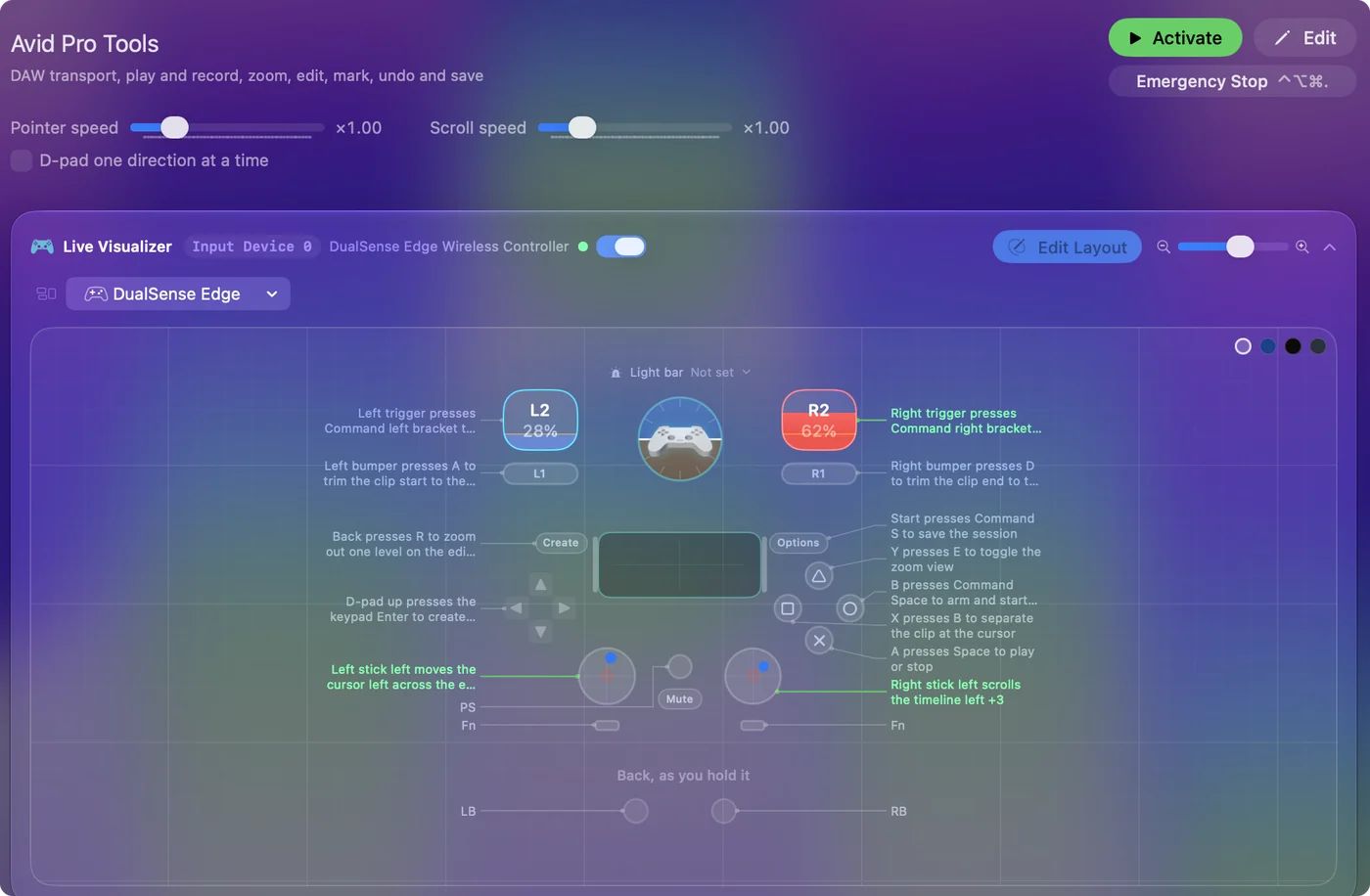
- Transport. Play and stop (Space) on the bottom face button, record (Command Space) on the right.
- Edit clips. Separate the clip (B) on the left face button, zoom toggle (E) on the top. The bumpers trim the clip start (A) and end (D) to the cursor.
- Memory locations. D-pad up drops one (the keypad Enter, which InputConfig sends even on a MacBook with no keypad), D-pad down returns to the start.
- Zoom and move. The triggers zoom horizontally (Command Left and Right Bracket). The left stick moves the cursor across the Edit window and the right stick scrolls. The left stick click is Tab, Share or View zooms out (R), Options saves.
InputConfig sends the keypad's own key codes, so the memory location row works on a laptop. The keypad keys Pro Tools wants come from the pad, keypad or not.
Tune it for sessions
- Feel the record start. Turn on Vibrate on the record row.
- Faders and pans. Still a job for a surface or the mouse. To Pro Tools the pad is a keyboard.
Logic and Cubase have their own entries. A pulse on record tells you the take started without looking up.
Get it in two clicks
- Get InputConfig free on the Mac App Store, open it, and click Smart Preset Maker on the welcome screen.
- Search for Avid Pro Tools and pick it. The layout is created as a preset in your sidebar, named and ready.
- Press Activate. Every row can be changed afterwards: the editor's Scan button rebinds any control the moment you touch it.
Every binding, as a table
| Controller | Sends | What it does |
|---|---|---|
| Left stick left | Mouse motion left (speed 16) | Left stick left moves the cursor left across the edit window |
| Left stick right | Mouse motion right (speed 16) | Left stick right moves the cursor right across the edit window |
| Left stick up | Mouse motion up (speed 16) | Left stick up moves the cursor up |
| Left stick down | Mouse motion down (speed 16) | Left stick down moves the cursor down |
| Right stick left | Scroll left | Right stick left scrolls the timeline left |
| Right stick right | Scroll right | Right stick right scrolls the timeline right |
| Right stick up | Scroll up | Right stick up scrolls the track list up |
| Right stick down | Scroll down | Right stick down scrolls the track list down |
| Left trigger | Command (Left), [ | Left trigger presses Command left bracket to zoom horizontally out |
| Right trigger | Command (Left), ] | Right trigger presses Command right bracket to zoom horizontally in |
| A / Cross | Space | A presses Space to play or stop |
| B / Circle | Command (Left), Space | B presses Command Space to arm and start recording |
| X / Square | B | X presses B to separate the clip at the cursor |
| Y / Triangle | E | Y presses E to toggle the zoom view |
| LB / L1 | A | Left bumper presses A to trim the clip start to the cursor |
| RB / R1 | D | Right bumper presses D to trim the clip end to the cursor |
| L3 (left stick click) | Tab | Left stick click presses Tab to jump to the next transient or clip edge |
| D-pad up | Keypad Enter | D-pad up presses the keypad Enter to create a memory location marker |
| D-pad down | Return | D-pad down presses Return to send the playhead to the start |
| D-pad left | Command (Left), Z | D-pad left presses Command Z to undo |
| D-pad right | Command (Left), Shift (Left), Z | D-pad right presses Command Shift Z to redo |
| Back / Share / Select | R | Back presses R to zoom out one level on the edit window |
| Start / Options | Command (Left), S | Start presses Command S to save the session |
Button names follow the Xbox / PlayStation pair shown in the editor, so A / Cross is the bottom face button on either pad. On a Switch Pro Controller the bottom button is labeled B; the mapping still fires on position.
Questions
Is this a control surface?
No, it is a keyboard. For faders and pans you still want a surface or the mouse.
Can a MacBook send numeric keypad keys?
Yes. InputConfig sends the keypad's own key codes, so the memory location row works on a laptop with no keypad.
Related
Completely free. You don't have to make an account, there are no subscriptions, and nothing is locked. Optimized for Apple silicon. Open source on GitHub.
Updated