REAPER from a game controller
 The REAPER layout is built into InputConfig, free on the Mac App Store. You don't have to make an account, there are no subscriptions, and nothing is locked. Optimized for Apple silicon.
On a Mac: Native on the Mac. The layout sends REAPER's default actions, and every one can be reassigned in REAPER's action list if yours differ.
Yes, REAPER can be driven from a game controller on a Mac, and it is the DAW that likes a controller most, because it lets you bind anything to anything. This layout is a hands-on transport with editing: play and record on the face buttons, split at the cursor on another, the edit cursor nudged from the D-pad, zoom on the triggers. Every row sends a key you can find in REAPER's action list and change.
The layout, control by control
How the layout thinks
- Transport. Play and stop (Space) is the bottom face button, record (R) the right, and play from the edit cursor (Enter) Options.
- Edit. Split items at the edit cursor (S) is the top face button, and a marker at the cursor (M) the left. The table below calls that row mute, so check what M does in your action list. Undo and redo are the bumpers, and save is Create.
- Move around. D-pad left and right nudge the edit cursor, up and down step through tracks. The left stick scrubs, and the right stick scrolls the arrange view.
- Zoom. The triggers zoom in and out (the equals and minus keys), and the left stick click zooms to fit the project (Command 0).
Play, record and split are under your thumb, so the keyboard can stay out of the room.
Tune it
- Solo. Put its action on the right stick click, which is free.
- Mute. REAPER has no default key for muting a track. Give Track: Toggle mute for selected tracks a key in the action list, then make that key a row's output.
- MIDI in. REAPER can also take the controller as a MIDI device through InputConfig's MIDI output. See the MIDI output guide.
If a key does something else in your REAPER, change it in the action list or change the row, and either one works.
The short version
- Activate it. REAPER takes the keys at once, with nothing to enable.
- Check the action list. If you have customized REAPER's keys, match the rows to them.
- Add the two missing actions. Solo and mute are the first rows I would add.
REAPER binds anything to anything, so this layout is a starting point, not a fixed map.
Get it in two clicks
- Get InputConfig free on the Mac App Store, open it, and click Smart Preset Maker on the welcome screen.
- Search for REAPER and pick it. The layout is created as a preset in your sidebar, named and ready.
- Press Activate. Every row can be changed afterwards: the editor's Scan button rebinds any control the moment you touch it.
Every binding, as a table
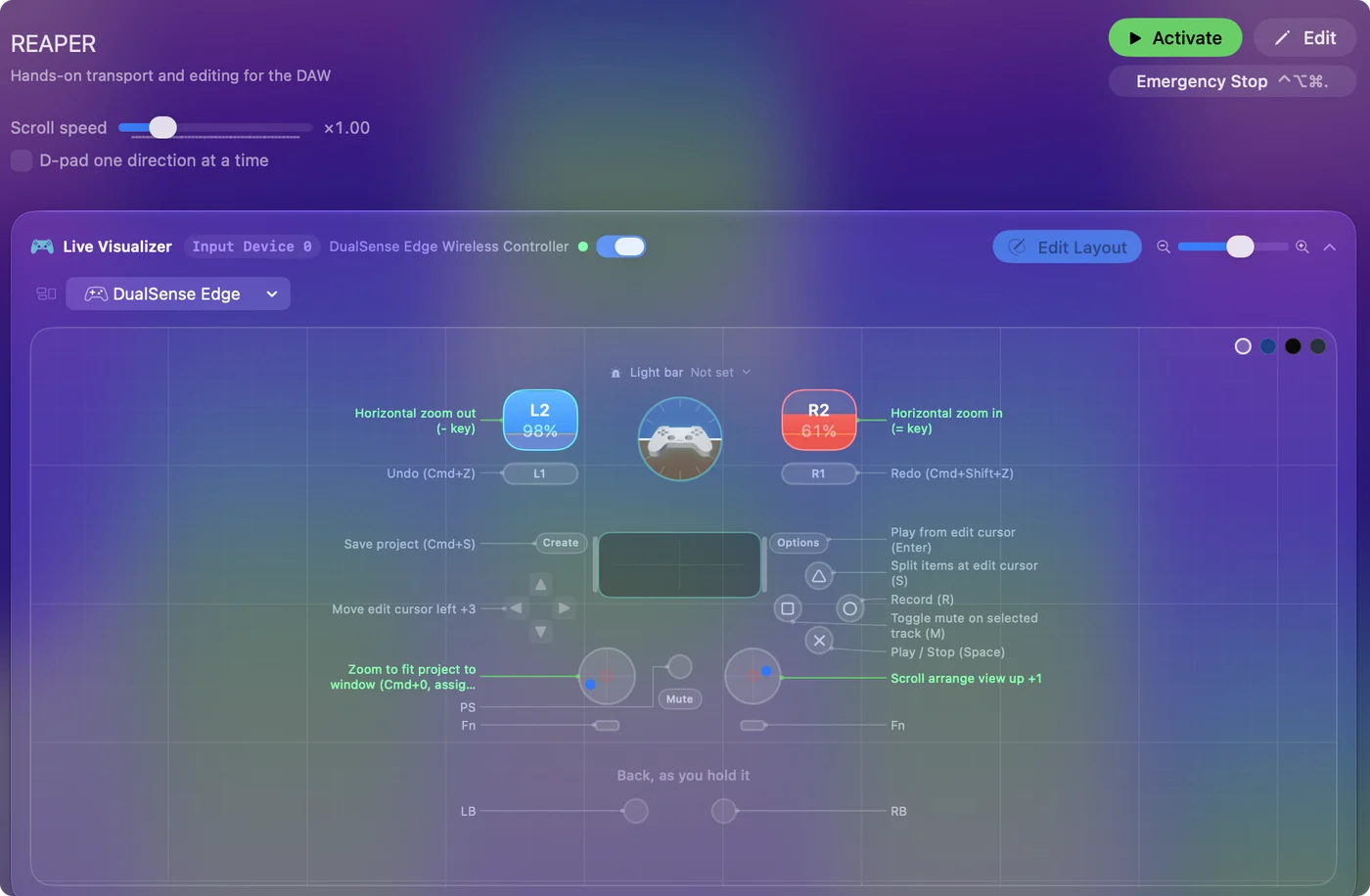
| Controller | Sends | What it does |
|---|---|---|
| A / Cross | Space | Play / Stop (Space) |
| B / Circle | R | Record (R) |
| Y / Triangle | S | Split items at edit cursor (S) |
| X / Square | M | Toggle mute on selected track (M) |
| LB / L1 | Command (Left), Z | Undo (Cmd+Z) |
| RB / R1 | Command (Left), Shift (Left), Z | Redo (Cmd+Shift+Z) |
| Start / Options | Return | Play from edit cursor (Enter) |
| Back / Share / Select | Command (Left), S | Save project (Cmd+S) |
| L3 (left stick click) | Command (Left), 0 | Zoom to fit project to window (Cmd+0, assignable) |
| D-pad left | Left | Move edit cursor left |
| D-pad right | Right | Move edit cursor right |
| D-pad up | Up | Previous track |
| D-pad down | Down | Next track |
| Left stick left | Left | Scrub / nudge cursor left |
| Left stick right | Right | Scrub / nudge cursor right |
| Right stick up | Scroll up | Scroll arrange view up |
| Right stick down | Scroll down | Scroll arrange view down |
| Right trigger | = | Horizontal zoom in (= key) |
| Left trigger | - | Horizontal zoom out (- key) |
Button names follow the Xbox / PlayStation pair shown in the editor, so A / Cross is the bottom face button on either pad. On a Switch Pro Controller the bottom button is labeled B; the mapping still fires on position.
Questions
Can I change what each button does in REAPER?
Yes, in REAPER's action list, or change the row's output in InputConfig to a different key. Either works.
Related
Completely free. You don't have to make an account, there are no subscriptions, and nothing is locked. Optimized for Apple silicon. Open source on GitHub.
Updated