Google Chrome from a game controller
 The Google Chrome layout is built into InputConfig, free on the Mac App Store. You don't have to make an account, there are no subscriptions, and nothing is locked. Optimized for Apple silicon.
On a Mac: Chrome for Mac does not read game controllers for browsing, only for web games. It takes the keys and clicks this layout sends. Nothing to enable.
Yes, you can browse Chrome on a Mac with a game controller: pointer and scroll on the sticks, clicks on the triggers, and Chrome's own shortcuts on the buttons. The one thing a pad cannot do is type, and dictation, the address bar button and sites on buttons cover most of that. It sounds like a novelty until the first evening on a sofa with the Mac on the TV.
On this page: 7 sections
The layout, control by control
How the layout thinks
- Point, scroll, click. The left stick is the pointer, the right stick scrolls, the right trigger clicks and the left trigger right-clicks.
- Move through pages. Back (Command Left Arrow) on the bottom face button, Forward (Command Right Arrow) on the right, Reload on the left, New Tab on the top.
- Handle tabs. The left bumper closes the tab and the right bumper puts the cursor in the address bar. D-pad left and right walk through your tabs with Command Option and the arrows.
- Get out of things. Options is Escape, which closes a menu and stops a page loading.
One quirk: Command Left Arrow is Back only while you are not typing. With the cursor in a search box it jumps to the start of the line instead. If Back does nothing, press Escape or click outside the box, then press it again.
Tune it for Chrome
- Search by voice. Add a Start Dictation row. Address bar button, dictation button, say it, then a Return row. That beats any on-screen keyboard.
- Sites on buttons. An Open URL output puts a site on a button. Behind a chord, the four face buttons are your four sites.
- Page by page. Space and Shift Space page through an article. Put them on D-pad up and down.
- Bigger text. Put Command Plus and Command Minus on the stick clicks.
- Video. On YouTube, K pauses, J and L skip ten seconds, F is full screen. The video watching layout is built around those.
Open URL: The address to give a row that opens YouTube.
https://www.youtube.comWhat happens: One press opens the site in your default browser, so make Chrome the default if you want it there.
Most people open the same few sites every day. Dictation and Open URL do the typing a controller cannot.
The short version
- Pair and activate. An Xbox, DualSense, DualShock 4 or Switch Pro controller works the same, and so do most 8BitDo pads in the right mode.
- Add dictation and your daily sites. Then you rarely need a keyboard.
- Want one layout for the whole Mac. The built-in Easy Browse preset does browsing, Spotlight, Mission Control, dictation and read-aloud in one, with a pointer that starts slow.
Use this layout for Chrome alone, or Easy Browse for everything. Sticks for the pointer, buttons for Chrome's shortcuts, your voice for the address bar.
Get it in two clicks
- Get InputConfig free on the Mac App Store, open it, and click Smart Preset Maker on the welcome screen.
- Search for Google Chrome and pick it. The layout is created as a preset in your sidebar, named and ready.
- Press Activate. Every row can be changed afterwards: the editor's Scan button rebinds any control the moment you touch it.
Every binding, as a table
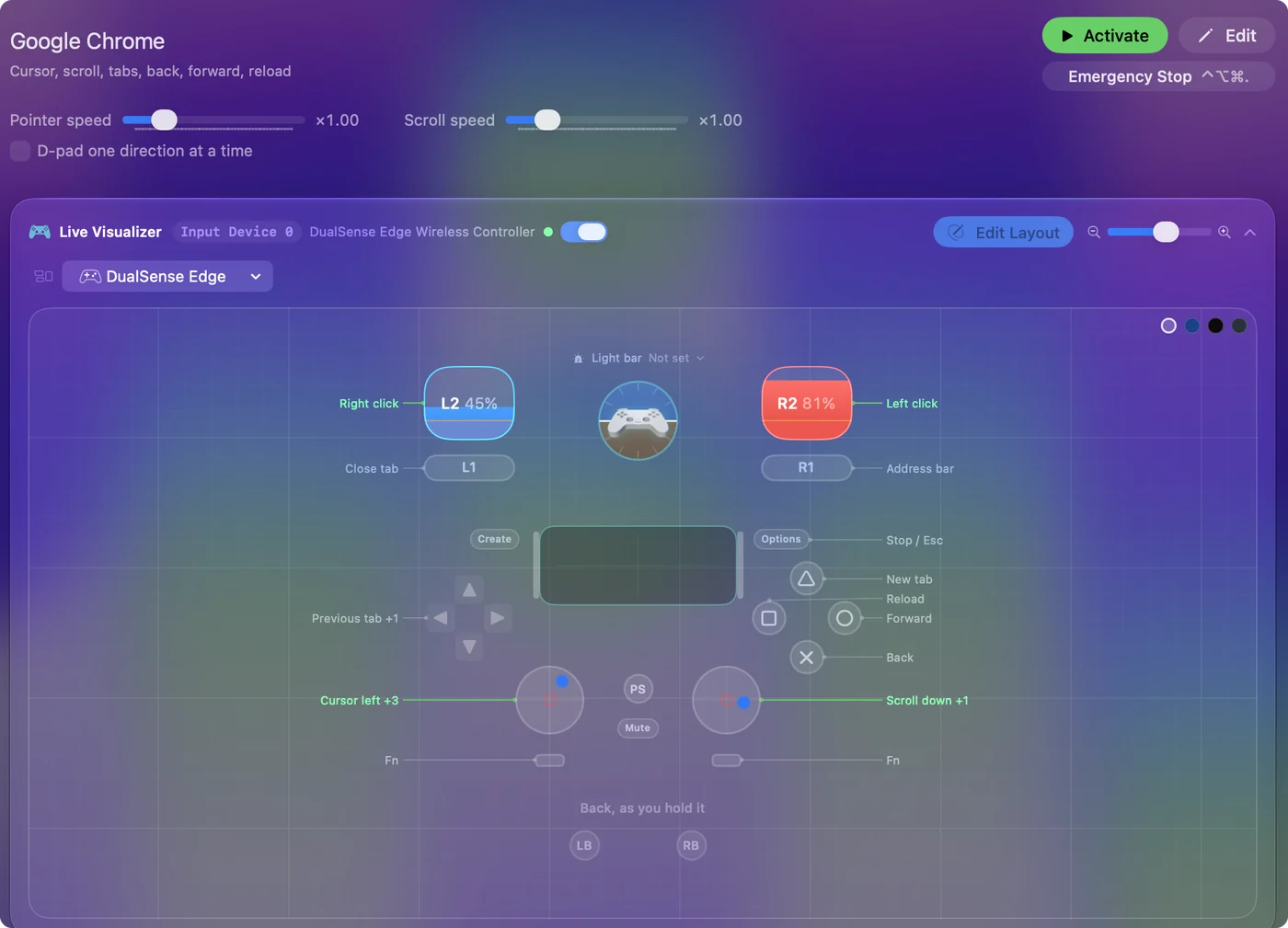
| Controller | Sends | What it does |
|---|---|---|
| Left stick left | Mouse motion left (speed 16) | Cursor left |
| Left stick right | Mouse motion right (speed 16) | Cursor right |
| Left stick up | Mouse motion up (speed 16) | Cursor up |
| Left stick down | Mouse motion down (speed 16) | Cursor down |
| Right stick down | Scroll down | Scroll down |
| Right stick up | Scroll up | Scroll up |
| Right trigger | Left click | Left click |
| Left trigger | Right click | Right click |
| A / Cross | Command (Left), Left | Back |
| B / Circle | Command (Left), Right | Forward |
| X / Square | Command (Left), R | Reload |
| Y / Triangle | Command (Left), T | New tab |
| LB / L1 | Command (Left), W | Close tab |
| RB / R1 | Command (Left), L | Address bar |
| D-pad left | Command (Left), Alt / Option (Left), Left | Previous tab |
| D-pad right | Command (Left), Alt / Option (Left), Right | Next tab |
| Start / Options | Escape | Stop / Esc |
Button names follow the Xbox / PlayStation pair shown in the editor, so A / Cross is the bottom face button on either pad. On a Switch Pro Controller the bottom button is labeled B; the mapping still fires on position.
Questions
Can I type web addresses with a controller?
With dictation, yes: focus the address bar with the right bumper, press your Start Dictation button, and say it. For sites you use daily, an Open URL output on a button is faster still.
Does it work with Brave, Edge, Arc or Vivaldi?
Yes. They are built on the same engine and keep Chrome's shortcuts, and each has its own entry in the Smart Preset Maker.
Can I browse Chrome with an Xbox or PS5 controller on a Mac?
Yes. Pair the controller with the Mac, then activate this layout. It works the same with an Xbox, DualSense, DualShock 4 or Switch Pro controller, and with most 8BitDo pads in the right mode.
Related
Completely free. You don't have to make an account, there are no subscriptions, and nothing is locked. Optimized for Apple silicon. Open source on GitHub.
Updated