Finder from a game controller
 The Finder / Files layout is built into InputConfig, free on the Mac App Store. You don't have to make an account, there are no subscriptions, and nothing is locked. Optimized for Apple silicon.
On a Mac: Sends the Finder's standard keys, so it works in Finder windows and in every Open and Save dialog. Nothing to enable.
Yes, you can use the Finder from a game controller on a Mac: the D-pad moves through files, and open, up a folder, copy, paste, Trash and rename each have a button. It sends the Finder's standard keys, so it works in every Open and Save dialog too. Nothing needs enabling.
The layout, control by control
How the layout thinks
- Move. The D-pad moves the selection through the grid of icons.
- Open and go up. Open (Command Down Arrow) on the bottom face button, up a folder (Command Up Arrow) on the right.
- Copy and paste. On the left and top face buttons.
- Trash and rename. Move to Trash (Command Delete) on the left bumper, Return to rename or confirm on the right.
- Point. The left stick is the pointer, the right trigger clicks, the left trigger right-clicks for the context menu.
Make the Trash button safe
The left bumper moves a file to the Trash with one press. Climb this ladder, smallest step first:
- Feel it. Tick Vibrate under Feedback in the trash row's Options, so you notice every press.
- Make it a hold. Move Command Delete to the row's hold action and leave the press empty, so a tap cannot trash a file.
- Know the way back. Command Z in the Finder, right after, puts the file back. Put it on a spare button.
A hold on the Trash row costs half a second and saves the wrong file.
Tune it
- Quick Look. Put Space on the touchpad press. The Quick Look layout has the rest.
- New folder. Put Command Shift N on a stick click.
- Go to a path. Press Command Shift G, then dictate.
- Views. Put Command 1 to 4 behind a chord on the D-pad.
- The pointer guards. Confine, recenter and hide cursor pause while the Finder is in front, so a game preset's pointer settings never trap you here.
The Finder is a grid, and a D-pad was made for grids.
Get it in two clicks
- Get InputConfig free on the Mac App Store, open it, and click Smart Preset Maker on the welcome screen.
- Search for Finder / Files and pick it. The layout is created as a preset in your sidebar, named and ready.
- Press Activate. Every row can be changed afterwards: the editor's Scan button rebinds any control the moment you touch it.
Every binding, as a table
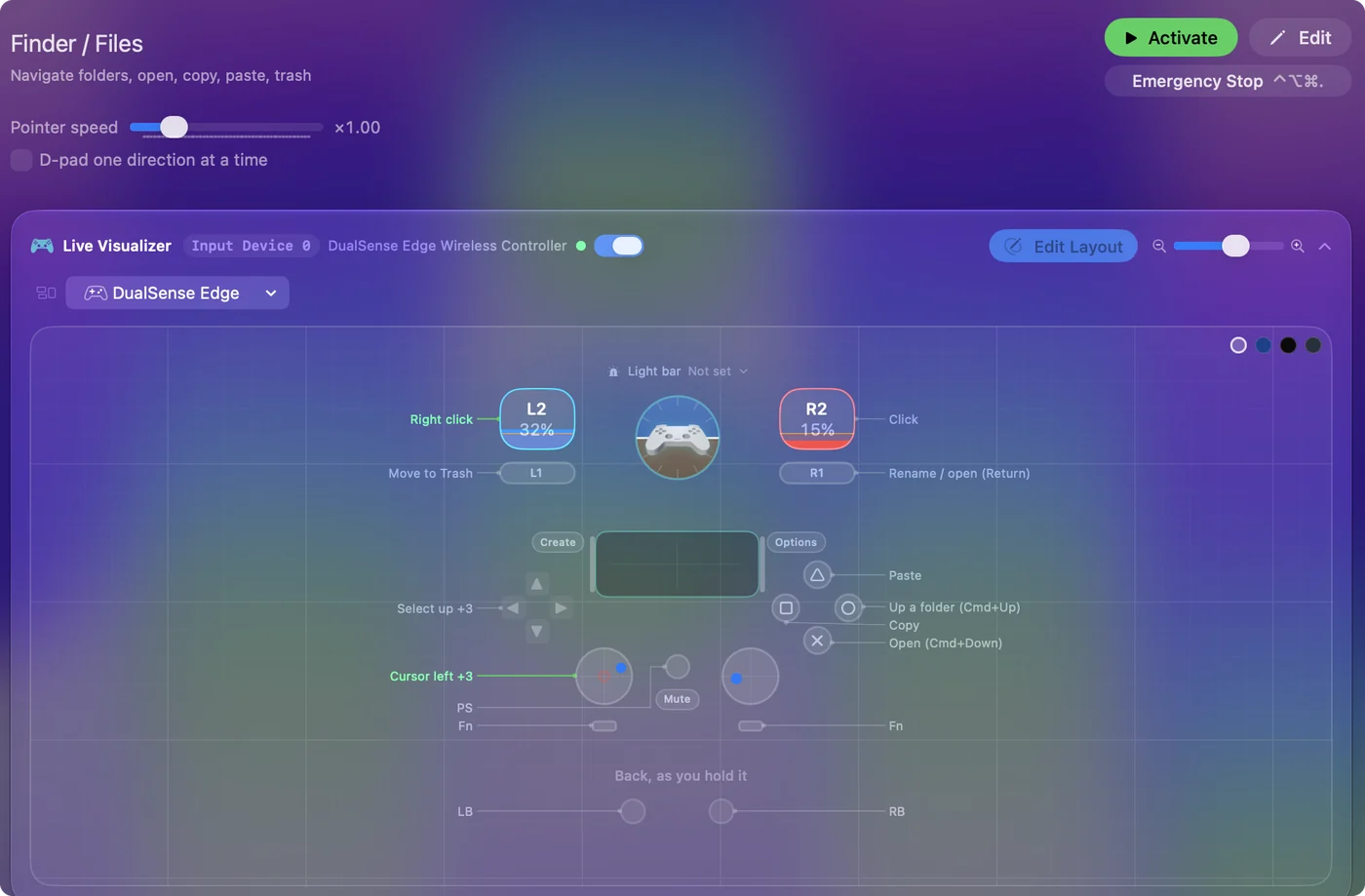
| Controller | Sends | What it does |
|---|---|---|
| Left stick left | Mouse motion left (speed 16) | Cursor left |
| Left stick right | Mouse motion right (speed 16) | Cursor right |
| Left stick up | Mouse motion up (speed 16) | Cursor up |
| Left stick down | Mouse motion down (speed 16) | Cursor down |
| Right trigger | Left click | Click |
| Left trigger | Right click | Right click |
| D-pad up | Up | Select up |
| D-pad down | Down | Select down |
| D-pad left | Left | Select left |
| D-pad right | Right | Select right |
| A / Cross | Command (Left), Down | Open (Cmd+Down) |
| B / Circle | Command (Left), Up | Up a folder (Cmd+Up) |
| X / Square | Command (Left), C | Copy |
| Y / Triangle | Command (Left), V | Paste |
| LB / L1 | Command (Left), Backspace | Move to Trash |
| RB / R1 | Return | Rename / open (Return) |
Button names follow the Xbox / PlayStation pair shown in the editor, so A / Cross is the bottom face button on either pad. On a Switch Pro Controller the bottom button is labeled B; the mapping still fires on position.
Questions
Does it work in Open and Save dialogs?
Yes. They take the same keys.
Can I undo a move to Trash?
Yes, Command Z in the Finder right after. Put it on a spare button.
Related
Completely free. You don't have to make an account, there are no subscriptions, and nothing is locked. Optimized for Apple silicon. Open source on GitHub.
Updated