Quick Look from a game controller
 The Quick Look & Finder Preview layout is built into InputConfig, free on the Mac App Store. You don't have to make an account, there are no subscriptions, and nothing is locked. Optimized for Apple silicon.
On a Mac: Works in the Finder and in Open and Save dialogs with the standard macOS keys. Nothing to enable.
Yes, you can flip through files with Quick Look from a game controller on a Mac. Select a file, press the big button, and step through the folder with the D-pad while the preview follows. Full screen, open and folders are on other buttons. It works in the Finder and in Open and Save dialogs with the standard macOS keys.
On this page: 6 sections
The layout, control by control
How the layout thinks
- Preview. Quick Look (Space) on the bottom face button, close (Escape) on the right, full-screen Quick Look (Option Space) on the top.
- Open. Open with the default app (Command O) on the left face button.
- Step through files. The D-pad and the left stick step with the arrow keys.
- Move through folders. The left bumper goes up to the enclosing folder (Command Up Arrow). The right bumper and the right trigger open the selected folder or file (Command Down Arrow).
- The rest. Share or View plays the selection as a slideshow (Option Command Y), Options is Return, the right stick scrolls a long preview, the stick clicks click and right-click, and the left trigger is Escape.
Options is Return, which renames the selected file in the Finder. In a dialog it confirms instead. A folder plus Quick Look and the D-pad is the quickest photo review there is.
Tune it for the Finder
- Move to Trash. Put Command Delete on the touchpad press, with Vibrate so you feel it. It is better as a held action, set under How it fires with Different action when held, so a tap cannot trash a file.
- A pointer. This layout moves through files with keys and has no pointer on the sticks. For pointer work, copy the four pointer rows from Desktop Navigation onto the right stick.
Trash on a hold is the one safety change I would make. Put Trash on a hold, and a slip never deletes a file.
Get it in two clicks
- Get InputConfig free on the Mac App Store, open it, and click Smart Preset Maker on the welcome screen.
- Search for Quick Look & Finder Preview and pick it. The layout is created as a preset in your sidebar, named and ready.
- Press Activate. Every row can be changed afterwards: the editor's Scan button rebinds any control the moment you touch it.
Every binding, as a table
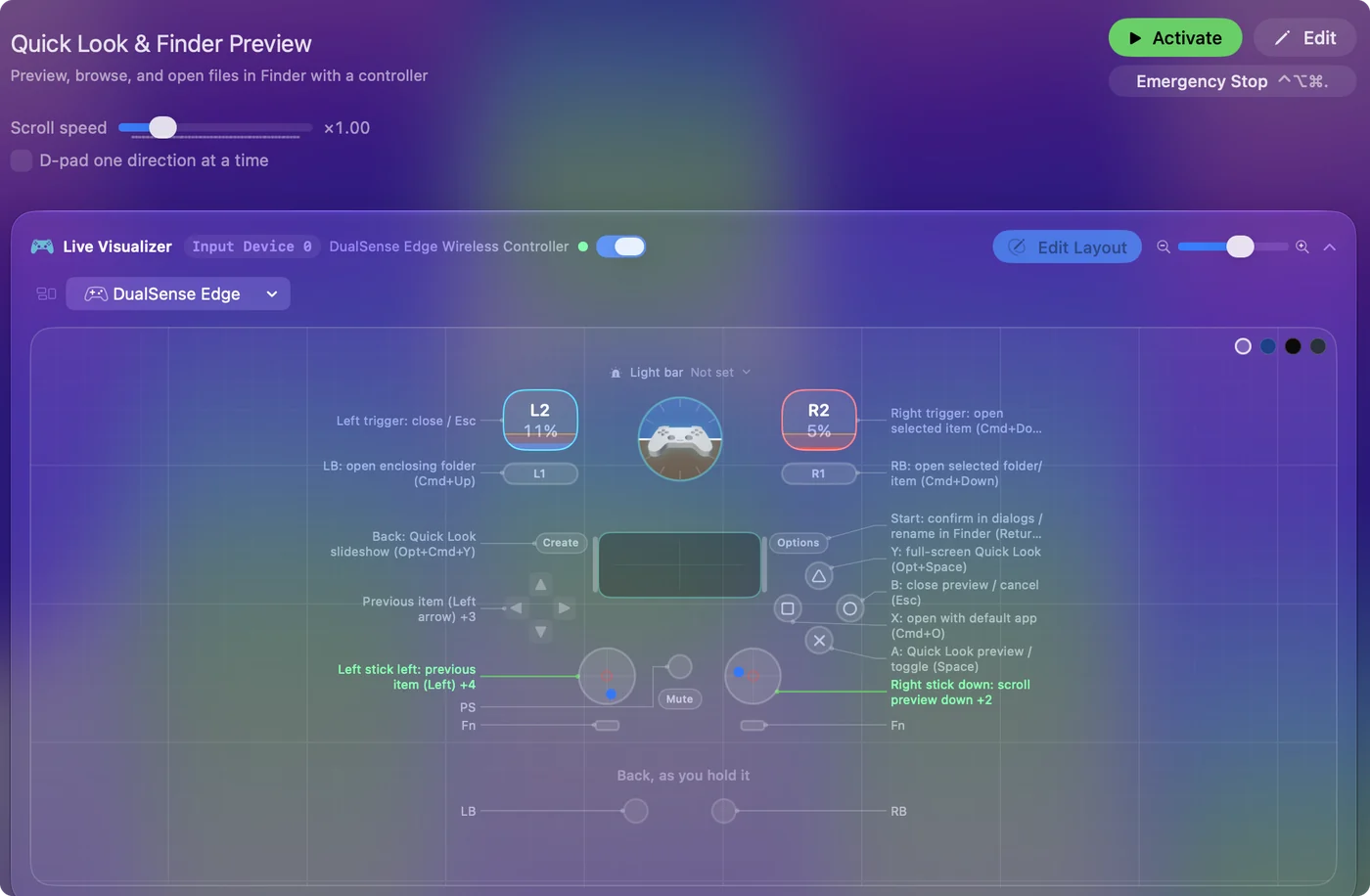
| Controller | Sends | What it does |
|---|---|---|
| A / Cross | Space | A: Quick Look preview / toggle (Space) |
| B / Circle | Escape | B: close preview / cancel (Esc) |
| Y / Triangle | Alt / Option (Left), Space | Y: full-screen Quick Look (Opt+Space) |
| X / Square | Command (Left), O | X: open with default app (Cmd+O) |
| D-pad left | Left | Previous item (Left arrow) |
| D-pad right | Right | Next item (Right arrow) |
| D-pad up | Up | Move up in list (Up arrow) |
| D-pad down | Down | Move down in list (Down arrow) |
| Left stick left | Left | Left stick left: previous item (Left) |
| Left stick right | Right | Left stick right: next item (Right) |
| Left stick up | Up | Left stick up: move up (Up) |
| Left stick down | Down | Left stick down: move down (Down) |
| LB / L1 | Command (Left), Up | LB: open enclosing folder (Cmd+Up) |
| RB / R1 | Command (Left), Down | RB: open selected folder/item (Cmd+Down) |
| Start / Options | Return | Start: confirm in dialogs / rename in Finder (Return) |
| Back / Share / Select | Alt / Option (Left), Command (Left), Y | Back: Quick Look slideshow (Opt+Cmd+Y) |
| Right stick down | Scroll down | Right stick down: scroll preview down |
| Right stick up | Scroll up | Right stick up: scroll preview up |
| L3 (left stick click) | Left click | L3: left click |
| R3 (right stick click) | Right click | R3: right click / context menu |
| Right trigger | Command (Left), Down | Right trigger: open selected item (Cmd+Down) |
| Left trigger | Escape | Left trigger: close / Esc |
Button names follow the Xbox / PlayStation pair shown in the editor, so A / Cross is the bottom face button on either pad. On a Switch Pro Controller the bottom button is labeled B; the mapping still fires on position.
Questions
Does this work for photos?
That is the best use: a folder of photos, Quick Look, and the D-pad.
Why does Options rename my file?
Return renames the selected file in the Finder. In a dialog it confirms instead.
Related
Completely free. You don't have to make an account, there are no subscriptions, and nothing is locked. Optimized for Apple silicon. Open source on GitHub.
Updated