Review photos from a game controller
 The Photo Review layout is built into InputConfig, free on the Mac App Store. You don't have to make an account, there are no subscriptions, and nothing is locked. Optimized for Apple silicon.
On a Mac: Works in Photos and Preview, which both step through pictures on the arrow keys. Nothing to enable.
Yes, you can flip through photos in Apple Photos or Preview with a game controller: next and back on the stick and D-pad, zoom, actual size, and delete on a bumper. Both apps step through pictures on the arrow keys, so nothing needs enabling. A keyboard is a poor tool for culling because your hand moves between the arrows and Delete. A controller keeps them all under one thumb.
The layout, control by control
How the layout thinks
- Next and previous. On the left stick, the bottom and right face buttons, and the D-pad.
- Look closer. Zoom in and out on the left and top face buttons, actual size (Command 0) on the right bumper.
- Delete. Command Delete on the left bumper, where a finger reaches it without looking, which is a feature or a danger depending on your day.
Make delete safe
Climb this ladder, smallest step first:
- Feel it. Tick Vibrate under Feedback in the delete row's Options. Strongly recommended.
- Make it a hold. Move Command Delete to the row's hold action, so a tap cannot delete.
- Undo it. Command Z on a spare button. In Photos, a deleted picture also goes to Recently Deleted first.
Turn on Vibrate for the delete row before your first cull.
Tune it
- Favorite. Period in Photos marks a favorite. Put it on the touchpad press.
- Rotate. Photos and Preview both have rotate keys in their menus. Put them on the stick clicks.
- Lightroom and Capture One. Both have their own pages with flag and rating keys.
Next, next, favorite, next: a thousand photos go faster from the couch.
Get it in two clicks
- Get InputConfig free on the Mac App Store, open it, and click Smart Preset Maker on the welcome screen.
- Search for Photo Review and pick it. The layout is created as a preset in your sidebar, named and ready.
- Press Activate. Every row can be changed afterwards: the editor's Scan button rebinds any control the moment you touch it.
Every binding, as a table
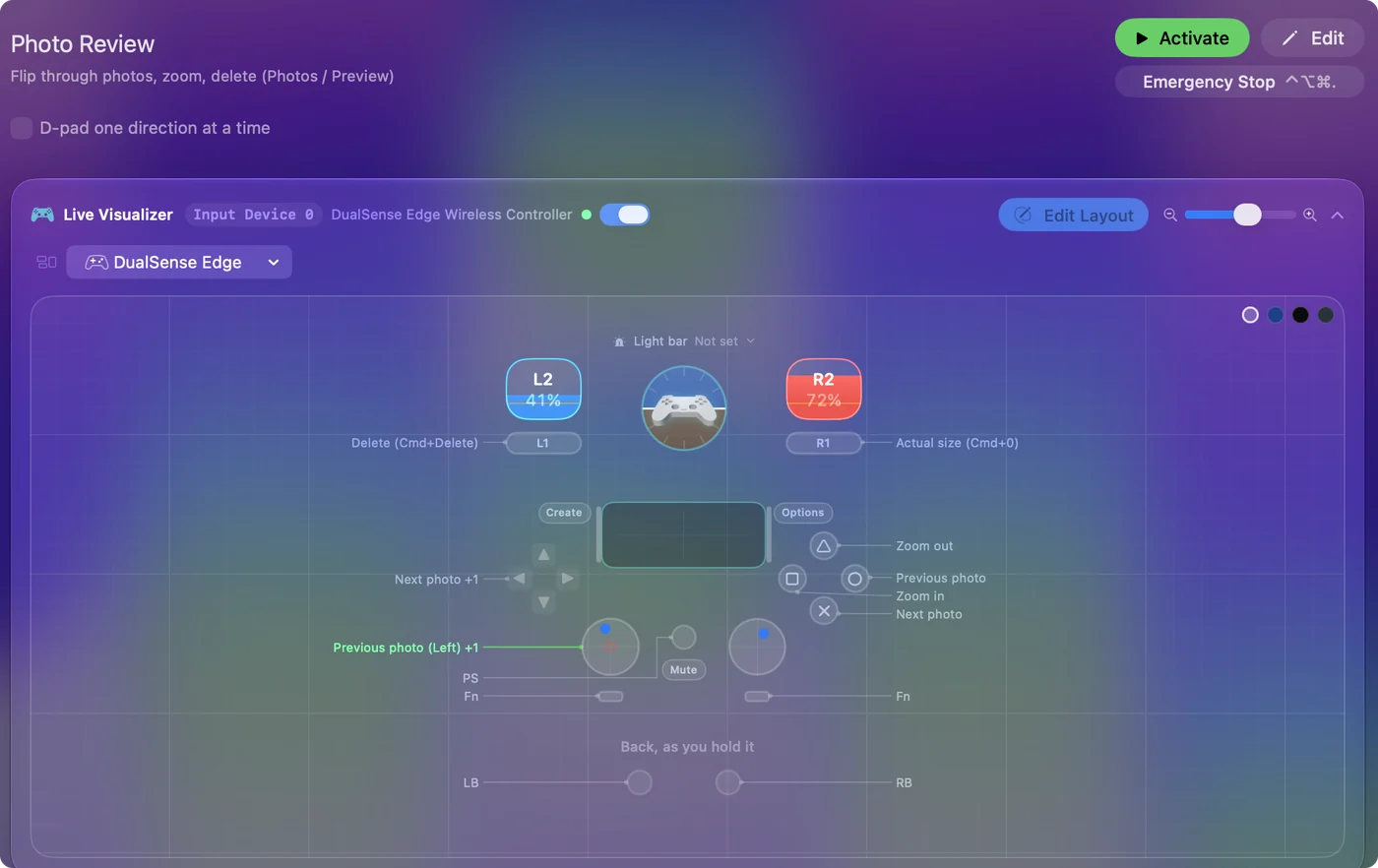
| Controller | Sends | What it does |
|---|---|---|
| Left stick left | Left | Previous photo (Left) |
| Left stick right | Right | Next photo (Right) |
| A / Cross | Right | Next photo |
| B / Circle | Left | Previous photo |
| D-pad right | Right | Next photo |
| D-pad left | Left | Previous photo |
| X / Square | Command (Left), = | Zoom in |
| Y / Triangle | Command (Left), - | Zoom out |
| LB / L1 | Command (Left), Backspace | Delete (Cmd+Delete) |
| RB / R1 | Command (Left), 0 | Actual size (Cmd+0) |
Button names follow the Xbox / PlayStation pair shown in the editor, so A / Cross is the bottom face button on either pad. On a Switch Pro Controller the bottom button is labeled B; the mapping still fires on position.
Questions
Does it work in Lightroom?
Lightroom uses different keys for flags and ratings. It has its own page.
Does deleting in Photos remove the picture for good?
No. Photos moves it to Recently Deleted, where it stays for a while before it is removed.
Related
Completely free. You don't have to make an account, there are no subscriptions, and nothing is locked. Optimized for Apple silicon. Open source on GitHub.
Updated