Adobe Lightroom from a game controller
 The Adobe Lightroom layout is built into InputConfig, free on the Mac App Store. You don't have to make an account, there are no subscriptions, and nothing is locked. Optimized for Apple silicon.
On a Mac: Lightroom Classic reads its default keys from this layout, and the cloud-based Lightroom shares most of them. Lightroom has no controller or MIDI settings of its own.
Yes, you can cull a shoot in Lightroom Classic with an Xbox or PS5 controller on a Mac. Culling is next, pick, next, reject, next, five stars, for three thousand frames, and this layout puts all of it under one thumb: the D-pad is flags and stars, the stick and face buttons move. You never look away from the photo.
On this page: 7 sections
The layout, control by control
How the layout thinks
Lightroom Classic's culling keys, and where this layout puts them:
| Job | Lightroom Classic key | Controller |
|---|---|---|
| Next / previous photo | Right / Left Arrow | Left stick, bottom and right face buttons |
| Flag as pick | P | D-pad left |
| Flag as reject | X | D-pad right |
| Five stars / one star | 5 / 1 | D-pad up / down |
| Develop | D | Left face button |
| Library grid | G | Top face button |
| Undo | Command Z | Left bumper |
| Scroll | Mouse wheel | Right stick |
Turn on Auto Advance in Lightroom's Photo menu, or press Caps Lock, and every flag or rating moves to the next frame by itself. With Auto Advance on, you can cull a shoot from the D-pad alone.
Tune it for culling
- Two, three and four stars. Behind a chord on the D-pad, or on the bumpers if you only use the middle of the scale.
- Unflag. Put U on the right bumper.
- Color labels. Put 6 to 9 behind a chord.
- Zoom to check focus. Put Z on the touchpad press, the key you press most in a cull.
- Feel the reject. Vibrate on the reject row, so a mistaken reject is felt.
- Small pads work well. An 8BitDo Micro or a single Joy-Con sits beside a laptop. The D-pad and four buttons are enough for a cull.
Zoom on the touchpad is the row I would add first. Put Z where your thumb rests, because you check focus on every frame.
What a controller cannot do in Develop
A controller sends keys, so it moves Develop sliders the way the keyboard does: pick a Basic panel setting and nudge it a step per press, with How it fires set to Repeats while held to keep going. That is fine for a quick exposure fix. It is not a slider under your finger.
- Sliders on knobs. For knob-per-slider control in Lightroom Classic, the free, open-source MIDI2LR plugin with a MIDI knob box is the tool people use, and it runs alongside InputConfig without either getting in the way.
- A MIDI pad for the cull. Pads for pick, reject and the star keys, and a knob in Turn mode on the arrow keys to move through photos. The MIDI input page shows how to bind pads and knobs.
Lightroom has no controller or MIDI settings of its own. Use the pad for culling and MIDI2LR for sliders.
Get it in two clicks
- Get InputConfig free on the Mac App Store, open it, and click Smart Preset Maker on the welcome screen.
- Search for Adobe Lightroom and pick it. The layout is created as a preset in your sidebar, named and ready.
- Press Activate. Every row can be changed afterwards: the editor's Scan button rebinds any control the moment you touch it.
Every binding, as a table
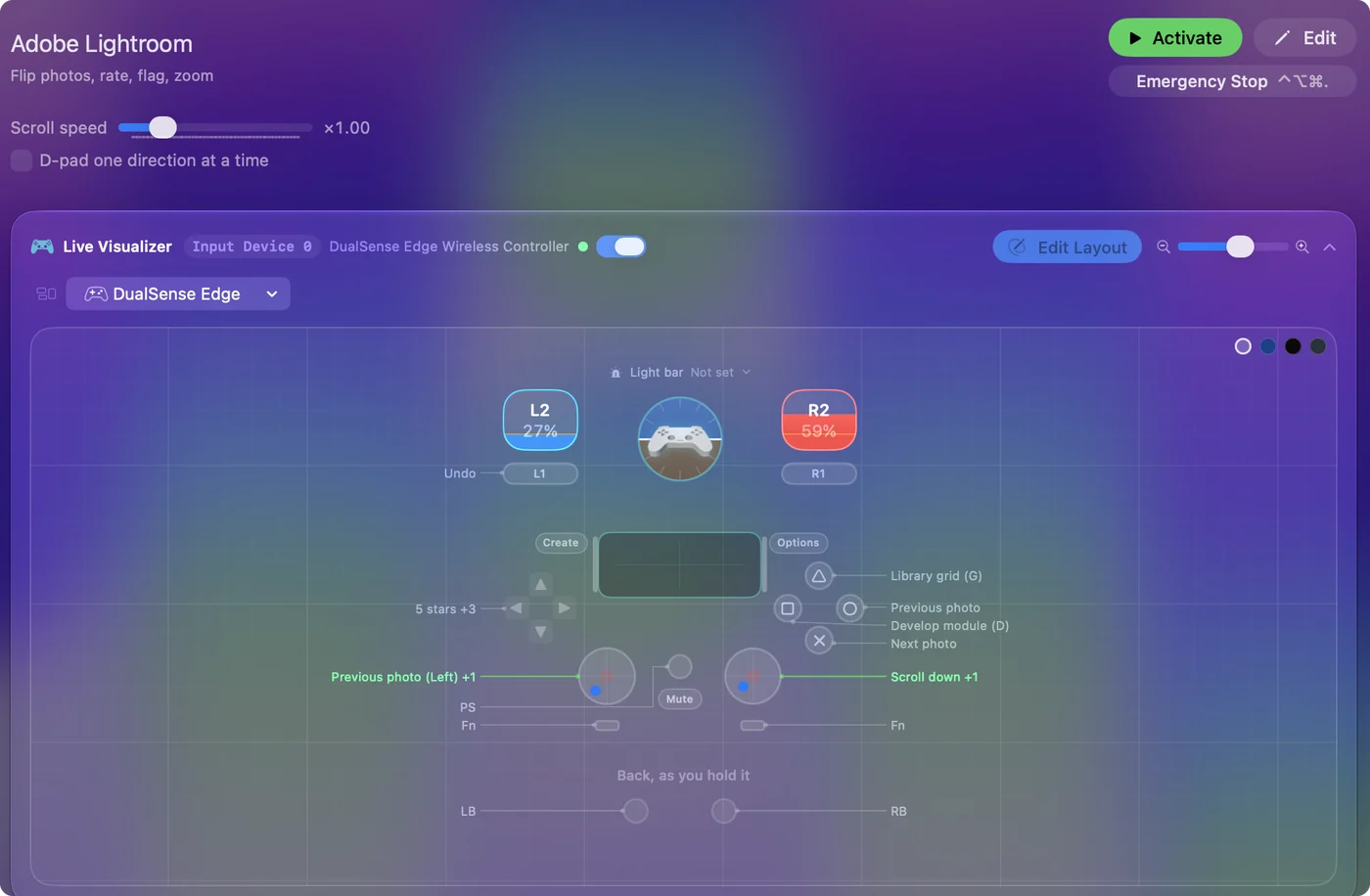
| Controller | Sends | What it does |
|---|---|---|
| Left stick left | Left | Previous photo (Left) |
| Left stick right | Right | Next photo (Right) |
| A / Cross | Right | Next photo |
| B / Circle | Left | Previous photo |
| D-pad up | 5 | 5 stars |
| D-pad down | 1 | 1 star |
| D-pad left | P | Flag as pick (P) |
| D-pad right | X | Flag as reject (X) |
| X / Square | D | Develop module (D) |
| Y / Triangle | G | Library grid (G) |
| LB / L1 | Command (Left), Z | Undo |
| Right stick down | Scroll down | Scroll down |
| Right stick up | Scroll up | Scroll up |
Button names follow the Xbox / PlayStation pair shown in the editor, so A / Cross is the bottom face button on either pad. On a Switch Pro Controller the bottom button is labeled B; the mapping still fires on position.
Questions
Can I use an Xbox controller in Lightroom on a Mac?
Yes. Lightroom has no controller support of its own, so InputConfig turns the controller into Lightroom's keyboard shortcuts. Pick Lightroom in the Smart Preset Maker and it is ready. A PS5, Switch or 8BitDo pad works the same way.
Does it work in the cloud-based Lightroom?
Mostly. The flag and star keys are the same. Scan any row that differs.
Can a MIDI controller move Lightroom's develop sliders?
Not through keystrokes. Use MIDI2LR for sliders, and InputConfig for culling keys and everything outside Lightroom.
Related
Completely free. You don't have to make an account, there are no subscriptions, and nothing is locked. Optimized for Apple silicon. Open source on GitHub.
Updated