Blender from a game controller
 The Blender layout is built into InputConfig, free on the Mac App Store. You don't have to make an account, there are no subscriptions, and nothing is locked. Optimized for Apple silicon.
On a Mac: Blender reads its default keys and mouse buttons from this layout. Blender's own 3D mouse support (NDOF) is separate and unaffected.
Yes, Blender works from a game controller on a Mac: G, R, S and Tab under the thumb, orbit on a held button, zoom on the right stick, undo on a trigger. Blender reads its default keys and mouse buttons from this layout, and its own 3D mouse support is separate and unaffected. People who model with a pen tablet use it as a left-hand deck. People who cannot use a keyboard use it as the whole keyboard, with the pen or a mouse doing the pointing.
The layout, control by control
How the layout thinks
- Look around. The left stick is the pointer and the right stick zooms. Orbit (middle button, held) is on the right face button, so orbiting is hold the button and move the stick.
- Select. Left click on the bottom face button.
- Transform. Grab (G), Rotate (R) and Scale (S) on the left and top face buttons and the left bumper: press one, move the stick, click to confirm.
- Modes and cleanup. Tab for Edit Mode on the right bumper, Delete (X) on the right trigger, undo on the left trigger, save on Back, Share or View.
Tune it to how you model
- Pan. It is Shift plus middle drag. Add a row with Shift and Middle click together on a spare button.
- Axis lock. After G, R or S, pressing X, Y or Z locks the axis. Put the three letters behind a chord on the face buttons.
- Extrude and loop cut. Put E and Control R on the stick clicks.
- Numpad views. Front, side, top and camera are keypad 1, 3, 7 and 0, and InputConfig sends real keypad keys even on a MacBook. The Numeric Keypad layout has the rows.
- Small vertices. Lower the Pointer speed slider on the preset's page.
- Feel the delete. Tick Vibrate under Feedback in the delete row's Options, because X sits next to undo.
The 3D mouse page covers smoother orbiting and the gyro. A controller in the other hand is the third hand Blender always asked for.
Get it in two clicks
- Get InputConfig free on the Mac App Store, open it, and click Smart Preset Maker on the welcome screen.
- Search for Blender and pick it. The layout is created as a preset in your sidebar, named and ready.
- Press Activate. Every row can be changed afterwards: the editor's Scan button rebinds any control the moment you touch it.
Every binding, as a table
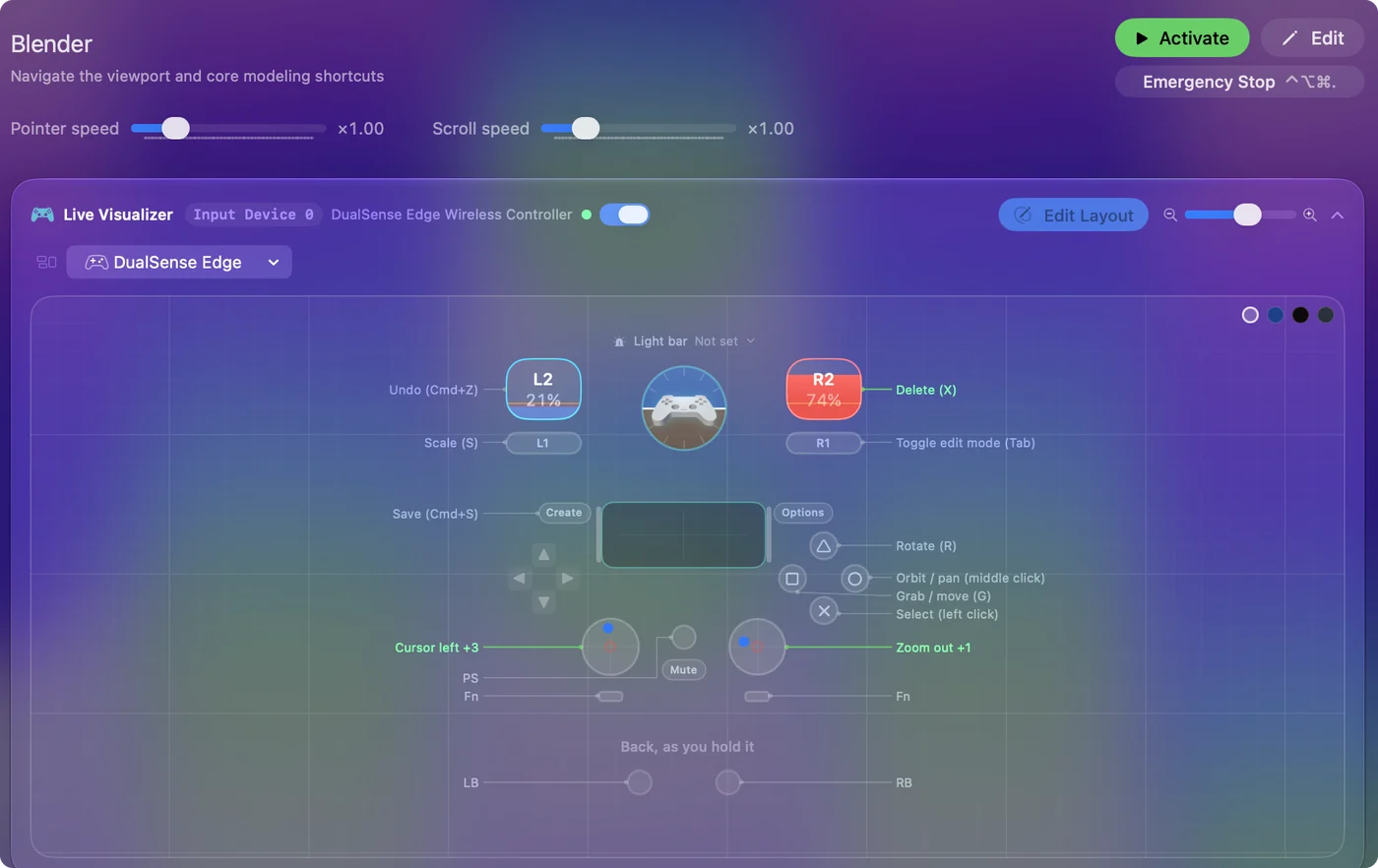
| Controller | Sends | What it does |
|---|---|---|
| Left stick left | Mouse motion left (speed 16) | Cursor left |
| Left stick right | Mouse motion right (speed 16) | Cursor right |
| Left stick up | Mouse motion up (speed 16) | Cursor up |
| Left stick down | Mouse motion down (speed 16) | Cursor down |
| Right stick down | Scroll down | Zoom out |
| Right stick up | Scroll up | Zoom in |
| A / Cross | Left click | Select (left click) |
| B / Circle | Middle click | Orbit / pan (middle click) |
| X / Square | G | Grab / move (G) |
| Y / Triangle | R | Rotate (R) |
| LB / L1 | S | Scale (S) |
| RB / R1 | Tab | Toggle edit mode (Tab) |
| Right trigger | X | Delete (X) |
| Left trigger | Command (Left), Z | Undo (Cmd+Z) |
| Back / Share / Select | Command (Left), S | Save (Cmd+S) |
Button names follow the Xbox / PlayStation pair shown in the editor, so A / Cross is the bottom face button on either pad. On a Switch Pro Controller the bottom button is labeled B; the mapping still fires on position.
Questions
Can I model in Blender with only a controller?
Navigate, select, transform and manage the scene, yes. Precise vertex work wants a pen or mouse in the other hand.
Does Blender support game controllers?
Not for viewport navigation. It supports 3D mice through NDOF. A game controller works through a mapper like this one.
Does it work with Blender 4?
Yes. The keys in the layout are defaults that have not changed since 2.8.
Related
Completely free. You don't have to make an account, there are no subscriptions, and nothing is locked. Optimized for Apple silicon. Open source on GitHub.
Updated