ZBrush from a game controller
 The Maxon ZBrush layout is built into InputConfig, free on the Mac App Store. You don't have to make an account, there are no subscriptions, and nothing is locked. Optimized for Apple silicon.
On a Mac: ZBrush for Mac reads its mode keys and mouse buttons from this layout. A pen tablet keeps working alongside it.
Yes, you can sculpt in ZBrush on a Mac with a game controller in the off hand. ZBrush is a pen app, and this layout is the other hand: a held right trigger to sculpt or rotate, the left trigger to turn a drag into a pan or scale, modes on the face buttons and draw size on the bumpers. A pen tablet keeps working alongside it.
On this page: 7 sections
The layout, control by control
How the layout thinks
- Move the cursor. The left stick moves the cursor over the canvas, for the times the pen is down.
- Sculpt and navigate. Hold the right trigger to sculpt, or drag off the model to rotate the view. The left trigger holds Option, which turns a drag into a pan or a scale of the view.
- Zoom. The right stick scrolls, and ZBrush reads the scroll wheel as zoom.
- Switch modes. Move (W), Rotate (R), Draw (Q) and Scale (E) on the face buttons.
- Draw size. The bumpers shrink and grow it with the bracket keys, and the left stick click opens the Draw Size slider (S).
- Fit, undo, save. D-pad up fits the mesh to the view (F), D-pad left and right are undo and redo, D-pad down opens a project (Command O), and Options saves.
The pen never has to leave the model for a mode change. The pen sculpts, and the pad handles modes, size and navigation.
Watch the clear-canvas button
Share or View sends Command N, which clears the canvas document.
- You: If that is a button you would rather not risk, open its row and give it another job, such as X for symmetry.
- InputConfig: Sends the new key from then on.
- Check: Press Share or View with a mesh open, and the canvas stays.
Do this before your first long session. Move Command N off a button you can hit by accident.
Tune it for sculpting
- Symmetry. Put X on the touchpad press, or a spare button.
- Pressure. A trigger is not a pen. Sculpt with the pen and let the controller handle modes and navigation.
- Speed. The Pointer speed slider on the preset's page slows the stick cursor for careful placement.
Blender and Substance 3D Painter have their own entries. It sits beside the tablet, never in place of it.
Get it in two clicks
- Get InputConfig free on the Mac App Store, open it, and click Smart Preset Maker on the welcome screen.
- Search for Maxon ZBrush and pick it. The layout is created as a preset in your sidebar, named and ready.
- Press Activate. Every row can be changed afterwards: the editor's Scan button rebinds any control the moment you touch it.
Every binding, as a table
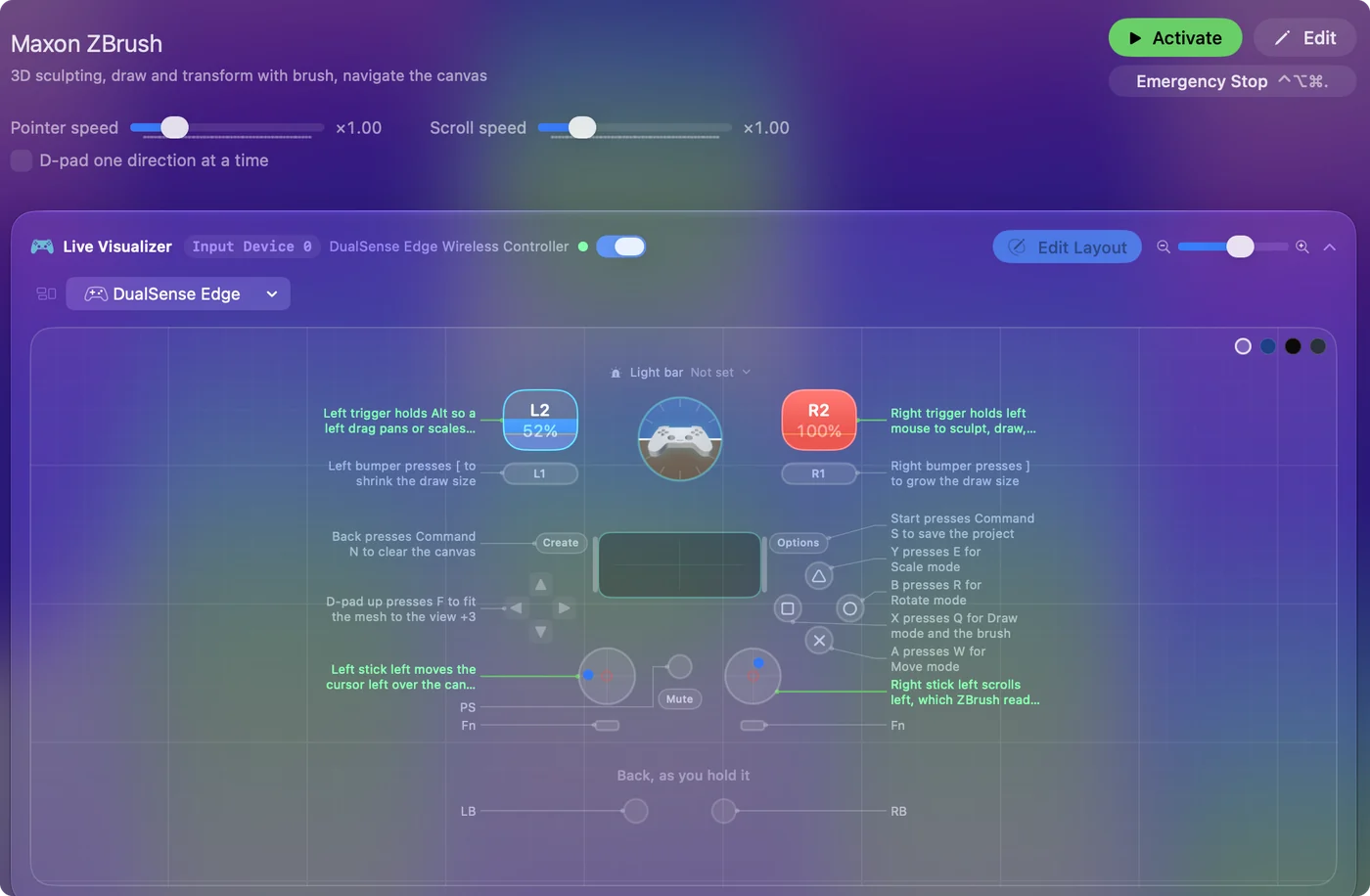
| Controller | Sends | What it does |
|---|---|---|
| Left stick left | Mouse motion left (speed 16) | Left stick left moves the cursor left over the canvas |
| Left stick right | Mouse motion right (speed 16) | Left stick right moves the cursor right over the canvas |
| Left stick up | Mouse motion up (speed 16) | Left stick up moves the cursor up over the canvas |
| Left stick down | Mouse motion down (speed 16) | Left stick down moves the cursor down over the canvas |
| Right stick left | Scroll left | Right stick left scrolls left, which ZBrush reads as canvas zoom |
| Right stick right | Scroll right | Right stick right scrolls right, which ZBrush reads as canvas zoom |
| Right stick up | Scroll up | Right stick up scrolls the document up |
| Right stick down | Scroll down | Right stick down scrolls the document down |
| Right trigger | Left click | Right trigger holds left mouse to sculpt, draw, or rotate on the canvas |
| Left trigger | Alt / Option (Left) | Left trigger holds Alt so a left drag pans or scales the view |
| A / Cross | W | A presses W for Move mode |
| B / Circle | R | B presses R for Rotate mode |
| X / Square | Q | X presses Q for Draw mode and the brush |
| Y / Triangle | E | Y presses E for Scale mode |
| LB / L1 | [ | Left bumper presses [ to shrink the draw size |
| RB / R1 | ] | Right bumper presses ] to grow the draw size |
| L3 (left stick click) | S | Left stick click presses S to open the Draw Size slider |
| D-pad up | F | D-pad up presses F to fit the mesh to the view |
| D-pad down | Command (Left), O | D-pad down presses Command O to open a project |
| D-pad left | Command (Left), Z | D-pad left presses Command Z to undo |
| D-pad right | Command (Left), Shift (Left), Z | D-pad right presses Command Shift Z to redo |
| Back / Share / Select | Command (Left), N | Back presses Command N to clear the canvas |
| Start / Options | Command (Left), S | Start presses Command S to save the project |
Button names follow the Xbox / PlayStation pair shown in the editor, so A / Cross is the bottom face button on either pad. On a Switch Pro Controller the bottom button is labeled B; the mapping still fires on position.
Questions
Does this replace a pen tablet?
No. It sits beside one and handles navigation, undo and tools so the pen never leaves the model.
Related
Completely free. You don't have to make an account, there are no subscriptions, and nothing is locked. Optimized for Apple silicon. Open source on GitHub.
Updated