Houdini from a game controller
 The SideFX Houdini layout is built into InputConfig, free on the Mac App Store. You don't have to make an account, there are no subscriptions, and nothing is locked. Optimized for Apple silicon.
On a Mac: Houdini's viewport moves with Space held plus a mouse button, which this layout holds for you. Houdini's own 3D mouse support is separate.
Yes, you can navigate Houdini on a Mac from a game controller. Houdini's viewport moves with Space held plus a mouse button, and the layout holds Space on the left trigger: then the right trigger tumbles, the left bumper tracks and the right bumper dollies. Handles are on the face buttons, the playbar steps on two buttons, and framing is on the D-pad.
On this page: 6 sections
The layout, control by control
How the layout thinks
- Move the view. The left stick moves the cursor. Hold the left trigger for Space. The right trigger then tumbles (left button), the left bumper tracks (middle button) and the right bumper dollies (right button). The right stick scrolls to dolly.
- Pick a handle. Move (T), Rotate (R) and Scale (E) on the bottom, right and left face buttons.
- Frame. The top face button sends Space G to frame the selection, D-pad up sends Space A to frame everything, and the left stick click homes the view (Space H).
- Step the playbar. D-pad down and Share or View step a frame forward and back.
- Undo, redo, save. D-pad left and right undo and redo, Options saves.
Houdini's own 3D mouse support is separate. Hold the left trigger and every other button moves the view.
Tune it for Houdini
- Play. The playbar's play key from Houdini's hotkey list on the touchpad press.
- Network editor panes. Put the pane keys behind a chord.
- Speed. The Pointer speed slider on the preset's page sets how fast a tumble turns.
- The screen edge. A tumble ends at the edge of the screen. Release, recenter, hold again.
The mouse or pen still does the fine work. Navigation, handles and playback go on the pad, and modeling stays with the mouse.
Get it in two clicks
- Get InputConfig free on the Mac App Store, open it, and click Smart Preset Maker on the welcome screen.
- Search for SideFX Houdini and pick it. The layout is created as a preset in your sidebar, named and ready.
- Press Activate. Every row can be changed afterwards: the editor's Scan button rebinds any control the moment you touch it.
Every binding, as a table
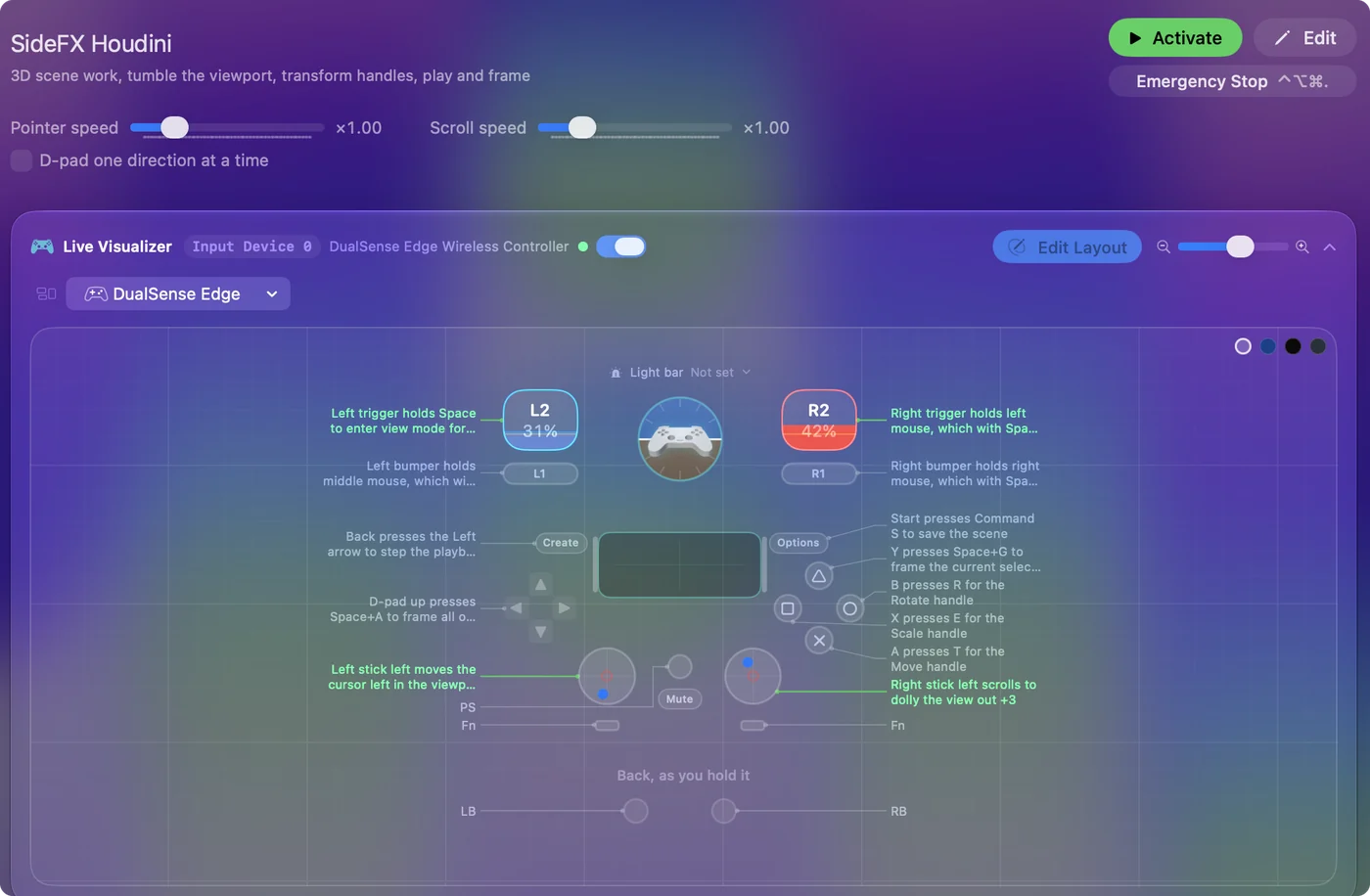
| Controller | Sends | What it does |
|---|---|---|
| Left stick left | Mouse motion left (speed 16) | Left stick left moves the cursor left in the viewport |
| Left stick right | Mouse motion right (speed 16) | Left stick right moves the cursor right in the viewport |
| Left stick up | Mouse motion up (speed 16) | Left stick up moves the cursor up in the viewport |
| Left stick down | Mouse motion down (speed 16) | Left stick down moves the cursor down in the viewport |
| Right stick left | Scroll left | Right stick left scrolls to dolly the view out |
| Right stick right | Scroll right | Right stick right scrolls to dolly the view in |
| Right stick up | Scroll up | Right stick up scrolls the view up |
| Right stick down | Scroll down | Right stick down scrolls the view down |
| Left trigger | Space | Left trigger holds Space to enter view mode for tumble, track, and dolly |
| Right trigger | Left click | Right trigger holds left mouse, which with Space held tumbles the view |
| A / Cross | T | A presses T for the Move handle |
| B / Circle | R | B presses R for the Rotate handle |
| X / Square | E | X presses E for the Scale handle |
| Y / Triangle | Space, G | Y presses Space+G to frame the current selection |
| LB / L1 | Middle click | Left bumper holds middle mouse, which with Space held tracks or pans |
| RB / R1 | Right click | Right bumper holds right mouse, which with Space held dollies or zooms |
| L3 (left stick click) | Space, H | Left stick click presses Space+H to home the view |
| D-pad up | Space, A | D-pad up presses Space+A to frame all objects |
| D-pad down | Right | D-pad down presses the Right arrow to step the playbar forward one frame |
| D-pad left | Command (Left), Z | D-pad left presses Command Z to undo |
| D-pad right | Command (Left), Y | D-pad right presses Command Y to redo |
| Start / Options | Command (Left), S | Start presses Command S to save the scene |
| Back / Share / Select | Left | Back presses the Left arrow to step the playbar back one frame |
Button names follow the Xbox / PlayStation pair shown in the editor, so A / Cross is the bottom face button on either pad. On a Switch Pro Controller the bottom button is labeled B; the mapping still fires on position.
Questions
Is this for modeling or for navigation?
It is for navigation, handles and playback. The mouse or pen still does the fine work.
Related
Completely free. You don't have to make an account, there are no subscriptions, and nothing is locked. Optimized for Apple silicon. Open source on GitHub.
Updated