Draw and paint from a game controller
 The Drawing & Painting layout is built into InputConfig, free on the Mac App Store. You don't have to make an account, there are no subscriptions, and nothing is locked. Optimized for Apple silicon.
On a Mac: Works in art apps that use B, E, the bracket keys and Command Z: Krita, Photoshop, Clip Studio, Affinity and most others. Check the redo row, below.
Yes, you can draw and paint on a Mac from a game controller, in Krita, Photoshop, Clip Studio, Affinity and most other art apps. Two people use this layout: the painter who wants brush size, undo and the eraser in the hand without the pen, and the person who cannot hold a pen, for whom the precise stick and a held trigger are the pen. One row, redo, needs a check.
The layout, control by control
How the layout thinks
- Two pointers. The left stick is the precise pointer, the right stick the fast one: fast to get there, slow to draw the line.
- Draw. Hold the right trigger to draw. The left trigger right-clicks.
- Tools. Eraser (E) and Brush (B) on the left and top face buttons, brush smaller and larger ([ and ]) on the bumpers.
- Undo and save. Undo (Command Z) on the bottom face button, Save on Start.
Fix the redo row
- You: Change the right face button from Command Option Z to Command Shift Z.
- InputConfig: Sends the redo key Krita, Clip Studio and most painting apps use. In recent Photoshop, Command Option Z toggles the last step instead.
- Check: Undo a stroke, then press the right face button. The stroke comes back.
Undo works from the start, and redo is the one row to change.
Draw with the stick itself
- Deadzone and curve. Set a deadzone with Adjust live and the Smooth curve on the precise stick, and lines get calmer.
- Latch the pen. Toggle on the draw row: one pull starts a stroke, the next ends it, with no holding while you steer.
- A gentle start. Ramp-up on the precise stick's rows keeps the first part of a stroke slow.
- Color picker. Option held on a spare button, or I in some apps.
- An iPad as a tablet. If you own an iPad and Pencil, Sidecar turns it into a drawing surface for Mac apps. See the iPad as a drawing tablet page.
A latched trigger and a Smooth curve turn a stick into a pen you steer.
Get it in two clicks
- Get InputConfig free on the Mac App Store, open it, and click Smart Preset Maker on the welcome screen.
- Search for Drawing & Painting and pick it. The layout is created as a preset in your sidebar, named and ready.
- Press Activate. Every row can be changed afterwards: the editor's Scan button rebinds any control the moment you touch it.
Every binding, as a table
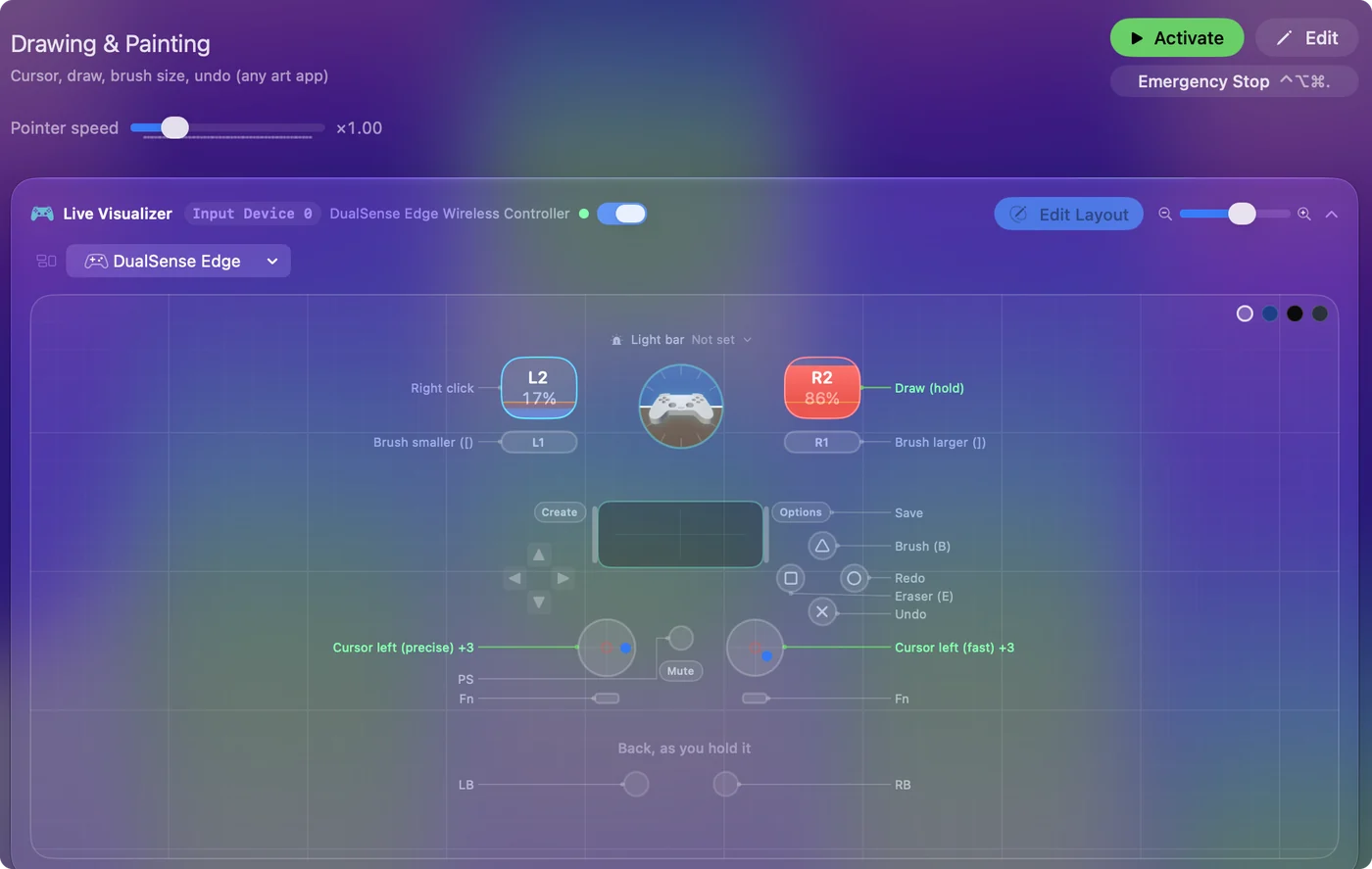
| Controller | Sends | What it does |
|---|---|---|
| Left stick left | Mouse motion left (speed 10) | Cursor left (precise) |
| Left stick right | Mouse motion right (speed 10) | Cursor right (precise) |
| Left stick up | Mouse motion up (speed 10) | Cursor up (precise) |
| Left stick down | Mouse motion down (speed 10) | Cursor down (precise) |
| Right stick left | Mouse motion left (speed 26) | Cursor left (fast) |
| Right stick right | Mouse motion right (speed 26) | Cursor right (fast) |
| Right stick up | Mouse motion up (speed 26) | Cursor up (fast) |
| Right stick down | Mouse motion down (speed 26) | Cursor down (fast) |
| Right trigger | Left click | Draw (hold) |
| Left trigger | Right click | Right click |
| A / Cross | Command (Left), Z | Undo |
| B / Circle | Command (Left), Alt / Option (Left), Z | Redo |
| LB / L1 | [ | Brush smaller ([) |
| RB / R1 | ] | Brush larger (]) |
| X / Square | E | Eraser (E) |
| Y / Triangle | B | Brush (B) |
| Start / Options | Command (Left), S | Save |
Button names follow the Xbox / PlayStation pair shown in the editor, so A / Cross is the bottom face button on either pad. On a Switch Pro Controller the bottom button is labeled B; the mapping still fires on position.
Questions
Which apps does it work in?
Krita, Photoshop, Clip Studio, Affinity, and most others use B, E, the brackets and Command Z. Change any row that differs.
Can someone draw with only a controller?
Yes, with the precise stick, a Smooth curve and a latched trigger. It is slower than a pen, and it is drawing.
Related
Completely free. You don't have to make an account, there are no subscriptions, and nothing is locked. Optimized for Apple silicon. Open source on GitHub.
Updated