Questions
Which button is which on a controller, checked on a Mac
Press the button and watch something light up: that is the quickest way to find out which button is which. macOS does that by itself in System Settings for the controllers it supports. InputConfig 1.6, the free mapper I make, does it for many more, and draws the controller you are actually holding, from more than 40 models, with each button where it sits and the name printed on it.
The part that confuses most people is not the Mac at all: the same spot on the controller has a different name on an Xbox, a PlayStation and a Nintendo pad, and the table below sorts that out.
On this page: 9 sections
Steps
- Connect the controller by Bluetooth or with a cable.
- Open System Settings, Game Controllers, select the controller and press a button.
- For any other controller, open InputConfig and click a preset to see its Live Visualizer.
- Press each button and watch its place on the drawing light.
Check it in System Settings first
- You: Connect the controller, open System Settings and click Game Controllers in the sidebar (it only appears once a controller has connected). Select the controller and press a button.
- macOS: Lights the button's place on its picture.
- Check: The lit spot is the button you pressed.
That covers the PlayStation, Xbox and Switch controllers Apple supports, and the many other pads that present themselves the same way. It does not list a generic USB pad, an arcade stick in some modes, a wheel or a flight stick, because to macOS those are not gamepads. If yours is missing, see Game Controllers missing from System Settings. If System Settings lists your controller, you need nothing else to answer the question.
See it drawn in InputConfig
- You: Open InputConfig and click any preset in the sidebar. Nothing has to be running.
- InputConfig: The preset's Live Visualizer draws your controller as you hold it: the face in the middle, the bumpers and triggers on a strip above, and any paddles or back buttons on a strip below, labeled Back, as you hold it. Each button carries the legend printed on it, in the printed color where the controller has one.
- Check: Press a button and it lights green. The menu at the top of the panel names the model InputConfig recognized.
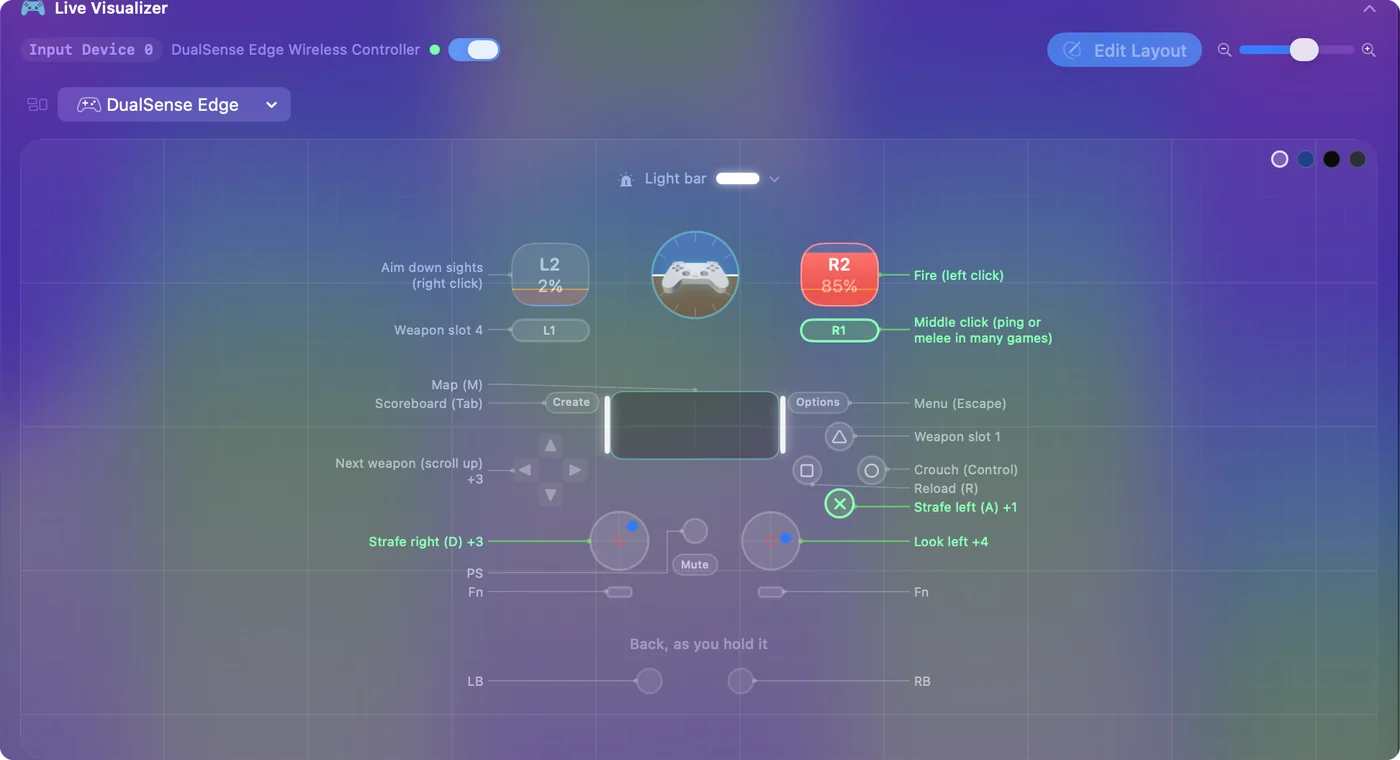
Click any control on the drawing and a popover gives its name, which controller it is on, and what it does in that preset.
- Wheels, flight sticks and arcade sticks. Drawn as themselves too.
- A USB device no model matches. Drawn as a labeled grid of what it reports, with every button numbered.
- A pad macOS reads but InputConfig does not recognize. Drawn as a standard gamepad, with a line under it saying so.
Whatever you plug in, something is drawn, and every press lights.
 InputConfig is free on the Mac App Store. macOS 14 or later, no account, no tracking, open source.
Match the names across brands
| Where it is | Xbox | PlayStation | Nintendo Switch | In preset files |
|---|---|---|---|---|
| Bottom face button | A | Cross | B | btn 0 |
| Right face button | B | Circle | A | btn 1 |
| Left face button | X | Square | Y | btn 2 |
| Top face button | Y | Triangle | X | btn 3 |
| Left bumper | LB | L1 | L | btn 4 |
| Right bumper | RB | R1 | R | btn 5 |
| Left trigger | LT | L2 | ZL | btn 6, or axis 4 for the analog pull |
| Right trigger | RT | R2 | ZR | btn 7, or axis 5 |
| Left center button | View | Create (Share on a PS4 pad) | Minus | btn 8 |
| Right center button | Menu | Options | Plus | btn 9 |
| Home button | Xbox button | PS button | Home | btn 10 |
| Left stick pressed in | Left stick press | L3 | Left stick press | btn 11 |
| Right stick pressed in | Right stick press | R3 | Right stick press | btn 12 |
InputConfig numbers the face buttons by where they are, not by their letters: btn 0 is always the bottom one. That is why a preset made on a DualSense does the same thing on an Xbox pad, and why the bottom button of a Switch Pro Controller, printed B, does what Cross does in the same preset. You only meet these numbers if you open a preset file; the editor and the drawing use names.
The controller map on this site shows every name side by side, paddles and touchpad included. Position decides, not the letter: the bottom button is the same button on every pad.
Sort out A and B on Switch and 8BitDo pads
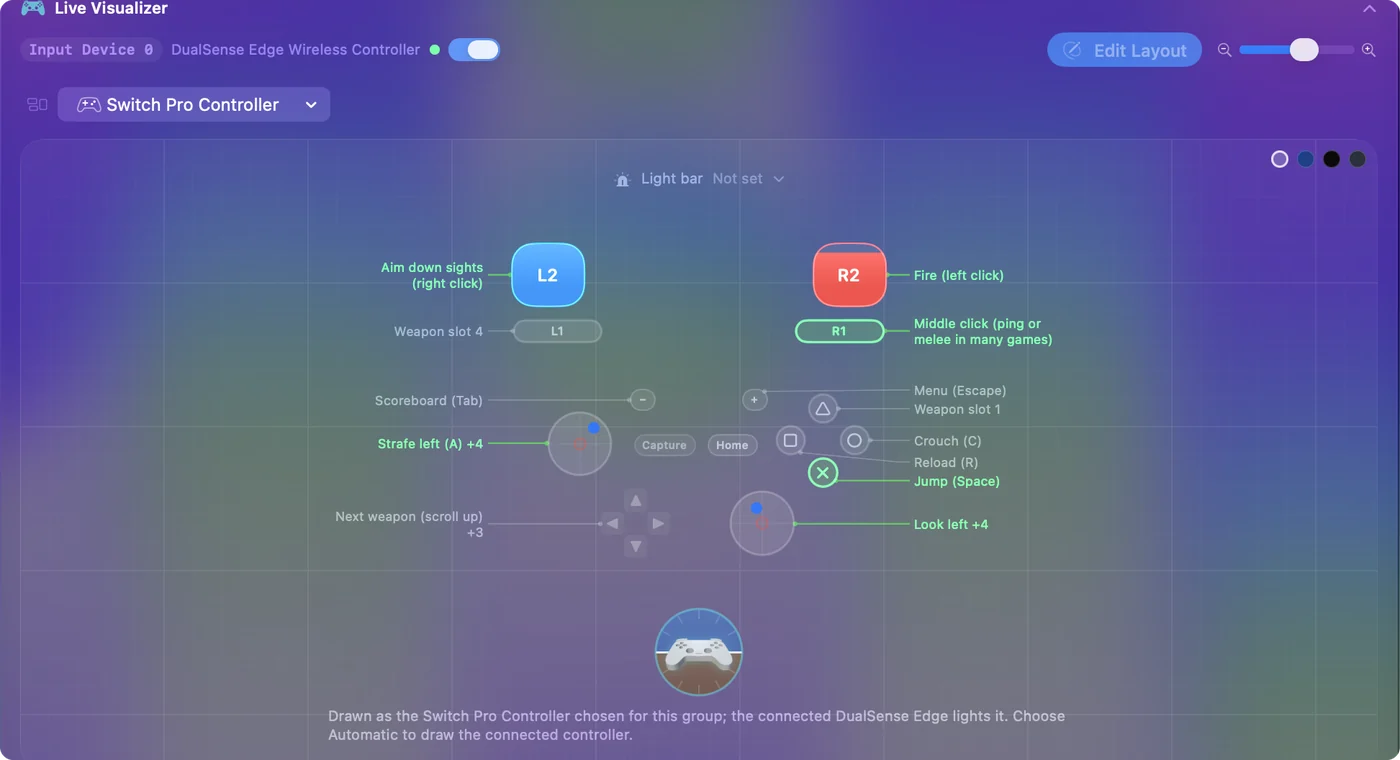
Nintendo prints A on the right and B on the bottom. Xbox prints them the other way round. macOS names a Nintendo pad's buttons by the letter printed on them, and before 1.6 that meant pressing A on a Switch Pro Controller or Joy-Cons fired the rows meant for B, the bottom button.
- Switch Pro Controller and Joy-Cons. InputConfig 1.6 reads them by position, the way the drawing shows them, and when one of those controllers first connects it offers to update rows that were recorded on it before.
- 8BitDo pads. Many print Nintendo letters but report themselves to the Mac as Xbox pads, so the Mac has no way to know which letters are on them. 1.6 also fixed 8BitDo back buttons being read as a DualSense Edge's Fn buttons, and offers the same update for rows recorded on them.
InputConfig Settings: Where to change the names for an 8BitDo pad with B printed on the bottom.
Settings, Devices, Face button names, NintendoWhat happens: The editor and the drawing use Nintendo letters. Positions puts compass names (North, South, East, West) on every pad instead, which some people find easier.
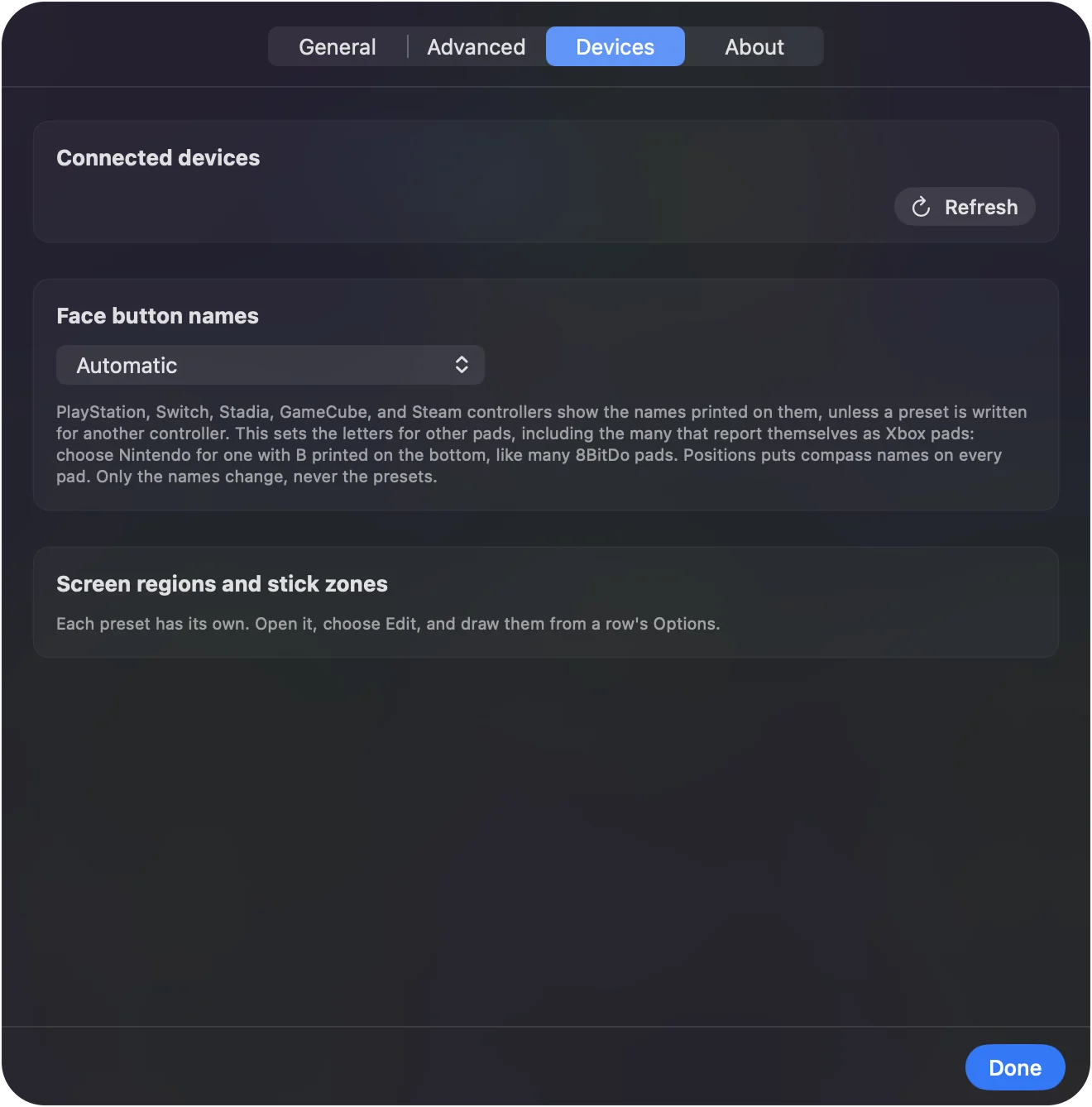
Only the names change, never what a preset does.
If a button lights nothing, or the wrong thing
Each symptom has its own cause:
- Nothing lights anywhere. The Mac is not receiving that button in the controller's current mode or profile. An Xbox Elite's paddles read only on its default profile, and an 8BitDo pad depends on its mode switch. A line under InputConfig's drawing says what that model never sends to a Mac, such as the Elite's profile button or a Joy-Con's SL and SR, so a dark control there is not a fault.
- A different button lights. The controller is copying another button, as many back paddles do. See back buttons and paddles on a Mac.
- The press appears under the drawing as Also reported. The controller sent a button the drawing has no place for. It still works, and Scan in the editor still binds it.
- You want the raw name. In Settings, Devices, a Live press log appears once you press buttons on a controller macOS reads. Each line is the name macOS gives the button and the number it fires in InputConfig, or unmapped.
Read the line under the drawing before you call a dark button broken.
Give a preset your controller's names
- You: In the Live Visualizer, open the panel's menu, go to Controllers, and pick your model.
- InputConfig: Uses its names in the editor and the drawing, bumpers, triggers, center buttons and paddles included.
- Check: The rows now read the way your controller is printed.
On a preset with more than one controller group, this only sets names when none are set yet. Automatic, at the top of the same menu, goes back. A preset written for one controller, like FPS (Xbox), keeps that controller's names on any pad, and the drawing says so in a line underneath. Name the preset after the pad in your hands, and the editor reads like your controller.
The short version
- Apple's pads. System Settings, Game Controllers, press and watch.
- Everything else. Any preset's Live Visualizer in InputConfig.
- A and B confusion. Position decides. Set Face button names to Nintendo for an 8BitDo with B on the bottom.
Press it and watch it light: you never have to guess.
Questions
Which button is A on a PS5 controller?
Cross, the bottom face button, sits where A is on an Xbox pad. Circle is in B's place, Square in X's, and Triangle in Y's. Games and InputConfig go by that position, so a game that says press A means Cross.
What are L3 and R3?
Pressing a stick straight down until it clicks. Xbox and Nintendo call them the left and right stick press. In InputConfig's Live Visualizer the stick's circle lights when you click it.
Where is the Share or Create button?
On a DualSense, Create is the small button to the left of the touchpad; on a DualShock 4 the same button is called Share. On an Xbox Series controller, Share is the small button in the middle, below the Xbox button, and on a Switch pad it is Capture. macOS uses these for screenshots and recordings, and InputConfig leaves that alone unless the running preset binds the button.
Why does InputConfig draw my controller as a standard gamepad?
Its model is not one the Live Visualizer knows, so it draws a standard gamepad and says Model not recognized under it. Every button still lights and can be bound. If your controller is one of the listed models, pick it from its maker's menu in the panel's menu and it is drawn as that model.
Can I check this without installing anything?
For the controllers macOS supports, yes: System Settings, Game Controllers lights each button as you press it. The controller map on this site names every control for Xbox, PlayStation and Switch in the browser.
Related
Free. macOS 14 or later. No account, nothing leaves your Mac. Open source on GitHub.