How to switch desktops (Spaces) with a mouse button on a Mac
 InputConfig is completely free on the Mac App Store. You don't have to make an account, there are no subscriptions, and nothing is locked. Optimized for Apple silicon.
macOS has no setting that puts desktop switching on a mouse button, but the shortcut it does have is easy to hand to one. Control Left Arrow and Control Right Arrow move one desktop left or right, and InputConfig, the free Mac app I make, can send either shortcut from any mouse button the Mac receives. Two side buttons then become previous desktop and next desktop in every app.
Opening the Mission Control overview is a different job, and the Mission Control page covers it. This page is about hopping between desktops directly, including jumping to Desktop 3 by number.
On this page: 10 sections
What macOS gives you without any app
Apple's page on Spaces, which I read on October 21, 2026, lists the built-in ways to change desktops: Control Left Arrow or Control Right Arrow on the keyboard, a swipe with three or four fingers on a trackpad, and a swipe left or right with two fingers on a Magic Mouse. You can also open Mission Control, move to the top edge, and click a desktop in the Spaces bar. A mouse that is not a Magic Mouse has none of those gestures, so a plain mouse needs the keyboard or the click path.
The Control number shortcuts jump straight to one desktop, and they are off in some setups. Open System Settings, Keyboard, Keyboard Shortcuts, Mission Control and tick the Switch to Desktop entries. macOS lists an entry only for desktops that exist, so make the desktops first. A mouse button cannot do more than the shortcut it presses, so check that the shortcut works from the keyboard before you blame the button.
Find out what your button sends
Press Scan on a row, then click the button. A side button of an ordinary mouse arrives as Button 4 or Button 5, a gaming mouse thumb grid may go up to Button 12 or more, and everything past Button 8 sits under More buttons in the menu. Here is how the usual candidates behave:
| Button | Good for desktops? | Note |
|---|---|---|
| Button 4 and Button 5 | Best | One pair for previous and next. Apps that use them for back and forward need Block ticked. |
| Button 6 and higher | Best | A thumb grid has room for desktops one to four, each on its own button. |
| Middle click | Good | The wheel press suits Mission Control better, but it can carry a desktop too. |
| Tilt left and right | Good | A natural pair. See the tilt wheel page. |
| A DPI or profile button | No | It usually talks only to the maker's software, so nothing arrives to bind. |
A thumb button that scans as a key instead of a mouse button has to be set to F13 to F20 in the mouse maker's software first, and then you bind that F key. If you are not sure how your model reports, press Scan and see.
Put previous and next desktop on two buttons
Step 1: Make the row for next desktop
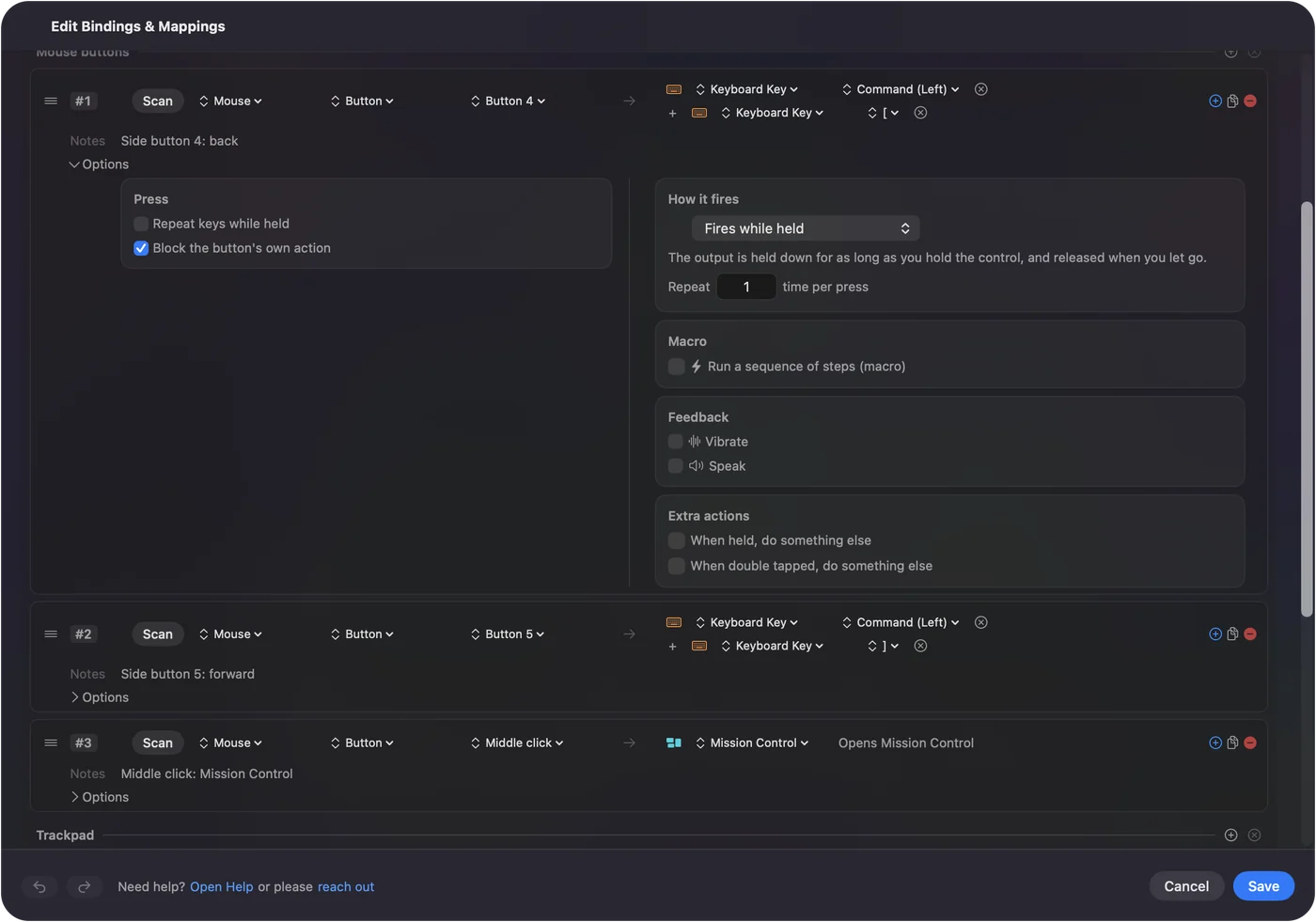
- You: Add a row, set the device to This Mac's mouse or trackpad, the input to Mouse, and press Scan, then click Button 5. Set the output to Keyboard Key, pick Control under the modifiers, click the plus button and add Right Arrow.
- InputConfig: Presses Control and Right Arrow together each time the button fires.
- Check: The row lists Control first and the arrow last.
Step 2: Make the row for previous desktop
- You: Add a second row for Button 4 with Control and Left Arrow. Open Options on both rows and tick Block the button's own action in the Press box.
- InputConfig: While the preset runs, apps stop seeing those buttons, so a browser no longer goes back and forward at the same moment.
- Check: Open two desktops, click Activate, and press each button. The screen slides one desktop each time.
Jump to a numbered desktop
If you keep the same things on the same desktops, a button per desktop beats stepping through them. Make rows that send Control 1, Control 2 and Control 3, with the Switch to Desktop shortcuts ticked in the Mission Control list. A five button thumb grid can hold desktops one to four plus Mission Control.
- Desktop 1. Mail, Messages and the calendar, the screen you leave and come back to.
- Desktop 2. The main work window, with an app kept in full screen if you like.
- Desktop 3. Music, a call, or a reference page you glance at.
Apple's Spaces page also shows how to pin an app to a desktop: Control-click its Dock icon, choose Options, and pick an Assign To entry. A pinned app plus a numbered button gives the same desktop every time you press it.
Make the wheel or a combo change desktops
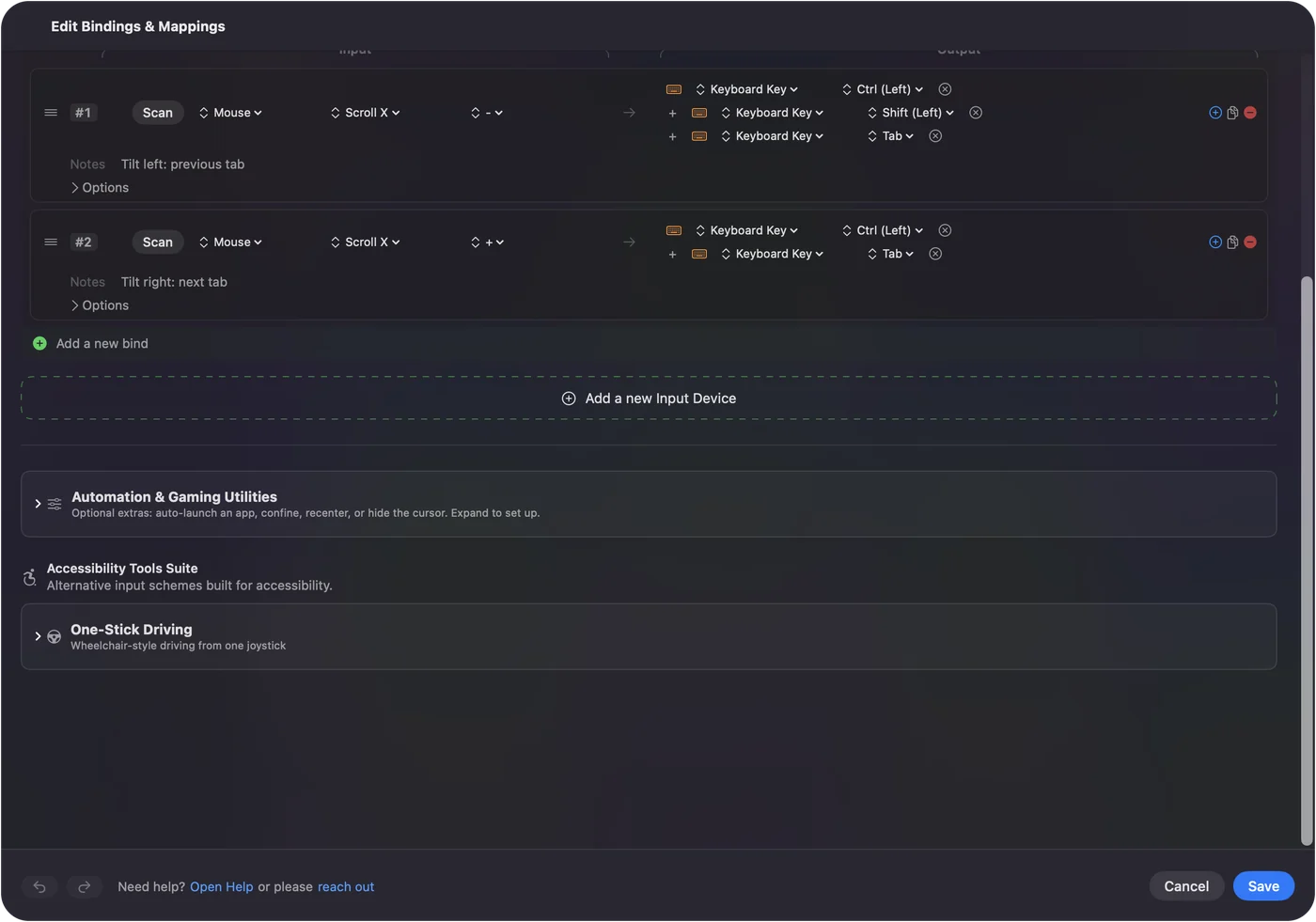
A row has a second control, While also holding, which makes it fire only while another control is down. I would put desktops on the tilt wheel if the mouse has one, with Control Left Arrow on the left tilt and Control Right Arrow on the right. On a mouse with no tilt, hold a thumb button and use the wheel, so a plain roll keeps scrolling. I have not measured how many times a fast wheel spin fires a row, so I would try it slowly in the Live Visualizer's Mouse map first.
Ideas for a desktop-heavy setup
- Two displays. With Displays have separate Spaces on, each screen has its own desktops, so a button moves the screen the pointer is on. Test it before you trust it.
- A thumb grid. On a gaming mouse with many buttons, such as an MMO mouse, one row of the grid becomes desktops one to four. See the MMO mouse page.
- Presentations. Put next desktop on a button while you give a demo, so you can move between a slide desktop and a browser desktop without touching the keyboard.
- One preset per app. Under Automation & Gaming Utilities, list the apps a layout belongs to, and with Switch presets when the front app changes on, desktops can be on the side buttons in Finder and back and forward in Safari. See per-app mouse buttons.
If the button does not change desktops
Climb this ladder, smallest step first:
- Press the keys on the keyboard. If Control Left Arrow does nothing there, the shortcut is off or taken. Check System Settings, Keyboard, Keyboard Shortcuts, Mission Control, and reset it to the default.
- Create a second desktop. The arrows stop at the first and last desktop, and the number shortcuts exist only for desktops you have made.
- Check the preset is on. Rows do nothing until you click Activate, and InputConfig needs Accessibility in System Settings, Privacy & Security.
- Check the button scans. If Scan names a key or nothing, set the button to F13 to F20 in the mouse maker's software, or note that a profile button never reaches the Mac.
- Look for a competing app. Virtual machines, remote desktop tools and window managers can claim Control and the arrows first, as Parallels' support article on desktop shortcuts describes. Quit them and try again.
If the keyboard shortcut works and the button does not, the problem is the button, and Scan will tell you why.
What it cannot do
- Make macOS do more. A button can only press the shortcuts macOS offers, so a Space cannot be switched if its shortcut is off.
- Remove the slide. The animation belongs to macOS. Reduce motion in Accessibility, Display shortens it to a fade.
- Tell two mice apart. Every mouse and trackpad counts as one, so two mice cannot have different desktop jobs on the same button.
- Read private buttons. A button handled inside the maker's software never reaches the Mac.
The short version
- Next and previous. Control Right Arrow and Control Left Arrow on Button 5 and Button 4.
- A specific desktop. Control 1, 2 or 3, after ticking Switch to Desktop in Keyboard Shortcuts.
- Block. Tick Block the button's own action so back and forward stop firing.
Start with the two side buttons for next and previous, and add numbered desktops only if you keep apps in fixed places.
Questions
Can I switch desktops with a mouse button on a Mac?
Yes, with an app. macOS offers no mouse button setting for it, but InputConfig can send Control Left Arrow or Control Right Arrow from any button the Mac receives.
How do I jump to Desktop 2 with one button?
Tick the Switch to Desktop shortcuts in System Settings, Keyboard, Keyboard Shortcuts, Mission Control, then bind a button to Control 2 in InputConfig. Desktop 2 has to exist first.
Why does the Control arrow shortcut do nothing?
The shortcut may be off, or another app such as a virtual machine may be taking it. Check Mission Control in Keyboard Shortcuts and try it on the keyboard before you blame the mouse.
How do I switch desktops with a Magic Mouse?
Swipe left or right with two fingers. That gesture belongs to the Magic Mouse and has no side buttons to bind, so a plain mouse needs the shortcut route above.
Related
This page in other languages: العربية, Čeština, Dansk, Deutsch, Español, Suomi, Français, עברית, Magyar, Bahasa Indonesia, Italiano, 日本語, 한국어, Norsk, Nederlands, Polski, Português, ไทย, 繁體中文, 简体中文
Completely free. You don't have to make an account, there are no subscriptions, and nothing is locked. Optimized for Apple silicon. Open source on GitHub.
Updated