Questions
How to switch desktops on a Mac by moving the mouse to the screen edge
Not on its own: macOS changes desktops at the screen edge only while you drag a window. Hold a window against the edge for a moment and it moves to the next Space; with nothing in hand you need a shortcut or a trackpad swipe.
I make InputConfig, a free app with screen regions, and two thin strips down the left and right edges are enough to make the edge itself switch desktops. In InputConfig 1.6 you can draw them straight from the Live Visualizer.
On this page: 8 sections
Try what macOS already gives you
- Control Left Arrow and Control Right Arrow. They move one Space left or right. They are listed in System Settings, Keyboard, Keyboard Shortcuts, Mission Control, as Move left a space and Move right a space; turn them on there if they are off.
- A swipe. Left or right with three or four fingers on a trackpad: System Settings, Trackpad, More Gestures, Swipe between full-screen applications.
- Dragging a window. Against a screen edge it carries the window to the next Space.
The rest of this page is for switching with the pointer alone, which helps with a mouse that has no gestures, a head pointer, or a joystick mouse. If one of these suits you, you are done, no app needed.
 InputConfig is free on the Mac App Store. macOS 14 or later, no account, no tracking, open source.
Draw the two edges
Install InputConfig from the Mac App Store and allow Accessibility access first.
Step 1: Open the drawing sheet
- You: Select a preset, or make an empty one, pick Screen from the Live Visualizer panel's menu, and click Draw a screen region.
- InputConfig: Opens the editor with a Screen region row added and the drawing sheet up.
- Check: The sheet shows your display.
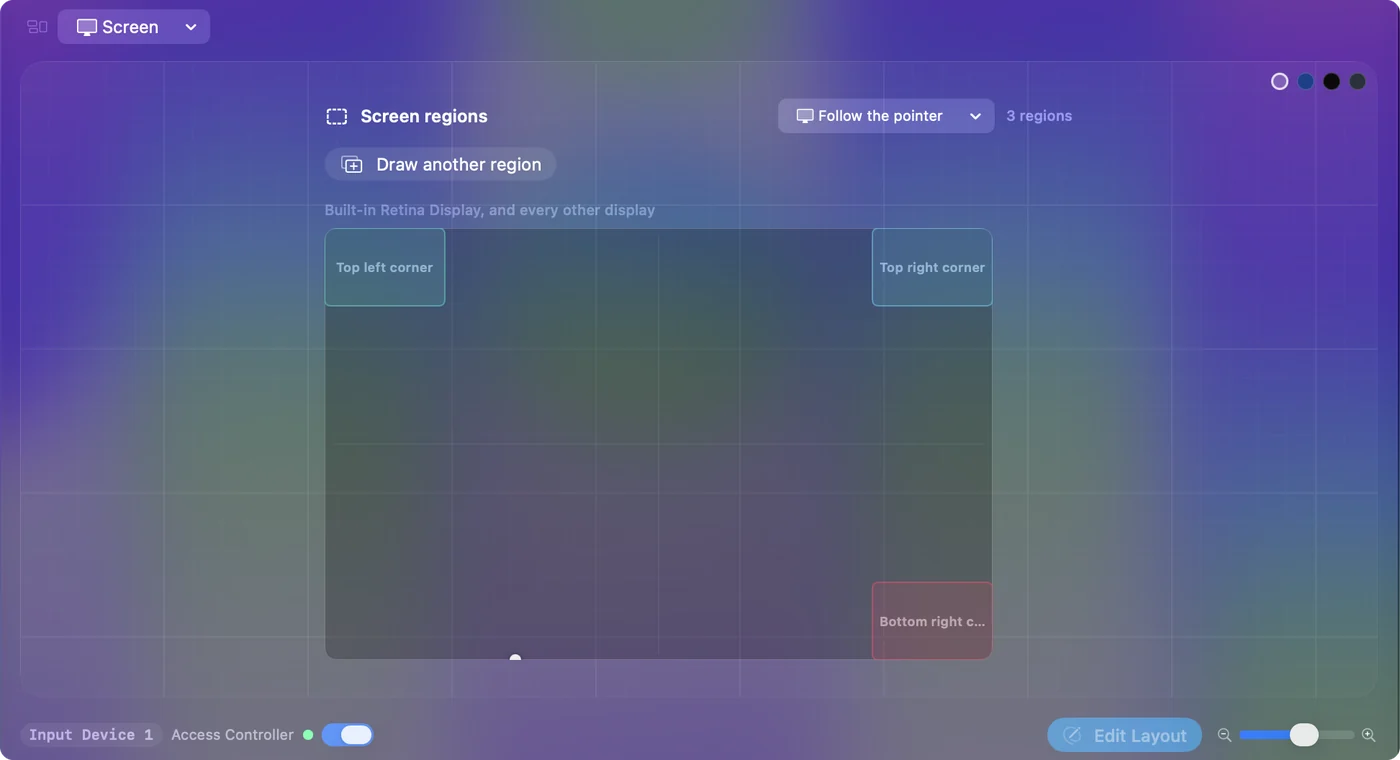
Step 2: Draw the left strip
- You: Pick the display, or Every display, click Add region, and drag a thin strip down the left edge. Click Done, then set the row's output to Control Left Arrow.
- InputConfig: Gives the new row the strip you drew.
- Check: The row shows the strip and its output.
Step 3: Draw the right strip and activate
- You: Draw a second strip down the right edge the same way, give it Control Right Arrow, save, and activate the preset.
- InputConfig: Presses the row's keys when the pointer enters a strip.
- Check: Push the pointer against the left edge and the desktop changes.
The rows work with no controller connected and read the real pointer, whatever moves it: a mouse, the trackpad, a stick, or the macOS Head Pointer.
Know how the edge behaves
A screen region acts like a button. It presses when the pointer goes in and lets go when the pointer leaves, so one push against the edge moves one Space. To move again, take the pointer off the strip and back. A strip drawn right against the edge still counts while the pointer is pushed against that edge, so there is nothing to aim at.
To keep moving while the pointer rests at the edge, open the row's Options and, under How it fires, choose Repeats while held, with a slow rate such as one a second.
Stop it firing by accident
- Keep the strips thin and on outside edges. Where an edge meets another display in your arrangement, the pointer slides across instead of stopping, so a strip there fires every time you pass through. Put the strips on outer edges, or on one display only.
- Keep clear of the corners and the Dock. A short strip in the middle of each side edge is enough, and it leaves the corners for Hot Corners.
- Require a key. In the row's Options, Second control, press Scan and press a key such as Right Option. The edge then switches desktops only while that key is held.
- Check Hot Corners. If a built-in Hot Corner overlaps a strip, both fire. Set that corner to the dash in System Settings, Desktop & Dock, Hot Corners.
Short strips in the middle of the outer edges are the hardest to hit by accident.
If nothing happens when the strip fires
Climb this ladder, smallest step first:
- Turn on the Mac's shortcuts. Check that Move left a space and Move right a space are on in System Settings, Keyboard, Keyboard Shortcuts, Mission Control.
- Add a second desktop. You need more than one Space. Add one with the plus button at the top of Mission Control.
- Activate the preset. Regions only fire while their preset runs.
The strip only presses Control and an arrow; macOS has to have those shortcuts turned on.
Add more edges worth a strip
A preset holds up to sixteen screen regions:
- The top edge. A strip along the middle can open Mission Control.
- A corner. A small square can lock the screen.
- A second monitor. A strip there can open an app with Open App.
Clicking a region in the Live Visualizer's Screen map jumps to its row. For corners and everything else regions do, see custom hot corners on a Mac and screen regions. Every edge of the screen can be a button.
The short version
- No app. Control and the arrow keys, or a trackpad swipe.
- With InputConfig. Two thin strips, left and right, sending Control Left Arrow and Control Right Arrow.
- Safety. Outer edges only, away from the corners, or a key held to arm them.
Two strips and two shortcuts, and the edge of the screen switches desktops.
Questions
Can a Mac switch desktops when the mouse reaches the edge of the screen?
Not on its own; macOS switches Spaces at the edge only while you drag a window. A screen region in InputConfig along each side edge, bound to Control Left Arrow and Control Right Arrow, does it with the pointer alone.
Does it work with two monitors?
Yes. A region belongs to one display or to every display. Use outside edges, because the pointer crosses an edge that meets another display instead of stopping there.
Does it need a controller or a special mouse?
No. A preset of only screen regions runs with nothing connected, and any pointer fires it: a mouse, the trackpad, a controller stick, or the macOS Head Pointer.
Why does nothing happen when the strip fires?
Check that Move left a space and Move right a space are turned on in System Settings, Keyboard, Keyboard Shortcuts, Mission Control, and that you have more than one Space. Add a second desktop with the plus button at the top of Mission Control.
Related
Free. macOS 14 or later. No account, nothing leaves your Mac. Open source on GitHub.