Does an ASUS ROG Chakram joystick mouse work on a Mac?
 InputConfig is completely free on the Mac App Store. You don't have to make an account, there are no subscriptions, and nothing is locked. Optimized for Apple silicon.
As a mouse, yes: it points, clicks and scrolls like any mouse. The joystick on its thumb side and the buttons are another matter, because ASUS's Mac software, Armoury Crate Gear for Mac, does not list the Chakram. So you set the stick up once on a Windows PC, save it to the mouse's onboard memory, and then use the Mac for the rest. What the stick sends, a key or a mouse button, you find out with Scan in InputConfig, the free Mac app I make, which can give each direction a job.
The Chakram X Origin facts are from ASUS's product page, and the Mac software list is from ASUS's Armoury Crate Gear for Mac page, both of which I read on October 21, 2026. The Chakram and Chakram Core facts are from reviews and listings that I found the same day. I have not tested a Chakram myself, so wherever I could not confirm how a part reports, this page tells you to press Scan.
On this page: 12 sections
- Steps
- Know which Chakram you have and what it does on a Mac
- Know what ASUS software does on a Mac
- Find out what each button and the stick send
- Set the stick up before you bind it
- Bind the stick and the buttons
- Ideas for what the stick can do on a Mac
- Holds, double taps and a layout for each app
- If the stick or a button does nothing
- What it cannot do
- The short version
- Questions
Steps
- Pair or plug in the mouse, and check that it points and clicks on the Mac.
- On a Windows PC, set the stick to digital mode in Armoury Crate and give each direction a key, ideally F13 to F16, then save it to a profile in the mouse.
- Back on the Mac, open InputConfig, add a row, press Scan, and push the stick in a direction.
- Choose an output for each direction or button, then press Save and Activate.
- Add a preset for each app if you want the stick to do different things.
Know which Chakram you have and what it does on a Mac
The Chakram is ASUS's mouse with a small joystick under the thumb, which is the part people search for. There are three that matter, and ASUS and the reviews describe them like this:
- ROG Chakram. The original. A review says it is wired or wireless, with the USB receiver or Bluetooth, and that it charges on a Qi pad.
- ROG Chakram Core. A cheaper, wired only version with the same sensor. A review says its stick works as analog stick input or as four extra buttons in digital mode.
- ROG Chakram X Origin. The current wireless one. ASUS lists 11 programmable controls, seven buttons plus the four directions of the stick, a DPI button, and a stick you can remove and replace with a cover. It connects by 2.4 GHz RF, by Bluetooth to up to three devices, or by a cable.
The stick has two modes, according to ASUS. In analog mode it simulates a gamepad thumbstick with smooth, 360 degree movement. In digital mode it turns into a button with four programmable directions. ASUS also names a Joystick Compatibility Mode for wired and USB use, and I could not find what it changes. The mouse stores five profiles in onboard memory, and ASUS says macros, Stealth and Rapid-Fire cannot be saved there. On a Mac, only the digital mode has an easy path, because four directions are four buttons.
Know what ASUS software does on a Mac
ASUS's Armoury Crate is the software that maps buttons and sets the stick, and Windows is its home. ASUS's page for Armoury Crate Gear for Mac lists only a few devices, the ROG Azoth, Azoth Extreme, Falchion RX Low Profile and Harpe Ace Aim Lab Edition, and it needs macOS 13.6 or later. The Chakram is not on it. An ASUS forum user asked for Chakram X support on macOS, and the thread shows no answer.
So on a Mac the Chakram has no app of its own. That is why the onboard memory matters: a profile saved from a Windows PC stays in the mouse. If you do not own a Windows PC, a friend's or a work machine is enough for the one session, as long as you save the profile to the mouse and not to the PC.
Find out what each button and the stick send
The Chakram's normal buttons arrive as mouse buttons and its stick arrives as whatever you chose, so press Scan and see.
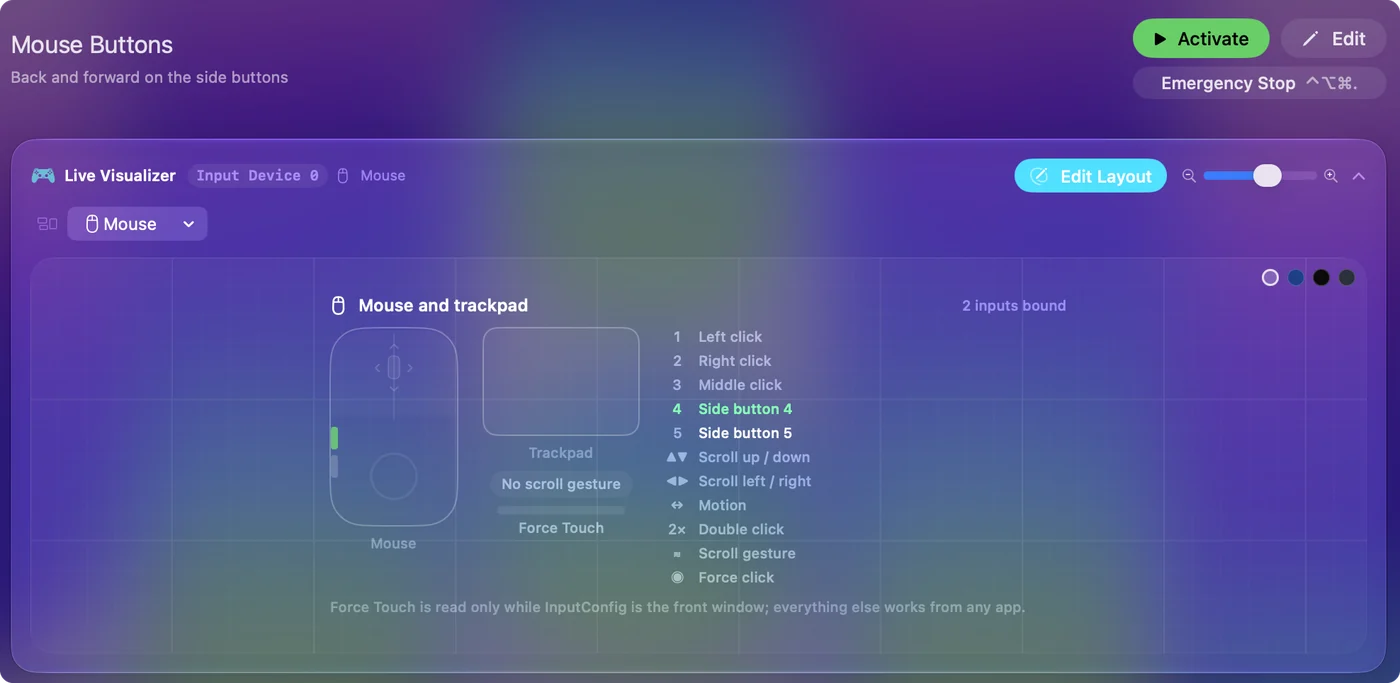
- You: Open InputConfig, add a row, set the input device to This Mac's mouse or trackpad, press Scan, and click a thumb button. Then push the stick in each direction.
- InputConfig: Names the button that arrived, such as Button 4. If the stick sends keys, set the input to Keyboard Key and Scan again.
- Check: If a name appears, the control can carry a job. If it does not, the control belongs to ASUS software.
| Control | What to expect | How to check |
|---|---|---|
| Left, right and middle click | Standard mouse buttons | Left and right click cannot be blocked |
| Side and thumb buttons | Usually Button 4, Button 5 or higher, whatever the profile sets | Scan the mouse device |
| Stick in digital mode | Four directions, each a key or a mouse button, as you set them | Scan the mouse, then the keyboard |
| Stick in analog mode | A game controller style axis. I could not confirm that a Mac sees it | Look in InputConfig for a game controller, and Scan |
| DPI button | Nothing to a Mac, because the mouse keeps it | Not readable |
| Profile switching | Handled in the mouse | Not readable |
Set the stick up before you bind it
The stick is where Chakram owners get stuck, so I would settle it on the Windows PC. Armoury Crate has the setting, and the choice is yours:
- Digital mode. Give the four directions keys of F13 to F16. macOS passes those to apps and gives them no job, and InputConfig reads them. F21 to F24 are not passed to apps, so skip those. I could not confirm that Armoury Crate offers F13, so check its key list.
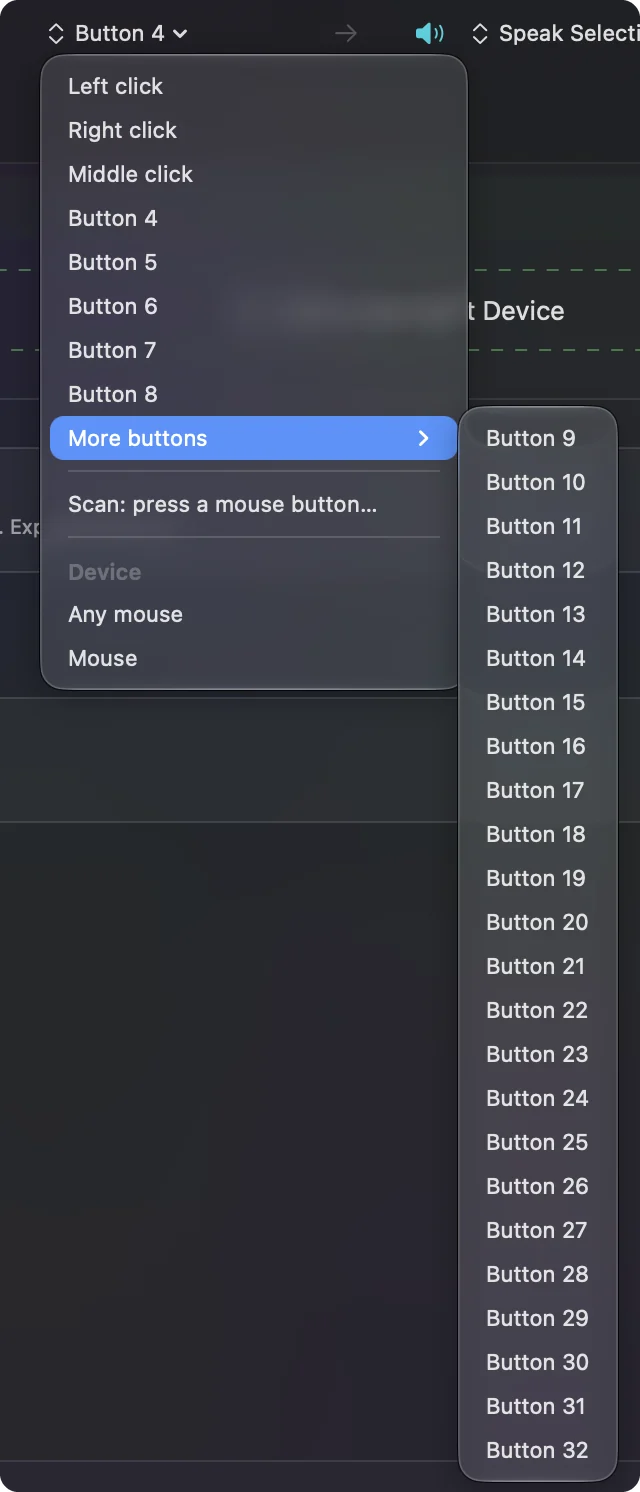
- Digital mode with mouse buttons. If you give the directions Button 6 to Button 9 style mouse buttons, InputConfig lists up to Button 32 under More buttons, and you scan them from the mouse device.
- Analog mode. The stick acts like a gamepad thumbstick. If macOS lists the mouse as a game controller, InputConfig can use its axis as a controller input, and if not, you cannot. I have not tested it, so check before you rely on it.
InputConfig listens to the keyboard alongside macOS and does not block a key, so a stick direction set to a letter still types that letter. That is why F13 to F16 are the right choice.
Bind the stick and the buttons
- You: Add a new bind, set the input to the device and control that Scan found, and choose what it does.
- InputConfig: Shows the row with the key or mouse button the Chakram sent.
- Check: Press Save, then Activate, and use the stick or the button.
Every mouse counts as one device in InputConfig, so a Chakram button and the same button on a second mouse are the same input. A mouse button of the middle click or a side button can be blocked in the Press box, so apps stop seeing it while the preset runs. Left and right click cannot be blocked.
Ideas for what the stick can do on a Mac
- Scroll and navigate. Four directions as Page Up, Page Down and the arrow keys, or as scrolling output.
- Switch spaces. Left and right to Control Left and Right arrow, up to Mission Control.
- Editing. A joystick as a jog control for a timeline, with a macro for the cut and the ripple.
- Accessibility. A thumb stick is an easy way to give a hand with limited reach four large directions, and a hold on a direction can give it a second job.
- Games. Move with the stick in digital mode, if you are playing a game that reads keys, and keep the DPI button for the mouse.
The MMO mouse page and the gaming mouse page cover mice with a button grid.
Holds, double taps and a layout for each app
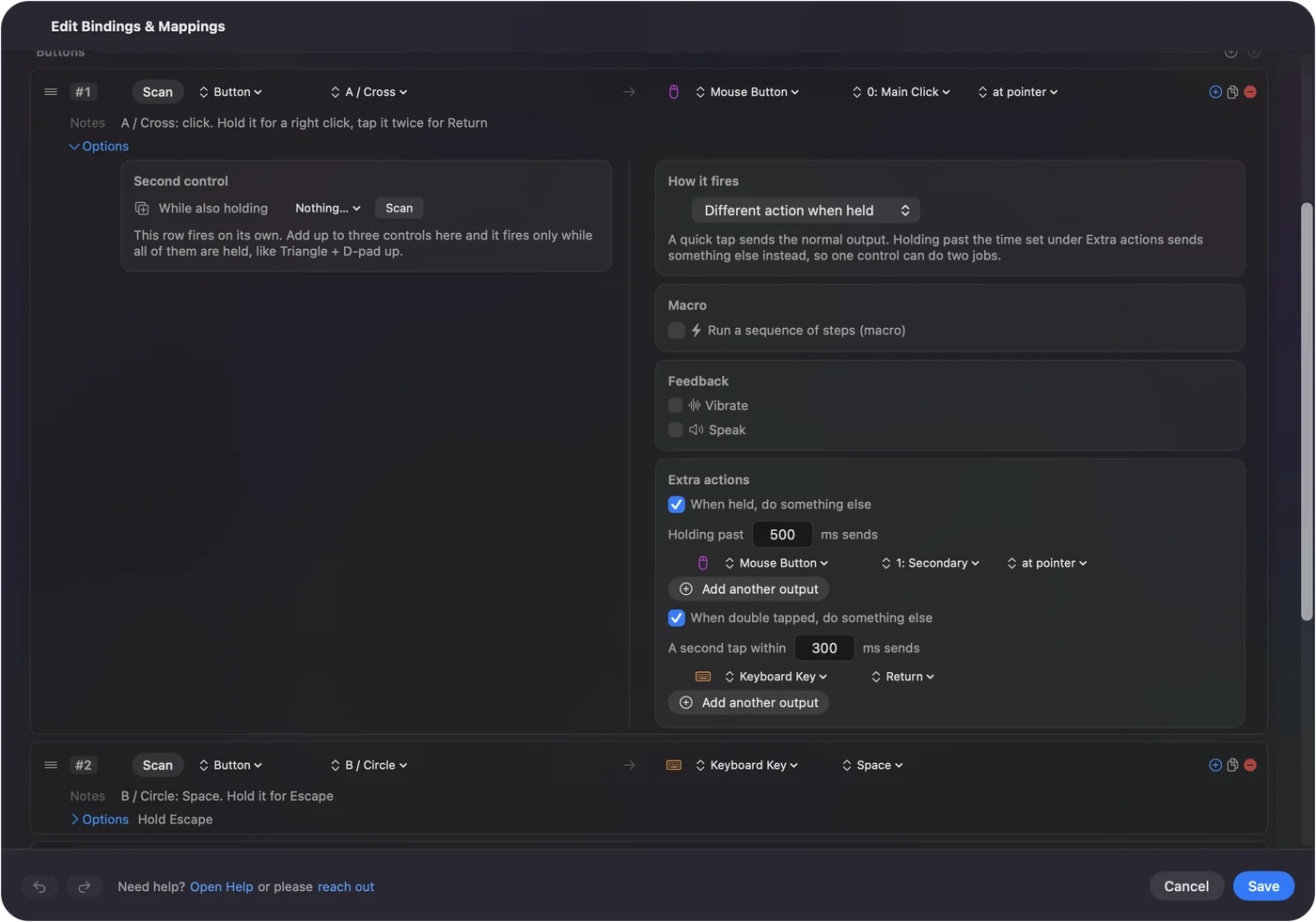
Each row has a hold action and a double tap action, each a full second output. A stick direction can be a tap for one thing and a hold for another. A preset can list the apps it belongs to, and with Settings, Advanced, Switch presets when the front app changes, the layout follows the app in front, so the stick scrolls in your browser and jogs in your editor. Only one preset runs at a time, and Control Option Command period is the emergency stop. Different mouse button actions per app has the steps.
If the stick or a button does nothing
Climb this ladder, smallest step first:
- Test the mouse alone. Point, click and scroll. If that works, the problem is a button, not the mouse.
- Try the other connection. ASUS says RF polls at 1,000 Hz and Bluetooth at 250 Hz. Switch between them, and use the cable if the stick does not respond.
- Check the profile. Press the profile button on the mouse and see whether another stored profile has your stick settings.
- Press Scan on the mouse and on the keyboard. The stick may send keys, not mouse buttons.
- Check InputConfig. Accessibility permission, the preset active, and the emergency stop.
- Remember the Windows session. If the profile was only saved in Armoury Crate on the PC, it is not in the mouse, so save it to onboard memory.
What it cannot do
- Run Armoury Crate. ASUS does not list the Chakram in its Mac software.
- Change DPI, polling rate or lighting. Those are the mouse's own and ASUS's.
- Block a key. A stick direction left on a letter still types it.
- Block left or right click. Those two cannot be blocked.
- Read an analog stick that a Mac does not list as a controller. If nothing scans, no Mac app can read it.
The short version
- Set the stick on Windows. Digital mode, four keys of F13 to F16, saved to the mouse.
- Scan on the Mac. See what arrives.
- Bind in InputConfig. Macros, holds, double taps and a layout per app.
The mouse remembers what Windows told it, so one session on a PC buys years of use on a Mac.
Questions
Does the ASUS ROG Chakram work on a Mac?
As a mouse, yes. ASUS's Mac software does not list the Chakram, so set the stick and buttons on a Windows PC, save them to the mouse, and bind them with Scan on the Mac.
Does Armoury Crate work on a Mac for the Chakram?
ASUS's Armoury Crate Gear for Mac lists only a few devices, and the Chakram is not among them.
How does the joystick on the ROG Chakram X Origin work?
ASUS says it has an analog mode, which simulates a gamepad thumbstick, and a digital mode, which turns the stick into four programmable directions.
Can I use the Chakram joystick as buttons on a Mac?
In digital mode, yes, if the directions arrive as keys or mouse buttons. Press Scan in InputConfig to see which.
Is there another mouse with a joystick that works on a Mac?
The Chakram is the one I found. Other mice with a stick are rare, and I could not confirm any other model, so check the maker's Mac support before you buy.
Related
This page in other languages: العربية, Čeština, Dansk, Deutsch, Español, Suomi, Français, עברית, Magyar, Bahasa Indonesia, Italiano, 日本語, 한국어, Norsk, Nederlands, Polski, Português, Русский, Slovenčina, Svenska, ไทย, Türkçe, Українська, Tiếng Việt, 繁體中文, 简体中文
Completely free. You don't have to make an account, there are no subscriptions, and nothing is locked. Optimized for Apple silicon. Open source on GitHub.
Updated