Questions
How to test a racing wheel, joystick or flight stick on a Mac
Use an app that reads the device directly, because a Mac reads most USB wheels, pedals, flight sticks and arcade sticks with no driver but gives you nothing to test them with. System Settings, Game Controllers lists gamepads only, so a wheel that works perfectly never appears there.
InputConfig, the free app I make, reads these devices directly, and in 1.6 its Live Visualizer draws the common ones as themselves: the wheel turns on screen with its angle in degrees, each pedal fills from 0 to 100 percent, and every button and hat direction lights as you press it. I have not tested every device, so the first five minutes below double as a check that yours is read at all.
On this page: 9 sections
Steps
- Plug the device in and open InputConfig.
- If it is missing, tick it under InputConfig, Devices.
- Click any preset to see the device in the Live Visualizer.
- Check the center, full range, pedals, buttons and hat in turn.
- Set a deadzone with Adjust live on any axis that rests off center.
Know why the Mac seems not to see it
To macOS, a wheel or a flight stick is a plain USB input device, not a game controller. Game Controllers in System Settings stays empty and many games ignore it, but the Mac has still connected it: it is listed in the USB section of System Information.
Apple added support for some racing wheels in macOS 13, only for games written for it. The racing wheel page covers that side. An empty Game Controllers list says nothing about a wheel or a stick.
Get InputConfig reading it
- You: Plug the device in and open InputConfig. If it does not appear, open the InputConfig menu and choose Devices.
- InputConfig: Lists every USB and Bluetooth device, with a checkmark on the ones it is reading. Choose yours to tick it; the choice is remembered.
- Check: Click any preset in the sidebar. Nothing has to be running for the Live Visualizer to show the device.
- An entry that says needs Input Monitoring. Choose it: it opens that page of System Settings, and the device is read when you come back to InputConfig.
- An older Logitech wheel. A G27, G25, Driving Force GT or Driving Force Pro that starts in compatibility mode is switched to its own mode when it connects, so every button and the full steering range are read.
A checkmark in the Devices menu means InputConfig is reading it.
 InputConfig is free on the Mac App Store. macOS 14 or later, no account, no tracking, open source.
Read what the drawing shows
- Wheels. The rim turns as far as the real one, with a mark at the top and the angle written beside it, such as 0°, 90° left or 450° right. The Logitech G29 and G923, and the G27, G25 and Driving Force GT, read 900 degrees lock to lock; the Thrustmaster T300 RS reads 1080. The G29's pedals, shifter gears, paddles and red dial are drawn too. A wheel whose range InputConfig cannot know shows how far toward full lock it is instead, in percent. The Driving Force Pro is one: it starts at 200 degrees and only reaches 900 by a command InputConfig does not send.
- Pedals. Each pedal is a bar that fills as you press it, with its percentage. An orange line marks where the preset's row for that pedal starts to count, which is its deadzone.
- Flight sticks. The Logitech Extreme 3D Pro and the Thrustmaster T.16000M are drawn with the stick, the twist rudder, the throttle, the trigger, the hat and every button. An 8-way hat lights two arrows on a diagonal.
- Arcade sticks and leverless controllers. The lever moves its dot and every button lights.
- Anything else. A device no model matches is drawn as a labeled grid built from what it reports: each stick pair as a stick, each hat as a D-pad, every other axis as a bar named for what it is (Z, Rz, Slider, Throttle), and every button numbered. Click a button for its number and the HID button it comes from.
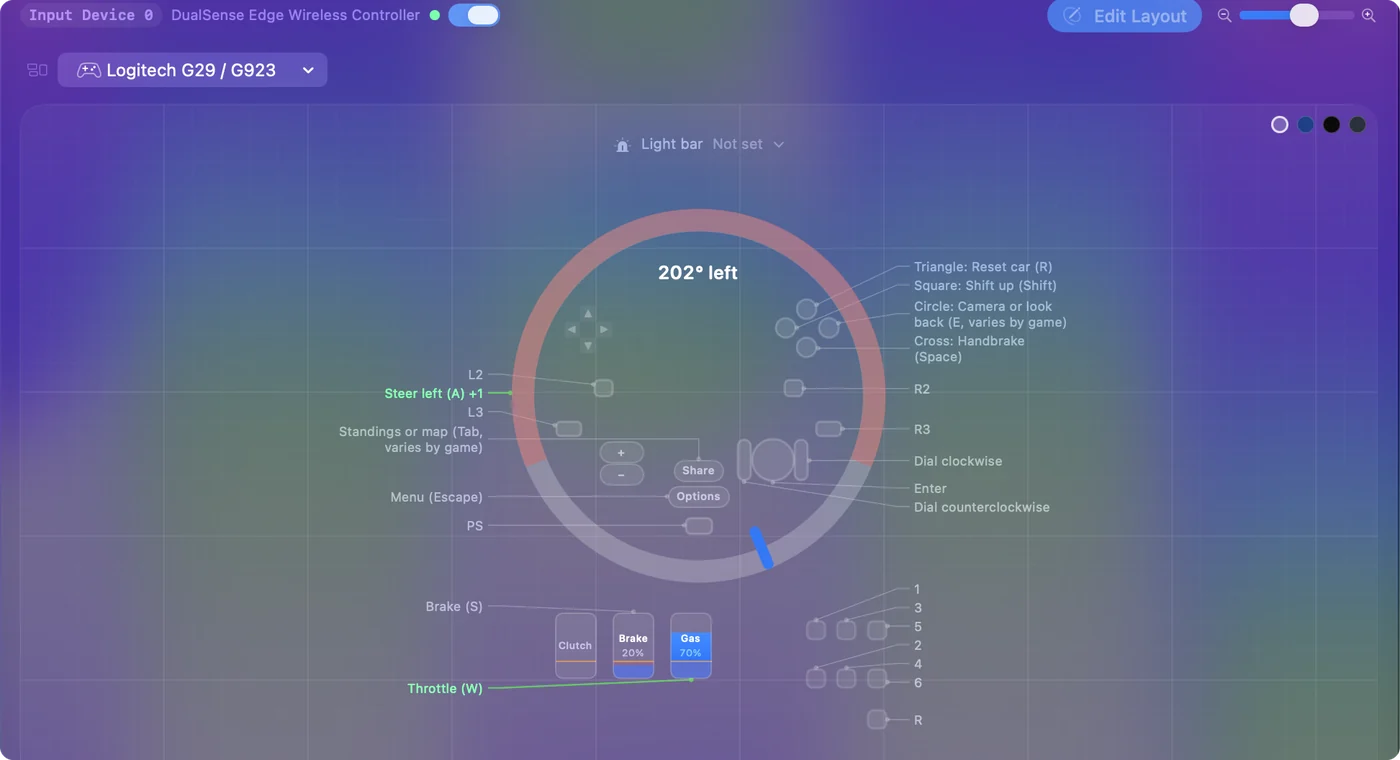
A line under the drawing says what that model never sends to the Mac. For Logitech wheels that is force feedback and the G27's shift lights, which InputConfig does not use. Read that line before you decide a control is broken.
Run a five-minute test
- Center. Let go of the wheel or stick. The wheel should read 0° (or Centered), and a stick's dot should sit on the crosshair.
- Full range. Turn the wheel lock to lock; a 900 degree wheel reads 450° each way. Move a stick round its full circle. The reading should climb smoothly, with no jumps or dead patches.
- Pedals and throttle. Press each pedal slowly to the floor and let it go. It should run from 0 to 100 percent and come back to 0. Do the same with a throttle, end to end. On some devices the throttle reads backward, with forward at 0; that is the device, not a fault.
- Buttons. Press every button, paddle and gear. A shifter's gear lights while the lever is in it.
- Hat. Press all eight directions, diagonals included.
Smooth climbs and a clean return to zero mean the device is healthy.
If a reading is off
Climb this ladder, smallest step first:
- Set a deadzone. A pedal that rests above 0, or a wheel a degree or two off center, is normal wear. In a preset, open the row's Options and press Adjust live, which shows the axis moving while you drag. If the maker has a Mac utility for the device's own center, use that first.
- Treat a -1 to 1 pedal as a trigger. Most non-Logitech wheels and pedal sets work this way. In 1.6, One-Stick Driving with Throttle axis is a trigger uses its whole travel.
- Invert the direction. A throttle or axis that runs the wrong way: Invert direction, in the row's Options, flips it for what InputConfig sends.
- Read the line under the drawing. Some devices pack their axes in a way InputConfig does not decode yet. When a device gives no usable description of itself, the line under the drawing says it is read bit by bit, and each numbered key is one bit rather than a known button.
- Start again from the Devices menu. If nothing moves at all, check the Devices menu again, try another cable or port, and if the entry asks for Input Monitoring, allow it.
A small offset is wear, not a fault, and a deadzone hides it.
What it cannot do
- Force feedback. InputConfig does not drive it, so the motor stays off while you test.
- Pose as a wheel. It cannot make a game believe a wheel is plugged in. It sends keys and mouse movement.
- Every device. I have not tested every one, and some pack their axes in a way InputConfig does not decode yet.
The test shows what the Mac receives, not what a game will do with it.
What to do next
A device that passes is ready for a preset:
- Racing games on the keyboard. One-Stick Driving turns a wheel and pedals into steering, throttle and brake keys.
- Flight sims. The flight stick page covers them.
- A wheel that will not work. Racing wheel not working on a Mac has the full checklist.
Five minutes in the Live Visualizer settles whether the Mac reads your device at all.
Questions
Do I need a driver to test a wheel or joystick on a Mac?
No. macOS reads standard USB wheels, pedals and sticks without one. The maker's software matters for things like rotation range, force feedback strength and firmware, and for many brands it is Windows only.
Can a browser gamepad tester test a wheel?
Sometimes. Some browsers show some of these devices through their gamepad support, with the axes under plain numbers and no idea which one is the clutch. It is worth a try, and it does not tell you whether a Mac game will use the wheel.
Why does my wheel show a percentage instead of degrees?
InputConfig only writes degrees when it knows the wheel's range, as it does for the G29, G923, G27, G25, Driving Force GT and T300 RS. For any other wheel it shows how far toward full lock you have turned.
Can I test pedals, a shifter or a throttle on their own?
Yes. A separate USB device gets its own slot and its own panel, so one preset can hold the wheel, the pedals and a button box at once, and each panel shows its own device.
Does InputConfig test force feedback?
No. It does not drive force feedback, so the motor stays off while you test.
Related
Free. macOS 14 or later. No account, nothing leaves your Mac. Open source on GitHub.