Does a Glorious mouse work on a Mac?
 InputConfig is completely free on the Mac App Store. You don't have to make an account, there are no subscriptions, and nothing is locked. Optimized for Apple silicon.
Yes, as a mouse. The pointer, both main buttons, the wheel and the side buttons reach a Mac with nothing installed. Glorious also publishes a Mac version of its CORE software, but its own page says it leaves out the first wired Model O and Model D, so which mouse you own decides what you can configure. The side buttons will not do anything useful by default, and that part is macOS, not Glorious.
The Mac details come from Glorious's software downloads page (linked in the first section), which I read on October 21, 2026. I make InputConfig, a free Mac app that reads any mouse's extra buttons and gives each one a job, with or without CORE.
On this page: 12 sections
Steps
- Plug in the mouse or its wireless receiver. The pointer, clicks and wheel work at once.
- Check Glorious's software page to see whether your model is on the Mac version of CORE.
- If it is, install CORE to set DPI, polling rate, lighting and onboard profiles, then quit it.
- Open InputConfig, add a row, press Scan and press a side button to see what it sends.
- Choose what the button does, such as Back, Forward, a shortcut or a macro, and press Activate.
See what CORE does on a Mac
Glorious's software page offers CORE for macOS with a stated requirement of macOS Big Sur to Sonoma on an Apple silicon Mac. Other lines on the same page say Big Sur and later, so the page is not consistent, and I would try it on your own Mac before assuming either. The page says CORE works with most Glorious products and names three exceptions: the GMMK 1 keyboard, the Model O Wired (V1) and the Model D Wired (V1). Those use Glorious's legacy software, and the legacy page lists Windows 7 or later only.
| Mouse | What the page says about the Mac version of CORE |
|---|---|
| Model O and Model D, wired first version (V1) | Listed as excluded. They use the legacy software, which the page lists for Windows only. |
| Other Model O and Model D versions | Covered by the rule that CORE supports most Glorious products. Check the exact version on the page. |
| Model I | Not named on the page I read, so I cannot say. Check it before you buy for Mac settings. |
The Model I 2 is sold as a nine button mouse whose side buttons you can swap, according to retailer listings I read, and Glorious describes a second layer of functions you reach with a shift button. If your exact model is not on Glorious's Mac list, assume you cannot change its settings from a Mac.
Know what works with nothing installed
- Pointer, clicks and wheel. A Glorious mouse is a standard mouse to a Mac, wired, over its receiver or over Bluetooth on the models that offer it.
- Speed. System Settings, Mouse sets tracking speed. The DPI button on the mouse changes sensitivity inside the mouse, and no Mac app sees it.
- Side buttons. They reach the Mac as Button 4 and Button 5. Whether anything happens is up to the app in front.
- Lighting and polling rate. These live in the mouse and in CORE. InputConfig does not change either.
One practical point if you own a mouse that CORE does support on a Mac: settings you save to its onboard memory stay in the mouse, so set them once and you can quit CORE. The mouse keeps what CORE saved, so you only open the app when you want to change something.
Find out what each button sends
- You: Open InputConfig, add a row, set the input device to This Mac's mouse or trackpad, press Scan and click each button in turn.
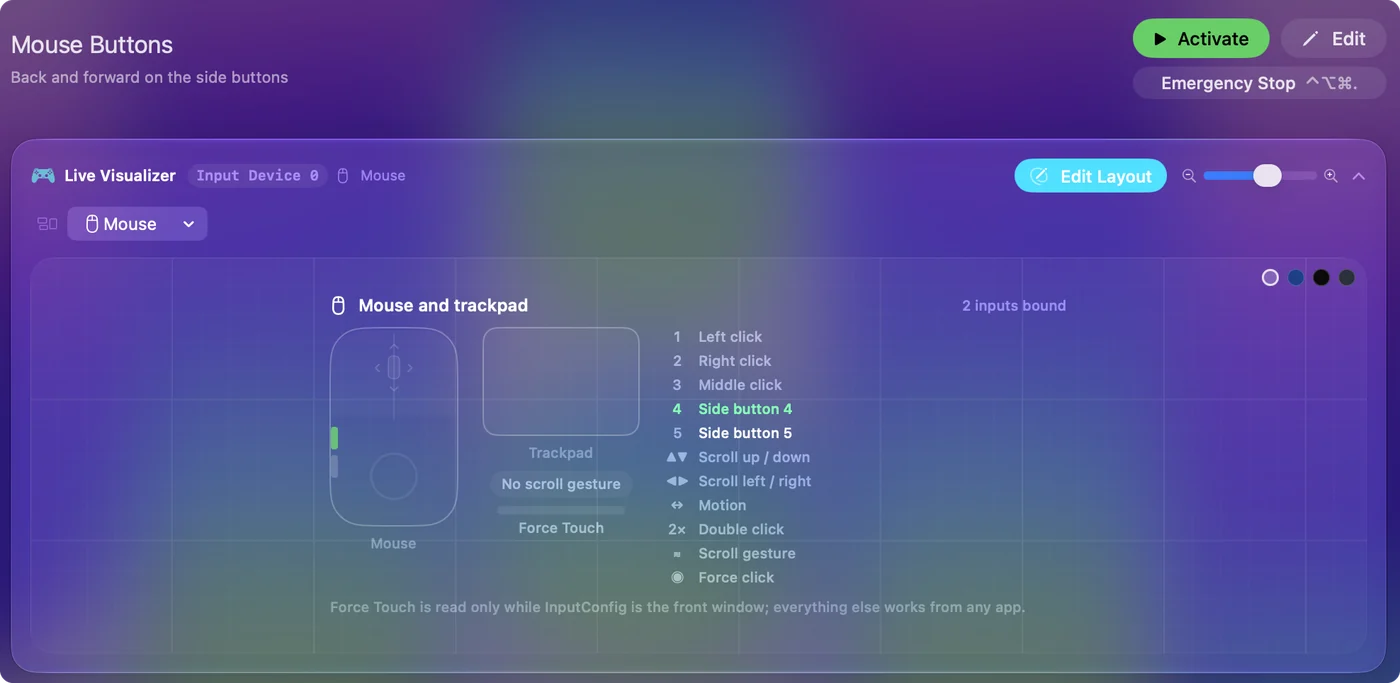
- InputConfig: Names the button that arrived, such as Button 4 or Button 5, and the Live Visualizer lights it.
- Check: A button that lights and is named is one you can bind. A button that does nothing at all, such as a DPI button, is one the mouse keeps for itself.
| Button | What I expect | What to do |
|---|---|---|
| Left, right, wheel click | Left click, Right click, Middle click | Bind freely. Left and right click cannot be blocked. |
| Two side buttons | Button 4 and Button 5 | Bind, and tick Block the button's own action if a browser also uses them. |
| Extra side buttons or a second layer | Depends on the model and on what is stored in the mouse | Press Scan. Anything above Button 8 is under More buttons. |
| DPI button on top or bottom | Usually nothing reaches the Mac | If Scan sees nothing, the mouse is keeping it for itself. |
Bind the side buttons
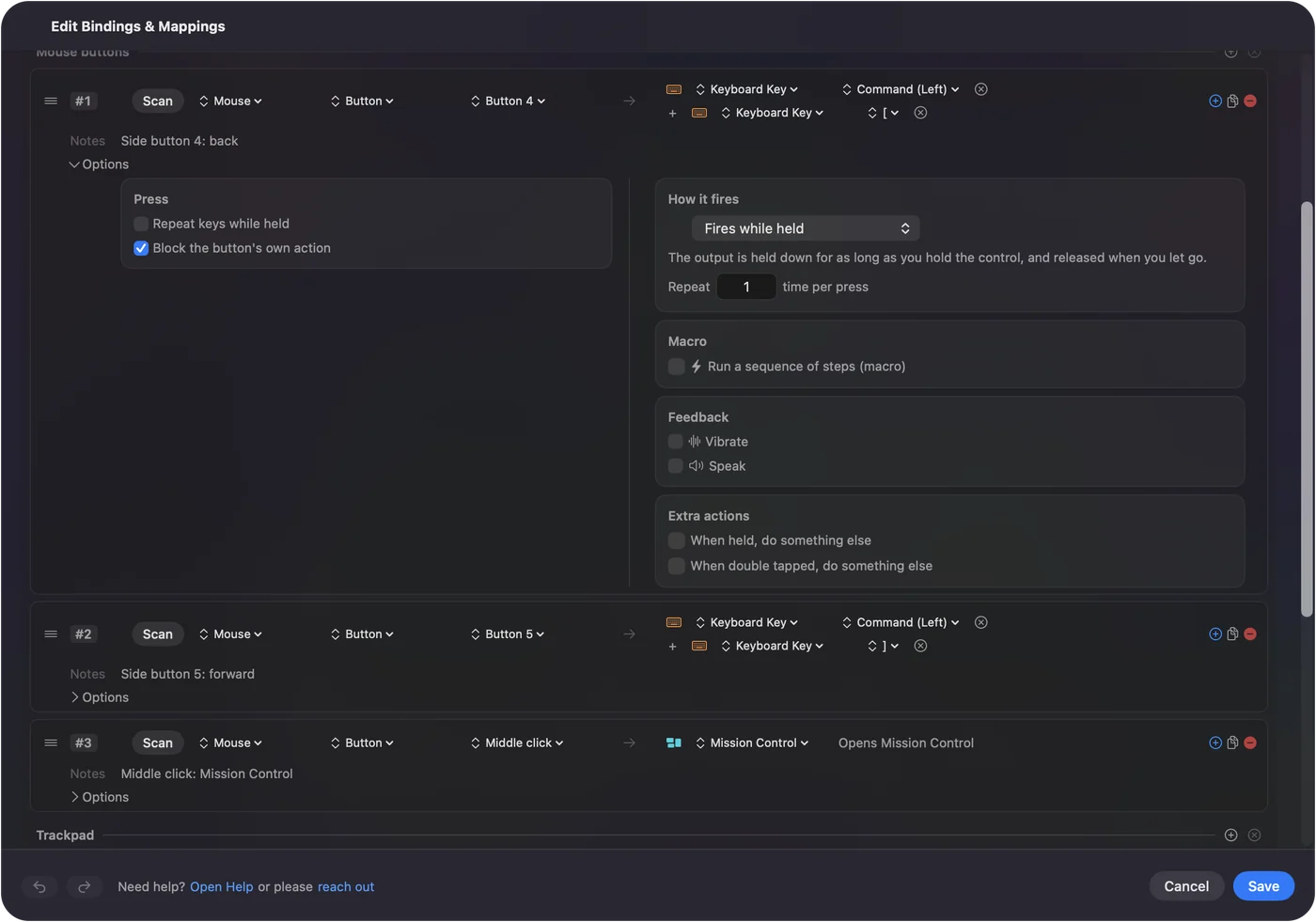
- You: Choose Button 4 as the input of a row and pick an output: Keyboard Key with Command and the left bracket for Back, and Command and the right bracket for Forward.
- InputConfig: Sends that shortcut each time you press the button.
- Check: Open Safari or Finder and press the button. The window should go back.
That is what the built-in Trackpad and Mouse preset already does. A row can also hold back the button's own action, so an app that already reads Button 4 does not go back twice.
A side button on a Mac is useless until an app gives it a job, and that app does not have to be Glorious's. Mouse side buttons on a Mac has the full setup.
Turn extra buttons into macros
A button on a Glorious mouse can run more than one key. In a row's Options, tick Run a sequence of steps (macro), then add key, shortcut and click steps, each with a wait and a hold time. A Model I side button is a good place for a copy, switch app and paste sequence, because your thumb is already there.
- Copy and paste pair. Hold Command, tap C, release, tab to another app, then hold Command and tap V.
- A sign off. Use Type Text for a line you write every day, which is simpler than a macro.
- Screenshot to clipboard. The System Function output has a screenshot action you can put on a button.
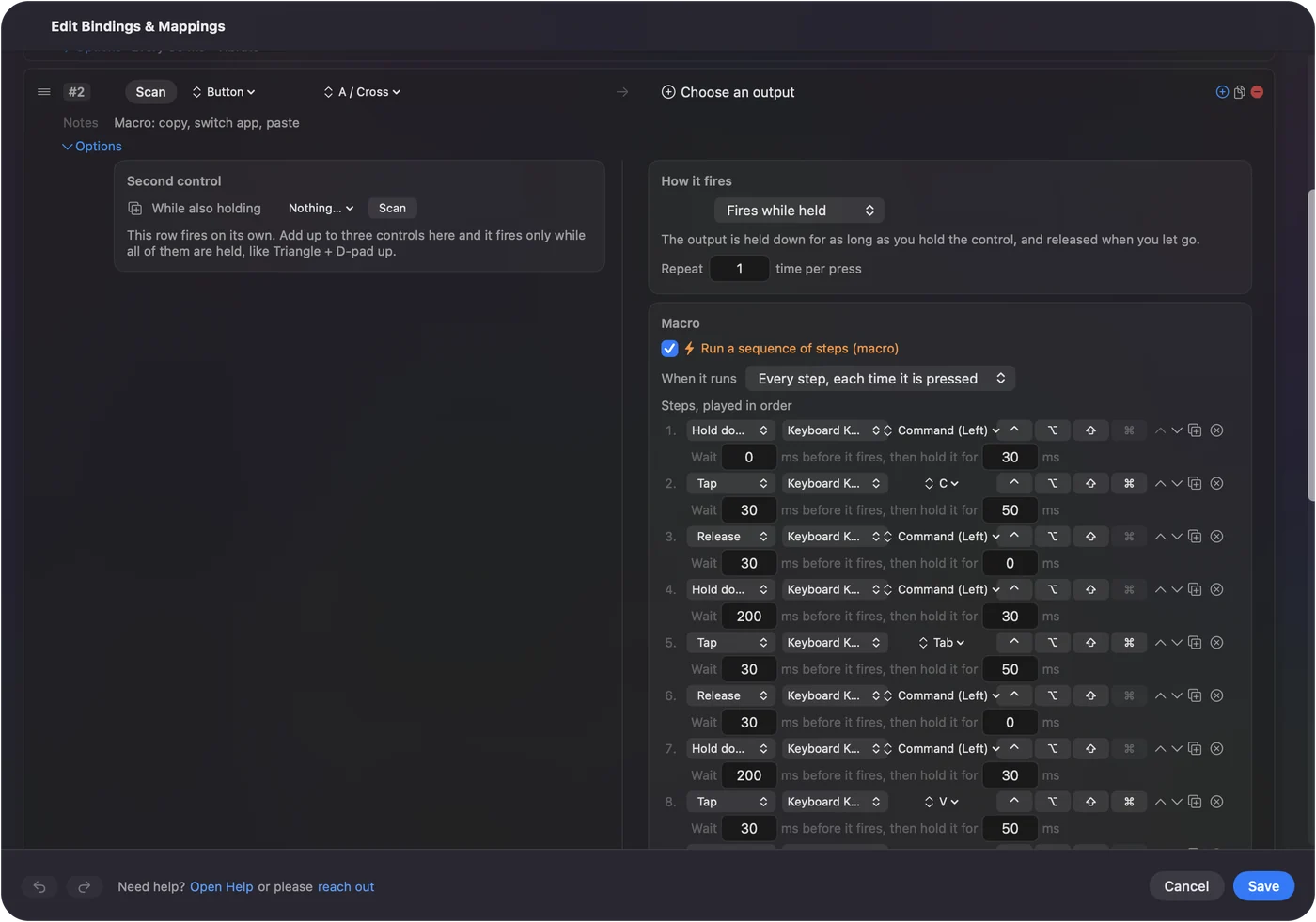
Macros are covered in how to make a macro on a Mac.
Set the options that make it better
- Hold and double tap. Each row can carry a hold action and a double tap action, so one side button can be Back on a tap and Mission Control on a hold.
- Block the original action. Tick it for a side button that an app also reads.
- Per app layouts. List apps under Automation and Gaming Utilities and turn on Switch presets when the front app changes. Only one preset runs at a time.
- Emergency stop. Control Option Command period turns the running preset off if a layout misbehaves.
A Glorious mouse is light and has few buttons, so a hold and a double tap are how you get more out of it.
Ideas for a Glorious mouse
- A claw or fingertip grip. The Model O and Model D shapes are made for it. Put Back and Forward on the two side buttons and a Mission Control tap on the wheel click.
- Editing. On a Model I with its extra buttons, put undo, redo and Command S on three thumb buttons.
- Gaming and work from one mouse. Make one preset for a game and one for Safari or Final Cut, and let the front app pick.
- A mouse for a lefty or a shared desk. Because every mouse counts as one, plan the layout for the mouse you use, not for two at once.
If a button does nothing
Climb this ladder, smallest step first:
- Press Scan again. Click the button while the row is waiting. If nothing is named, the mouse is not sending it to macOS.
- Check the mode switch. Many wireless models have a switch between the receiver, Bluetooth and off.
- Check the Accessibility permission. System Settings, Privacy and Security, Accessibility must list InputConfig.
- Pick the exact button. If Scan names Button 6 and you bound Button 5, nothing fires.
- Look at what is stored in the mouse. A button stored as a key types that key. See the F13 to F20 plan on the MMO mouse page.
- Look for a hidden mode button. Some mice have a small button that switches the side buttons to media keys or another stored layer, so a button can seem dead when the mouse is in a different mode. Press it once and Scan again.
What it cannot do
- Run CORE on the first wired Model O or D. Glorious's page lists those for Windows only.
- Change DPI, polling rate or lighting. Those are the maker's app or the mouse's own button.
- Read a DPI or profile button that sends nothing. If Scan sees nothing, no app can.
- Give two mice different jobs. Every mouse plugged in counts as one.
InputConfig needs the Accessibility permission and macOS 14 or later.
The short version
- Works. A Glorious mouse is a normal mouse on a Mac.
- CORE. It has a Mac version that leaves out the wired V1 Model O and Model D.
- Side buttons. Scan them and bind them in InputConfig, whatever the model.
Check your model on Glorious's list, save settings in the mouse, and bind the buttons where you like. Gaming mouse on a Mac covers the general case.
Questions
Does Glorious CORE work on a Mac?
Yes, Glorious publishes CORE for macOS. Its page lists macOS Big Sur to Sonoma on Apple silicon and excludes the GMMK 1, the Model O Wired (V1) and the Model D Wired (V1).
Can I use a Glorious Model O on a Mac?
Yes, as a mouse, with nothing installed. Settings in CORE depend on the version, because the first wired Model O is listed as excluded from the Mac version.
Does the Glorious Model D work on macOS?
It works as a standard mouse. The first wired Model D (V1) is excluded from CORE on Mac, so set it up on a Windows PC if you need its stored settings.
How do I use Glorious mouse side buttons on a Mac?
Press Scan in InputConfig, click the side button and choose what it sends. Glorious mice send Button 4 and Button 5 to a Mac in the usual way.
Does the Glorious Model I work on a Mac?
As a mouse, yes. The software page I read does not name the Model I, so check Glorious before counting on CORE for it.
Does Glorious CORE work on Apple silicon Macs?
Glorious's page lists the Mac version as macOS Big Sur to Sonoma on Apple M1 or later. Other lines on the same page say Big Sur and later, so try it on your Mac.
Related
This page in other languages: العربية, Čeština, Dansk, Deutsch, Español, Suomi, Français, עברית, Magyar, Bahasa Indonesia, Italiano, 日本語, 한국어, Norsk, Nederlands, Polski, Português, ไทย, 繁體中文, 简体中文
Completely free. You don't have to make an account, there are no subscriptions, and nothing is locked. Optimized for Apple silicon. Open source on GitHub.
Updated