Does a Zowie mouse work on a Mac?
 InputConfig is completely free on the Mac App Store. You don't have to make an account, there are no subscriptions, and nothing is locked. Optimized for Apple silicon.
Yes. Zowie sells its EC, FK, S and ZA mice as driverless, so on a Mac you plug one in and it works as a mouse, with nothing to download. The catch is the other side of that: there is no Zowie app to remap buttons, and Zowie says the default job of the side buttons cannot be changed in Windows or on a Mac. That is where a mapper comes in.
I read the EC2 product page and Zowie's FAQ for the wireless EC2-CW on October 21, 2026. I make InputConfig, a free Mac app that reads the side buttons and gives each one a job.
On this page: 12 sections
Steps
- Plug in the mouse, or its receiver for a wireless model. It works without any driver.
- Press the DPI button on the mouse to pick a sensitivity, and set pointer speed in System Settings, Mouse.
- Open InputConfig, add a row, press Scan and click a side button.
- Choose an output for it, such as Back, Forward, a shortcut or a macro.
- Tick Block the button's own action if an app reacts to the button twice, then press Activate.
Use a Zowie mouse with nothing installed
Zowie's EC2 page lists the mouse as driverless with plug and play and no driver needed, over USB. The same page names the other families: the EC series, the FK series (FK1 and FK2, wired and wireless), the S series (S2) and the ZA series (ZA12 and ZA13 in the catalog I read). They share the idea, a shape you pick for your hand and almost no software.
- Pointer, clicks and wheel. All work at once on a Mac.
- DPI and polling rate. These are set on the mouse, covered in the next section.
- Side buttons. Button 4 and Button 5 reach a Mac as usual. Zowie's FAQ says their default function cannot be changed on Windows or a Mac, so any change has to come from an app.
- Lighting. These are esports mice with little or none, so there is nothing to set.
A Zowie mouse is a standard mouse that keeps its settings inside, which suits a Mac well.
Set DPI and report rate on the mouse
On the wireless EC2-CW, Zowie's FAQ says the DPI and polling rate buttons are on the bottom. Pressing the DPI button cycles 400, 800, 1600 and 3200, and the other button cycles the report rate through 125, 500 and 1000 Hz. The wired models have a switch button too, and the FAQ says it shows the current DPI and report rate. I did not read the wired models' pages, so check yours.
- Press the DPI button. Watch the indicator and use the step that matches how you move.
- Match it in macOS. System Settings, Mouse, Tracking speed sets how far the pointer goes for the same movement.
- Leave acceleration alone or turn it off. How to turn off mouse acceleration on a Mac shows how.
DPI and polling rate are changed on the mouse, so no Mac app, InputConfig included, ever sees the button.
Find out what each button sends
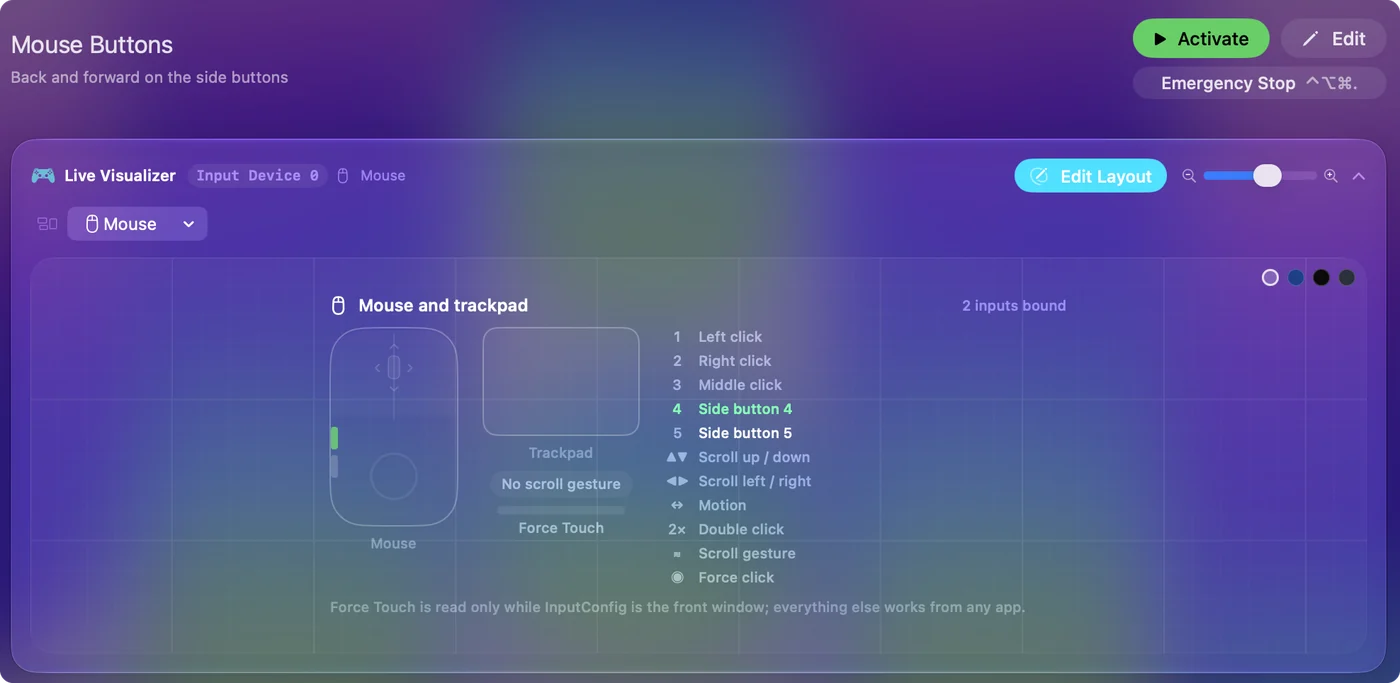
- You: Open InputConfig, add a row, press Scan and click each button on the mouse.
- InputConfig: Names the button that arrived and lights it in the Live Visualizer.
- Check: Left, right, wheel and the two side buttons should be named. The DPI button on the bottom very likely is not, so press Scan and see.
| Button | How it reports | Use it for |
|---|---|---|
| Left and right | Left click, Right click | Leave them alone. They cannot be blocked. |
| Wheel click | Middle click | Mission Control or a paste. |
| Two side buttons | Button 4 and Button 5 | Back and Forward, or anything you like. |
| DPI and report rate buttons | Probably nothing to the Mac | Press Scan to check. If it stays blank, the mouse keeps them. |
Bind the side buttons
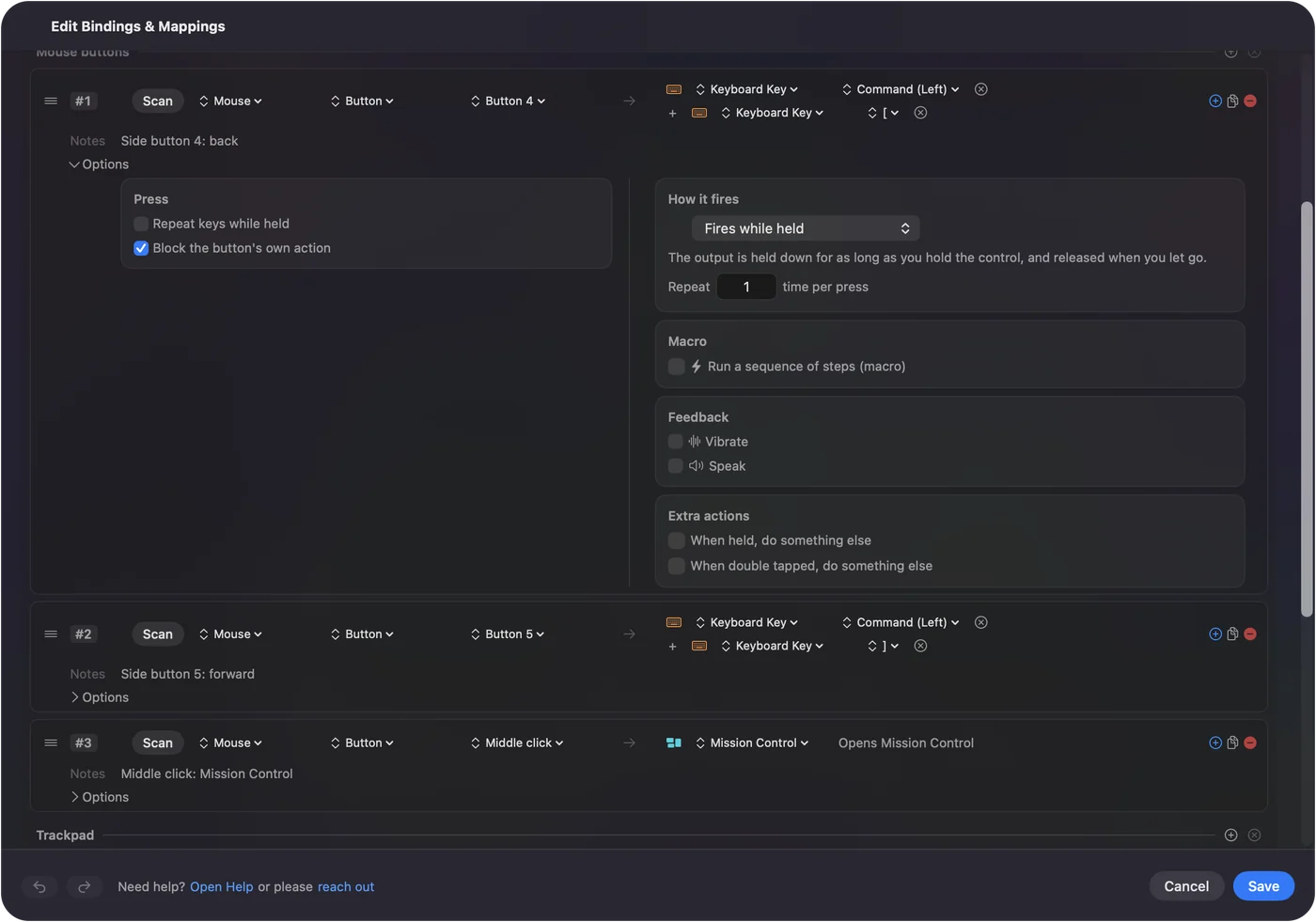
- You: Pick Button 4, then choose Keyboard Key with Command and the left bracket. Add a second row for Button 5 with Command and the right bracket.
- InputConfig: Sends Back on one button and Forward on the other, in any app that listens.
- Check: Press each button in Safari. The page should move back and forward once.
The built-in Trackpad and Mouse preset already does this, so you can activate it and skip the setup if Back and Forward is all you want. A Zowie mouse sits low and flat, so the side buttons are close to your thumb in every shape across the shapes I looked at.
Zowie leaves the side buttons for you to decide, and a mapper is how you decide on a Mac.
Run a macro from a side button
A Zowie shape has only two side buttons, so a macro earns its place there. In Options, tick Run a sequence of steps (macro) and add steps. Each step has a wait and a hold time, so a short sequence stays reliable. Good ones are a copy then switch app then paste, a screenshot of the selected area, or a Type Text sign off.
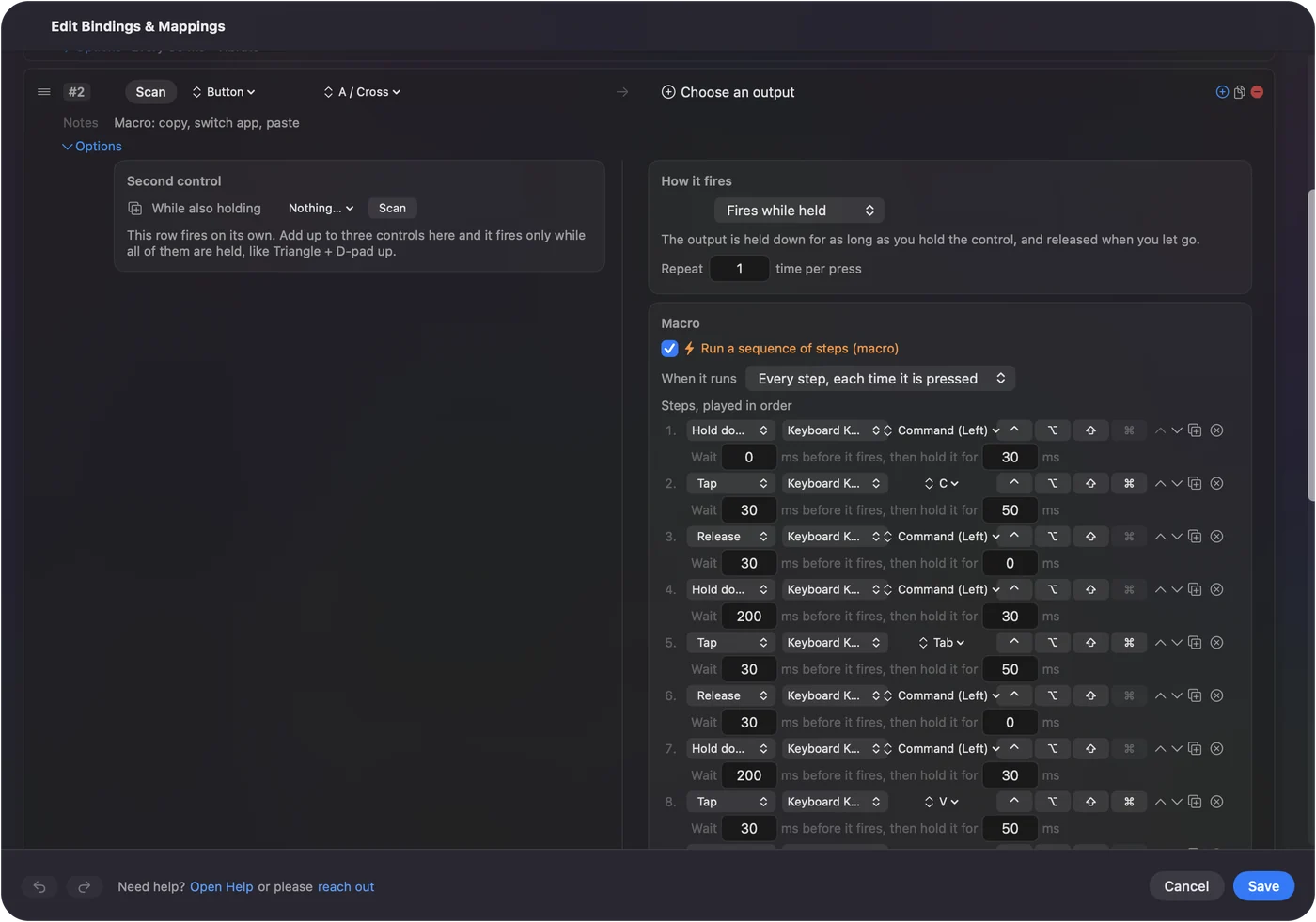
Keep it short when you use it in a game. Some games ignore keys that are injected faster than a person could press them, and I have not tested that with every game.
Get more from two buttons
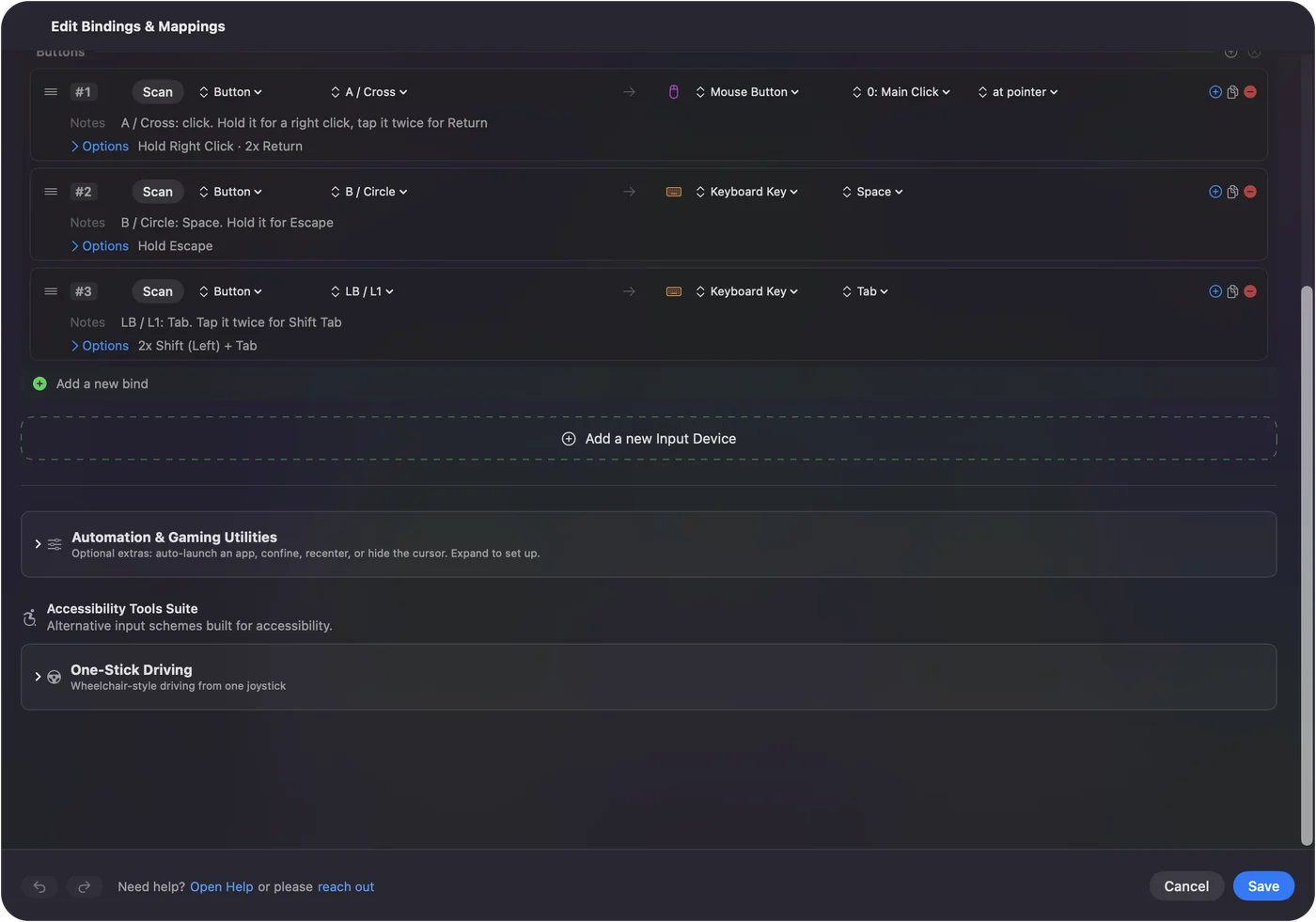
- Hold for a second job. A hold action on Button 4 can be Mission Control while a tap stays Back.
- Double tap. A double tap on Button 5 can open an app or paste a line of text.
- Combos. The While also holding control makes Button 4 plus the wheel click do something different.
- Per app layouts. List a game under Automation and Gaming Utilities so the layout follows it, and turn on Switch presets when the front app changes.
Who uses a Zowie mouse on a Mac
- Shooter players. Keep Zowie's own defaults in a game and use a preset only in your browser.
- Designers and editors. An EC shape suits a wide hand, and a Back button plus a hold for Mission Control is plenty.
- Small hands. The S and ZA series are sized for smaller hands, and the same two buttons still work.
- Anyone who wants no app. The mouse stores its settings, so there is nothing to keep running.
If it does not behave
Climb this ladder, smallest step first:
- Try a different port. Plug the cable or receiver straight into the Mac, not a hub.
- Check the report rate. A mouse stuck at 125 Hz feels slow, so press the report rate button and watch the indicator.
- Remove other mouse software. Zowie's FAQ says other brands' mouse software can conflict, and it is written for Windows, so I would still try removing it.
- Check Accessibility. System Settings, Privacy and Security, Accessibility must list InputConfig.
- Scan again. If a side button is not named, nothing else on the Mac can read it either.
- Look at the mouse before the Mac. Zowie has no software, so a mouse that feels wrong is usually on a different DPI or report rate than you think. Press the buttons and watch the indicator.
What it cannot do
- Change DPI or report rate. Those stay on the mouse.
- Remap a button that sends nothing. A bottom button that no app sees cannot be bound.
- Give two mice different jobs. Every mouse counts as one.
- Replace Zowie's software. There is none, and that is by design.
The short version
- Driverless. Plug it in on a Mac and it works.
- DPI. A button on the mouse sets it.
- Side buttons. Bind them in InputConfig.
Zowie gives you a mouse with no software, and the two side buttons are yours to assign.
Questions
Does a Zowie mouse work on a Mac?
Yes. Zowie lists its mice as driverless, plug and play, so the pointer, buttons and wheel work on a Mac with nothing installed.
Is there Zowie software for Mac?
Not that I found. The mice are sold as driverless, with DPI and report rate set by buttons on the mouse.
How do I change the DPI on a Zowie mouse on a Mac?
Press the DPI button on the mouse. On the wireless EC2-CW the FAQ says it cycles 400, 800, 1600 and 3200, and that the buttons are on the bottom.
Can I remap Zowie side buttons on a Mac?
Yes, with a mapper. Zowie says the default function of the side buttons cannot be changed on Mac, and InputConfig reads them as Button 4 and Button 5.
Does the Zowie EC2 work on macOS?
It works as a mouse with no driver. Zowie's EC2 page lists it as plug and play and gives no operating system requirements.
Why does my Zowie mouse not change DPI on a Mac?
DPI is changed with a button on the mouse, not an app, so it works the same on a Mac. On the wireless EC2-CW the buttons are on the bottom.
Related
This page in other languages: العربية, Čeština, Dansk, Deutsch, Español, Suomi, Français, עברית, Magyar, Bahasa Indonesia, Italiano, 日本語, 한국어, Norsk, Nederlands, Polski, Português, ไทย, 繁體中文, 简体中文
Completely free. You don't have to make an account, there are no subscriptions, and nothing is locked. Optimized for Apple silicon. Open source on GitHub.
Updated