Xcode from a game controller
 The Xcode layout is built into InputConfig, free on the Mac App Store. You don't have to make an account, there are no subscriptions, and nothing is locked. Optimized for Apple silicon.
On a Mac: Xcode reads its standard shortcuts from this layout like any keyboard. Nothing to change in Xcode's key bindings.
Yes, you can build, run and stop Xcode from a game controller on a Mac: Command B, Command R and Command Period sit on buttons, with save, find and undo beside them. The best use is testing your own controller game with the same pad in your hands, spotting a bug, stopping the run and building again without putting it down. The other is the usual one: hands that cannot use a keyboard for long, paired with dictation.
On this page: 7 sections
The layout, control by control
How the layout thinks
- Build and run. Build (Command B) on the bottom face button, Run (Command R) on the right, and Build again on the right bumper for people who hold the pad the other way.
- Stop. Command Period on Options, where a thumb has to mean it.
- Save, find, undo. Save on the left face button, Find on the top, Undo on the left bumper.
- Move around. The sticks are pointer and scroll, the right trigger clicks, and D-pad up and down move a line.
There is a specific joy in fixing your controller game with the controller. Build, run and stop never need the keyboard.
If your game reads the pad too
Xcode gets the controller's buttons as keys only while the preset is active. A game that reads the controller itself through Apple's Game Controller framework still sees the pad when it is in front, so with this preset running, one press reaches both: the game reads A as jump while InputConfig sends Command B to the front app, which is now your game.
- You: In the preset's Automation & Gaming Utilities, add Xcode under Activate when these apps are in front, and turn on automatic switching in Settings, Advanced.
- InputConfig: Runs the preset only while Xcode is in front and steps aside when your game is.
- Check: Run the game and press A. It jumps, and nothing builds.
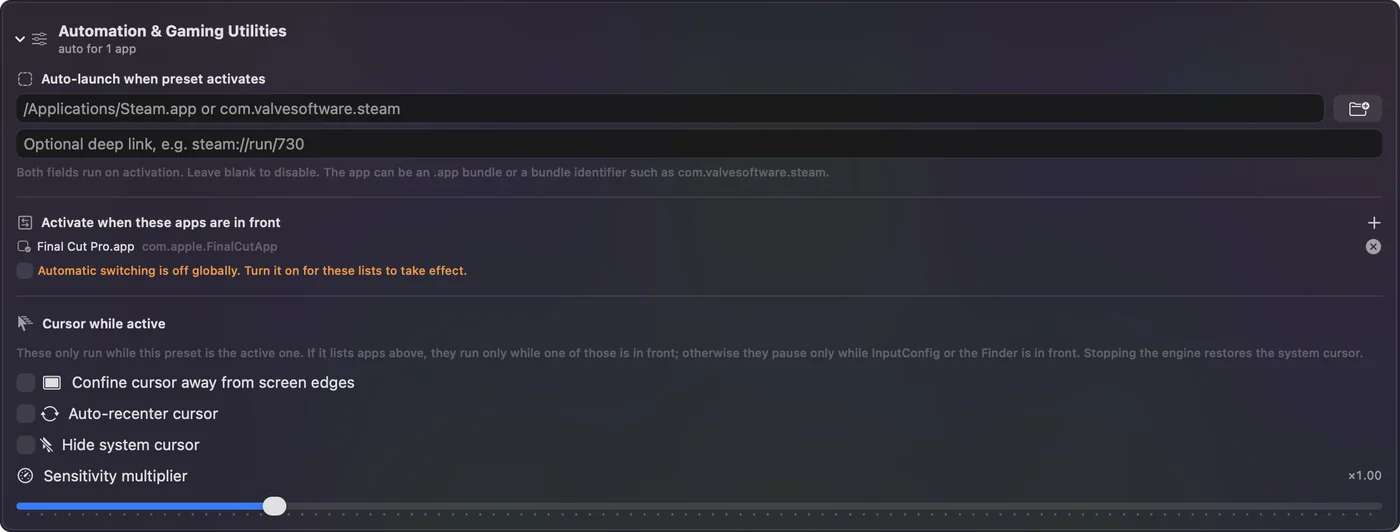
Add the Simulator to the same list if you want the build keys there too. A running preset doubles every press in a game that reads the pad, so let auto-switch keep them apart.
Tune it for Xcode
- Test. Put Command U on the touchpad press.
- Jump to definition. Put Control Command J behind a chord.
- Navigator and inspector. Put Command 0 and Command Option 0 on the stick clicks.
- Read the error aloud. Select the issue and the Speak Selection system function reads it, once Speak selection is on in System Settings, Accessibility, Spoken Content. Silly until you need it.
Test on the touchpad completes the loop. Build, run, test and stop, all from the pad you are testing with.
Get it in two clicks
- Get InputConfig free on the Mac App Store, open it, and click Smart Preset Maker on the welcome screen.
- Search for Xcode and pick it. The layout is created as a preset in your sidebar, named and ready.
- Press Activate. Every row can be changed afterwards: the editor's Scan button rebinds any control the moment you touch it.
Every binding, as a table
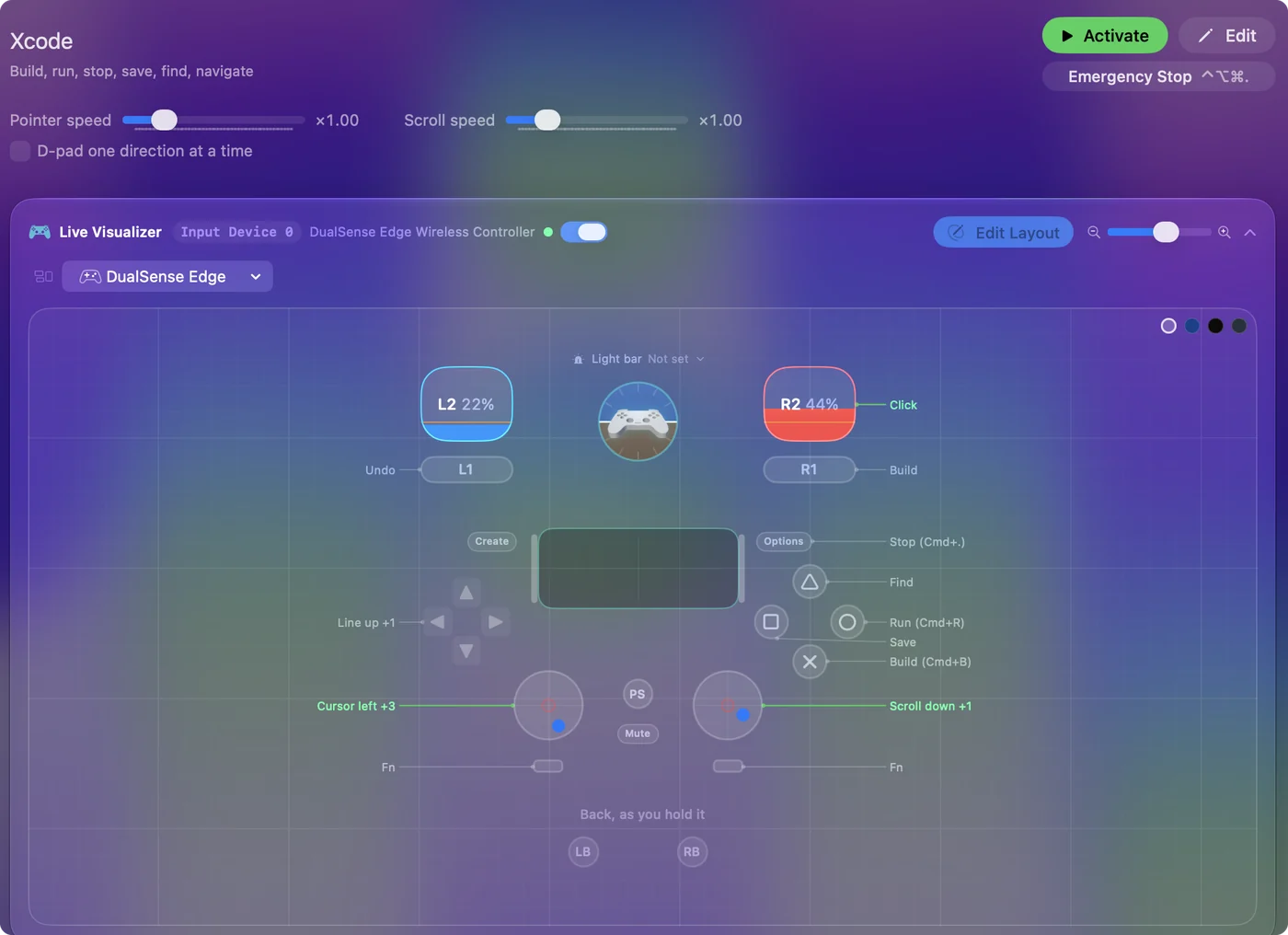
| Controller | Sends | What it does |
|---|---|---|
| Left stick left | Mouse motion left (speed 16) | Cursor left |
| Left stick right | Mouse motion right (speed 16) | Cursor right |
| Left stick up | Mouse motion up (speed 16) | Cursor up |
| Left stick down | Mouse motion down (speed 16) | Cursor down |
| Right stick down | Scroll down | Scroll down |
| Right stick up | Scroll up | Scroll up |
| Right trigger | Left click | Click |
| A / Cross | Command (Left), B | Build (Cmd+B) |
| B / Circle | Command (Left), R | Run (Cmd+R) |
| X / Square | Command (Left), S | Save |
| Y / Triangle | Command (Left), F | Find |
| LB / L1 | Command (Left), Z | Undo |
| RB / R1 | Command (Left), B | Build |
| D-pad up | Up | Line up |
| D-pad down | Down | Line down |
| Start / Options | Command (Left), . | Stop (Cmd+.) |
Button names follow the Xbox / PlayStation pair shown in the editor, so A / Cross is the bottom face button on either pad. On a Switch Pro Controller the bottom button is labeled B; the mapping still fires on position.
Questions
Will the controller confuse my game while Xcode has it?
Only if the preset is running while the game is in front. Use auto-switch so the preset is on for Xcode and off for the game.
Does this work with the Simulator?
Yes. The Simulator is another app, so the same rule applies. List it with Xcode if you want the build keys there too.
Related
Completely free. You don't have to make an account, there are no subscriptions, and nothing is locked. Optimized for Apple silicon. Open source on GitHub.
Updated