CLion from a game controller
 The CLion layout is built into InputConfig, free on the Mac App Store. You don't have to make an account, there are no subscriptions, and nothing is locked. Optimized for Apple silicon.
On a Mac: Sends the JetBrains macOS keymap CLion uses by default, including Control R to run and Control D to debug.
Yes, CLion works from a game controller on a Mac with the JetBrains layout, using the macOS keymap CLion ships with. Go to declaration earns its face button here more than anywhere, because jumping between headers and source is half the job in C and C++. The debugger keys are the rows worth adding.
The layout, control by control
How the layout thinks
- Navigate. Go to file on the bottom face button, go to declaration on the right, a line up and down on the D-pad.
- Edit and run. Comment line on the left face button, Run (Control R) on the top, Debug (Control D) on Start, Save All on Back, Share or View.
- Search. Find on the left bumper, Find in Path on the right.
- Point and scroll. The left stick is the pointer, the right stick scrolls, the right trigger clicks.
Tune it for debugging from a chair
- Step over and step into. They are F8 and F7 in the JetBrains keymap. Put them behind a chord on the D-pad.
- Header and source. CLion's switch key from its Navigate menu on a stick click.
- Evaluate an expression. Put Option F8, from the JetBrains macOS keymap, on the touchpad press.
Start a debug session with Start, then step through it without reaching for the keyboard.
Get it in two clicks
- Get InputConfig free on the Mac App Store, open it, and click Smart Preset Maker on the welcome screen.
- Search for CLion and pick it. The layout is created as a preset in your sidebar, named and ready.
- Press Activate. Every row can be changed afterwards: the editor's Scan button rebinds any control the moment you touch it.
Every binding, as a table
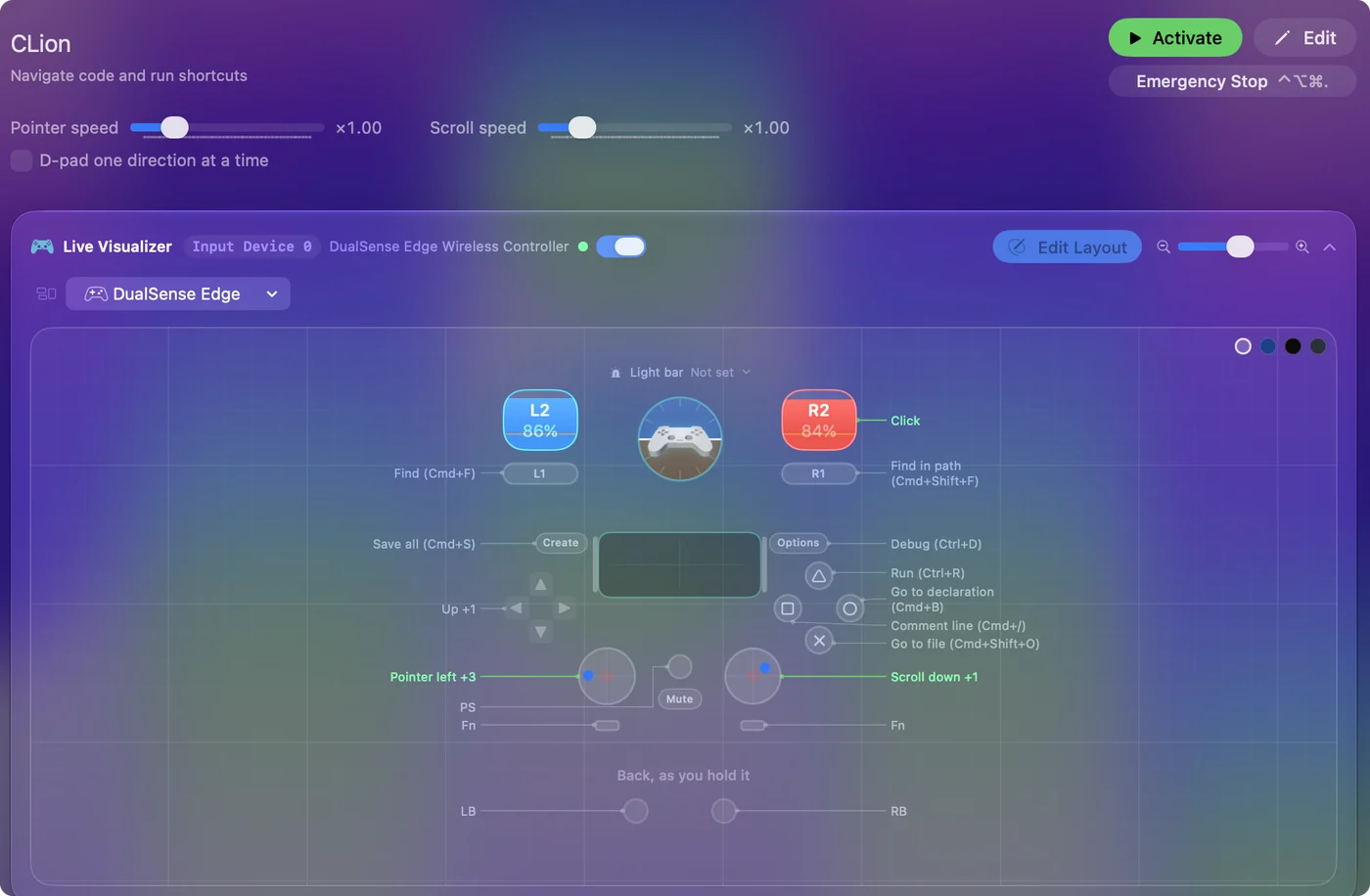
| Controller | Sends | What it does |
|---|---|---|
| Left stick left | Mouse motion left (speed 16) | Pointer left |
| Left stick right | Mouse motion right (speed 16) | Pointer right |
| Left stick up | Mouse motion up (speed 16) | Pointer up |
| Left stick down | Mouse motion down (speed 16) | Pointer down |
| Right stick down | Scroll down | Scroll down |
| Right stick up | Scroll up | Scroll up |
| Right trigger | Left click | Click |
| A / Cross | Command (Left), Shift (Left), O | Go to file (Cmd+Shift+O) |
| B / Circle | Command (Left), B | Go to declaration (Cmd+B) |
| X / Square | Command (Left), / | Comment line (Cmd+/) |
| Y / Triangle | Ctrl (Left), R | Run (Ctrl+R) |
| LB / L1 | Command (Left), F | Find (Cmd+F) |
| RB / R1 | Command (Left), Shift (Left), F | Find in path (Cmd+Shift+F) |
| Back / Share / Select | Command (Left), S | Save all (Cmd+S) |
| Start / Options | Ctrl (Left), D | Debug (Ctrl+D) |
| D-pad up | Up | Up |
| D-pad down | Down | Down |
Button names follow the Xbox / PlayStation pair shown in the editor, so A / Cross is the bottom face button on either pad. On a Switch Pro Controller the bottom button is labeled B; the mapping still fires on position.
Questions
Is this the same as the PyCharm layout?
Yes. Every JetBrains IDE on the macOS keymap shares these keys.
Related
Completely free. You don't have to make an account, there are no subscriptions, and nothing is locked. Optimized for Apple silicon. Open source on GitHub.
Updated