Visual Studio Code from a game controller
 The Visual Studio Code layout is built into InputConfig, free on the Mac App Store. You don't have to make an account, there are no subscriptions, and nothing is locked. Optimized for Apple silicon.
On a Mac: VS Code for Mac reads its default Command shortcuts from any keyboard source, including this layout. Nothing to install in the editor.
Yes, you can drive VS Code on a Mac with a game controller, though you will not write code with it. You write with your voice or the minutes of keyboard your hands allow, then spend the day reading, moving, running and undoing, and that part a controller does well. For a developer with RSI, it is the part that saves the day.
On this page: 7 sections
The layout, control by control
How the layout thinks
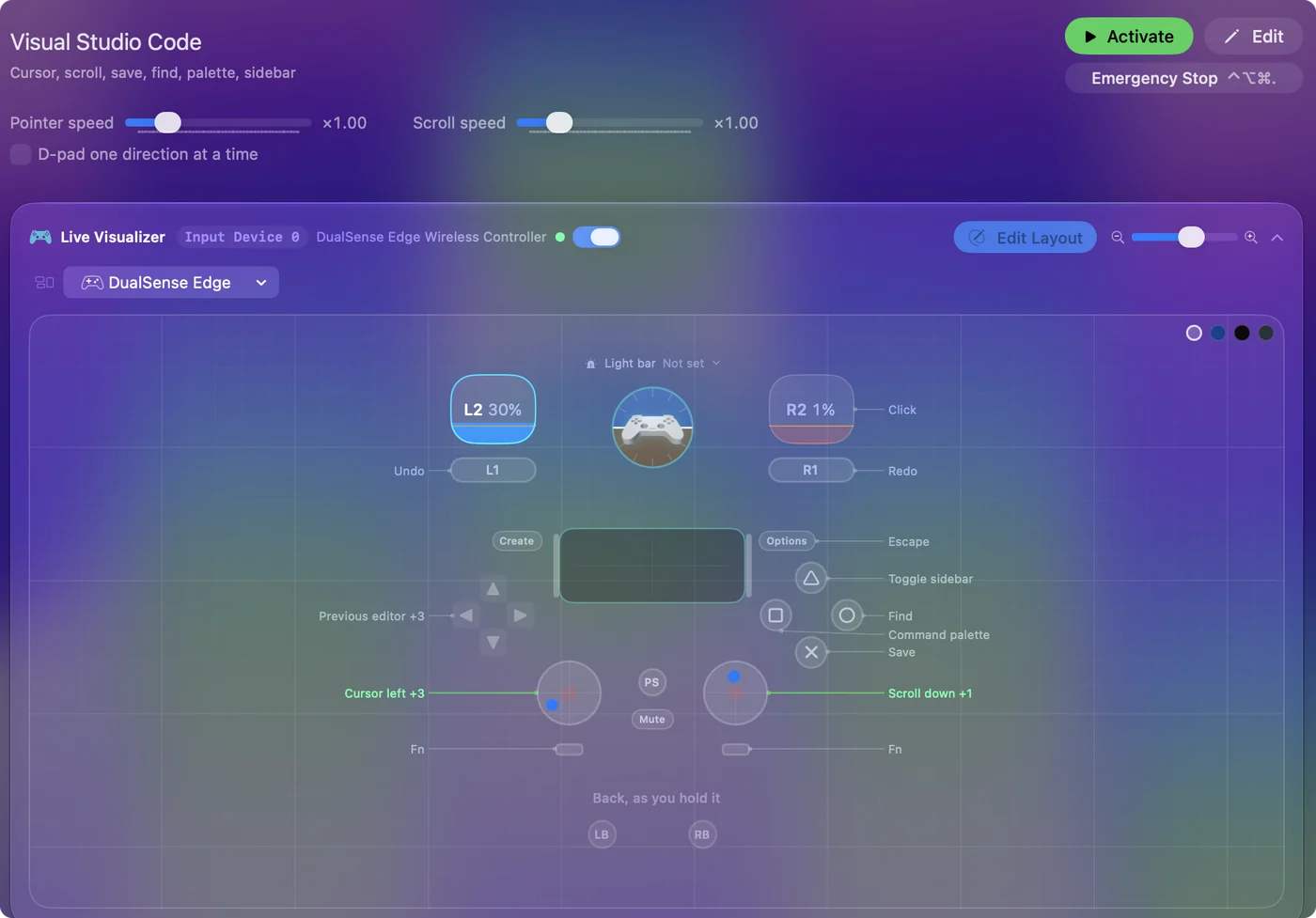
- Point and scroll. The left stick is the pointer, the right stick scrolls, and the right trigger clicks.
- The four panels you open most. Save on the bottom face button, Find on the right, the Command Palette (Command Shift P) on the left, the sidebar toggle (Command B) on the top.
- Undo and redo. On the bumpers.
- Lines and tabs. D-pad up and down move a line. Left and right switch editor tabs with Command Option and the arrows.
- Close the popup. Options is Escape, and in VS Code a popup is usually open.
Turn on Repeat keys while held in the two line rows and a held D-pad runs the cursor through a file like a held arrow key. Reading and moving through code is most of the day, and that is all on the pad.
Tune it for VS Code
Chords live in each row's Options under Second control: set While also holding to the button that acts as your shift key, and give the plain row a different job.
- The palette is the trick. Command Shift P plus dictation reaches every command in the editor: palette button, dictation button, say the command, Return. Put Return on the touchpad press.
- Run and debug. Put F5 and Shift F5 on the stick clicks. The integrated terminal (Control backtick) behind a chord.
- Go to definition and back. Put F12 and Control Minus on a chord with the D-pad. Reading code is mostly jumping.
- Word jumps. Put Option and the arrows behind one chord, and Shift Option and the arrows behind another for selecting.
- Comment a line. Put Command Slash on a face button behind a chord.
Start with the palette and dictation. They cover what you have not mapped yet. With the palette and your voice, every command is three presses away.
The short version
- Use the pad for everything around typing. Navigate, search, run, undo.
- Add a Start Dictation row. It feeds the palette, search and Go to File.
- Forks work too. Cursor and the other VS Code forks share these shortcuts.
Pair it with a voice coding tool if you need to write a lot. The controller is for the hours you spend reading code, not the minutes you spend typing it.
Get it in two clicks
- Get InputConfig free on the Mac App Store, open it, and click Smart Preset Maker on the welcome screen.
- Search for Visual Studio Code and pick it. The layout is created as a preset in your sidebar, named and ready.
- Press Activate. Every row can be changed afterwards: the editor's Scan button rebinds any control the moment you touch it.
Every binding, as a table
| Controller | Sends | What it does |
|---|---|---|
| Left stick left | Mouse motion left (speed 16) | Cursor left |
| Left stick right | Mouse motion right (speed 16) | Cursor right |
| Left stick up | Mouse motion up (speed 16) | Cursor up |
| Left stick down | Mouse motion down (speed 16) | Cursor down |
| Right stick down | Scroll down | Scroll down |
| Right stick up | Scroll up | Scroll up |
| Right trigger | Left click | Click |
| A / Cross | Command (Left), S | Save |
| B / Circle | Command (Left), F | Find |
| X / Square | Command (Left), Shift (Left), P | Command palette |
| Y / Triangle | Command (Left), B | Toggle sidebar |
| D-pad left | Command (Left), Alt / Option (Left), Left | Previous editor |
| D-pad right | Command (Left), Alt / Option (Left), Right | Next editor |
| D-pad up | Up | Line up |
| D-pad down | Down | Line down |
| LB / L1 | Command (Left), Z | Undo |
| RB / R1 | Command (Left), Shift (Left), Z | Redo |
| Start / Options | Escape | Escape |
Button names follow the Xbox / PlayStation pair shown in the editor, so A / Cross is the bottom face button on either pad. On a Switch Pro Controller the bottom button is labeled B; the mapping still fires on position.
Questions
Can I actually code with a game controller?
Navigate, run, search and refactor through the palette, yes. Typing is dictation or a voice coding tool. The controller is for everything around the typing.
Does it work in Cursor or other VS Code forks?
Yes, the shortcuts are the same. Cursor has its own entry in the Smart Preset Maker too.
Related
Completely free. You don't have to make an account, there are no subscriptions, and nothing is locked. Optimized for Apple silicon. Open source on GitHub.
Updated