Gray Zone Warfare on a Mac with a controller
 The Gray Zone Warfare layout is built into InputConfig, free on the Mac App Store. You don't have to make an account, there are no subscriptions, and nothing is locked. Optimized for Apple silicon.
On a Mac: No Mac version. It streams to a Mac from a Windows PC you own. The stream normally passes a controller to the game's native scheme. This layout is for streams that do not see the pad.
Yes, Gray Zone Warfare plays on a Mac with a controller, streamed from a Windows PC you own. It is the slowest extraction shooter there is, with helicopter rides and long walks, and that is the kind of game a stream carries. This layout is for a stream that misses your pad: fire and aim on the triggers, weapons on the D-pad, the map on Back for the walk.
On this page: 9 sections
The layout, control by control
How the layout thinks
- Move and look. The left stick walks on W, A, S and D. The right stick moves the mouse at speed 20 across and 14 up and down.
- Shoot. The right trigger fires and the left trigger aims. Reload on the left face button (R).
- Move. Jump and mantle on the bottom (Space), crouch on the right (C), sprint on the left stick click (Shift).
- Use and throw. Use on the top face button (F). Lethal on the left bumper (G), tactical on the right (Q).
- Weapons and menus. Primary on D-pad up (1), secondary on left (2), melee on down (V), ping and map on right (M). The map and inventory on Back (Tab), menu on Start (Escape).
The map is on Back, because most of this game is the walk.
Tune it
- A slow pointer for the inventory grid. Duplicate the four right-stick rows, set While also holding to a spare button on the copies, and give them a low speed.
- Lean. Add Q and E as chord rows on the bumpers.
- Slower aim. Duplicate the four right-stick rows, set While also holding to the left trigger on the copies, and lower their speed.
The inventory is grid work, so set up the slow pointer first.
If the game sees the pad
A stream normally passes your controller to the game's own scheme. Climb this ladder, smallest step first:
- Try the stream on its own. Leave the preset off and push the left stick. If you move, use the game's own scheme.
- Activate the layout. If nothing moves, press Activate, and the pad sends the keys and clicks above.
- Turn one off if presses double. If one press does two things, the game reads the pad and the preset at once. Press Deactivate.
In Gray Zone Warfare, a doubled press means the stream and the preset both have the pad.
Gray Zone Warfare controller support: controller or keyboard
Steam's store page lists no controller support for Gray Zone Warfare, so it was made for a keyboard and mouse, and that is how it expects to be played. A controller still works: this layout sends the game's keys and mouse movement from the pad, so to the game you are simply typing and pointing. No controller support listed means the layout does the work, not the game.
From Steam's listing, checked in October 2026. Every game's listing is in Mac games with controller support.
If your controller is not working in Gray Zone Warfare
When Gray Zone Warfare does not react to your controller on a Mac, climb this ladder, smallest step first:
- Check that the Mac sees the controller. Open the gamepad tester and press a button. If nothing lights up there, the problem is the connection, and a controller that is connected but not working covers that first.
- Press a button after the stream has started. A stream only picks up a controller that is paired with the Mac, and a browser shows a controller to a page only after a button press. Start Gray Zone Warfare, then press any button. Streaming from your own PC has its own checks, in how to stream PC games to a Mac with a controller.
- Play it from keys. If Gray Zone Warfare still ignores the pad, activate this layout. It sends the keyboard and mouse controls Gray Zone Warfare already reads. Turn the game's own controller option off while it runs, or a press can arrive twice. The layout works whether or not Gray Zone Warfare ever sees the controller.
Get it in two clicks
- Get InputConfig free on the Mac App Store, open it, and click Smart Preset Maker on the welcome screen.
- Search for Gray Zone Warfare and pick it. The layout is created as a preset in your sidebar, named and ready.
- Press Activate. Every row can be changed afterwards: the editor's Scan button rebinds any control the moment you touch it.
To check the controller itself first, the gamepad tester shows every button and stick live in your browser.
Gray Zone Warfare controls: every button and the key it sends
The Sends column is Gray Zone Warfare's default keyboard and mouse controls, as this layout expects them. If you changed a key in the game's settings, change the same row in InputConfig.
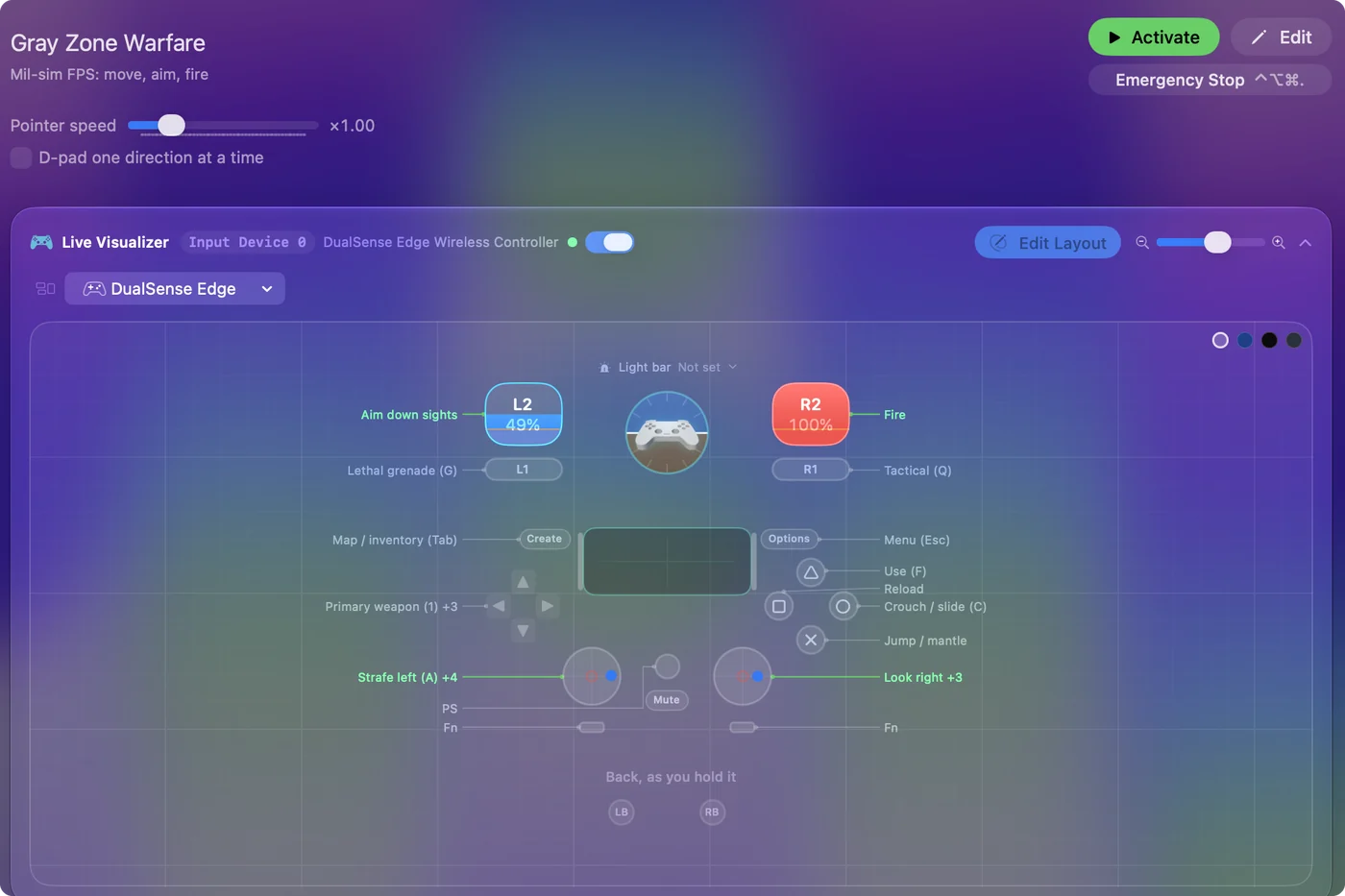
| Controller | Sends | What it does |
|---|---|---|
| Left stick left | A | Strafe left (A) |
| Left stick right | D | Strafe right (D) |
| Left stick up | W | Move forward (W) |
| Left stick down | S | Move back (S) |
| Right stick right | Mouse motion right (speed 20) | Look right |
| Right stick left | Mouse motion left (speed 20) | Look left |
| Right stick down | Mouse motion down (speed 14) | Look down |
| Right stick up | Mouse motion up (speed 14) | Look up |
| Right trigger | Left click | Fire |
| Left trigger | Right click | Aim down sights |
| A / Cross | Space | Jump / mantle |
| B / Circle | C | Crouch / slide (C) |
| X / Square | R | Reload |
| Y / Triangle | F | Use (F) |
| LB / L1 | G | Lethal grenade (G) |
| RB / R1 | Q | Tactical (Q) |
| L3 (left stick click) | Shift (Left) | Sprint (hold) |
| D-pad up | 1 | Primary weapon (1) |
| D-pad left | 2 | Secondary weapon (2) |
| D-pad down | V | Melee (V) |
| D-pad right | M | Ping / map (M) |
| Back / Share / Select | Tab | Map / inventory (Tab) |
| Start / Options | Escape | Menu (Esc) |
Button names follow the Xbox / PlayStation pair shown in the editor, so A / Cross is the bottom face button on either pad. On a Switch Pro Controller the bottom button is labeled B; the mapping still fires on position.
Questions
Does Gray Zone Warfare run on a Mac?
Gray Zone Warfare does not run natively on a Mac. It streams from a Windows PC you own, and the stream usually passes a controller through. This layout covers a stream that does not see the pad.
Does Gray Zone Warfare have controller support?
Not by itself. Steam lists no controller support for Gray Zone Warfare. A controller still works through a layout like this one, which sends the game's keys.
Is Gray Zone Warfare better with a controller or a keyboard?
It was made for a keyboard and mouse: Steam lists no controller support for Gray Zone Warfare. A controller still works through this layout, which sends the game's own keys and mouse movement.
Why is my controller not working in Gray Zone Warfare on a Mac?
First check the Mac itself sees the controller, with the gamepad tester. If it does and Gray Zone Warfare still ignores it, activate the Gray Zone Warfare layout in InputConfig, which sends the game's keyboard and mouse controls from the controller.
Can I play Gray Zone Warfare on an M1 Mac or a MacBook Air?
Yes, through a stream. Gray Zone Warfare runs on the other end, on a cloud service or your own PC, so the Mac only plays the video and sends your input. An M1 MacBook Air streams it like any other Mac.
Does Gray Zone Warfare run in CrossOver on a Mac?
I have not tested Gray Zone Warfare in CrossOver. CodeWeavers keeps a compatibility list where players report how each Windows game runs. If it runs and the controller is not seen, this layout plays it from the keys and mouse.
Related
Completely free. You don't have to make an account, there are no subscriptions, and nothing is locked. Optimized for Apple silicon. Open source on GitHub.
Updated