Questions
How to run a Mac shortcut from MIDI Start and Stop
Bind MIDI Start, Continue and Stop to keys in InputConfig 1.6, and pressing play on a DAW, sequencer or drum machine presses a key in any app. Other music gear follows these transport messages; ordinary Mac apps never see them.
The obvious use is starting and stopping an OBS recording exactly when the song plays, with no hand on the mouse.
On this page: 10 sections
Know what it is good for
- OBS takes. Start and stop an OBS screen or camera recording with playback, so every take is its own file.
- A reference video. Press Space in a video player so it rolls when the song does.
- Room lights. Run a Siri Shortcut that sets the lights for recording when Start arrives, and another on Stop.
- Lyrics. Flip a teleprompter or lyric slide with the next key when a section starts.
The timing is that of a key press, not sample-accurate sync. For a screen recording or a cue that is plenty; for audio that has to line up to the sample, record it in the DAW.
Get the transport to InputConfig
Hardware first: a drum machine or sequencer on USB or a MIDI interface needs nothing more, as long as it sends transport. Many send Start and Stop only when their clock or sync output is on, so look in its MIDI settings.
A DAW on the same Mac reaches InputConfig through the IAC Driver, the virtual MIDI bus built into macOS.
Audio MIDI Setup: Where the IAC Driver lives.
Applications, Utilities, Audio MIDI Setup, Window, Show MIDI StudioWhat happens: The MIDI Studio window opens with the IAC Driver in it.
Step 1: Turn on the IAC Driver
- You: Double-click IAC Driver and turn on Device is online.
- macOS: Makes the bus available to every MIDI app.
- Check: Device is online is ticked.
Step 2: Send the DAW's sync to it
- You: In the DAW, send MIDI sync to the IAC Driver bus. In Ableton Live that is the Sync switch for the IAC output in the Link, Tempo & MIDI settings; in Logic Pro it is a MIDI clock destination in the MIDI tab of the project's Synchronization settings.
- InputConfig: Hears Start, Continue and Stop on that bus.
- Check: Press play. The Live Visualizer's MIDI map logs Transport start when it arrives.
If the MIDI map logs Transport start, the hard part is done.
 InputConfig is free on the Mac App Store. macOS 14 or later, no account, no tracking, open source.
Bind Start and Stop
- You: Make a preset in InputConfig, add a row, press Scan, then press play on the DAW or drum machine. Or set the input type to MIDI, open the message menu, choose Transport, and pick Start, Continue or Stop.
- InputConfig: Records MIDI Start on the row.
- Check: Choose the output (a hotkey you set in another app, Space, a shortcut, Run Siri Shortcut, or Open App), add rows for Stop and Continue the same way, and activate the preset.
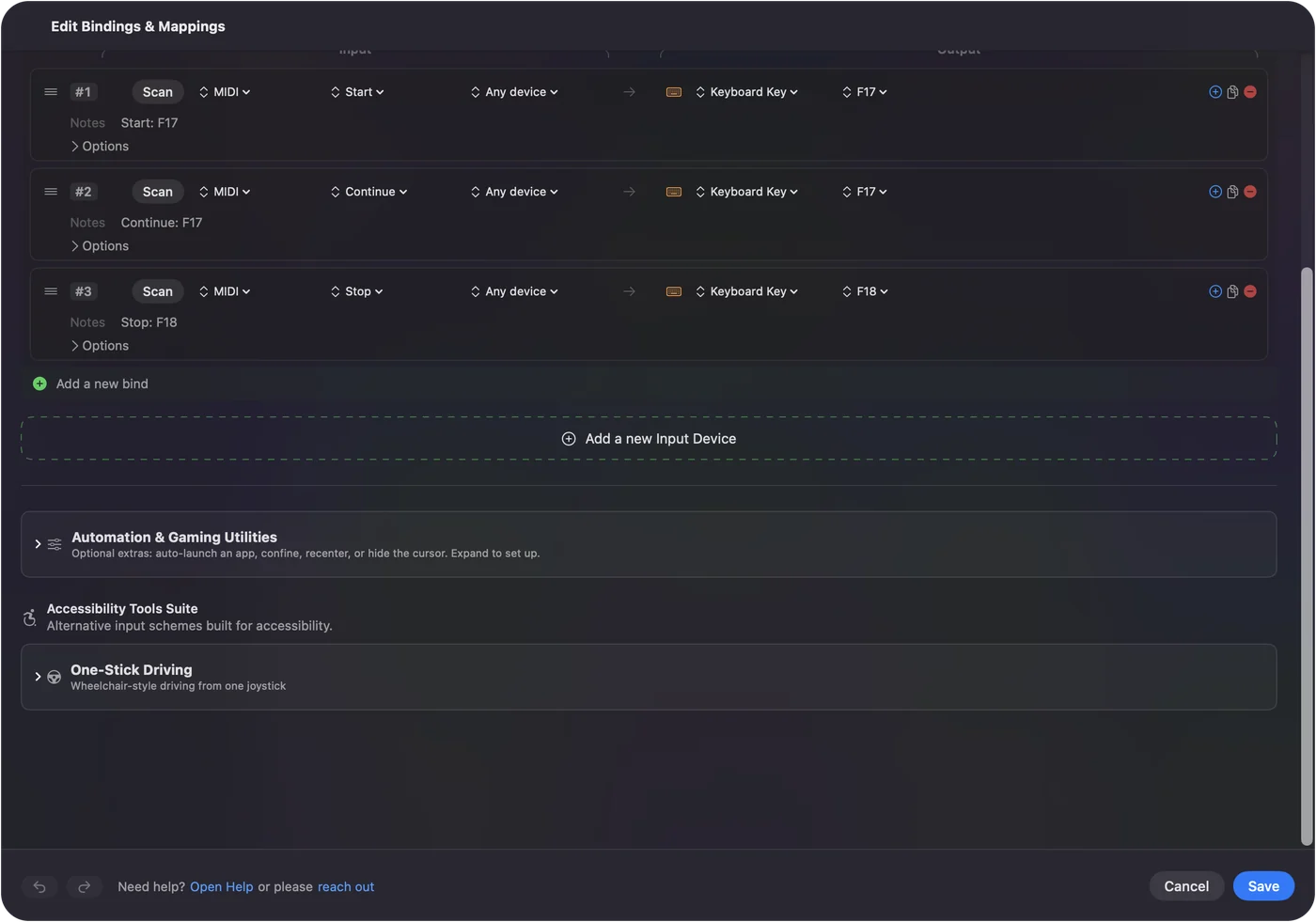
Transport messages carry no channel, so the row's second menu offers only the device: Any device, or the one source you want, which keeps a drum machine and a DAW apart.
Record OBS while the DAW plays
Step 1: Bind the keys
- You: In InputConfig, bind the Start row and the Continue row to F17, and the Stop row to F18. Save and activate.
- InputConfig: Presses F17 on play and F18 on stop.
- Check: The three rows show their keys.
Step 2: Teach OBS the keys
- You: In OBS, open Settings, Hotkeys, click in the field for Start Recording, and press play in the DAW. Click in Stop Recording and press stop.
- InputConfig: Sends F17 on play and F18 on stop, which OBS records as its hotkeys.
- Check: From now on, play starts a recording and stop ends it.
The F13 to F19 page explains why those keys suit this, and the streaming deck guide sets up more OBS hotkeys the same way. F13 to F19 suit this because no Mac app uses them, so the hotkey can never collide with typing.
Tell Start, Continue and Stop apart
- Start. Play from the top.
- Continue. Play from where the song is. Many DAWs and sequencers send it instead of Start when playback begins anywhere else.
- Stop. Sent when playback stops.
Each fires once, like a key tapped, not held. Give Continue the same job as Start unless you want the two to differ.
If nothing happens on play
Climb this ladder, smallest step first:
- Turn on the sync output. Many drum machines send Start and Stop only when their clock or sync output is on.
- Check the IAC Driver. Device is online has to be on, and the DAW has to send sync to that bus.
- Watch the MIDI map. If Transport start is logged, InputConfig hears it, and the row is the question.
- Bind Continue too. If play from the middle does nothing, the DAW sent Continue, not Start.
Playing from the middle sends Continue, so a missing Continue row looks like a dead Start.
What it cannot do
InputConfig reads Start, Continue and Stop, not the clock ticks or the song position, so it cannot follow tempo or know where in the song you are. Nothing goes back to the DAW unless you add MIDI outputs to the preset. It listens to the transport; it does not sync to it.
Go the other way
InputConfig can also send Start, Stop and Continue, through its own virtual MIDI port, from a controller button, a key or a pad, which makes a game controller a transport remote for the DAW. The built-in MIDI: Transport Control preset does exactly that, and MIDI output explains how to pick InputConfig as an input in the DAW.
The short version
- Route it. The IAC Driver for a DAW on the same Mac; a cable for hardware.
- Bind it. Scan play onto a row; bind Start, Continue and Stop.
- Use it. F17 and F18 as OBS's Start and Stop Recording hotkeys.
Press play once, and the recording takes care of itself.
Questions
Can a MIDI Start message press a key on a Mac?
Yes, with InputConfig 1.6 or later. Bind a row to MIDI Transport, Start, and give it any key, shortcut, Siri Shortcut or app as the output.
Does InputConfig read MIDI clock or song position?
No. It reads Start, Continue and Stop, not the clock ticks or the song position, so it cannot follow tempo or know where in the song you are.
Do I need a MIDI interface for a DAW on the same Mac?
No. The IAC Driver in Audio MIDI Setup is built into macOS. Turn it on, send the DAW's sync to it, and InputConfig hears it.
Will this change anything in my DAW?
No. The DAW sends and InputConfig listens. Nothing goes back to the DAW unless you add MIDI outputs to the preset.
Related
Free. macOS 14 or later. No account, nothing leaves your Mac. Open source on GitHub.