How to use InputConfig and Steam at the same time on a Mac
 InputConfig is completely free on the Mac App Store. You don't have to make an account, there are no subscriptions, and nothing is locked. Optimized for Apple silicon.
Yes, you can run both. InputConfig does not lock a controller away from Steam or from games: while a preset runs, Steam and any game that reads controllers still see the pad. That is the good news and also the one thing to manage, because if both act on the same press, the game gets it twice. The rule that makes it work is simple: one translator per game, Steam Input or InputConfig, never both.
The exception is Valve's own Steam Controller, which Steam and InputConfig cannot both drive. Quit Steam before you use it with InputConfig.
On this page: 10 sections
Steps
- Keep an everyday desktop preset in InputConfig with no apps listed.
- For a Steam game that supports a controller, let Steam and the game read it, and give that game a preset with nothing bound.
- For a game that only reads keyboard and mouse, set its Steam Input to Disabled in Properties, Controller, and give it an InputConfig layout.
- List each game's own app under Activate when these apps are in front, and turn on Switch presets when the front app changes in Settings, Advanced.
- If a press ever does two things, stop the preset from the menu bar or with Control Option Command period, and check which app is translating.
Know what each one does with the controller
The two do different jobs, and they sit at different levels:
- Steam Input. Steam's own mapper. It keeps a layout per Steam game, chosen from the controller icon on the game's page, and it only reaches games Steam launched. Its Desktop Layout is meant for other apps, but on macOS many people find it does nothing once Steam is not in front.
- InputConfig. It reads the controller through macOS and sends ordinary key presses, clicks, pointer movement and scrolling, which every app receives: the Finder, a browser, a game from any store, a Windows game in CrossOver.
- The game itself. Many Mac games read a controller directly, with or without Steam in the middle.
Because InputConfig listens rather than taking the pad over, a game that reads the controller still gets A, and a preset that turns A into a click sends the click as well. Nothing is locked, so the only problem two apps can cause is answering the same press.
Pick the right setup for each kind of game
| Where you are | Who reads the pad | InputConfig |
|---|---|---|
| A Steam game with controller support on the Mac | The game, or Steam Input | An empty preset that lists the game, or none running |
| A Steam game with keyboard only | Nobody, with Steam Input set to Disabled for it | A layout from the Smart Preset Maker that lists the game |
| A Steam game where Steam Input misbehaves | Nobody, with Steam Input off for that game | A layout that lists the game |
| The desktop, a browser, any other app | Nothing else | Your everyday preset, with no apps listed |
| A game from another store or launcher | The game, if it supports one | A layout if it does not, an empty preset if it does |
The Smart Preset Maker has ready layouts for more than 450 games and apps, so the keyboard-only rows usually start from one of those. Using a controller with Steam on a Mac covers Steam's side of each row.
Let the layout follow the game
Per-app switching is what lets both stay open all day. Each preset lists its apps, and when one comes to the front, that preset takes over. When you leave, the preset you had before comes back.
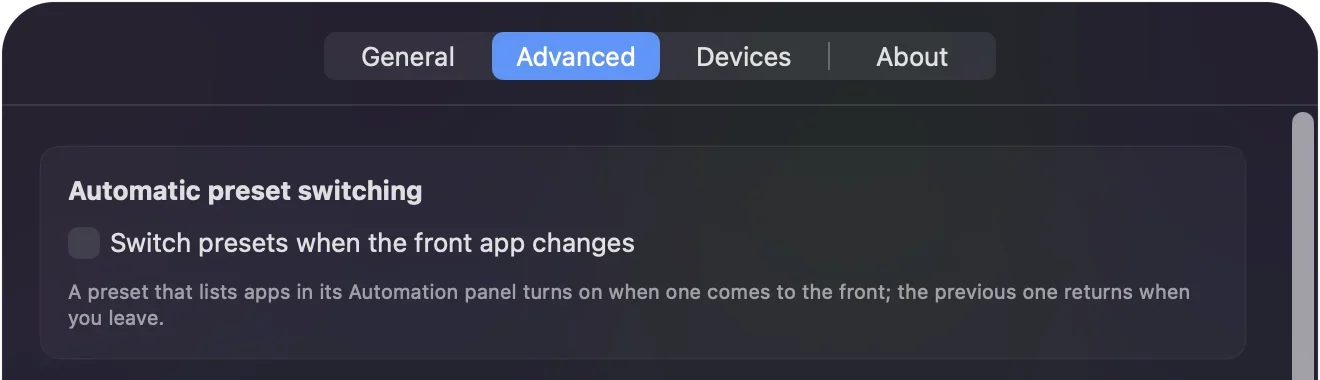
Step 1: Turn on switching
- You: Open Settings, Advanced, and tick Switch presets when the front app changes.
- InputConfig: Watches the front app. It is off until you turn it on.
- Check: The activity log in the main window records every automatic switch and the app that caused it.
Step 2: List the game, not Steam
- You: Open the game's preset, expand Automation & Gaming Utilities, and under Activate when these apps are in front, press the plus button. In Go to Folder, the Steam games are in ~/Library/Application Support/Steam/steamapps/common, each game's app inside its own folder.
- InputConfig: Runs that preset whenever the game is in front.
- Check: Open the game and each press does one thing. If one does two, Steam Input is still on for that game.
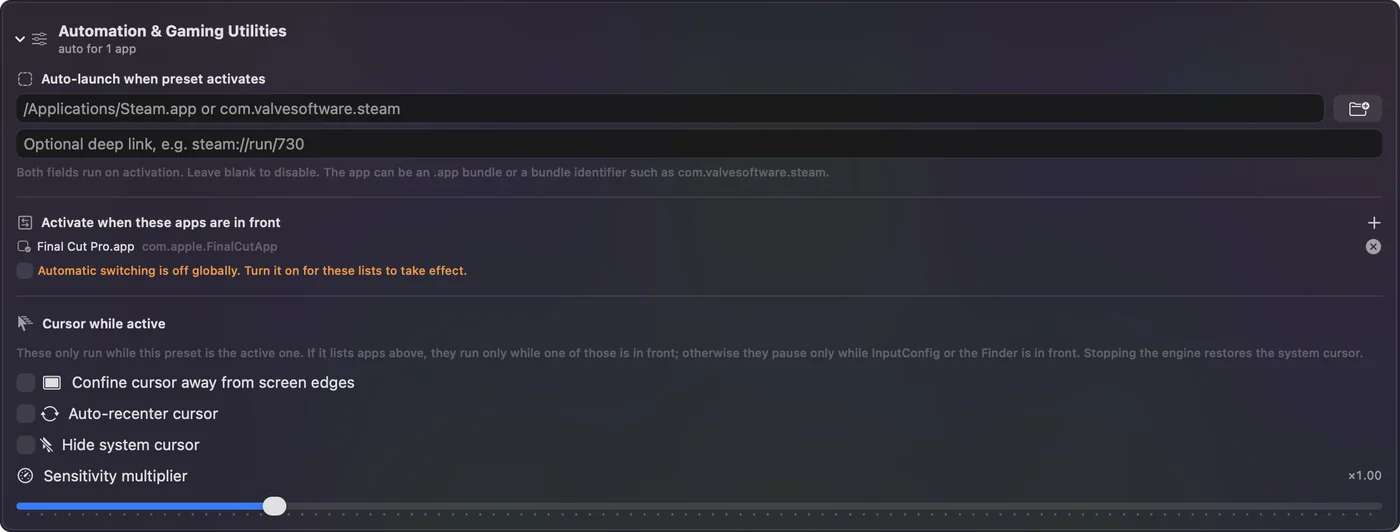
For a game that reads the pad on its own, the same list does the opposite job: a preset with nothing bound, listing that game, keeps the desktop layout from doubling its presses. Leave one preset with no apps listed, and it is the home every game hands back to. If two presets list the same app, the one higher in the sidebar wins.
Stop the two fighting in Steam
Steam's per-game setting decides whether Steam Input translates for that game at all. In the Steam library, right-click the game, open Properties, then Controller, and choose Disable Steam Input for any game where InputConfig does the mapping. The controller icon on the game's page reaches the same setting.
- Big Picture. Steam reads the pad there itself. I would make a preset with nothing bound that lists Steam, so your desktop layout does not also move the pointer while you browse the library.
- The Desktop Layout. If Steam's desktop layout is active and your InputConfig desktop preset runs too, the pointer gets two drivers. Quit Steam when you do not need it, or turn off Steam's support for your type of pad in Steam, Settings, Controller.
- The Steam Controller. Steam and InputConfig both manage its built-in keyboard and mouse mode, called lizard mode, and the two fight, which looks like flicker or bindings that come and go. Quit Steam while an InputConfig preset runs. The 2026 model, which InputConfig reads as an experimental feature, needs Steam quit too.
Pause InputConfig without quitting it
Sometimes you just want Steam to have the pad for a while. You can step InputConfig aside in a second, and nothing you set up is lost:
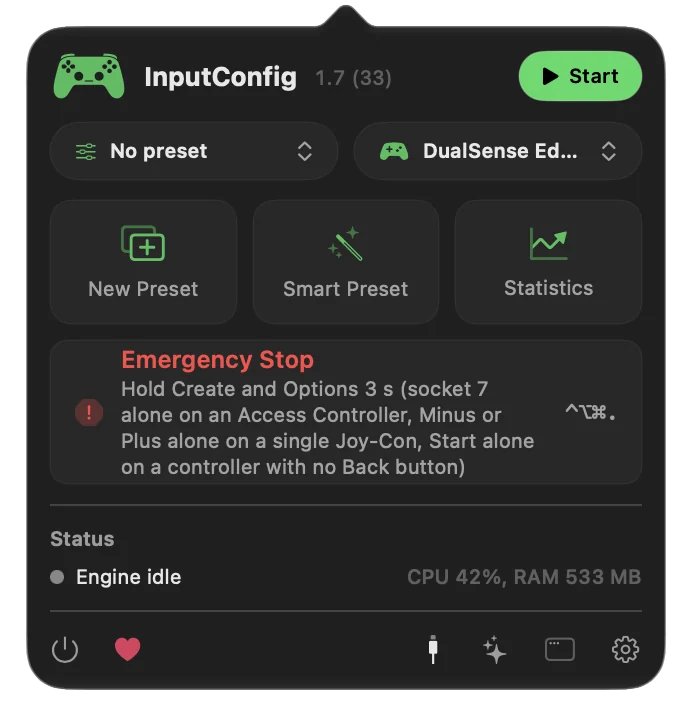
- Stop from the menu bar. Click the InputConfig icon and press Stop. The icon is green while a preset runs.
- Use the global shortcut. Settings, General can set one that toggles the most recent preset on and off.
- Pause the switching. Turn off Switch presets when the front app changes. Each preset keeps its app list for when you turn it back on.
- Emergency stop. Control Option Command period, or Back and Start held for three seconds, halts everything and lets go of every key. It deletes nothing.
If presses still double or vanish
Climb this ladder, smallest step first:
- Look at what is running. The menu bar icon is green while a preset runs. If you meant Steam to have the pad, stop the preset.
- Flip the game's Steam Input. In Properties, Controller. Disabled when InputConfig maps the game, and either setting when the game reads the pad itself, whichever the game wants.
- Check the app list. For a Steam game, list the game's own app, not Steam, and make sure no second preset higher in the sidebar lists it too.
- Read the activity log. It shows every automatic switch and every controller connect and disconnect, so you can see which preset was live.
- Give Steam the permission. If Steam loses the pad outside Big Picture, allow Steam in System Settings, Privacy & Security, Input Monitoring, then quit and reopen Steam. That is Steam's own permission, separate from InputConfig's.
What it cannot do
- It cannot hide the pad from a game. InputConfig does not take a controller away from Steam or a game, so the fix for doubled presses is an empty preset or Steam Input off, not a block.
- It does not present a virtual controller. It sends keyboard and mouse input. A game that wants a gamepad needs Steam Input or its own support.
- It switches by app, nothing finer. A preset follows the app in front, not a mode inside Steam.
The short version
- Both can run. InputConfig does not lock the controller, so Steam and games keep seeing it.
- One translator per game. Steam Input or an InputConfig layout, with Steam Input set to Disabled where InputConfig maps.
- Let it switch. Turn on Switch presets when the front app changes, list each game's own app, and keep one home preset.
- Steam Controller. Quit Steam while InputConfig drives it.
Give every game exactly one app that answers the pad, and the two never get in each other's way.
Questions
Does InputConfig block my controller from Steam?
No. InputConfig reads the controller without taking it away, so Steam and games still see it while a preset runs. The Steam Controller is the exception, because Steam and InputConfig cannot both drive it.
Why does every button press twice in my Steam game?
Two apps are answering it: the game or Steam Input, and an InputConfig preset. Set Steam Input to Disabled for that game in Properties, Controller, or give the game a preset with nothing bound.
Do I need to quit Steam to use InputConfig?
Only with a Steam Controller. With a PlayStation, Xbox or Switch pad, both can stay open, as long as each game has one translator.
Should I use Steam Input or InputConfig?
Steam Input in Steam games where it works. InputConfig for games it does not reach, games outside Steam and the rest of the Mac.
How do I pause InputConfig while I play a Steam game?
Press Stop in the menu bar popover, use the global shortcut from Settings, General, or let a preset with nothing bound take over when the game comes to the front.
Related
Completely free. You don't have to make an account, there are no subscriptions, and nothing is locked. Optimized for Apple silicon. Open source on GitHub.
Updated