Does Steam Link work on a Mac, and how do you use it with a controller
 InputConfig is completely free on the Mac App Store. You don't have to make an account, there are no subscriptions, and nothing is locked. Optimized for Apple silicon.
Yes, Steam Link works on a Mac. It is Valve's free app for playing games that run on another computer with Steam, usually a gaming PC on the same home network: the game runs there, and the Mac shows the picture and sends your controller, keyboard and mouse back. Steam itself on a Mac can do the same job through Remote Play, with no extra app. A controller paired with the Mac goes to the PC through the stream, which is why it works in the game and does nothing on the Mac desktop.
That desktop part is where InputConfig, the free Mac app I make, fits: it lets the same controller move the pointer, open Steam Link with one button and send keys, and it stays out of the stream while you play.
On this page: 11 sections
- Steps
- Know what Steam Link on a Mac is in 2026
- Set it up and check each end
- Know how the controller reaches the PC
- Why the controller works in the stream and not on the Mac desktop
- Use InputConfig for the Mac around the stream
- If the stream shows a black screen
- Exit, quit or uninstall Steam Link on a Mac
- What it cannot do
- The short version
- Questions
Steps
- Turn on the gaming PC, open Steam on it and sign in.
- Install Steam Link from the App Store on the Mac and make sure the Mac is on the same network as the PC.
- Pair the controller with the Mac in System Settings, Bluetooth, or plug it in.
- Open Steam Link, pick the PC and follow the pairing steps on screen.
- Press a button and check that Steam's menus move on the stream.
- To quit, choose Quit from the Steam Link menu in the menu bar or press Command Q.
Know what Steam Link on a Mac is in 2026
There are two ways to stream a Steam game to a Mac, and both come from Valve:
- The Steam Link app. Valve's free app, listed on the App Store for iPhone, iPad, Mac, Apple Vision and Apple TV. When I read its App Store listing on October 22, 2026, the Mac version asked for macOS 12.0 or later and the current version was 1.4.2, from October 14.
- Steam's own Remote Play. Valve's Remote Play support page, read the same day, says you sign in to Steam on the computer with the game, sign in on another computer, and the game shows in that library with Stream instead of Play. A Mac with Steam installed is that other computer.
Valve's Remote Play page lists macOS among the devices with a Steam Link download, next to iPhone, Apple TV, Android, Raspberry Pi and Meta Quest. The game always runs on the host, which can be Windows, Linux or another Mac. The Mac is only the screen and the hands: the computer running the game does all the work.
Set it up and check each end
Step 1: Get the host ready
- You: Turn on the PC, open Steam, sign in, and launch the game there once so it is up to date, as Valve's troubleshooting steps suggest.
- Steam: Announces itself on the local network.
- Check: Steam on both ends should be up to date. Valve recommends a wired network for the host, and the Steam Link listing recommends Ethernet to the router and the 5 GHz band for the receiving device.
Step 2: Connect the controller to the Mac
- You: Pair the controller in System Settings, Bluetooth, or plug it in.
- macOS: Lists it in Game Controllers in the System Settings sidebar.
- Check: Press a few buttons in Game Controllers. If nothing lights, fix that first, because the stream can only pass on a pad the Mac sees. How to connect a controller to a Mac has the pairing buttons.
Step 3: Connect to the PC
- You: Open Steam Link, choose the PC and follow the steps on screen.
- Steam Link: Opens Big Picture from the PC and sends the controller across.
- Check: The D-pad moves through Big Picture. If the PC never appears, Valve says the two computers must be on the same subnet, that nothing else may use UDP port 27036, and, for a Mac client, to try rebooting after Steam is updated.
Know how the controller reaches the PC
Valve's support page puts it plainly: audio and video come from the computer running the game, and the game input, keyboard, mouse or gamepad, goes from the device you are holding to the game on that computer. So the controller you pair with the Mac is handed to Steam on the PC, and the Steam Input settings that apply are the ones on the host. If a game ignores the pad, Valve's advice is to check whether Big Picture recognizes it in the controller settings on the client.
Valve does not publish a Mac-specific controller list. The App Store description, written for iPhone and iPad, says to pair an MFi or Steam controller. Valve's Apple Steam Link page lists the Steam Controller, MFi controllers, the Xbox One S controller and the DualShock 4, the last two on iOS and tvOS 13 and higher, plus the Razer Kishi. If the Mac lists a pad in Game Controllers and Big Picture moves with it, the stream has it.
Why the controller works in the stream and not on the Mac desktop
Steam Link reads the controller and sends every press to the PC. Nothing on the Mac turns a controller into a pointer, and macOS on its own can only swap one controller button for another inside games that support controllers. So the moment you leave the Steam Link window, the pad has nothing to talk to, and you reach for the trackpad to switch apps or pick the next game.
That gap is the Mac side, and it is where a mapper helps. Steam Input on the PC covers the stream, and a preset on the Mac covers everything around it. Steam Input outside Steam explains why Steam's own Desktop Layout often does nothing on a Mac.
Use InputConfig for the Mac around the stream
I set it up like this, and each part is an ordinary InputConfig feature:
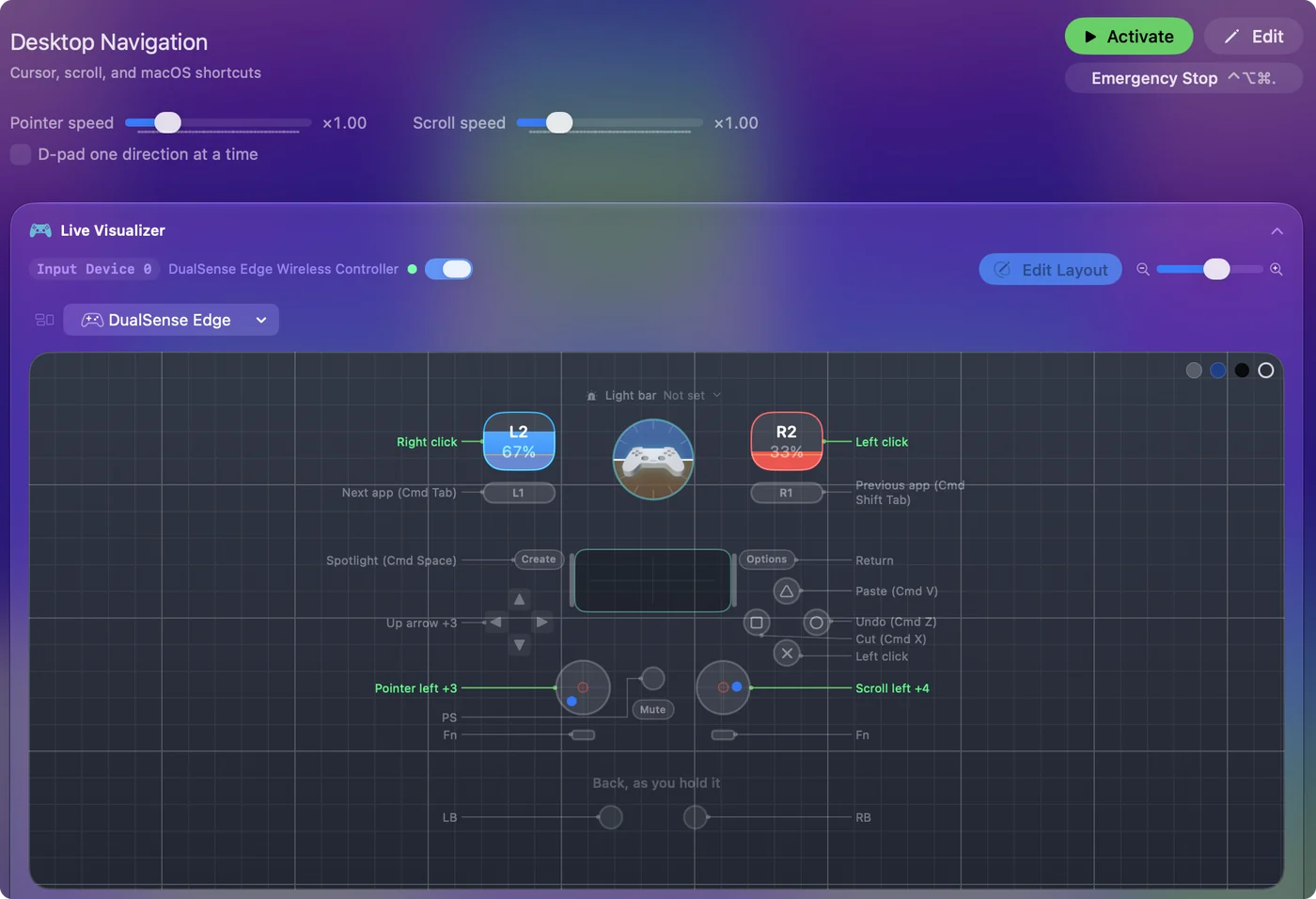
- A desktop preset. The built-in Desktop Navigation preset puts the pointer on a stick and clicks on the triggers, so you can move around the Mac from the sofa.
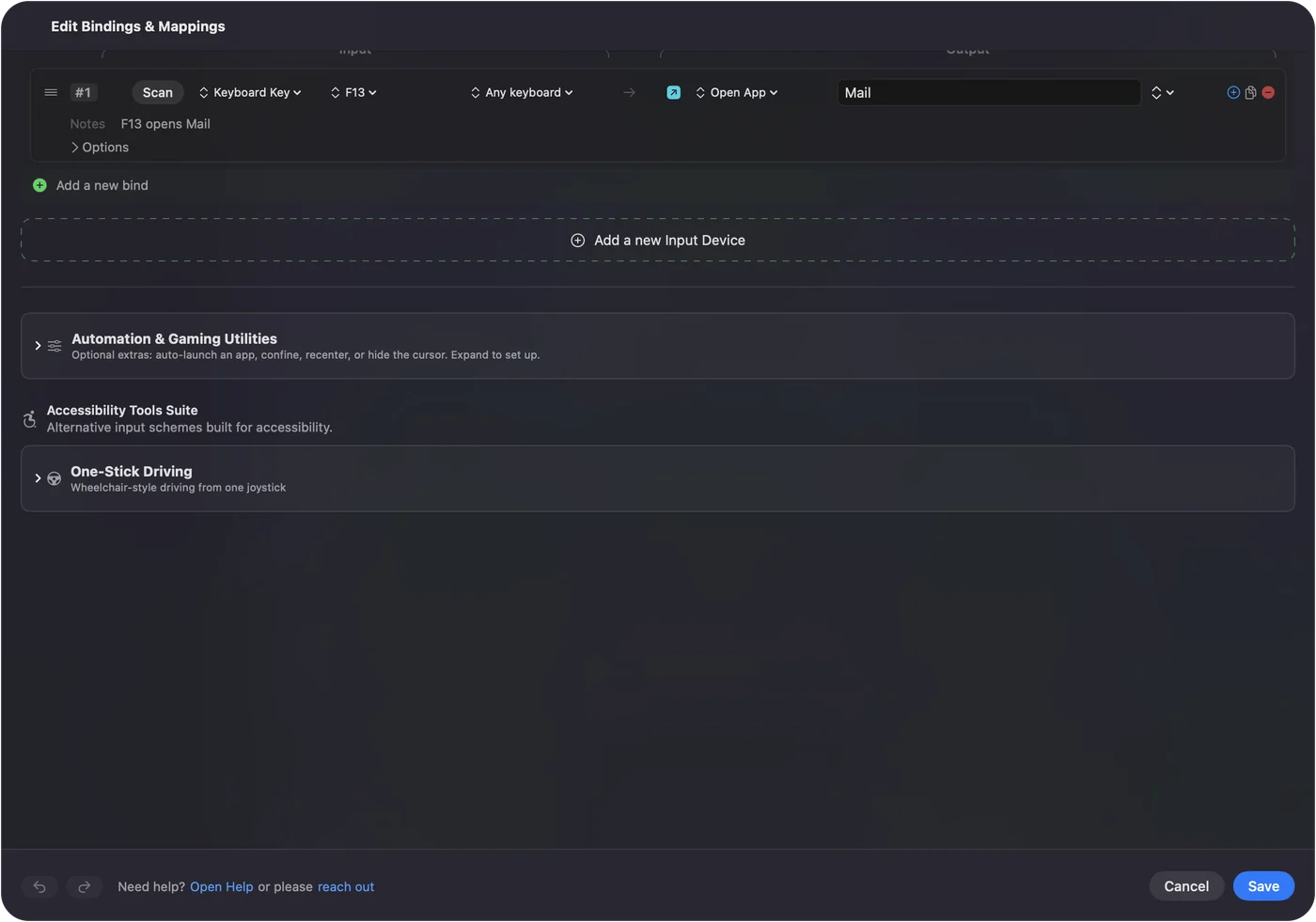
- A button that opens Steam Link. Give a row the System Function output Open App and pick Steam Link. One press launches it, or brings it to the front.
- An empty preset for Steam Link. Make a preset with nothing bound, list Steam Link under Activate when these apps are in front, and turn on Switch presets when the front app changes in Settings, Advanced. While the stream is in front, that empty preset runs, so the pad goes only to the PC.
- Keys for anything that needs them. If a streamed game ignores the pad, a preset can send its keys and mouse movement instead, and Steam Link carries those to the PC too.
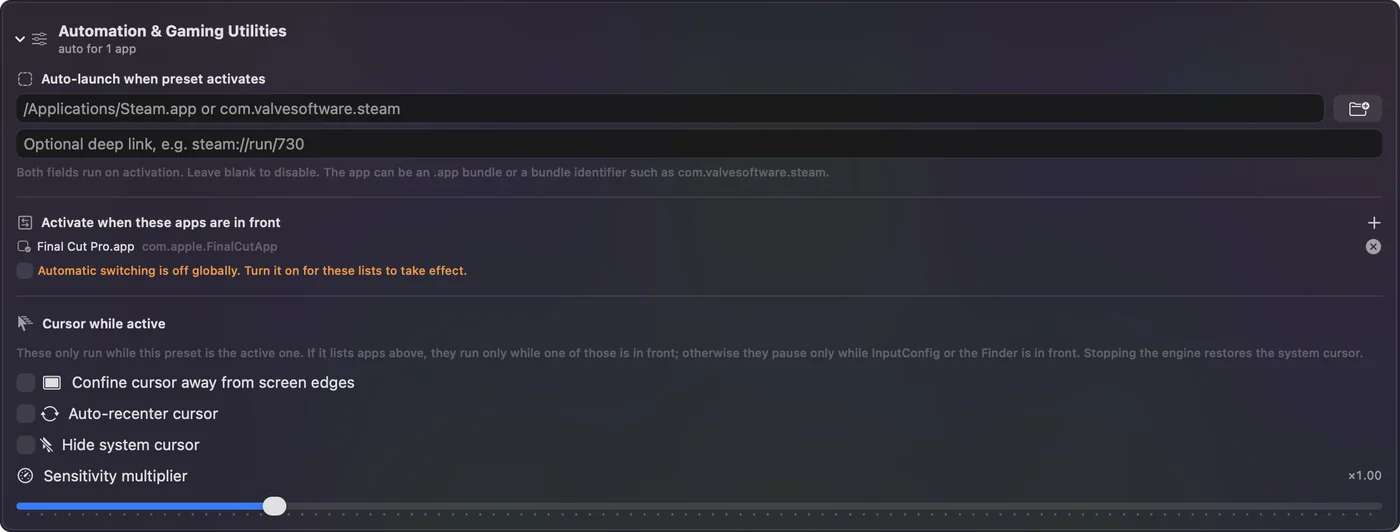
The empty preset matters. If the stream passes the pad and a preset sends keys at the same time, the game gets every press twice. When you leave Steam Link, the preset you had before comes back, so the desktop layout returns by itself. The emergency stop, Control Option Command period, turns everything off if you need it.
If the stream shows a black screen
Valve's Remote Play page covers this, and its advice is for the whole session, not one game. Climb this ladder, smallest step first:
- Check it is every game. If only one game is black, Valve asks you to report that game, because the fix is on the game's side.
- Update both ends. Valve says to update the video drivers on both computers and keep Steam up to date.
- Turn off hardware encoding on the host. It is in the advanced host options of Steam's Remote Play settings on the PC.
- Turn off hardware decoding on the client. It is in the advanced client options on the Mac side.
- Look at the colors. Valve names a known clash between NVIDIA hardware encoding and the hardware decoder on macOS that shows big blocky color areas, and the fix is the same: hardware encoding off on the host.
- Give a Mac host Screen Recording. When the Mac is the host, users on Steam's forums report that allowing Steam in System Settings, Privacy & Security, Screen Recording cleared a black stream. Valve's page does not say this, so treat it as a report.
If the PC is not found at all, check the ports Valve lists: UDP 27031 and 27036, and TCP 27036 and 27037.
Exit, quit or uninstall Steam Link on a Mac
- Quit it. Choose Quit Steam Link from its menu in the menu bar, or press Command Q while it is in front, as with any Mac app.
- Force it closed. If a black or frozen stream hides the menu bar, press Option Command Escape and force quit Steam Link.
- Uninstall it. Quit it, open the Applications folder in the Finder and move Steam Link to the Trash. It came from the App Store, so it can be downloaded again at any time.
When you stream with Steam's own Remote Play instead, Valve's page notes that if the game loses focus on the host, Steam starts streaming the host's desktop so you can get back to it.
What it cannot do
- Steam Link cannot stream to a Quest from a Mac. Valve's Remote Play page lists Meta Quest 2, 3 and Pro, and the requirements for that are a computer with Steam and SteamVR on Windows 10 or newer and an NVIDIA GTX 970 or better. A Mac cannot be the host for it.
- An Apple TV can stream from a Mac. Valve's Apple Steam Link page lists a Mac running Mac OS X 10.10 or newer as a host, and its Remote Play page says streaming from a macOS host works on 10.8 and newer. The game still has to run on that Mac.
- InputConfig does not appear on the PC as a controller. It sends keys, clicks and pointer movement from the Mac. For a game that needs a real gamepad, let Steam Link pass the pad.
The controller lists on this page are Valve's, not tests of mine.
The short version
- It works. Install Steam Link from the App Store, or use Remote Play in Steam on the Mac.
- The pad goes to the PC. Its settings live in Steam on the host, which is why it does nothing on the Mac desktop.
- Black screen. Update both ends, then turn off hardware encoding on the host and hardware decoding on the client.
- The Mac side. A desktop preset, an Open App button for Steam Link, and an empty preset that lists Steam Link.
Give Steam Link a preset with nothing bound, and the controller works the Mac and the stream without ever doing both at once.
Questions
Does Steam Link work on a Mac?
Yes. Valve's Steam Link app is on the App Store for Mac, and its listing asked for macOS 12.0 or later when I read it on October 22, 2026. Steam on a Mac can also stream from another computer through Remote Play.
Why does my controller work in Steam Link but not on my Mac?
Steam Link sends the controller to the PC, so only the stream reads it. macOS has no setting that turns a controller into a pointer. A mapper such as InputConfig covers the Mac desktop.
Can I use Steam Link on a Meta Quest 3 with a Mac?
Not with a Mac as the host. Valve lists Windows 10 or newer with SteamVR and an NVIDIA GTX 970 or better for Steam Link on Quest.
How do I fix a Steam Link black screen on a Mac?
Valve's steps are to update the video drivers on both computers, turn off hardware encoding in the host's advanced Remote Play settings, then turn off hardware decoding in the client's advanced settings.
How do I exit Steam Link on a Mac?
Press Command Q or choose Quit Steam Link from its menu in the menu bar. If the stream hides the menu bar, press Option Command Escape and force quit it.
Related
Completely free. You don't have to make an account, there are no subscriptions, and nothing is locked. Optimized for Apple silicon. Open source on GitHub.
Updated