Questions
Deltarune controller not working on a Mac
Check four things in order: that the Mac sees the pad, a relaunch with the pad awake, the Steam Input override, and the game's own controls screen. Deltarune has a Mac version on Steam, and Steam lists full controller support for it, PlayStation pads included, so for most people a controller just works.
If none of the four fixes it, the game is only seven keys, which makes the fallback easy: InputConfig, the free mapper I make, can send those keys from the pad.
On this page: 9 sections
Steps
- Open System Settings, Game Controllers, and press a button to confirm the Mac sees the pad.
- Quit Deltarune, wake the controller, and launch the game again.
- Flip the Steam Input override in Deltarune's Properties, Controller, and relaunch.
- Check Config, Controls in the Dark World menu, and remap the gamepad there if the game reacts.
- If it still ignores the pad, map the arrows, Z, X and C to the controller with InputConfig.
Check the Mac sees the controller
- You: Open System Settings, click Game Controllers in the sidebar, and press a button.
- macOS: Lights the button on its picture.
- Check: If the pad is not listed, or nothing lights up, the problem is the pairing, not Deltarune.
Forget the controller in Bluetooth settings and pair it again (PS5, Xbox, Switch Pro). If Game Controllers is missing from the sidebar altogether, that has its own page. If nothing lights here, no game will see the pad either.
Relaunch with the pad awake
Quit Deltarune completely, press a button on the controller so it is awake and connected, then open the game again. A pad that connects after the game has started, or that went to sleep while it was open, may not be picked up until the next launch.
Flip the Steam Input override
In the Steam library, right-click Deltarune, open Properties, then Controller, and change the override: if it is on, try Disable Steam Input, and if it is off, try Enable. Relaunch after each change and press a button in the game.
Why that is. Steam can sit between the pad and the game, and this is the switch most worth trying.
Check Deltarune's own controls
Open the menu in the Dark World and choose Config, the option with the wrench, then Controls. Every action can be remapped there, for the keyboard and the gamepad, and Reset to default puts them back. If the controls screen reacts to your pad, the game is reading it, and a mapping there is the fix.
One quirk the community wiki notes: the left trigger is set to Confirm by default, and once you rebind it, that goes away until you reset.
 InputConfig is free on the Mac App Store. macOS 14 or later, no account, no tracking, open source.
Send it keys, the fix that always works
Deltarune is a keyboard game underneath: the arrow keys move, Z confirms, X cancels and runs while held, and C opens the menu. A keyboard is never undetected. InputConfig reads your controller and sends those keys, so Deltarune sees a keyboard and you hold the pad. There is no ready-made Deltarune layout in the app, so you set it up once.
Step 1: Fill the preset
- You: Connect the controller and open InputConfig. Make a new preset, and with your controller's group selected choose Automatically insert available inputs.
- InputConfig: Gives every stick, trigger and button a row.
- Check: The editor lists your controller's controls.
Step 2: Give it the seven keys
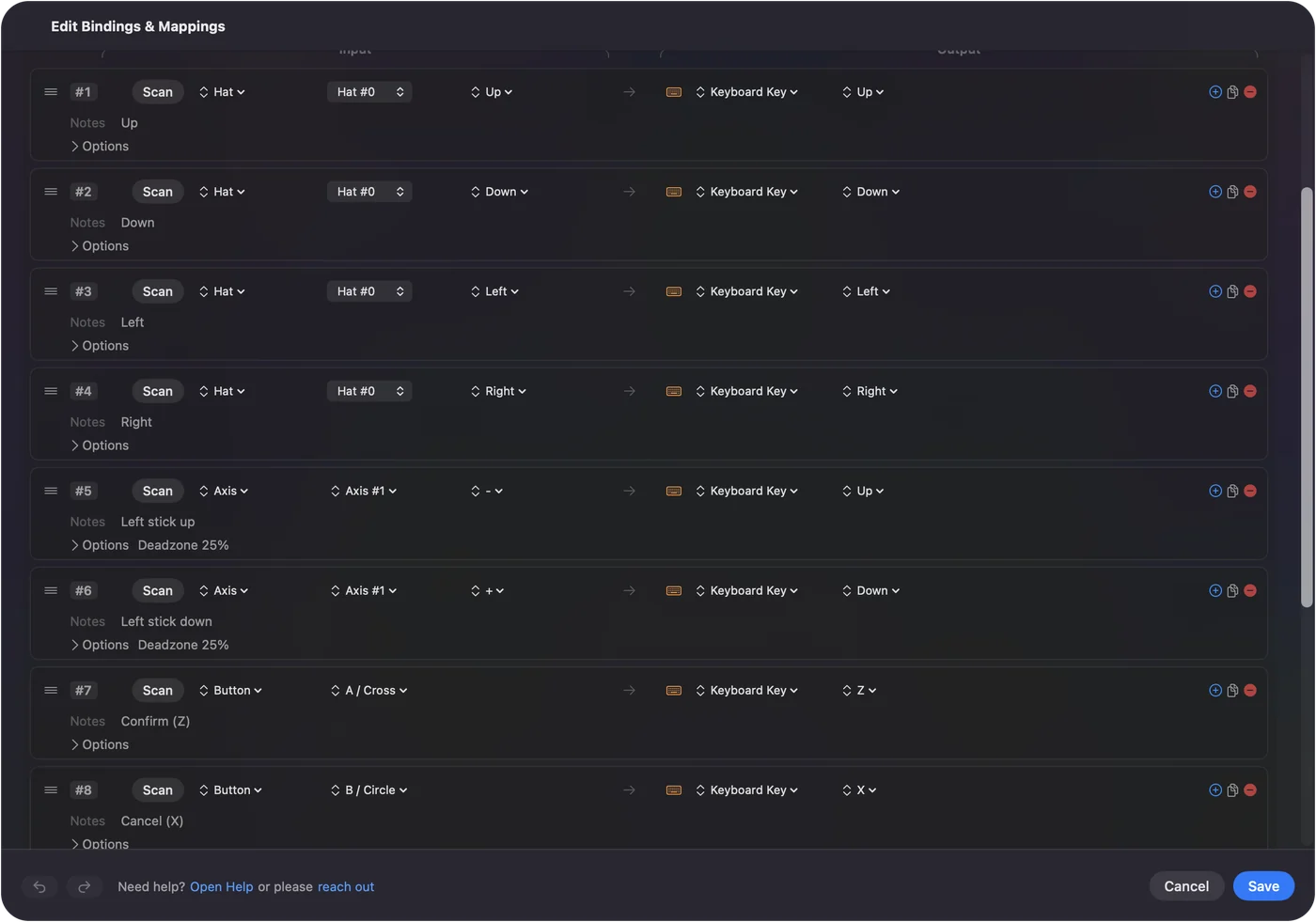
- You: Give the D-pad and the left stick the four arrow keys. Give the bottom face button Z, the right face button X, and the top face button C. Leave the rest empty.
- InputConfig: Shows each row's job in the Live Visualizer's key beside the drawing.
- Check: The drawing names the jobs before the game is even open.
Step 3: Activate and test
- You: Press Activate, then press each button once in the game.
- InputConfig: Sends one key per press.
- Check: Each press does one thing. If a press does two, Deltarune is also reading the pad; turn off one of them.
Step 4: Start it with the game
- You: In the preset's Automation & Gaming Utilities section, add Deltarune under Activate when these apps are in front, and turn on Switch presets when the front app changes in Settings, Advanced.
- InputConfig: Turns the preset on whenever the game is in front.
- Check: Bring Deltarune to the front and the preset starts.
Keep Escape off the controller: holding it quits the game.
Choose the stick or the D-pad for fights
The bullet boxes want small, exact moves, and the D-pad is four switches, which is exactly what the arrow keys are.
- A stick that creeps. If you prefer the stick and the soul creeps after you let go, open Adjust live on a stick row and raise the deadzone a little.
- Diagonals. They come from two arrows at once, and both the D-pad and the stick send them.
- One direction only. The preset's page has D-pad one direction at a time.
For dodging, I would use the D-pad.
The short version
- Check, relaunch, override. Game Controllers, a relaunch with the pad awake, then the Steam Input override.
- Remap in the game. Config, Controls, if the game reacts to the pad.
- Fallback. Arrows, Z, X and C on the pad with InputConfig.
Seven keys are the whole game, so the fallback takes five minutes and never fails.
Questions
Does Deltarune have controller support on Mac?
Yes. Steam lists full controller support for the Mac version, including DualShock and DualSense support. If your pad does nothing, check that macOS sees it, relaunch, and flip the Steam Input override before anything else.
What are Deltarune's keyboard controls?
The arrow keys move, Z or Enter confirms, X or Shift cancels and runs while held, C or Control opens the menu, and F4 toggles fullscreen. Holding Escape quits, so keep Escape off the controller.
Can I use the same setup for Undertale?
Yes. Undertale uses the same keys. Playing Undertale with a controller on a Mac has its own page.
Related
Free. macOS 14 or later. No account, nothing leaves your Mac. Open source on GitHub.